
Movavi Video Editor
Create awesome videos easily

Everyone pumps out a massive number of TikTok clips and YouTube Shorts right now, so a fast video editing workflow for your channel is a must. Names like Clipchamp, Premiere® Pro, actually Adobe® Premiere® at the moment, are well known, and below is their detailed, side-by-side comparison. A little spoiler: Premiere® rules professional film workflows and deep color grading, while Clipchamp wins for quick social content and instant text-to-speech voiceovers.
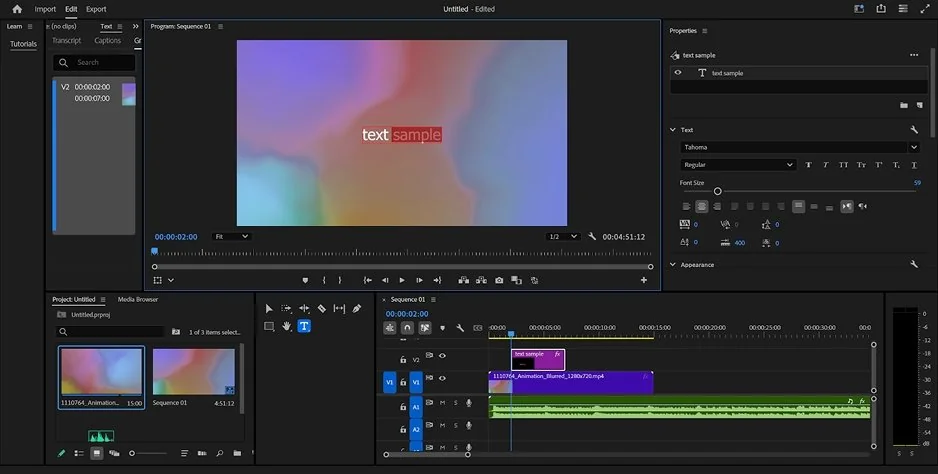
Adobe® Premiere® Pro
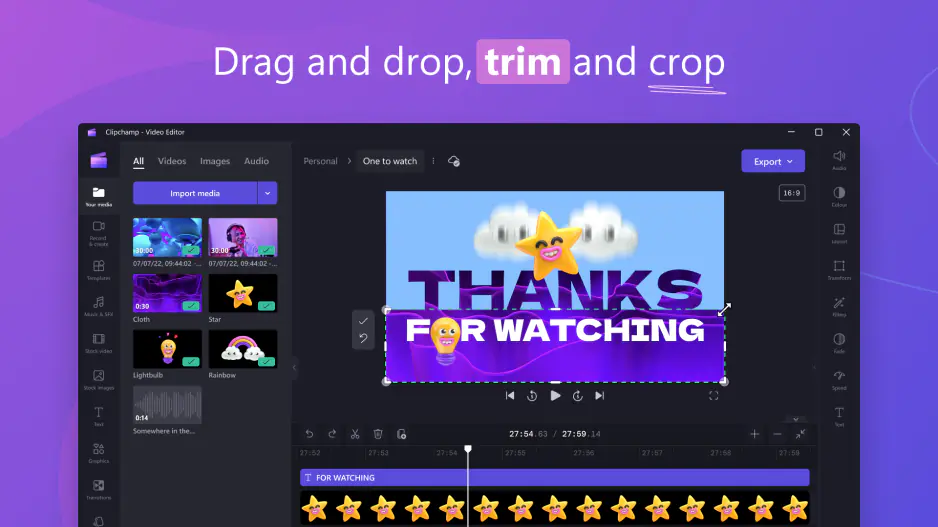
Clipchamp
Adobe® develops Premiere® Pro as a timeline software application designed for professional video editors, filmmakers, and serious content creators. It sets your main workspace around a horizontal track system where you cut, stitch, and fine-tune high-end production clips.
Microsoft brings Clipchamp to the world as an online, browser-based video maker built for casual creators, daily vloggers, and business teams. This web application targets rapid social content delivery, featuring pre-made canvas templates, automated text tools, and an embedded stock library on the toolbar.
Comparing Premiere® Pro vs. Clipchamp, one serious distinction is obvious about their layouts. Premiere® runs locally as a track-heavy timeline desktop app, while Clipchamp operates as a cloud-based layout.
Setting up a complex sequence inside the traditional Premiere® Pro track setup requires immense patience and extensive training portal study. Clipchamp completely skips these professional installation hurdles and tough learning curves. How? It allows you to edit directly inside Google Chrome or Microsoft Edge. Newcomers can launch the app from the Windows Start menu, use basic drag-and-drop mechanics, and share social clips online almost instantly.
Winner:
Clipchamp. Its straightforward browser layout eliminates technical barriers and lets beginners edit immediately.
The technical division between Clipchamp vs. Premiere® Pro tools becomes obvious when you evaluate core timeline engineering assets.
Premiere® Pro handles deep professional demands like native multicam tracking, three-point editing, and advanced audio mixing across independent track channels. Its specialized Color Mode supplies built-in video scopes and curve controls to fix raw or log footage automatically on import without lookup tables.
Clipchamp provides none of these broadcast-level engineering tools. That can greatly limit your creative adjustments to standard tasks like cropping, rotating, and basic text overlays. However, it compensates by giving you direct access to an immense in-app library of royalty-free stock assets, stickers, images, and music tracks right on the toolbar.
Winner:
Premiere® Pro. Thanks to its frame-accurate track architecture, multicam support, and raw color tools.
The playback engine inside Premiere® relies on local hardware power. It uses GPU acceleration to parse heavy camera files, native RAW formats, and complex multi-cam timelines inside MOV or MXF containers. This architecture prevents application crashes when you manage massive projects containing hours of footage.
Evaluating the Premiere® Pro and Clipchamp rendering pipeline shows a completely separate framework. Clipchamp runs as an online web application, so the heavy processing happens in the cloud. This keeps your local computer cool and quiet, but it introduces a massive bottleneck. Your project durability, preview smoothness, and exporting speeds depend completely on your local internet connection.
Winner:
Premiere® Pro. Localized hardware optimization delivers superior reliability on massive video files.
The subscription models target completely separate budget structures. A standalone desktop Premiere® license costs $22.99 per month on an annual commitment, which includes a 7-day free trial but no permanent free desktop option. Students and teachers qualify for an educational rate of $19.99 per month for the first year.
Meanwhile, the rival Clipchamp app offers a fully functional free tier that gives you unlimited watermark-free exports at 1080p resolution. To unlock 4K UHD exports and premium commercial libraries, you can purchase any Microsoft 365 Personal or Family plan starting at $9.99 per month and automatically receive all Clipchamp premium editing features at zero extra cost.
Winner:
Clipchamp. Thanks to its unrestricted free tier and highly affordable Microsoft 365 bundle options.
Premiere® functions across traditional desktop workstations running Windows or macOS, optimizing smoothly for Apple Silicon and PC processors. It also expands into a mobile application family by providing a free standalone app for iPhone. This mobile setup lets you shoot clips or assemble YouTube Shorts on your phone, then transfer the file to a desktop computer via cloud storage to polish the advanced sequence.
However, Clipchamp operates primarily as a cloud-based in-browser application accessible from both Mac and Windows systems. For local desktop use, Microsoft pre-installs the software right in the Start menu on Windows 11 or offers a simple download from the Microsoft Store for Windows 10.
Winner:
Premiere® Pro. Its unified mobile-to-desktop family layout supports deep multi-device workflows.
Artificial intelligence handles entirely separate automation goals inside the modern Clipchamp and Premiere® Pro landscape. Premiere implements AI to eliminate tedious timeline preparation. Its Text-Based Editing automatically transcribes your clips upon import, allowing you to execute rough cuts by simply copying and deleting text transcripts like a text document. It also uses Media Intelligence for natural-language footage search and Generative Extend to generate missing ambient sounds or extra video frames.
Now, Clipchamp. The software utilizes AI to automate vocal and text asset generation. It features a natural AI text-to-speech voiceover engine supporting multiple global languages, alongside a smart AI subtitle generator that automatically tracks over 80 languages. It also offers an automatic silence removal tool to instantly clean up filler words and awkward pauses in meeting records or daily vlogs.
Winner:
Tie. Premiere® Pro uses AI to perfect professional organization, while Clipchamp uses AI to speed up voice narration and caption creation.
Audio editing reveals a massive difference between these two programs. Premiere® Pro forces you to mix everything manually, change decibel levels, and clear background noise line by line on your timeline layers. This setup gives you total control, but it requires serious patience and tech experience.
The Premiere® Pro and Clipchamp matchup shows a much easier path for voice tracks. Clipchamp utilizes smart AI audio tools to clean up voice clarity instantly. The tool automatically detects and cuts background clutter, long silent pauses, and annoying filler words from your vlogs or meeting records. Rookies can polish an entire interview track with a single click without touching advanced sub-menus.
Winner:
Tie. Clipchamp has rapid automated voice cleaning, though Premiere® wins for complex multi-track mixing.
Production speed often depends on where you source your background music, sound effects, and video clips. Premiere® Pro connects users to Adobe® Stock®, but most high-quality files require additional subscription costs or separate licensing fees. You must find, download, and import your own graphic assets and b-roll clips locally.
A direct Clipchamp Premiere® Pro evaluation shows that Clipchamp handles media sourcing much better for fast social clips. It embeds thousands of royalty-free stock videos, images, music tracks, stickers, and GIFs right on the toolbar. You can build an entire presentation or social video for work or school without filming original footage.
Winner:
Clipchamp. Its vast library of free stock media sits right inside the main app window.
Adobe® Premiere® Pro
Frame-accurate track timeline built to organize hours of raw footage.
Native multi-camera tracking tools that sync separate audio and video sources.
Deep built-in Color Mode featuring waveform scopes and curve controls.
Open export framework supporting master-grade ProRes, MOV, and MXF files.
Demands a costly monthly subscription with no permanent free desktop version.
Requires a high-end localized computer workstation with expensive hardware specifications.
Microsoft Clipchamp
Zero-installation browser app that launches instantly on standard consumer laptops.
Generates completely watermark-free 1080p video exports on a free-tier account.
Built-in natural AI text-to-speech engine with multiple global languages.
Bundled at zero additional cost inside existing Microsoft 365 personal subscriptions.
Highly dependent on local internet connection speeds for project stability.
Completely lacks professional color scopes, multicam editing, and raw camera codecs.

Selecting the optimal software tool comes down to your technical background, delivery deadlines, and project type. Premiere® operates as the industry-standard environment for full-length films, multi-camera interviews, documentaries, and highly customized YouTube content. If your business project demands precision color grading, deep multi-track audio mixing, or native cross-app integration with Photoshop®, Premiere® delivers the required depth.
Clipchamp is the perfect match for rapid social media deployment, where speed to market is your main goal. For creating quick TikTok videos, YouTube Shorts, corporate meeting summaries, or school presentations, it removes all technical friction. Casual creators can record their screen or webcam securely, generate automatic subtitles, drop in stock background music, and share high-quality HD videos online without studying extensive training portals.
This comparison shows that Premiere® Pro and Clipchamp target completely separate phases of the creator market. You utilize Premiere® Pro to manage heavy camera files, coordinate complex multicam edits, and output broadcast-quality file formats. You choose Clipchamp strictly to automate text-to-speech voiceovers, generate fast subtitles, and assemble immediate social media content right from your web browser.
You may need a backup choice because neither product is without its faults. Premiere®, for example, requires an expensive computer workstation, and Clipchamp relies heavily on your web browser speed.
Movavi Video Editor is an offline desktop editing software built for quick, lightweight video creation. This program outperforms both rivals because it delivers professional desktop stability without the technical complexity of Adobe® or the internet lag of Microsoft.
It combines timeline cuts and text layers into one single layout, so you avoid separate software purchases. You slice footage and fix audio files immediately instead of wasting time on advanced training courses. It also offers a single payment option, which frees you from the mandatory monthly subscription fees that make other software too costly over time.


The exact answer is hard to provide because it depends on your workflow and goals. Premiere® Pro is the clear winner for full-length films, multi-camera interviews, and heavy camera files because it gives you 100% manual control over the timeline. Clipchamp wins for rapid social content because you can open your browser and finish a TikTok clip or a YouTube Short in two minutes.
Clipchamp gives you a massive free tier with unlimited 1080p exports and zero watermarks, while its premium plan costs $9.99 a month. Premiere® Pro desktop requires a paid subscription starting at $22.99 a month with a standard 7-day free trial, but its mobile app on iPhone is completely free. Neither application slaps annoying watermarks on your finished video files during official trials or free tiers.
If Adobe® feels too complicated and web-based tools lag your internet connection, choose Movavi Video Editor instead. It runs natively on standard laptops without freezing your system or forcing you into an endless monthly subscription trap. It strips away nested sub-menus to let you slice footage, fix sound files, and apply transitions right away.



1.5M+ users already subscribed to our newsletter