
Movavi Video Editor
Create awesome videos easily
Movavi and CapCut end up pulling people into completely different editing habits. CapCut is the one that gets opened for quick TikToks, rushed captions, vertical clips, and posts that are exported five minutes after the idea appears. Movavi Video Editor feels more comfortable once projects stop being disposable and start turning into longer videos with voice tracks, layered timelines, subtitles, and too many saved versions sitting in the media bin. Below is the full Movavi vs. CapCut comparison, covering where each editor feels genuinely convenient and where the editing process starts slowing down for the wrong reasons.
Best for TikTok: CapCut makes short videos feel quick and effortless. Most of the tools, templates, and effects are clearly designed around the way people edit for TikTok and Reels today.
Best for beginners: Movavi Video Editor is easier to settle into if you’re learning how editing actually works. The interface stays organized, and the timeline feels much clearer for longer projects.
Best mobile workflow: CapCut works better if you edit in small bursts throughout the day. Moving from phone to desktop feels natural, especially for social content.
Best free option: CapCut lets you do a lot before asking for money. The free version includes enough tools and effects to edit and publish videos without feeling too limited.
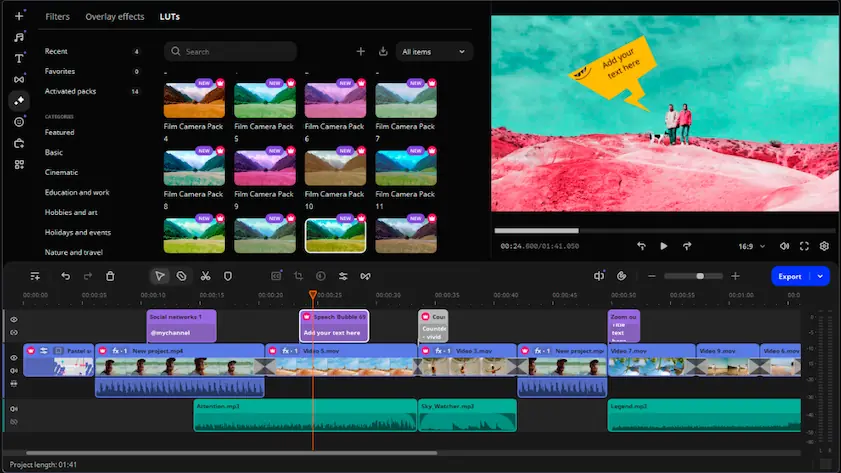
Movavi Video Editor
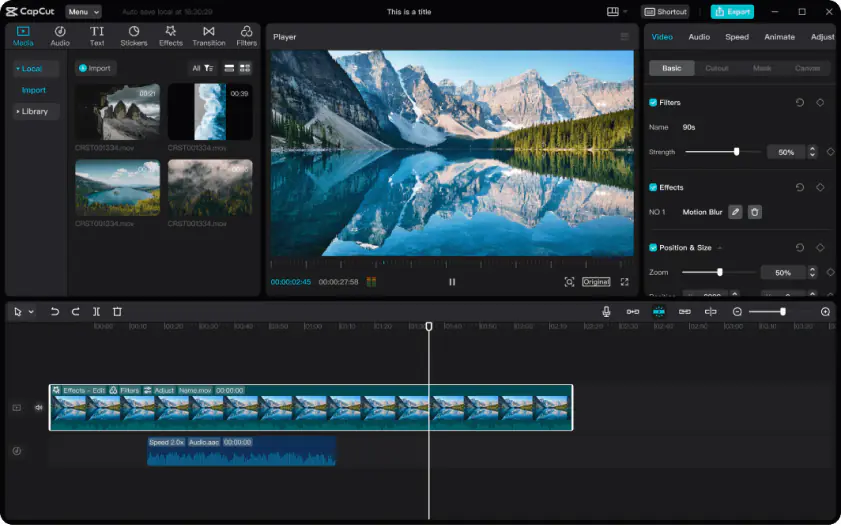
CapCut
Movavi Video Editor feels more settled from the start. The layout stays clean, the timeline is easy to read, and after a few minutes the workflow becomes pretty automatic. Import clips, trim awkward pauses, drag things around, export.
It also handles longer projects better. Once subtitles, extra audio tracks, transitions, and duplicate clips start piling up, the interface rarely feels chaotic.
Compared to Movavi, CapCut moves faster. Open the app and templates, captions, effects, and trending edits are everywhere immediately. For short videos on a phone, that works well. The downside appears later, when crowded timelines and smaller menus start making detailed edits slightly annoying.
Winner: CapCut feels better for quick social posts, while Movavi Video Editor stays easier to manage once projects become longer and messier.
If cleaner timelines and a more structured editing workflow sound appealing, Movavi Video Editor is available for Windows and macOS with a free trial version.
Both editors cover most modern editing basics. Auto-captions, filters, transitions, text overlays, templates, background removal, and AI-powered tools are available in both CapCut and Movavi Video Editor.
CapCut packs in far more ready-made assets. Animated text styles, beat syncing, voice effects, stickers, social-media presets, and huge template libraries are built directly into the workflow. The subtitle system is also very quick, especially for short videos that only need light timing fixes afterward.
Next to CapCut, Movavi Video Editor puts more emphasis on adjustment tools. Motion tracking, chroma key, color correction, keyframe controls, subtitle timing, and noise cleanup are more prominent inside the editor, with more manual control over placement and timing once effects or captions are added.
Export options follow the same pattern. CapCut leans heavily toward vertical social formats and quick publishing presets, while Movavi supports a broader mix of export settings and file formats.
Winner: CapCut offers more built-in effects and templates for editing videos for social media. While Movavi Video Editor puts more emphasis on powerful desktop editing and offers more manual control as well as automated editing tools.
CapCut usually feels quicker during normal editing. Captions generate fast, previews load without much waiting, and exports are generally faster, especially on mobile devices. The free version is also easier to use for finished videos, although some templates, effects, and AI tools require a Pro subscription or can add export limitations depending on the assets used.
Movavi Video Editor behaves differently. Exporting larger files can take longer, particularly in 4K, but the desktop version tends to stay steadier once multiple tracks, subtitles, overlays, and effects are stacked together.
Neither editor is flawless under heavy workloads. CapCut can slow down once too many effects pile up, and Movavi occasionally drags during larger exports.
Winner: faster exports, a more flexible free version, and stronger mobile editing tools give CapCut the advantage here.
CapCut gives people a lot before the paid features become noticeable. Exports work normally, captions generate without much restriction, and many templates and editing tools remain available in the free version. CapCut Pro mainly adds premium assets, extra effects, cloud storage, and certain AI features. Current US pricing usually starts around $9.99 per month.
Movavi Video Editor feels closer to traditional desktop software. A free version is available for testing the workflow and editing tools, although exported videos include a watermark until the paid version is activated. Monthly subscriptions currently start around $19.95, while annual plans are much cheaper over time and usually work out to roughly $4–7 per month depending on the version.
Winner: CapCut simply stays usable for longer before payment starts becoming necessary.
CapCut has ended up in almost every corner of the editing world at this point. Desktop apps, phone apps, browser editing, cloud syncing. A video can get trimmed on a phone, reopened later on a laptop, then exported from a completely different device without much effort spent thinking about file transfers or storage locations.
Movavi Video Editor covers Windows and macOS platforms. While Movavi also offers mobile and browser-based apps, the difference is more about how those versions behave. The desktop editor still feels like the center of the experience, while the mobile and web tools work more like smaller companions for quick adjustments and lighter edits.
CapCut pushes people toward connected workflows where projects move constantly between devices. Movavi feels calmer and more self-contained. Files stay local, projects stay organized in one place, and there is less dependence on syncing everything through the cloud.
Winner: both editors support desktop, mobile, and browser editing, but CapCut handles switching between devices far more smoothly.
Both editors rely heavily on AI now, but the focus is different. CapCut pushes automation and fast content generation, while Movavi Video Editor uses AI more as support inside the editing workflow.
Movavi Video Editor includes:
Most of these features feel practical rather than flashy. Subtitles are easy to retime manually afterward, and tools like background removal or audio cleanup fit naturally into tutorials, interviews, and voice-heavy videos.
CapCut includes:
A lot of these tools work well for quick social edits, especially when speed matters more than precision.
The difference is mostly in control. CapCut generates faster. Movavi Video Editor leaves more room to adjust things afterward instead of locking the workflow around presets and templates.
Winner: CapCut offers more AI features overall, but Movavi’s tools feel more practical and easier to control during real editing work.
If you prefer AI tools with more manual control afterward, Movavi Video Editor is worth trying in the free version.
Movavi Video Editor
Clean desktop interface
Beginner-friendly workflow
Useful AI tools like auto subtitles and background removal
Good for YouTube videos and tutorials
Supports 4K export and multiple formats
Available on desktop and mobile
Watermark in free trial
Fewer templates than CapCut
Slower for TikTok-style editing
CapCut
Excellent for TikTok and Reels
Large template and effects library
Fast AI captions and editing tools
Strong free version
Good mobile workflow
Works on desktop, mobile, and web
Interface can feel crowded
Some AI tools require subscription
Less comfortable for large projects
Heavy focus on trend-based editing
The overlap between these editors is pretty large now. Both can handle social content, YouTube uploads, casual edits, even light business work. Still, after a bit of real use, certain patterns start showing up.
As this CapCut vs. Movavi comparison shows, the biggest difference starts appearing after the first export. CapCut keeps everything moving quickly. Templates load immediately, captions generate in seconds, mobile editing feels lightweight, and most videos can be finished without touching many settings at all. That speed makes sense for social clips that are getting posted almost immediately after editing.
Movavi Video Editor behaves differently. The editor gives more room to adjust things manually once projects start changing shape halfway through. Subtitle timing, motion tracking, chroma key work, layered audio, small corrections that keep appearing after another rewatch. The timeline stays easier to read while all of that starts piling up. CapCut is better at getting videos finished fast. Movavi Video Editor is better at keeping larger edits under control once the project stops being simple.

That usually depends on the kind of footage sitting in your camera roll. CapCut fits fast social content really well. Open the app, trim a few clips, add captions, post. Movavi Video Editor starts making more sense once videos become longer or slightly messier. Voiceovers, subtitles, layered timelines, tutorials. The desktop workflow holds together better there.
In some areas, yes. CapCut puts more emphasis on AI automation for social content, with templates, avatars, instant effects, and quick resizing tools designed for fast publishing.
Movavi Video Editor focuses more on AI tools that improve the editing process itself. Auto subtitles, silence detection, background removal, motion tracking, audio cleanup, and AI enhancement all fit naturally into longer projects and desktop workflows. The tools feel less experimental and more useful in regular editing work.
You can, but the limitations show up in different places. Movavi Video Editor works more like a proper trial version, so exported videos include a watermark until the software is unlocked. CapCut gives away more upfront. Editing and exporting are available for free, although some templates, AI features, and premium assets are tied to the Pro subscription.



1.5M+ users already subscribed to our newsletter