
InShot vs. Capcut: Features, Pricing, Performance Compared

Edited by
Ben Jacklin
9,572

If you want your social media clips to actually go viral, you need to produce catchy movies that stop the scroll. This InShot vs. CapCut breakdown dives into the two apps that basically every modern short-video creator has on their phone right now. One is all about fast manual control for quick posts, while the other uses heavy automation to do the technical work for you. InShot is the move for editing on the fly, but CapCut is the way to go if you want those high-end AI effects and a desktop workflow.

Comparison parameter

InShot

CapCut

Who it's for

Casual vloggers and social media beginners

TikTok creators and trend-chasers

Supported platforms

iOS, Android

iOS, Android, Windows, macOS, Browser

Ease of use

High; vertical thumb-friendly layout

High; familiar multi-track style

Quick summary

Best for TikTok

CapCut is built for this. You get the newest sounds and templates right away, so your posts always match what is trending.

Best for beginners

InShot is very easy to use from the start. The buttons are clear, and you can finish a video without searching through hidden settings.

Best mobile workflow

InShot is built for fast phone edits. The layout fits how you hold your device, making it easy to cut and post a clip while out.

Best free option

InShot is great if you have a zero budget. You can get rid of the watermark by watching one ad, so you don't have to pay.

Ease of use

InShot

CapCut

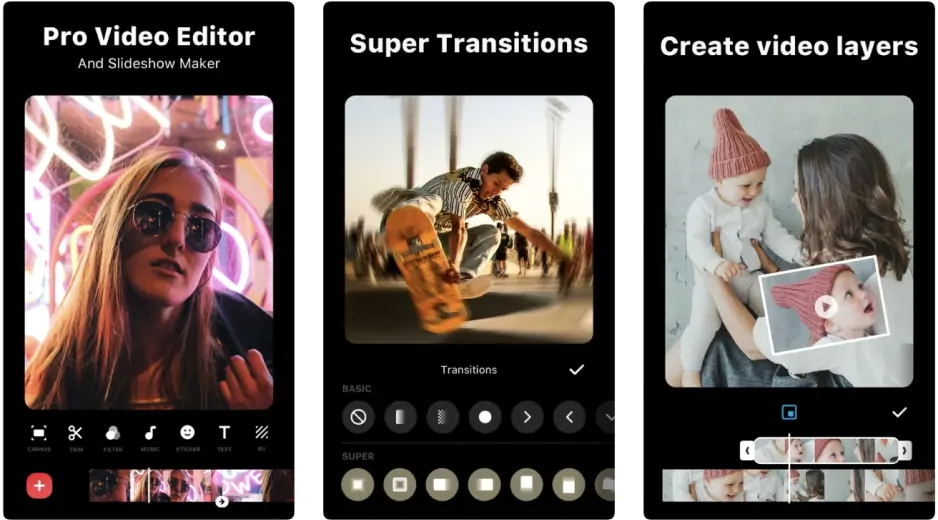
InShot uses a vertical timeline that stays within reach on a phone screen. The buttons have clear icons and names. New users usually finish their first clip in minutes. InShot avoids heavy automation and keeps attention on manual control. The workflow suits quick edits without extra complexity, with a nearly flat learning curve for novice beginners.

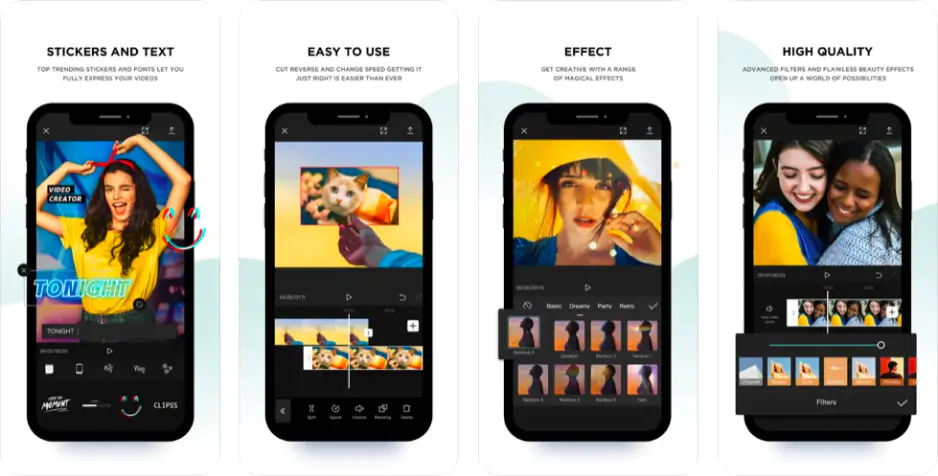
CapCut has a multi-track layout similar to professional software. It takes a little more time to find specific settings.

Winner: InShot wins because the interface feels more natural for quick edits on a mobile screen.

Features

CapCut provides 4K export and specific templates for TikTok trends. It includes auto-captions in many languages for free. InShot has filters and stickers but fewer transition styles. Its text options are less diverse than the CapCut library. CapCut includes masking and keyframe tools that InShot lacks.

Winner: CapCut takes the lead with its extensive library of trending assets and advanced editing tools.

Performance

CapCut stays consistent even when you add several video layers. It renders high-resolution files faster on modern mobile hardware. InShot works well on older devices but struggles with 4K files. The free usage of InShot includes ads that appear often. CapCut requires an account to sync projects between a phone and a computer.

Winner: CapCut is the better variant for its ability to handle complex projects and fast render speeds.

Pricing

While you can download InShot for free, you'll need the paid license to ditch the ads and unlock the extra features. CapCut offers a decent free version with plenty of effects, filters, and export options. Watermarks appear in some templates, but normal exports stay mostly clean. Paid plans unlock extra AI credits and premium assets.

InShot Pro costs $3.99 per month or $17.99 for a year. You can also buy a lifetime license for $39.99. CapCut Pro costs $7.99 monthly or $74.99 for a full year. The free tier of InShot has a watermark that disappears after one ad. CapCut keeps most export features free but locks some AI tools.

Winner: InShot presents a way more affordable path for creators through its low-cost lifetime license option.

Platform compatibility

InShot is an app for iOS and Android devices only. It does not have a version for Windows or Mac rigs. CapCut has native apps for Windows and Mac, plus a version that runs in your browser. This lets you start an edit on the bus and finish it on a big monitor at home.

Winner: CapCut wins because its cloud-sync feature lets you swap between a phone and a PC without losing your progress.

AI tools

In the whole InShot and CapCut debate, CapCut clearly pushes harder into AI territory. You get lots of utilities. Auto captions, background removal, beat sync, voice cleanup, smart tracking, and auto reframing are all built right in to do the tedious work for you. These utilities handle the effortful tasks, helping you to focus on the creative side of your project instead.

Meanwhile, InShot centers around manual editing steps, giving you total control over every cut. The app tries some smart effects, but they often miss the mark and require manual fixing. This lack of precision makes it hard to rely on their automation for professional-looking results.

Winner: CapCut wins due to its one-tap AI tools that accurately sync captions and remove backgrounds in seconds.

Pros & cons

CapCut

Pros:
  • You can jump between your phone and laptop easily.

  • The AI features do the hard work for you.

  • You get a huge library of viral templates.

Cons:
  • The monthly subscription fee adds up fast.

  • It takes up a lot of space on your phone.

InShot

Pros:
  • You can buy it once and own it forever.

  • Removing the watermark is easy and free.

  • The layout is very clean and easy to use.

Cons:
  • There is no way to edit on your computer.

  • You cannot stack many video layers.

  • The free version has quite a few ads.

Best use cases

InShot works for casual vloggers and quick Instagram stories. Best use case sits in fast social clips, daily vlogs, and photo-to-video edits. InShot is liked by creators who want a finished clip fast without dealing with a ton of layers.

In the CapCut and InShot comparison, CapCut feels more ambitious and creator-focused. CapCut helps TikTok creators who need viral effects. Professional social media managers use CapCut for its cross-platform workflow. InShot keeps things simpler. CapCut shoots for bigger edits, faster uploads, and trend-heavy content.

Final verdict

You have a comprehensive CapCut vs. InShot comparison, and deciding which one to pick comes down to your goals. Your target determines the choice. If you want a fast way to polish mobile clips without a subscription, InShot is a good match. It suits users who prioritize a low price and an accessible screen layout.

However, if you aim for viral trends and advanced effects, CapCut is the better investment. It provides AI automation and works across all your devices. While it costs more, the time saved on complex edits justifies the price for serious content creators.

Alternative: Movavi Video Editor
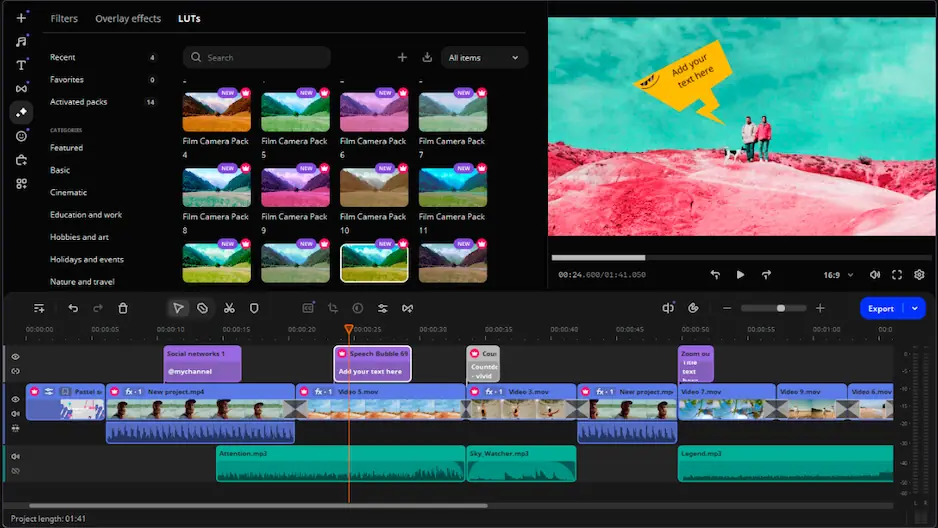
If neither app wins your heart, check out Movavi Video Editor. It is better than both if you want a real desktop setup rather than a cramped phone screen. You get smart tools like auto subtitles, AI background removal, and motion tracking that work fast. It handles long YouTube videos much better than mobile apps. It is the best pick for pro-looking edits on a stable, large-screen experience.


Frequently asked questions

InShot vs. CapCut: Which one is ultimately better?

The right choice depends on how much you want to do yourself. CapCut is the top pick if you want AI to handle the hard stuff and match viral trends. InShot is better if you just want to trim a clip quickly on your phone. Most social media fans prefer CapCut for its massive library of effects and desktop access.

What is the best alternative to InShot and CapCut?

If you want to move away from mobile apps, Movavi Video Editor is a great shout. It gives you a much bigger workspace on your computer screen. You get smart tools like auto subtitles and background removal that feel very smooth. It is a solid middle ground between a simple phone app and complex pro software.

Can I get rid of the watermark without paying?

Yes, InShot lets you delete the logo if you watch a quick ad before you export. CapCut is also great because its standard exports are usually clean of any branding. You only see a tag if you use specific pre-made templates from the library. In this CapCut vs. InShot comparison, both apps are very fair to creators who have zero budget.

Have questions?
If you can’t find the answer to your question, please feel free to contact our Support Team.
Join us for discounts, editing tips, and content ideas

1.5M+ users already subscribed to our newsletter

By signing up, I agree to receive marketing emails from Movavi and agree to Movavi's Privacy Policy.