7 Best Video Editors for Beginners in 2026

Edited by
Ben Jacklin
12,360

Key takeaways

  • Free with no watermark: Clipchamp exports 1080p video from the browser or the Windows 11 app, and iMovie costs nothing on Apple devices. DaVinci Resolve's free version has no watermark either, but it takes the longest to learn.
  • AI credits change the real price. CapCut and Filmora charge credits for many AI tools, while Movavi Video Editor includes its one-click AI tools in the full version.
  • Our pick for most beginners on Windows or Mac: Movavi Video Editor.

If you film daily vlogs and travel clips, record explainer videos for a YouTube class channel, or want to turn a family road trip into a video everyone will rewatch, this list is for you. Looking for the best video editor to start with? Our top picks are Movavi Video Editor for vloggers, students, and families who want one-click AI tools; Clipchamp for free editing on a Windows PC; iMovie for Mac and iPhone owners; and CapCut for short vertical clips. Filmora, DaVinci Resolve, and Canva cover frequent uploaders, future colorists, and design-first creators.

Quick comparison: the best video editing software for beginners

Tool

Best for

Platforms

Free version

Starting price

Movavi Video Editor

Your first vlog, a class explainer, or a family trip video

Windows, macOS

Yes: 60-second exports at 1080p with a watermark

From $19.95/month

CapCut

Quick vertical clips of your day for Reels and Shorts

Mobile, web, desktop

Yes: 1080p; watermark when you use Pro content or AI clips

From $9.99/month

Clipchamp

A free school project video on a Windows PC

Browser (Edge, Chrome), Windows 11 app, iOS app

Yes: 1080p, no watermark

From $11.99/month

iMovie

A first family weekend video on a Mac or iPhone

Apple devices

Completely free, no watermark or limits

Free

Filmora

Simple vlogs where AI does the cutting for you

Windows, macOS

Yes: watermarked, limited number of exports

$49.99/year (Basic)

DaVinci Resolve

Free travel video editing, if you have time to learn

Windows, macOS, Linux

Yes: no watermark or time limit

$295 one-time (Studio)

Canva

A quick beauty or fashion tip story from a design template

Browser, desktop, mobile

Yes: limits on Pro elements and AI

$18/month or $144/year (Pro)

How we picked easy video editing software for this list

We looked for simple video editing software a first-timer can pick up quickly, judged on four criteria:

  • Tools for beginner tasks. Cutting and trimming, auto subtitles, background noise cleanup, and reframing horizontal footage for vertical feeds.
  • Learning curve. How easy to learn each program is. "Easy to use" had to mean something you can point at: one-click tools, previews before you commit, or ready-made templates.
  • Platforms. Desktop app, web browser, or phone, and whether you need an account or a steady internet connection.
  • Price and free version. What the free tier lets you export (length, resolution, watermark) and whether AI tools cost extra credits.

This guide is published by Movavi, so our own editor sits at number one. The other six are not ranked by score; each earned its place on the criteria above.

The 7 best video editors for beginners

1. Movavi Video Editor

Best for: making your first lifestyle vlog, a class explainer for YouTube, or a video from a family trip.
Why we picked it:

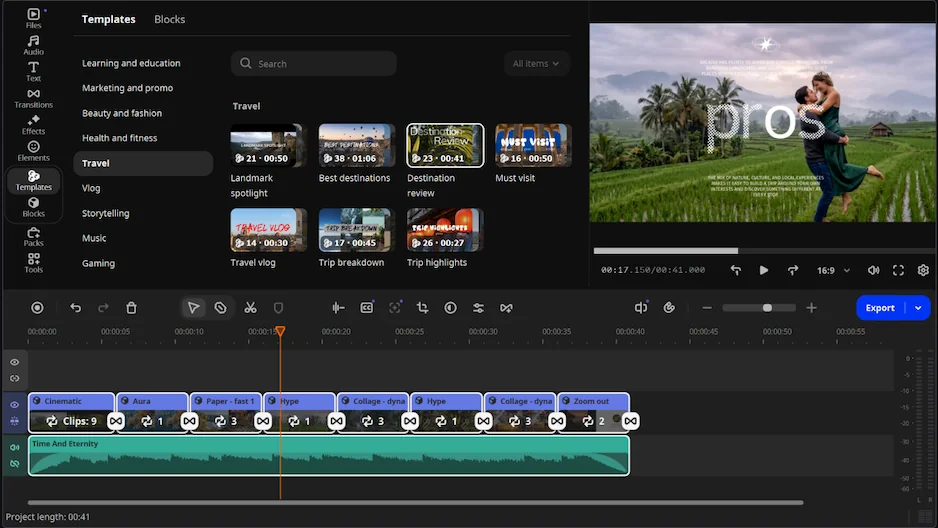
Movavi Video Editor is an intuitive video editor with customizable video templates, one-click AI tools, and hundreds of drag-and-drop effects. It’s a desktop app for Windows and macOS where most tools finish their job in a single click, so you don’t have to learn settings before you see a result. Hover over a clip, transition, or effect to preview it, drag it onto the timeline, and your first unboxing video comes out captioned and cleanly cut on the first try.

What to expect as a beginner: The hardest part of a first video is often knowing what to make. Movavi Ideas helps with that: a free hub of editing ideas, updated every week, each with a step-by-step tutorial that takes less than a minute to follow. For a YouTube explainer, record the lesson, let auto subtitles caption it, and let silence removal cut the pauses, so the video is ready to upload after one pass. The interface is available in 14 languages, so you can work in the one you’re most comfortable with. If the program closes unexpectedly, autosave recovery brings your project back. And Movavi Video Editor Free lets you test every tool inside the program before you choose a plan.

Key features:

  • Movavi Video Templates. Movavi Video Templates is a multi-style library of customizable, pro-looking, modular templates for any kind of video. Each one is a ready-made project built from Blocks, short pre-edited parts of the video such as an intro, a countdown, or an animated collage. You drop your own clips and photos into the Blocks, then reorder, add, or remove them; the template’s music, plus each Block’s text and transitions, stay editable. Several templates come with the full version at no extra charge.
  • Auto subtitles. Speech turns into captions with 99% transcription accuracy across 100+ languages, with 60+ subtitle designs and word-by-word highlighting synced to the audio.
  • Auto silence removal. Pauses are detected and cut automatically, and you can adjust the pause length and volume threshold yourself.
  • Auto-tracked cropping. A horizontal vlog becomes a vertical clip while the AI keeps the speaker or product centered in the frame.
  • Hundreds of built-in effects. Titles, transitions, filters, and overlays apply by drag and drop, and copyright-free music and sounds are included.
Pros:
  • Hover previews show a clip, transition, or effect before you apply it

  • Every AI tool is included in the full version, with no credit system

  • Video noise removal clears grain from low-light clips in one click

Cons:
  • Lacks advanced, detailed controls for a professional workflow

  • No flexible UI customization

  • No web version or cloud integration

  • Although hundreds of effects and several templates are available in the full version, additional sets require separate subscriptions

Price and platforms: Movavi Video Editor is a desktop app for Windows and macOS. A free version is available (60-second export cap, watermark); the full version removes both. Plans start at $19.95/month.

2. CapCut

Best for: turning bits of your day into quick vertical clips for TikTok, Reels, and Shorts.

Why we picked it:

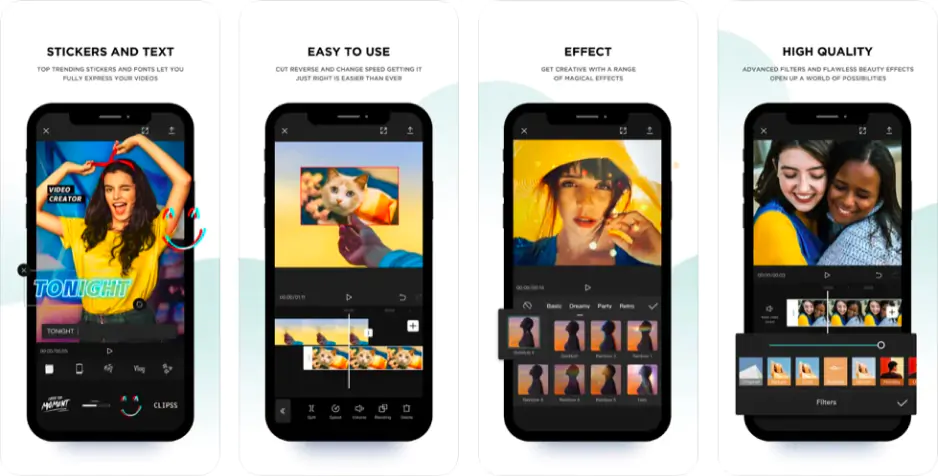
CapCut has one of the lowest barriers to entry for short vertical video. Its desktop tools mirror the phone app many beginners already use, so you can start on your phone and keep the same habits on a computer.

What to expect as a beginner: A first Reel comes together fast: drop in your clips, pick a trending template or effect, and post. Things get harder once you go past short clips, because the number of tools and fine-tuning settings can make CapCut tricky to learn. On desktop, you first need to figure out the launcher interface before you reach the editor itself. Many AI tools run on credits, so check what a feature costs before you build a video around it. For long horizontal vlogs, CapCut is a less natural fit than its vertical-first tools suggest.

Key features:

  • AI toolkit. Camera tracking, relighting, speech recognition for subtitles, retouching, AI voiceover, and background replacement, paid for with AI credits.
  • Auto-tracked cropping. Keeps the main subject in frame when you switch a clip to vertical.
  • Editing tools. Keyframe animation, chroma key, and customizable speed ramping presets.
  • Trending templates. Focused on vertical video and applied to your footage as a whole, with little room for customization.
Pros:
  • Fast editing for short vertical video with a low barrier to entry

  • Strong AI tools for subtitles, cropping, and automatic pause removal

  • Works on mobile, web, and desktop

Cons:
  • Assets marked Pro need a subscription, and which ones are marked changes often

  • Not every feature carries over between phone and desktop

  • Some features and content need an internet connection and an account

Price and platforms: Mobile, web, and desktop. Free plan; Standard costs $9.99/month and removes the watermark; Pro costs $19.99/month and adds 4K and the full AI toolkit.

3. Clipchamp

Best for: students making a school or university project video on a Windows PC for free.

Why we picked it:

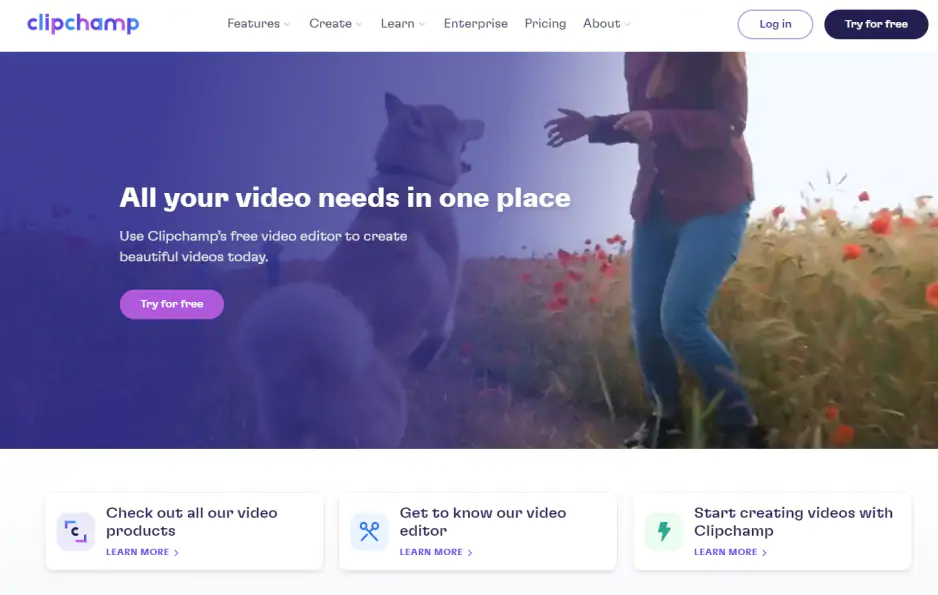
Clipchamp is already on Windows 11, and its free tier exports 1080p video without a watermark, so you can try editing without installing or paying for anything. All of its AI features are free too, which keeps a first project at zero cost.

What to expect as a beginner: The timeline is simple and clear for a first-timer. For a class presentation, record your screen and webcam, add auto subtitles, and export the result the same day. Templates help with structure, though each one is a timeline edit you’ll need to figure out before swapping in your own clips. The ceiling comes quickly: once a project goes beyond basic tasks, the toolset runs out. Internet speed matters as well, since a slow connection can make importing take a long time and the editor can freeze while you edit.

Key features:

  • Free AI tools. Auto subtitles, silence removal, audio noise reduction, background removal from images, and AI voiceover.
  • Screen and webcam recording. Useful for class presentations and training videos.
  • Ready-made templates. Intros, promos, and slideshows for social media, work, and school, applied to your footage as a whole.
Pros:
  • Free with no watermark, already on Windows 11

  • All AI features cost nothing

  • Clear interface for quick tasks

Cons:
  • Large files can lag, and exports can freeze at the final stage

  • No AI video noise reduction, no background removal behind a person in video, and no auto-reframing with tracking

  • 4K export and the full stock library need Premium

  • Requires a Microsoft account

Price and platforms: Browser (Edge or Chrome), Windows 11 app, and iOS app. Free plan; Premium costs $11.99/month and is also included with Microsoft 365 Personal and Family.

4. iMovie

Best for: a first video from a family road trip or weekend getaway, made on a Mac or iPhone.

Why we picked it:

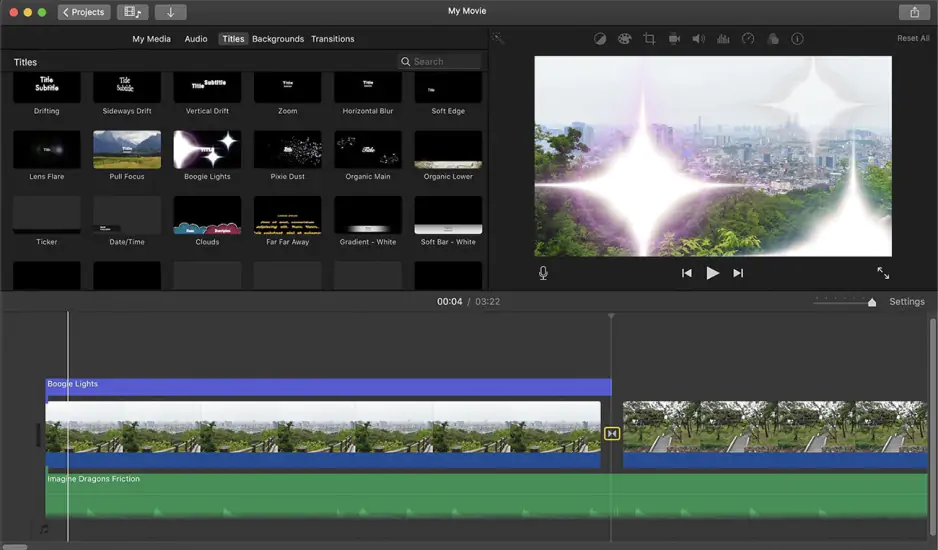
iMovie comes preinstalled on Apple devices and is completely free, with no watermark or export limits. For a first try at editing, there’s nothing to download, nothing to pay, and no plans to compare.

What to expect as a beginner: iMovie is built around simple family videos and first attempts at editing, so the toolset stays small and easy to take in. A trailer template gives a weekend getaway video a clear beginning, middle, and end without planning it yourself. Because there are almost no AI features, captions and background noise cleanup are jobs you do by hand or skip. Export control is limited too, so you have fewer choices about the final file. When your family videos start asking for more effects or music than the built-in library offers, it’s time to look at a bigger editor.

Pros:
  • Completely free, with no watermark or limits

  • Preinstalled on Apple devices

Cons:
  • Apple devices only

  • Almost no AI features

  • Modest built-in library of effects and music

Price and platforms: Apple devices (Mac and iPhone). Free.

5. Filmora

Best for: first lifestyle vlogs, edited with AI shortcuts

Why we picked it:

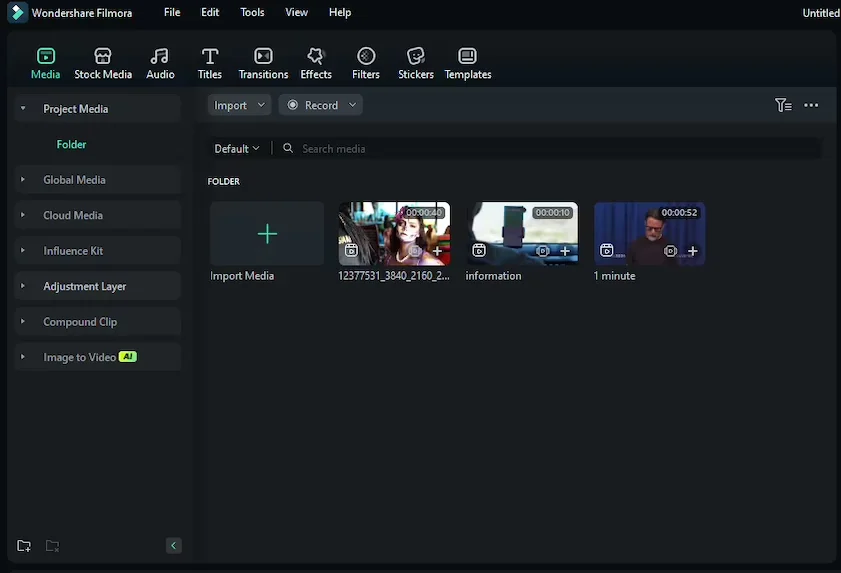
Filmora’s interface is simpler than professional editors’, and its AI handles routine vlog steps for you. It also runs on a mid-range laptop, so you don’t need new hardware to start.

What to expect as a beginner: AI Smart Cutout trims the pauses, and the vertical tools turn one long video into several short clips for your feeds. The catch for a first-timer is choice: there are so many single-task AI features and fine-tuning settings that it can be hard to know where to begin. Filmora’s tips and how-to center help with the first steps. Plan your budget around AI credits from day one, because many of the shortcuts that make Filmora quick spend them. Some advanced features, like certain animations, are reported to be unfinished, though beginners rarely run into them.

Key features:

  • AI Smart Cutout. Removes pauses and silence automatically.
  • Vertical tools. Auto-reframing plus extraction of vertical highlights from long videos.
  • Timeline. Multitrack editing with keyframe animation and motion tracking.
  • Templates and Instant Mode. Ready-made templates for various occasions and formats, applied to your footage as a whole.
  • Generative AI. Prompt-based video and image generation and AI music matching.
Pros:
  • Time-saving AI tools for subtitles, cropping, and pause removal

  • Large library of trending templates and effects

  • Simpler than professional software

Cons:
  • AI features and video generation use credits on top of the subscription

  • Extra assets sit in a separate Effects Store subscription

  • The number of single-task AI features can confuse beginners

  • Users report that support and refund requests are handled by a chatbot

Price and platforms: Windows and macOS. Free version with watermarked exports; Basic costs $49.99/year.

6. DaVinci Resolve

Best for: beginner travel bloggers who want a free editor with no watermark and are ready to learn a bigger program step by step.

Why we picked it:

DaVinci Resolve’s free version has no watermark or time limit, so you can practice on a real travel video for as long as it takes without paying. It’s here for one kind of beginner: someone who’d rather learn a bigger program once than switch editors later.

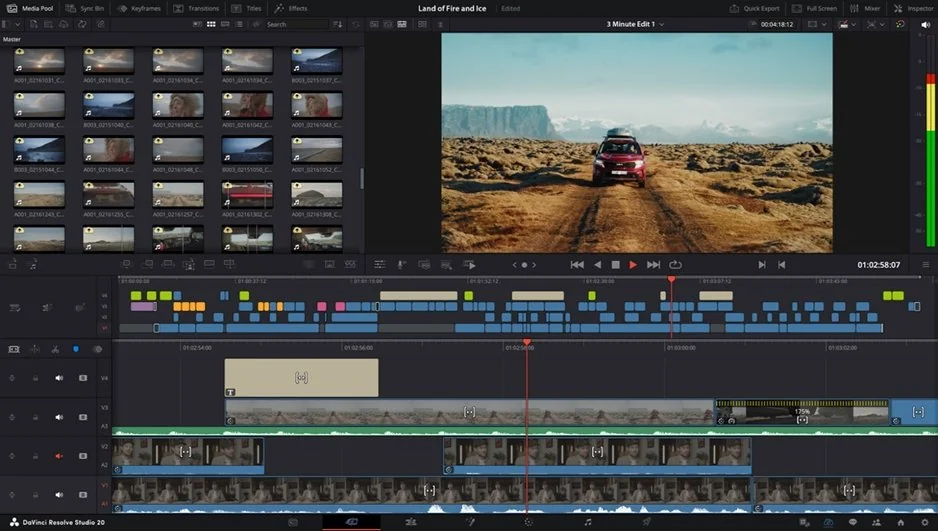
What to expect as a beginner: DaVinci Resolve is the one pick on this list that asks you to study before you edit. The interface is split into separate modules, and tools need fine-tuning rather than a single click, so a first travel video will take longer here than in any other editor we picked. There’s no official ideas hub, but a large number of community tutorials and courses cover the basics. Captions need a third-party plugin, and ready-made titles, music, and templates are almost absent, so you build the look yourself. Users who stick with it say the program gets fast once the shortcuts and workflow feel familiar.

Key features:

  • Separate modules. Edit, Color, Fairlight for audio, and Fusion for VFX.
  • Node-based color correction. Full advanced grading through Nodes.
  • DaVinci Neural Engine (Studio). Magic Mask, AI upscaling, and auto-stabilization.
  • Studio upgrades. HDR grading and support for higher resolutions and frame rates.
Pros:
  • Professional-grade tools for free, with no watermark or time limit

  • Studio is a one-time purchase, not a subscription

Cons:
  • The steepest learning curve here: a multi-part professional interface

  • Resource-intensive, with powerful hardware recommended

  • Very little ready-made content and no video templates

  • Practically no AI tools in the free version

Price and platforms: Windows, macOS, and Linux. Free version; DaVinci Resolve Studio costs $295 as a one-time purchase.

7. Canva

Best for: beginners sharing beauty or fashion tips as stories

Why we picked it:

Canva’s drag-and-drop interface and giant library of design templates let you make a good-looking story without any editing experience. If you plan your feed visually first, video fits into the same tool you already design in.

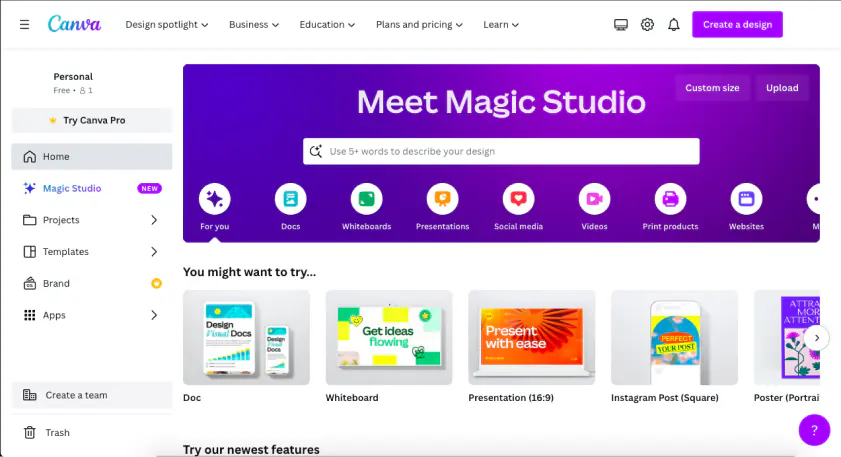
What to expect as a beginner: If you’ve made a post or a slide in Canva before, the video editor works with the same drag-and-drop layout, so there’s little new to learn. For a skincare tip, pick a story template, drop in your clips, change the text, and it’s ready to post. Editing gets trickier when you work against the template, because you need to understand how it’s built so you don’t break the layout. You also can’t try a template with your own footage on the timeline before choosing it; you only see a hover preview. Generative tools rely on prompts, which is one more skill to pick up.

Key features:

  • Design templates for video. Posts, stories, and promos you edit as a design layout.
  • Video AI. Highlights, Auto-trim, Beat Sync, Enhance Voice, and background removal.
  • Magic Studio. Prompt-based video and image generation.
  • Huge asset library. Templates, fonts, and elements in one place.
Pros:
  • A good-looking video from a template in very little time

  • Design work and video in one tool

Cons:
  • Little control over the timeline, audio, and color

  • Slows down on long videos and heavy files

  • Most AI features and the best elements are Pro only, with usage limits

  • Works online and needs an account

Price and platforms: Browser, desktop, and mobile apps. Free plan; Pro costs $18/month or $144/year.

Which simple video editor should you choose?

A vlogger shooting long horizontal videos, a social media creator cutting 30-second Reels on their phone, and a beginner curious about color grading all want slightly different things from an editor. Start with the video you'll make most often, then match it to a tool:

  • Long, horizontal vlogs with easy cleanup: Movavi Video Editor, since you can add captions and clean up footage on Windows or Mac without having to learn a complicated pro program.
  • Zero budget and no watermarks: Clipchamp on a Windows PC, or iMovie if you are on a Mac or iPhone.
  • Phone-first, 30-second Reels: CapCut, which keeps you in the same mobile ecosystem where most of your editing happens.
  • Pro color grading for free: DaVinci Resolve, provided you have a few weeks to learn the ropes and want to reward that effort.
  • Designing a post with video elements: Canva, which fits perfectly when the video is just one part of a larger graphic.
  • Heavy AI reliance: Filmora, for uploaders who plan to lean hard on artificial intelligence and have the budget for AI credits.

For most everyday creators – the vlogger wanting a clean horizontal edit, or the beginner looking for quick captions without a steep learning curve – Movavi Video Editor is the strongest overall pick. It gives you all the necessary cleanup tools right on your Windows or Mac desktop, so you can finish your project quickly without wrestling with complex professional software.

Have questions?
If you can’t find the answer to your question, please feel free to contact our Support Team.

Frequently asked questions

What is the best free video editor?

It depends on how much time you'll give it. DaVinci Resolve's free version has the most tools and no watermark, but it's the hardest to learn. Clipchamp (1080p, no watermark) and iMovie (no watermark or limits on Apple devices) get you editing the same afternoon. Movavi Video Editor Free works differently: it lets you test every tool, with exports capped at 60 seconds, limited codec support, and a watermark.

What is a good video editor for YouTube beginners?

If your channel runs on long horizontal videos, a desktop program handles them more comfortably than a phone app. Movavi Video Editor can upload a finished video straight to YouTube during export, with the title, description, privacy, and tags set before it leaves the program.

Is there a web version of Movavi Video Editor?

No, it's a desktop program. If you need to edit in a web browser, CapCut, Clipchamp, and Canva all work online. For iPhone editing, the Movavi App (iOS) builds social media reels from pre-designed templates and trending effects.

Do I need a video editor with templates?

You don't need one, but a template gives a first project its structure. In Movavi Video Editor, you can swap Blocks, delete the ones you don't need, or build a whole video Block by Block, so one template stretches to a short teaser or a longer recap. In CapCut, Filmora, and Clipchamp, templates are applied to your footage as a whole.

Join us for discounts, editing tips, and content ideas

1.5M+ users already subscribed to our newsletter

By signing up, I agree to receive marketing emails from Movavi and agree to Movavi's Privacy Policy.