
Top 6 Best Voiceover Software in 2026 (Free & Paid)

Movavi Video Editor
  • Trim, cut, crop, and rotate videos
  • Add titles, stickers, and transitions
  • Apply visual effects

By clicking the download button, you're downloading a trial version of the program.*

Edited by
Ben Jacklin
5,010

Key takeaways

  • All six tools record your own voice. CapCut, VEED, Clipchamp, and Canva can also generate an AI voiceover.
  • Movavi Video Editor and Filmora are desktop apps. VEED, Clipchamp, and Canva run in a browser, and CapCut spans mobile, web, and desktop.
  • CapCut, Filmora, and VEED run AI features on credits, so check the allowance first.

The best voiceover software depends on whose voice you want in the video: your own, or an AI voiceover. CapCut suits short vertical clips, VEED and Clipchamp suit work videos, and Canva suits school presentations. This guide is for beginners who post lifestyle vlogs, teach a class, or film onboarding videos at work.

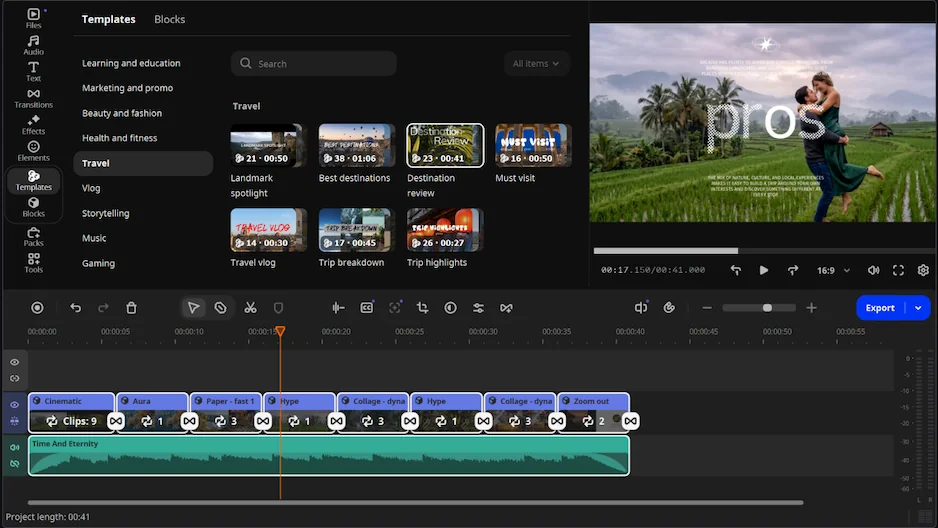
Movavi Video Editor suits lifestyle vlogs you narrate yourself. Movavi Video Templates is a multi-style library of customizable, pro-looking, modular templates for any kind of video.

Tool

Best for

Voiceover

Platforms

Free version

Starting price

Lifestyle vlogs with your own narration

Record from a microphone

Desktop app: Windows, macOS

Yes

$19.95/month

Short vertical lifestyle videos

Record, plus AI voiceover

Mobile, web, desktop

Yes

$9.99/month

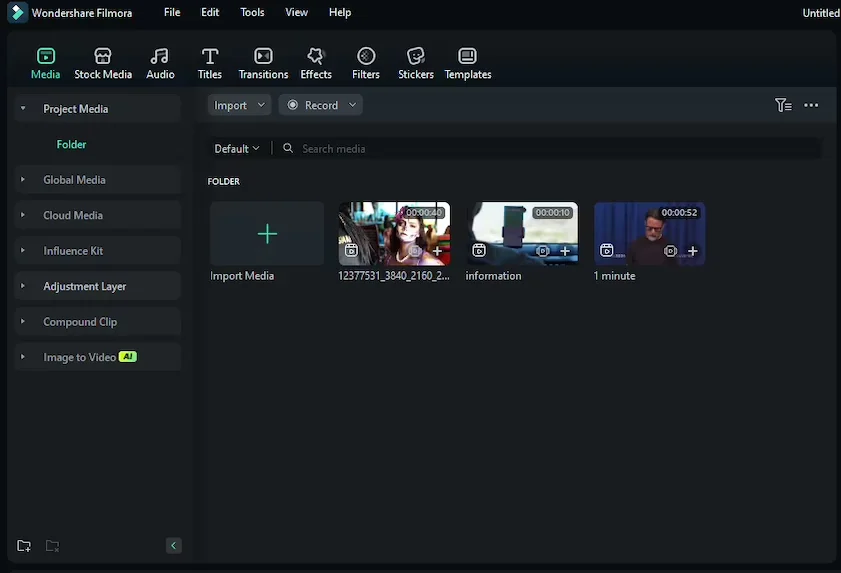
Lifestyle vloggers who post often

Record

Windows, Mac

Yes

$19.99/month

How we picked

We looked for video editing software that handles voiceover next to its other video editing tools. The criteria: recording or AI voiceover, audio cleanup, a music library, platforms, the learning curve for beginners, and a free version. Movavi goes first because this guide lives on Movavi’s site. The order after that isn’t a score.

The 6 voiceover tools

Best for: Lifestyle vloggers narrating travel or daily-routine footage, and teachers or students voicing tutorials.

Why we picked it: You record narration straight onto the Timeline, and one click of AI audio noise removal clears traffic, wind, and steady hums while keeping your voice sharp, so even a first recording sounds clean. Movavi Video Editor is an intuitive video editor with customizable video templates, one-click AI tools, and hundreds of drag-and-drop effects.

Key features:

  • Audio recording: records narration from a connected microphone straight onto the Timeline.
  • AI audio noise removal: clears up to 95% of background noise across high-, middle-, and low-pitch sounds.
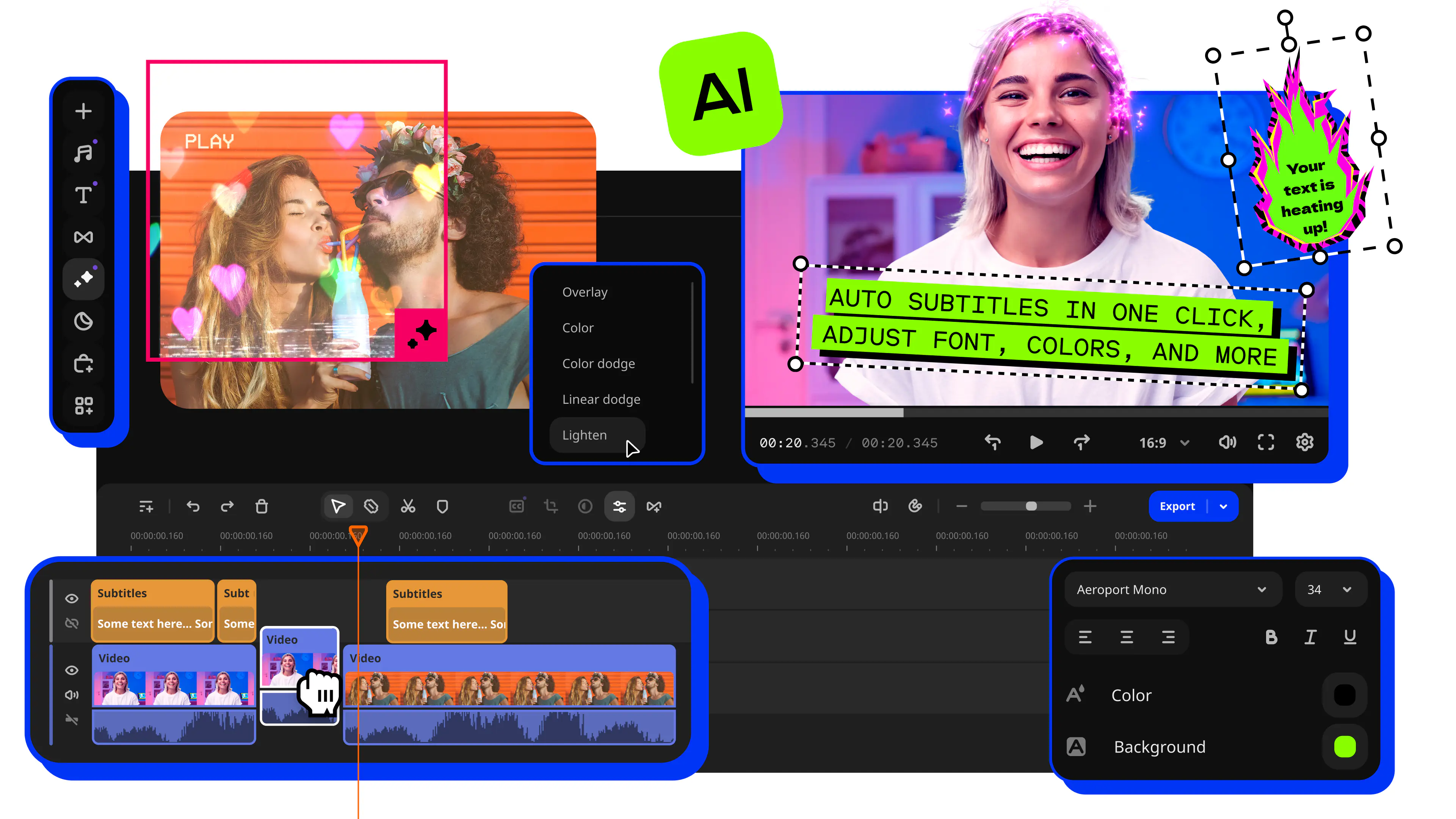
  • Auto subtitles: turn your spoken voiceover into captions in 100+ languages, with 99% accuracy. Choose from 60+ designs and word-by-word highlighting.
  • Music and sounds: copyright-free tracks and effects come built in. The Movavi Effects subscription adds 1,500+ music tracks you can preview on your own video for free.
Pros:
  • AI tools are included in the full version, with no credit system.

  • Silence removal cuts dead air from your recording, with adjustable pause length and volume thresholds.

  • Works offline, with no account or cloud required.

Cons:
  • Lacks advanced, detailed controls for a professional workflow.

  • No flexible UI customization, and no web version or cloud integration.

Price and platforms: Desktop app for Windows PC and Mac. Free, Lite, and full-version prices: starts at $19.95/month.

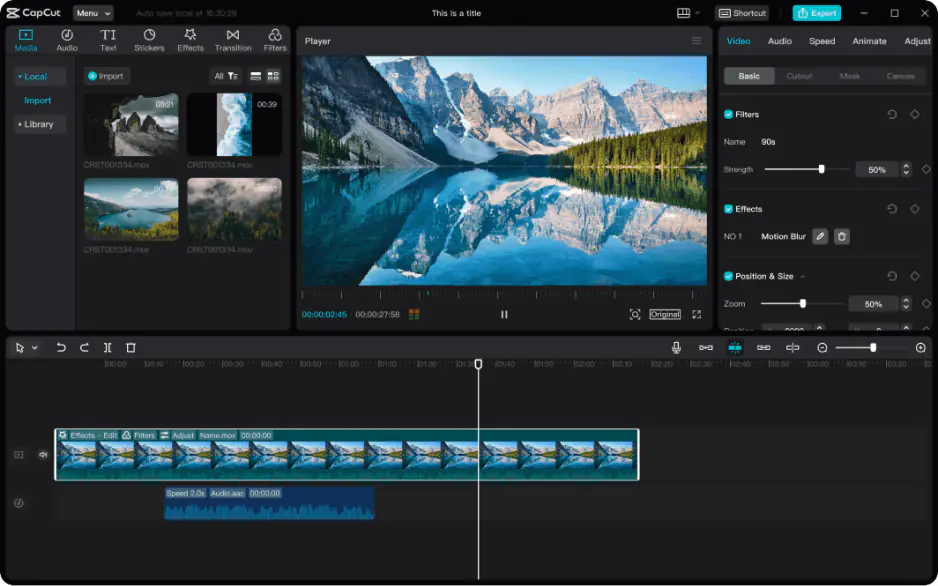
Best for: Lifestyle vloggers posting short vertical clips.

Why we picked it: CapCut is a mobile-first editor for short, trending videos. It earns its place for AI voiceover, which sits in its AI toolkit next to speech recognition for subtitles and background replacement.

Key features:

  • AI voiceover: generates narration, and runs on AI credits.
  • Music library: licensed tracks in different genres.
  • Auto subtitles: AI generation, translation into other languages, and a choice of styles.
Pros:
  • AI voiceover and subtitles live in one AI toolkit.

  • A large library of trending templates and effects.

Cons:
  • The best assets need a subscription.

  • Some features require an internet connection and an account.

Price and platforms: Mobile, web, and desktop. Free version and paid plans: starts at $9.99/month.

Best for: Lifestyle vloggers who post often and want music matched to each video.

Why we picked it: Filmora records your voiceover, then its AI enhances audio without complex settings. AI music matching fits background tracks to the mood of your video.

Key features:

  • Voiceover recording and voice effects: record narration, then apply voice effects or voice enhancement.
  • Built-in library: music and sounds, with AI music matching.
  • AI audio processing: a compact toolkit for everyday tasks.
Pros:
  • A built-in music and sound library.

  • Runs on a mid-range laptop.

Cons:
  • AI features need credits and a separate subscription.

  • The number of single-task AI features can confuse beginners.

Price and platforms: Windows and Mac. Free version and paid plans: starts at $19.99/month.

4. VEED

Best for: Onboarding videos and project demos narrated with an AI voice.

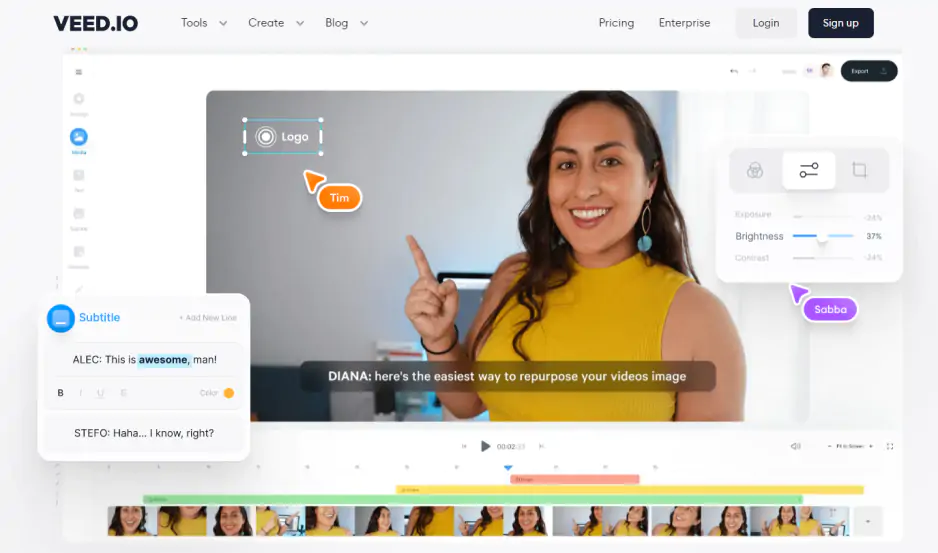
Why we picked it: VEED is a browser-based AI editor aimed at team and business videos. Its voice features are AI-driven: voiceover, voice cloning, and dubbing.

Key features:

  • AI voiceover and voice cloning: both run on AI credits.
  • Clean audio: cleans a voice in one click.
  • Remove silences: cuts pauses and filler words automatically.
  • Team tools: real-time collaborative editing, a brand kit, and business templates.
Pros:
  • AI voiceover with voice cloning.

  • Several people can edit one video at the same time.

Cons:
  • Credits are spent on every action, and can run out mid-project.

  • Needs a stable internet connection, and long, heavy files can lag.

Price and platforms: Browser, plus a mobile app; an account is required. Free version and paid plans. Starts at $10/month.

Best for: Windows users recording internal how-tos and presentations.

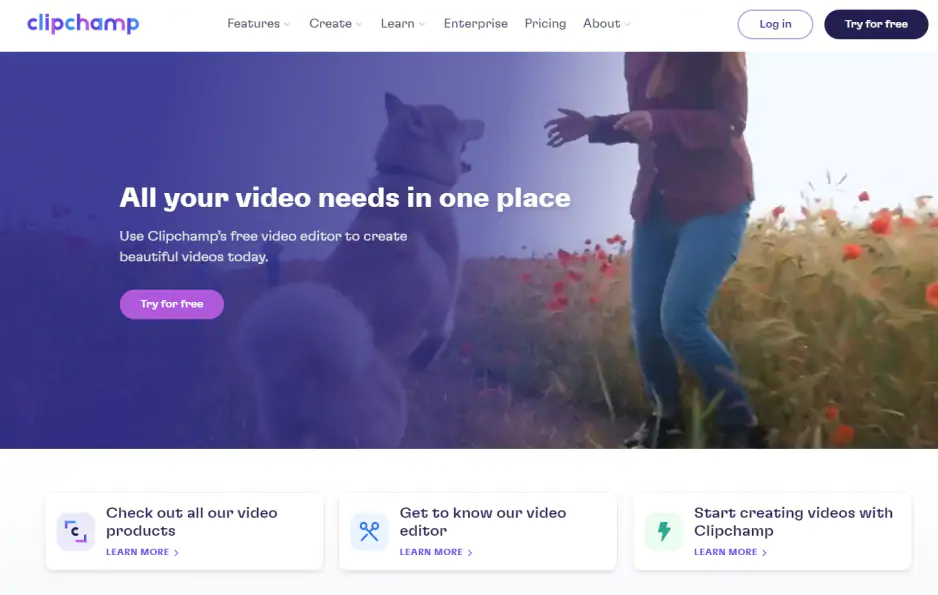
Why we picked it: Clipchamp is Microsoft’s browser-based editor, built into Windows 11 and Microsoft 365. It records your screen and webcam, then adds an AI voiceover from text.

Key features:

  • AI voiceover from text: AI features are listed as free.
  • AI noise reduction: switches on with a toggle.
  • Free music: a library of royalty-free tracks.
Pros:
  • Screen and webcam recording sit in the same editor.

  • A simple timeline that beginners can follow.

Cons:
  • Audio work is basic: volume, fade, and detaching audio.

  • Long, large projects can lag or freeze on export, and a Microsoft account is required.

Price and platforms: Browser (Edge or Chrome), a Windows 11 app, and an iOS app. Free version and paid plans: starts at $11.99/month.

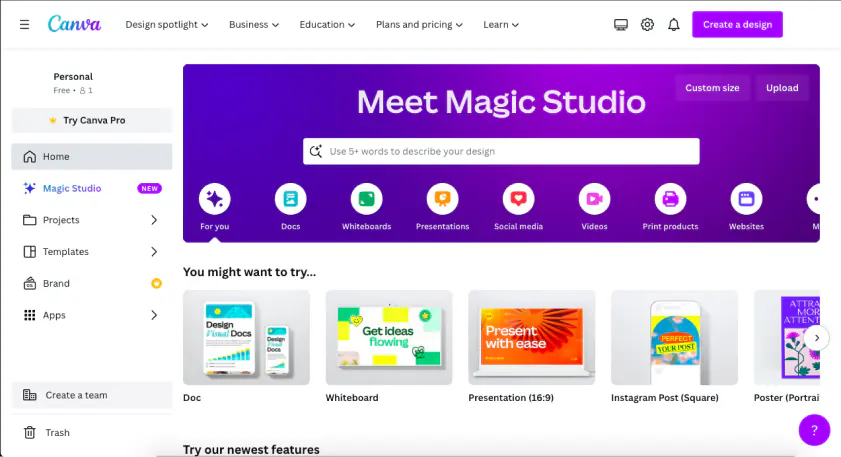
Best for: School project presentations with narration.

Why we picked it: Canva is a design builder with video as a second format. For voice, it offers an AI voiceover from text, plus Enhance Voice to remove background noise.

Key features:

  • AI voiceover from text: generates narration with no recording needed.
  • Music library: some tracks need a paid plan, and Beat Sync matches clips to the rhythm.
  • Design templates: a very large library for posts, stories, and presentations.
Pros:
  • A familiar drag-and-drop design interface.

  • Templates are easy to edit as a layout.

Cons:
  • Video effects are modest: nine basic transitions.

  • Not designed for long videos or large files.

Price and platforms: Browser, plus desktop and mobile apps; an account is required. Free version and paid plans: starts at $15/month.

How to add voice over to video in Movavi Video Editor

Five steps take a silent clip to a narrated one.

  1. Add your video to the Timeline.
  2. Record your voiceover. Connect a microphone and record narration straight onto the Timeline.
  3. Clear the noise. Apply AI audio noise removal to the voice track.
  4. Add music. Pick a built-in track, or import your own file to add an audiotrack.
  5. Balance and save. Dip the music under your voice, then export.

How to choose voiceover software

Start with the constraint that matters most to you:

  • Your own voice, no credit counting: Movavi Video Editor.
  • An AI voice, billed by credits: CapCut or VEED.
  • An AI voice without credits: Clipchamp lists its AI features as free.
  • No installs, everything in a browser: VEED, Clipchamp, or Canva.

Pick one tool and record a short test over a clip you’ve already shot. With Movavi Video Editor, Movavi Ideas adds a free, step-by-step editing idea every week, a good second project once the voiceover is done.

Movavi Video Editor
Create awesome videos easily

*The free version of Movavi Video Editor may have the following restrictions depending on the build: watermark on exported clips, 60-second video or 1/2 audio length limit, and/or some advanced features unavailable when exporting videos.

Frequently asked questions

Do I need a microphone to add voiceover to a video?

No. Movavi Video Editor records from a connected microphone and imports audio recorded elsewhere. To generate the voice instead, pick an AI voiceover tool above.

Which video formats does Movavi Video Editor support?

Video in MP4, MOV, AVI, MKV, and WMV. Audio in MP3, WAV, and FLAC, for both import and export.

How do I keep music from covering my voice?

Volume curves set several volume points along a clip, so music dips under your voice and rises between lines. Fades smooth the edges.

How do I make my recording sound clearer?

Start with the Sound autocorrect presets: Enhanced voice recording, Noisy place, and Recording studio. When you want to advance, fine-tune by hand with the equalizer, noise gate, compressor, and reverberation.

Have questions?
If you can’t find the answer to your question, please feel free to contact our Support Team.
Join us for discounts, editing tips, and content ideas

1.5M+ users already subscribed to our newsletter

By signing up, I agree to receive marketing emails from Movavi and agree to Movavi's Privacy Policy.