Add Music to Video: 7 Best Software to Merge Audio and Video

Edited by
Ben Jacklin
13,698

Key takeaways

  • All 7 tools here let you add background music, record a voiceover, and fade audio in and out – the core moves for any edit.
  • Free versions exist across the board, but watermarks, length caps, and feature limits vary a lot – double-check current plan restrictions before you commit.
  • Movavi Video Editor, CapCut, and Clipchamp are the easiest starting points for beginners; DaVinci Resolve has the steepest learning curve but the deepest audio controls.

If you just finished filming a vlog, a family trip, or a product demo and need to add audio to video without wrestling with a professional suite, these seven video editing tools can get you there – all easy enough to pick up in an afternoon: Movavi Video Editor and CapCut for quick drag-and-drop edits, DaVinci Resolve for professional-grade audio control, and VEED, Clipchamp, or Canva if you’d rather stay in a browser. All seven cover the basics – add music, record a voiceover, fade in, fade out – on Windows, Mac, or straight in a browser, so the real question is which interface and price tier fits how you work.

How to add audio to video: what we looked for

We picked these seven based on four things that actually matter when you need to merge audio and video on a deadline:

  • Core audio tools – can you add music, record a voiceover, and apply fades without digging through menus?
  • Platforms – does it run on your PC or Mac, or does it need a browser?
  • A usable free version – not just a trial, but something you can actually finish a short video with.
  • How fast you can learn it – based on each tool’s documented interface complexity, from a simple drag-and-drop timeline to a full multi-module professional suite.

Quick comparison

Software

Best for

Platforms

Free version

Starting price

Movavi Video Editor

Beginners who want templates + one-click AI audio cleanup

Windows, macOS

Yes – watermark, 60-sec export cap

From $9.95/month

CapCut

Short, trending social clips

Mobile and desktop

Yes – watermark on Pro content/AI clips

From $9.99/month

Filmora

Frequent YouTube uploaders

Desktop

Yes – always watermarked

From $19.99/month

DaVinci Resolve

Pro-level sound and color work

Desktop

Yes – full editor, limited features

From $30.00/month

VEED

Captioned business/marketing clips

Browser

Yes – 10-min/720p cap, watermark

From $12/month

Clipchamp

Windows/Microsoft 365 users

Browser; built into Windows 11 & Microsoft 365

Yes – 1080p, no watermark

From $11.99/month

Canva

Social posts with a video insert

Browser

Yes – limits on premium content

From $15/month

1. Movavi Video Editor

Best for: Beginners who want to add music, voiceover, and clean audio to a video without a steep learning curve
Why we picked it:

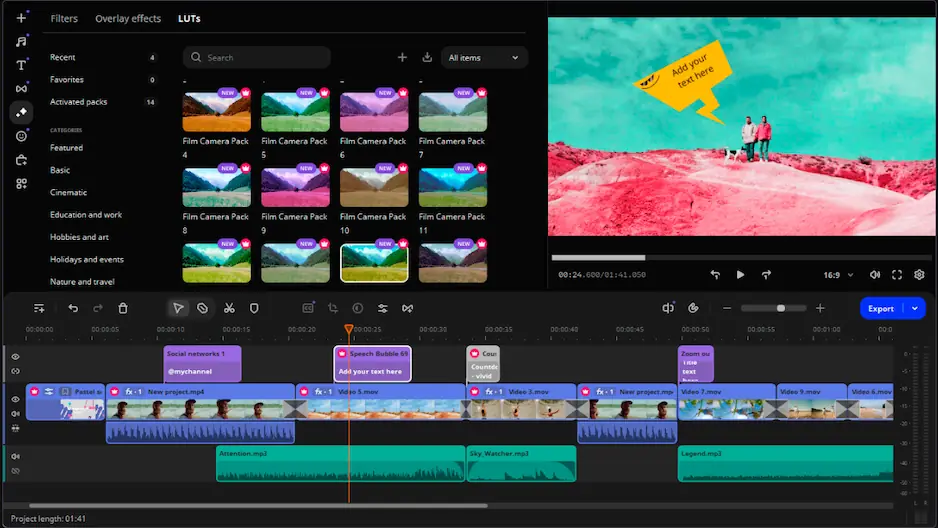
Movavi Video Editor is an intuitive video editor with customizable video templates, one-click AI tools, and hundreds of drag-and-drop effects. Movavi Video Editor makes adding sound to footage fast and intuitive without the steep learning curve of a complex audio suite. You can drop tracks onto the dedicated audio timeline, record voiceovers directly, and dial in volume or fades using simple visual handles. Its one-click AI noise reduction clears roughly 95% of background hum, wind, and phone-mic hiss on the first pass, while beat detection helps snap your cuts to the soundtrack's tempo. You can also link an audio track to a video clip, so your voiceover stays in sync when you move or trim that clip.

Key features:

  • Licensed music library in different genres, built into the timeline
  • One-click audio recording for voiceover, with normalization and fade-in/fade-out
  • AI audio noise removal (~95% noise reduction) for cleaning up a phone or webcam mic
  • Audio linked to video clips, so narration stays in sync when you trim or reorder footage
Pros:
  • Audio and video edits happen on the same timeline, with no separate audio app needed

  • AI noise removal and silence removal clean up voiceovers automatically

  • Supports MP4, MOV, AVI, and MKV import/export, so most phone and camera footage drops in directly

Cons:
  • No multi-module professional audio suite like DaVinci’s Fairlight – fine-grained mixing takes a back seat to speed

  • No web version or cloud sync; it’s a local, installed app

  • Although hundreds of effects and several templates are available in the full version, additional sets require separate subscriptions.

Price and platforms: Movavi Video Editor is a desktop app for Windows and macOS. A free version is available (60-second export cap, watermark); the full version removes both. Plans start at $9.95/month.

2. CapCut

Best for: Vertical, trend-driven clips for TikTok, Reels, or Shorts

Why we picked it:

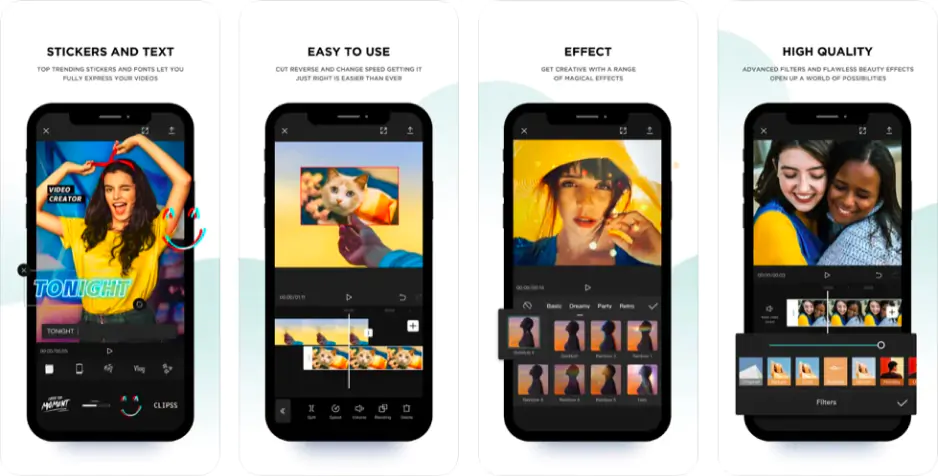
CapCut brings its familiar mobile workflow to the desktop, making it ideal for pairing trending tracks and quick narration with vertical video. You can extract audio directly from existing footage, record voiceovers on the fly, and tap into a vast library of commercial sounds with automatic beat-sync markers. Basic edits like fades and volume leveling work seamlessly across both phone and computer, prioritizing fast, social-first cuts over complex multi-track mixing.

Key features:

  • Licensed music library in different genres
  • Voiceover recording, plus AI voiceover generation on some plans
  • Fade-in/fade-out on audio tracks
  • AI-assisted auto-crop that keeps a subject centered when you switch to vertical format
Pros:
  • Free tier is usable without a watermark on non-Pro content

  • Same tools and layout whether you start on mobile or move to desktop

Cons:
  • Many AI features, including some voice tools, run on a credit system that can run out mid-project

  • Desktop tools largely mirror the mobile version, so advanced timeline work feels cramped

Price and platforms: Windows, Mac, mobile, and browser. Free tier available (watermark only on Pro content or AI clips); paid tiers unlock 4K and the full AI toolkit. Paid plans start at $9.99/month*

3. Filmora

Best for: Creators publishing to YouTube on a regular schedule

Why we picked it:

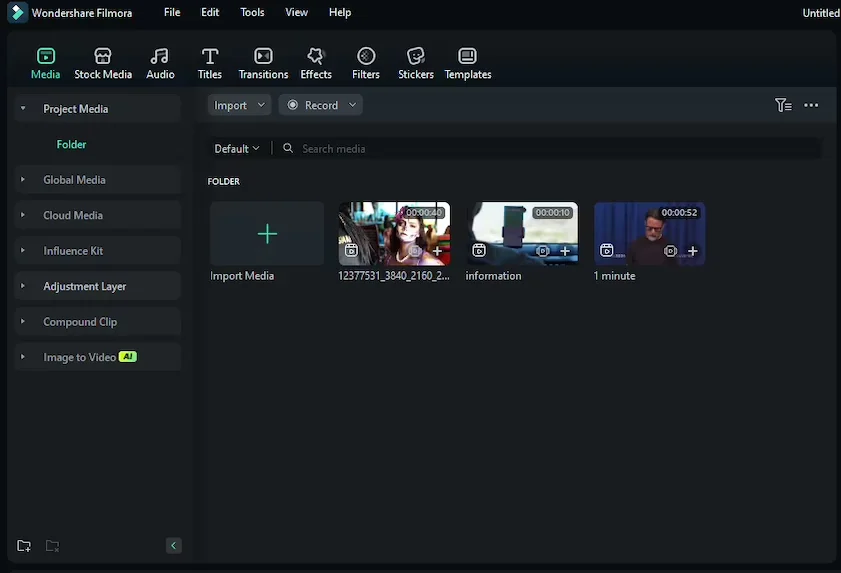
Filmora blends everyday timeline editing with automated audio tools tailored for regular video publishers. Adding audio is simple: you can import custom music, record voiceovers directly into the timeline, or browse a massive library of royalty-free songs and sound effects. Standout audio features include AI Audio Stretch (which automatically fits a music track to the exact duration of your clip) and Audio Ducking, which lowers background music whenever dialogue is detected. For creators producing multiple videos a week, it strikes a practical balance between automated audio cleanup and manual timeline fine-tuning.

Key features:

  • Built-in music and sound library, plus AI music matching based on video mood
  • Voiceover recording and audio fades
  • AI Smart Cutout removes pauses automatically
Pros:
  • AI music matching is a genuine shortcut for finding a fitting track

  • Desktop-grade timeline, with more precision than most browser editors

Cons:
  • Free exports are always watermarked

  • AI tools and the Effects Store sit behind separate subscription tiers

Price and platforms: Windows and macOS. Free version available (watermarked); paid tiers add AI tools and remove the watermark. Paid plans start at $19.99/month*

4. DaVinci Resolve

Best for: Creators who want a full, professional audio mixing environment

Why we picked it:

DaVinci Resolve pairs professional video editing with Fairlight, a full-scale digital audio workstation built directly into the software. Instead of basic volume sliders, you get access to sample-accurate audio editing, multi-track recording, dynamic EQ, compression, and professional audio sweetening plugins. Adding external audio files or recording Foley and ADR voiceover happens with zero latency and frame-accurate sync. It carries a steep learning curve for casual social clips, but it is unmatched if you need surgical control over dialogue cleanup, sound design, and broadcast audio standards.

Key features:

  • Full Fairlight audio module with professional mixing tools
  • Manual fade, volume, and voiceover recording, frame-accurate
  • Noise reduction via FairlightFX, though it typically needs additional plugins
Pros:
  • The most advanced audio toolkit on this list, built into a free base version

  • One-time purchase for the paid Studio tier, instead of a recurring subscription

Cons:
  • No built-in licensed music library – you bring your own tracks or connect an external stock library

  • Steepest learning curve here; tools require manual fine-tuning rather than one-click results

Price and platforms: Free base version (limited features, no watermark); DaVinci Resolve Studio is a one-time purchase of $295. Desktop (macOS, Windows, Linux).

5. VEED

Best for: Captioned videos for LinkedIn, Instagram, or other business channels

Why we picked it:

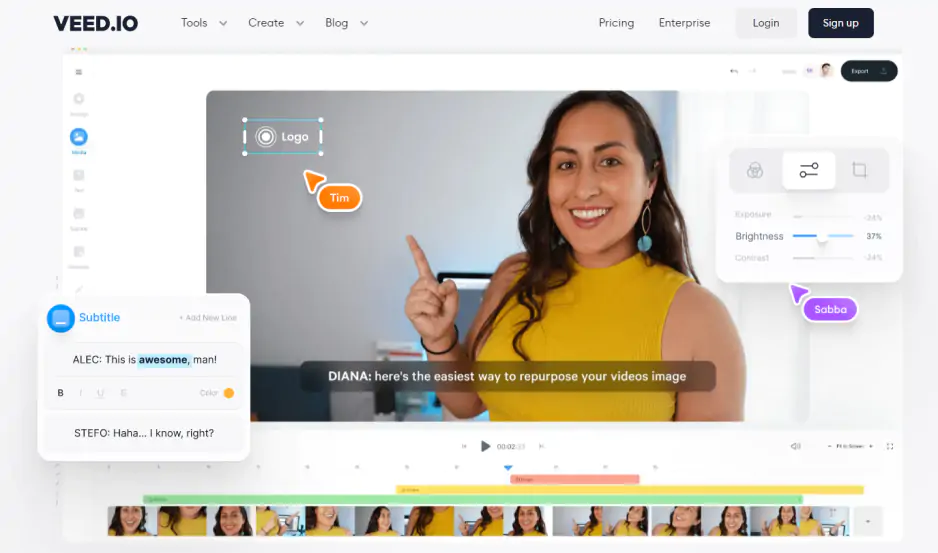
VEED is an entirely browser-based video editor built around quick online sound design and spoken-word content. It lets you import audio files, add background music from a stock library, or generate crisp voiceover narration directly from text using AI voice clones. Features like one-click "Clean Audio" automatically remove background noise, room echo, and awkward pauses without manual filter adjustments. Because it runs in the cloud, you can record and polish voiceovers or sync music to promo videos from any computer without installing heavy desktop software.

Key features:

  • Stock music library (full access on paid plans)
  • AI voiceover and voice cloning to generate narration from text
  • One-click Clean Audio tool (Pro and above)
Pros:
  • Nothing to install – works from any browser

  • AI voiceover generation saves recording a track yourself

Cons:
  • Free plan caps exports at 10 minutes and 720p

  • AI runs on a credit system, so heavy use can burn through your monthly allowance

Price and platforms: Free (watermark, 720p, limited AI minutes), paid plans (start at $12/month) add AI credits and remove the watermark . Browser-based.

6. Clipchamp

Best for: Windows 11 or Microsoft 365 users who want something already installed

Why we picked it:

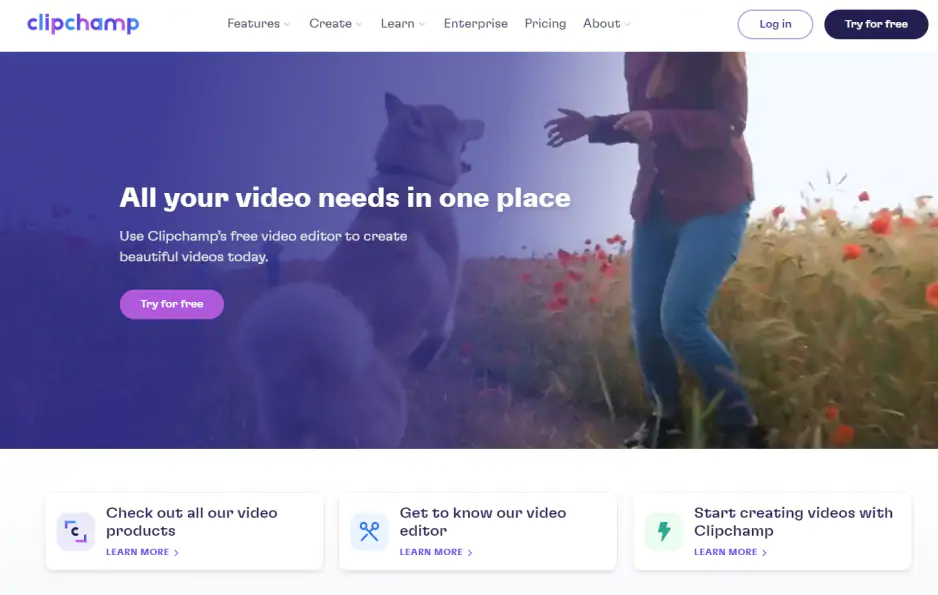
Clipchamp provides a lightweight, pre-installed audio editing workflow for Windows users and browser editors alike. You can drag and drop your own audio files, browse a built-in collection of royalty-free music and sound effects, or generate spoken narration using Microsoft’s text-to-speech engine. The timeline supports basic volume adjustments, smooth audio fades, and a straightforward toggle for AI noise suppression. It is designed for straightforward tasks, making it a great no-fuss option for pairing voice commentary or gentle background tunes with presentations and casual footage.

Key features:

  • Royalty-free music library (premium tracks require Premium)
  • AI voiceover generated from text
  • Free, toggle-based AI noise reduction
Pros:
  • Free export at 1080p with no watermark

  • AI noise reduction is free, not gated behind a paid tier

Cons:
  • 4K export and premium assets require Premium or a Microsoft 365 subscription

  • Toolset and performance lag behind on longer or larger projects

Price and platforms: Browser (plus a Windows 11 app and an iOS app). Free tier exports up to 1080p with no watermark; 4K and premium features need Premium or Microsoft 365. Premium starts at $11.99/month.

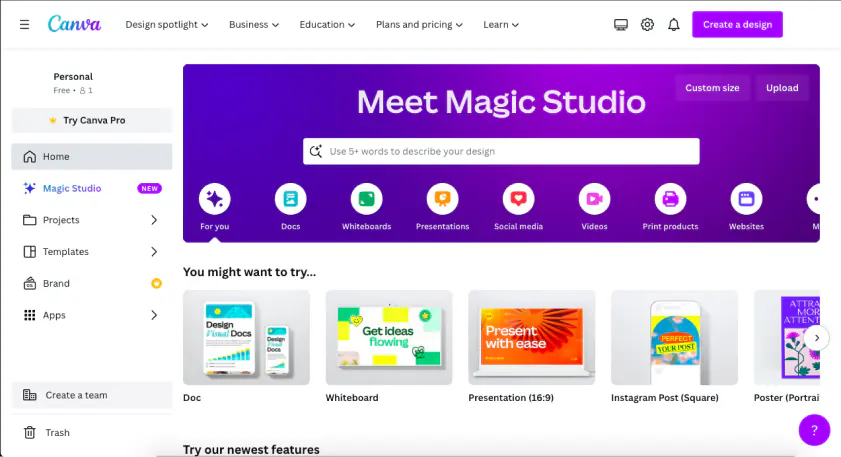
7. Canva

Best for: Social posts and stories that need a short video insert.

Why we picked it:

Canva is primarily a graphic design platform, but its integrated video editor makes pairing simple background audio with short video clips surprisingly easy. You can upload custom audio tracks or pull songs from Canva’s royalty-free audio library directly onto a visual timeline. Its standout Beat Sync feature automatically aligns your visual cuts to the tempo of the music track, saving tedious manual trimming. While it lacks deep multi-track audio mixing or manual EQ, it is perfect for slapping an upbeat track onto social ads, reels, or marketing presentations in seconds.

Key features:

  • Music library (availability varies by region; some tracks are Pro-only)
  • Beat Sync automatically matches clips to the rhythm of a track (Pro)
  • AI voiceover generated from text, plus Enhance Voice background noise removal (Pro)
Pros:
  • Convenient if the rest of your content is already built in Canva

  • Beat Sync automates a task that’s manual in most other tools here

Cons:
  • The video timeline is secondary to Canva’s design canvas, so precise audio timing takes more care

  • Several music tracks and audio tools sit behind a Pro plan

Price and platforms: Free tier available (limits on premium content, audio, and AI features); paid plans are billed per user, scaling AI credits and storage, with Pro starting at $15/month*. Available via browser, plus desktop and mobile apps.

How to choose

Quick turnarounds and clean dialogue: Movavi Video Editor's one-click AI noise removal and audio-video clip linking let you record and clean up voiceovers fast without digging into complex menus.

Vertical social and trend-driven clips: CapCut carries its familiar mobile workflow to the desktop, pairing commercial audio libraries, quick voiceovers, and automatic beat markers for snappy short-form cuts.

Studio-grade sound engineering: DaVinci Resolve's built-in Fairlight module provides a full sound-engineering studio with multi-track mixing, dynamic EQ, and frame-accurate voiceover recording at zero upfront cost.

Test software with your actual microphone recordings and camera footage rather than trusting marketing demos. An aggressive noise filter might sound impressive in a showcase, but it can easily hollow out your natural voice on real phone or webcam audio. Import your typical video clips, drop in background music, test live voiceovers alongside AI text-to-speech tools, and check for watermarks or duration limits before committing. The best choice depends entirely on how much manual audio control you need and how fast you want to work.

Have questions?
If you can’t find the answer to your question, please feel free to contact our Support Team.

Frequently asked questions

How to add audio to video without any prior editing experience?

Drag your video onto the timeline, drag a music or voiceover track onto a separate audio layer underneath it, and trim both to match. Most of the tools above, including Movavi Video Editor, CapCut, and Clipchamp, are built around this same drag-and-drop layout. If you want an even faster start with pre-synced music, Movavi Video Templates is a multi-style library of customizable, pro-looking, modular templates for any kind of video. Each one is built from Blocks, short pre-edited parts like an intro or animated collage, which you fill with your clips and can reorder, add or remove.

What file formats can I use to merge audio and video?

Movavi Video Editor imports and exports MP4, MOV, AVI, and MKV for video, plus MP3, WAV, and FLAC for audio, which covers most phone and camera footage without converting anything first.

Can I record a voiceover directly inside the software, or do I need a separate app?

All seven tools here support recording a voiceover directly on the timeline from a connected microphone – you don’t need separate recording software first.

Do I need to pay to add background music to a video?

Every tool on this list has a free version, though most cap export length, resolution, or watermark the result. Check each provider’s pricing page for exact current limits before you plan around a free plan.

Which video editing software is easiest for a total beginner?

Movavi Video Editor, CapCut, and Clipchamp all use a simple drag-and-drop timeline with one-click audio tools. DaVinci Resolve has the deepest audio controls but the steepest learning curve of the group.

Join us for discounts, editing tips, and content ideas

1.5M+ users already subscribed to our newsletter

By signing up, I agree to receive marketing emails from Movavi and agree to Movavi's Privacy Policy.