Best Alternatives to InShot for Windows

Movavi Video Editor
  • Trim, cut, crop, and rotate videos
  • Add titles, stickers, and transitions
  • Apply visual effects

By clicking the download button, you're downloading a free version of the program.*

Edited by
Ben Jacklin
6,897

Key takeaways

  • Try looking up an InShot video editor for your PC and you hit the same wall every time. There’s no official desktop version, so people piece together alternatives like CapCut, Filmora, Movavi Video Editor, or Shotcut instead. Each one handles editing a bit differently.
  • Some tools are quick to get through. Drop in clips, tweak a few things, export, done. Others take longer to get used to, but once you spend a bit of time with them, they open up more options.
  • If you want something close to InShot for Windows, whether you’re on Windows 10 or a newer system, the main difference is space. A larger screen changes how you work with timing, layers, and small adjustments.
  • Running InShot on a computer might seem like an easy fix at first. After a while, it starts to feel cramped, especially when the edit stops being just a quick clip.

InShot works great for quick edits on a phone, but it starts to feel limiting once projects get longer or more detailed. That’s usually when the search for an alternative to InShot for a PC begins. I tested all of these editors back to back using the same short clip. Some felt familiar right away, others took more time before anything clicked. At one point, I spent more time testing transitions than actually finishing the video, which says a lot about how these tools pull you in.

If you’re looking for a proper InShot desktop replacement, these options take very different approaches. Some focus on speed and quick results, while others give you more control and expect you to shape the video more carefully.

Comparison table: Best InShot alternatives

Program

OS

Main advantages

Download

Windows, macOS

Fast editing workflow, strong AI tools, social media templates

Windows, macOS

Clean workspace, smooth performance, built-in effects and AI tools

Windows, macOS, Linux

Free and open-source, flexible workflow, wide format support

Windows, Mac, Linux

Simple interface, drag-and-drop editing, multi-track support

Windows, macOS

Balanced features, precise timeline control, beginner-friendly interface

Windows

Advanced editing tools, high precision control, strong free version

Top desktop InShot alternatives

Why I picked it: easy to learn, with strong templates and advanced desktop editing tools.

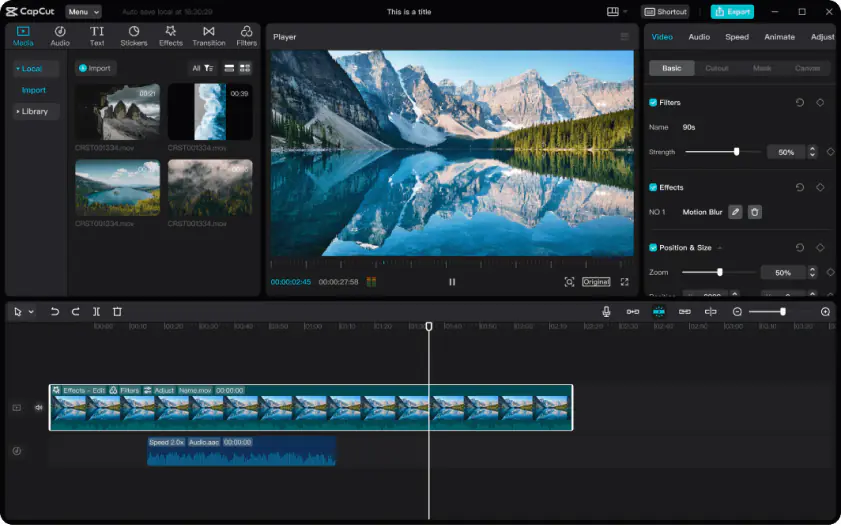
CapCut on desktop feels a lot like InShot at first glance, just spread across a bigger workspace. If you’ve edited on your phone, you won’t need time to figure things out. I cut a few clips, dropped in captions, tried some popular effects, and everything clicked pretty fast. No menu hunting. It keeps the same quick-start feel as InShot, but gives you more room to layer clips and fine-tune details once edits go beyond short clips. Auto captions worked well in my test, and background removal saved a few extra steps. Export in high resolution is there too, so the final video doesn’t lose quality.

Lately, CapCut has been adding new templates quite often. Some of them clearly follow current social media trends, so you can pick one, adjust a few elements, and get a decent-looking result without building everything from scratch.
Ratings

Pros:

Why I picked it: clean interface with smooth project organization and support for more complex edits.

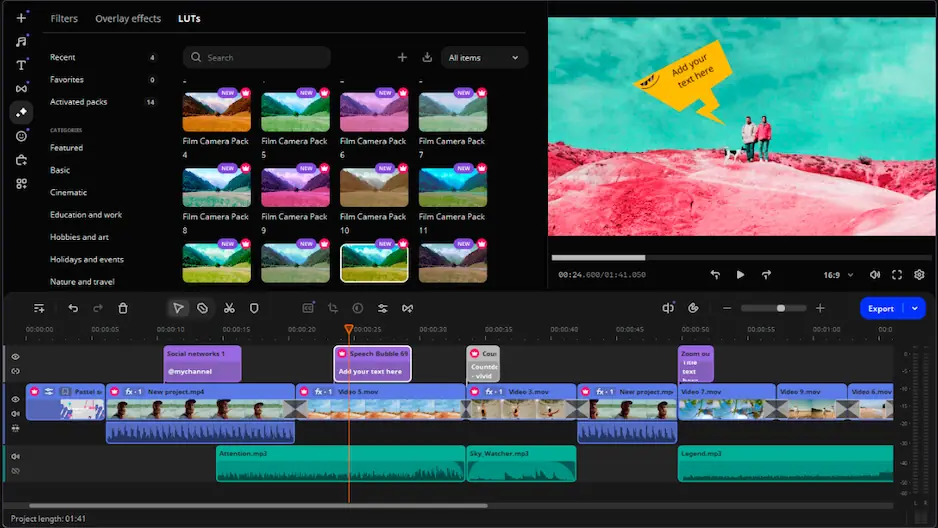
Movavi Video Editor is fairly quick to pick up, especially if you’ve used any app like InShot. The workspace stays neat as clips, titles, and effects start to pile up, so you don’t have to guess where things ended up. I tried nudging a few cuts and shifting timing around, and it all felt pretty direct. It follows a similar logic to InShot at the start, but handles layered timelines more comfortably as projects grow.

It also goes beyond the basics. Motion tracking and keyframes let you adjust details more precisely than you usually can in InShot, while the built-in media library saves time searching for extras. AI subtitles, noise removal, and color tools help clean things up near the end. Recent updates added quick video denoise for rough footage and auto-tracked cropping that keeps the main subject centered when it moves.

Ratings

Cons:
  • Free version limitations

Why I picked it: flexible workflow with full manual control over editing and layout.

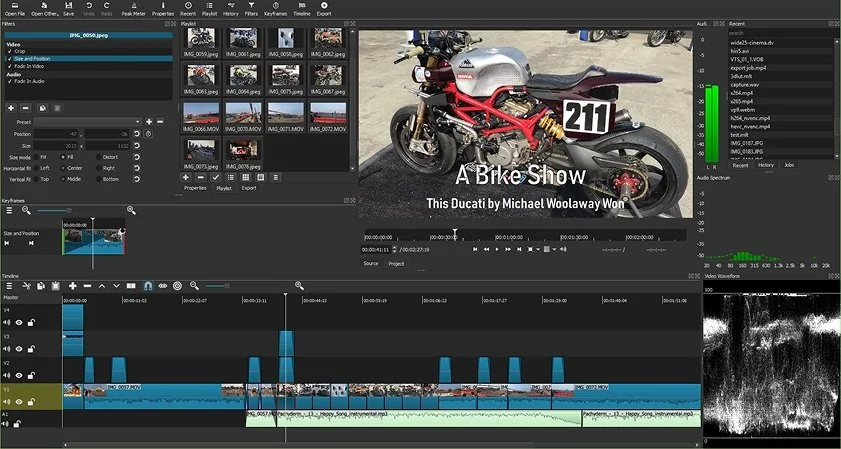
Shotcut opens with almost nothing guiding you. No templates, no quick-start hints. It took me a moment to get my bearings, clicking around and trying a few tools before things started to settle. Once clips are on the timeline, the workflow becomes easier to follow. Mixing files from different sources works right away, which saves time. Unlike InShot, which keeps things guided, this editor leaves more decisions in your hands and gives you flexibility in how everything is arranged.

Instead of relying on presets, Shotcut leans on manual adjustments and a modular interface. Filters, transitions, and timeline settings are applied step by step, which gives you more control over how each part behaves. In version 26.2, timeline navigation is noticeably smoother. Scrolling and zooming respond better, and changes to keyframes and audio waveforms appear much faster.

Ratings

4.2/5

3.5/5

Cons:
  • Steep learning curve and less intuitive interface

  • Limited effects and occasional performance issues

Why I picked it: free desktop editor with multi-track editing for simple projects.

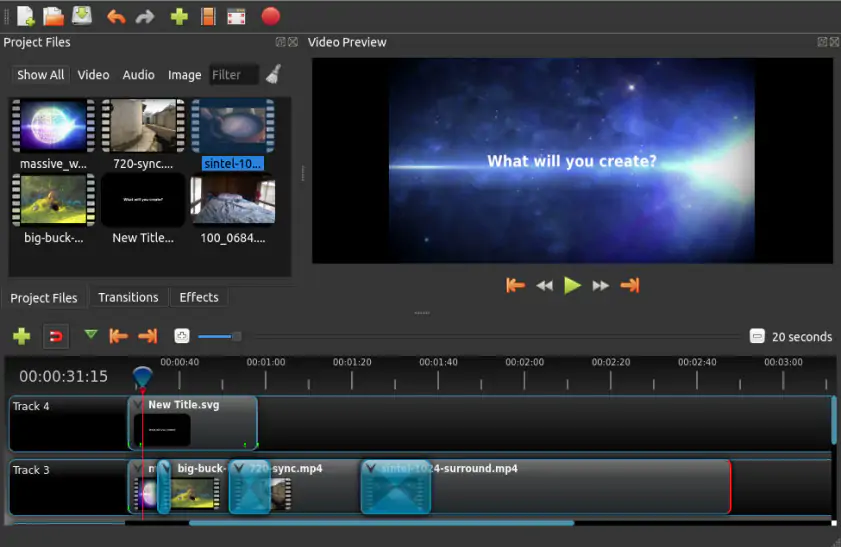
OpenShot is pretty bare when you open it. Not in a bad way, just not much pulling your attention in different directions. You drop in a clip, move it around, test a transition, and gradually get a sense of how things behave. After a bit, it starts to feel predictable, even if you’re just experimenting with simple edits. It shares InShot’s focus on quick assembly, but gives you a bit more freedom in how clips sit across tracks.

It supports common formats and handles layered clips for short projects. In version 3.5, playback holds up better once transitions are added, preview hiccups happen less often, and basic actions like trimming or shifting clips respond quicker.

Ratings

Why I picked it: advanced timeline control with precise editing while remaining beginner-friendly.

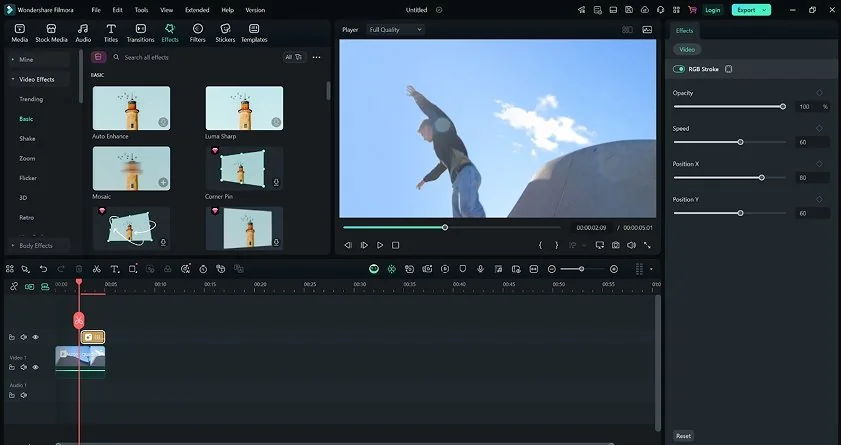
Filmora doesn’t follow the same path as InShot, and you notice that once you start editing. The layout is still easy to follow, but once you begin working with clips, there’s clearly more depth in how you can shape each part of the timeline. I ended up refining transitions and text longer than planned, simply because there was more to explore. Where InShot focuses on quick edits, Filmora leans toward more deliberate timing and pacing, which becomes noticeable in structured videos. At the same time, it stays approachable if you’re used to mobile editors.

With version 15, Filmora introduced AI Extend for continuing clips directly on the timeline, along with a dual timeline view that helps manage more detailed edits.

Ratings

4.4/5

Cons:

Why I picked it: high level of precision with detailed tools for advanced editing.

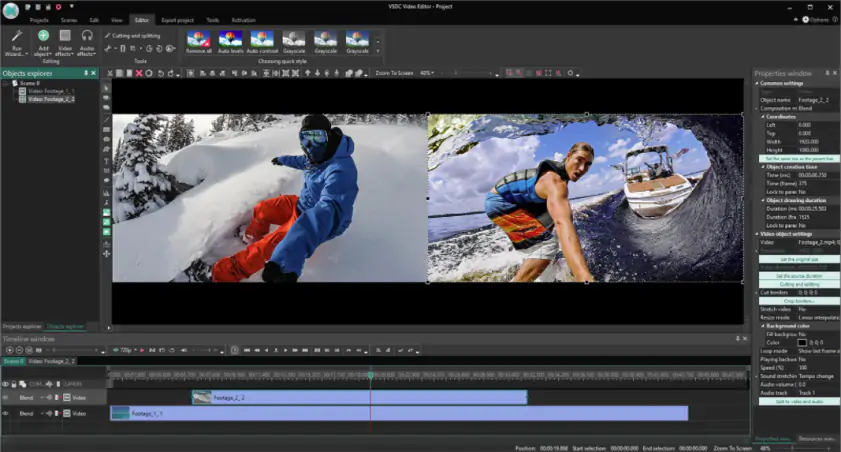
VSDC Video Editor is built around precision rather than speed. Nothing is simplified or pre-arranged, and most tools sit in separate panels instead of a single flow. I spent time adjusting effect settings and noticed how much can be changed beyond basic edits. While InShot keeps things fast and streamlined, this editor leans toward a more structured, step-by-step process, especially when working with layered elements.

It supports a broad range of formats, including high-resolution video. Masking, motion tracking, and color tools allow detailed adjustments when needed. In version 11.1, AV1 hardware acceleration was added, waveform detail on the timeline was improved, and working with existing objects in complex scenes became faster.

Ratings

4.2/5

How to choose the best InShot alternative

When choosing an alternative to InShot for a PC Windows 10, it depends on how you like to edit. Some tools are fast and simple, others take more time but give more control.

If you want quick social media videos, CapCut is the easiest to start with. It feels familiar, especially if you’ve used InShot. I put together a short clip and ended up using templates more than expected, they just save time.

For more structured edits, Wondershare Filmora works better. It’s still easy to use but gives more control over timing and longer videos, which suits YouTube-style content.

Movavi Video Editor sits in between but opens up more as you go. It handles simple edits well, then adds tools like motion tracking and AI subtitles when you need them. I used motion tracking to attach text to a moving object, and it saved some manual work.

Shotcut takes a different route. No presets, just a blank workspace and full control. It takes more effort but works well for manual editing and mixed formats.

It mostly comes down to how much control you want versus how quickly you want to have your file ready.

Frequently asked questions

Can you use InShot on a PC?

Not really. There’s no official desktop program, so the only way to run it is through an emulator. It works, but it never feels fully right. Fine for quick edits, maybe trimming a clip or two. Once the timeline gets busy, it starts to drag. That’s usually where people stop trying to force it and switch to something like Movavi Video Editor or Filmora.

What is similar to InShot for a PC?

CapCut comes closest. You open it and just start working, no setup, no figuring things out. Movavi Video Editor feels a bit different. It starts simple, then gives you more room as the project builds. Filmora sits somewhere between those two, a bit more structured but still easy to follow.

Some editors also run online, which can be useful when you just need to make a quick change and don’t want to install anything.

Where can I the InShot download for a PC?

You can look for it, but there isn’t a real desktop version to download. InShot was made for phones, and it kind of shows once you try to run it on a computer. Some sites offer installers, but those are usually not official, so it’s safer to ignore them. The usual workaround is an emulator. It does run, but it never quite feels right. I remember trying to drag clips with a mouse and it just felt off, like the app expected a touchscreen. It’s fine for a quick edit, but not something you’d want to rely on.

Is InShot or CapCut better?

It depends on what you’re used to. InShot is very quick, you open it, trim a clip, add text, and export in a couple of minutes. CapCut feels similar at first, but once you keep going, it opens up more options. I noticed this when adding a few extra layers, things didn’t get messy as fast. On a phone, the difference isn’t huge. On a larger screen, though, CapCut just gives you a bit more breathing room, especially when the project stops being “just a quick clip.”

Movavi Video Editor
Create awesome videos easily

*The free version of Movavi Video Editor may have the following restrictions depending on the build: watermark on exported clips, 60-second video or 1/2 audio length limit, and/or some advanced features unavailable when exporting videos.

Have questions?
If you can’t find the answer to your question, please feel free to contact our Support Team.
Join us for discounts, editing tips, and content ideas

1.5M+ users already subscribed to our newsletter

By signing up, I agree to receive marketing emails from Movavi and agree to Movavi's Privacy Policy.