
Movavi Video Editor

Turn wedding clips into a polished film

By clicking the download button, you're downloading a free version of the program.*

Wedding Video Maker for a PC and Mac

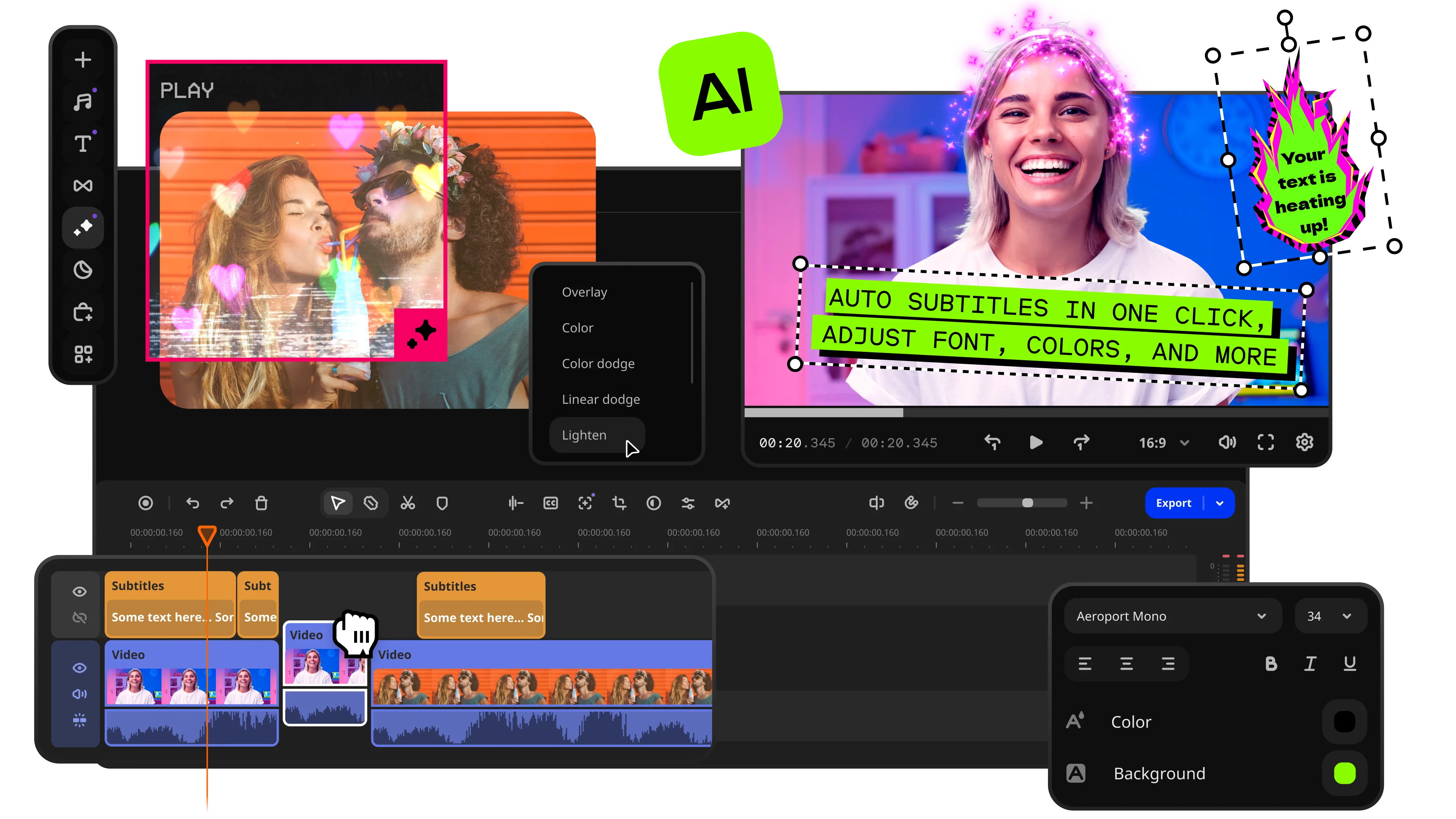
Smart cleanup for imperfect footage

Movavi Video Editor comes with AI features set to help with noise reduction, motion tracking, background elimination, and automatic captioning.

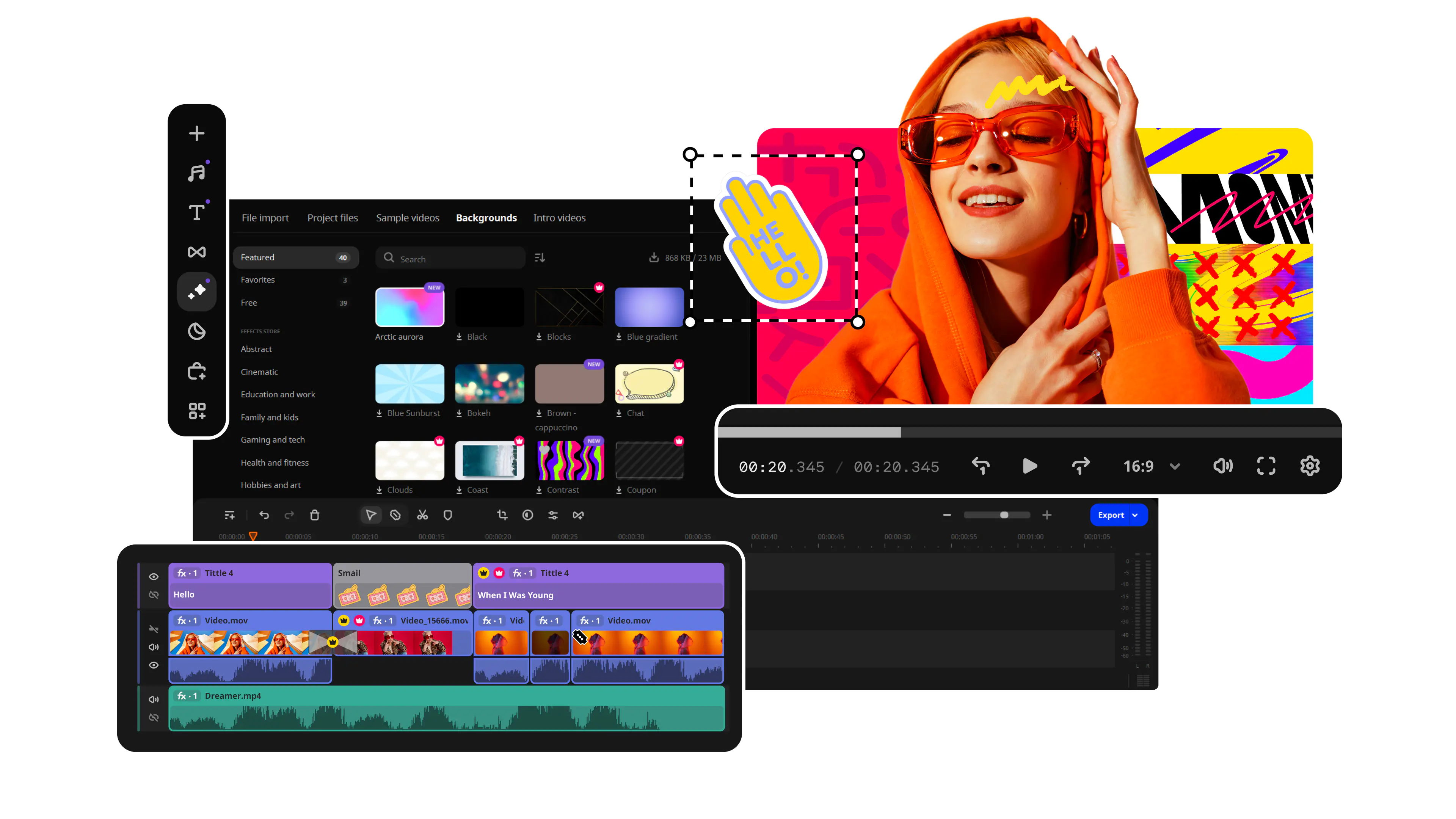
Timeline that’s easy to navigate

Add clips, photos, titles, transitions, filters, overlays, and music, then move them around until the story starts to make sense.

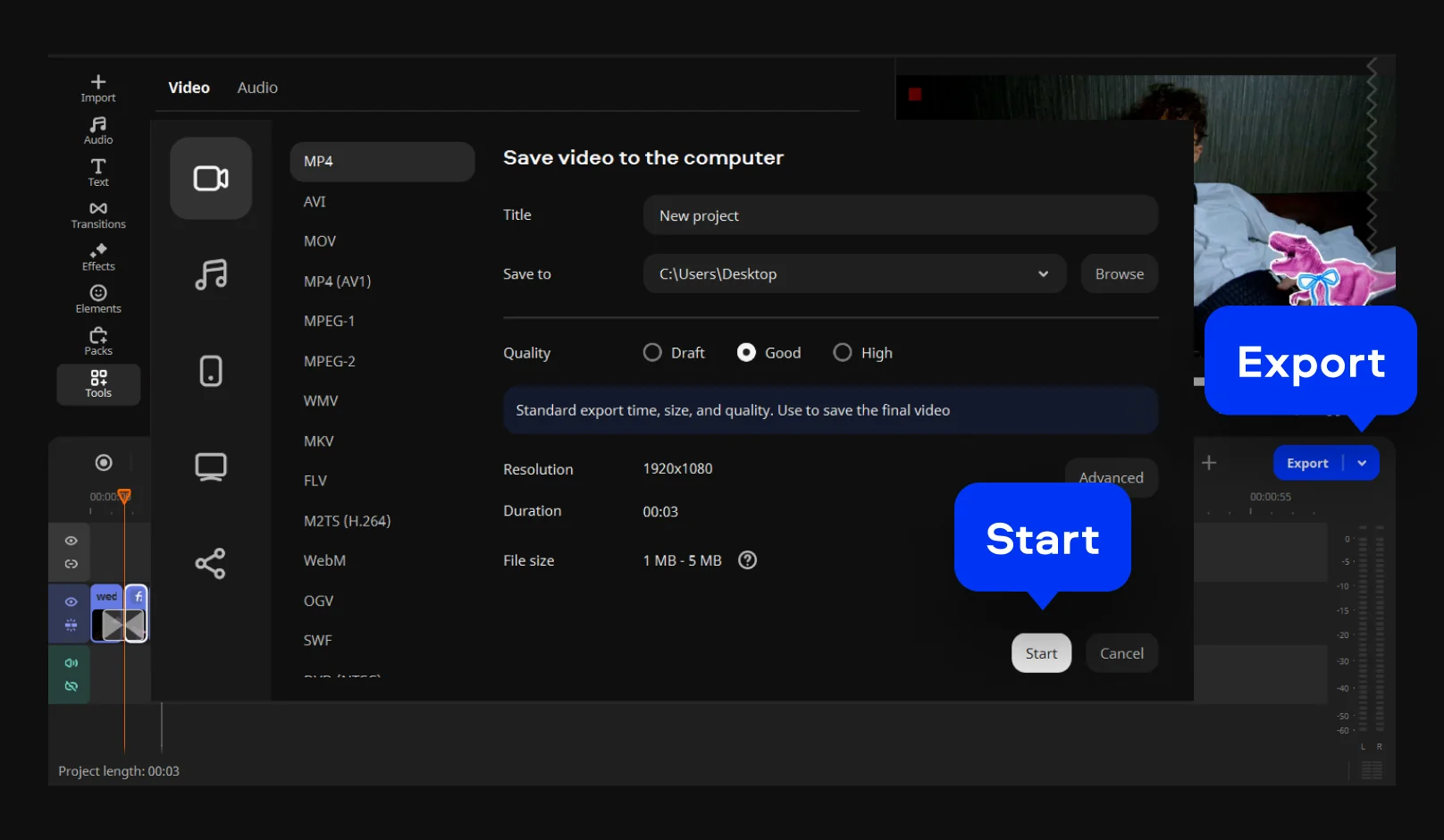
Simple export when the video is ready

Export the finished file in the format and quality you need. Save it on your device, send it to clients, or prepare it for online sharing with family and guests.

Easily edit wedding videos

Movavi Video Editor is wedding video editing software for people who want a polished video without learning a heavy editing suite. It covers the essentials – trimming, titles, transitions, color correction, stabilization, music, and sound adjustment – in a clear but capable interface.

It also works well as a wedding video creator for ceremony edits, reception recaps, social clips, and highlights. The built-in tools and timeline features make the app easy to use, while the result still feels clean. For many users looking for the best software for wedding video editing, Movavi Video Editor is a practical choice because it focuses on the edit, not on unnecessary complexity.

How to use the wedding video editor

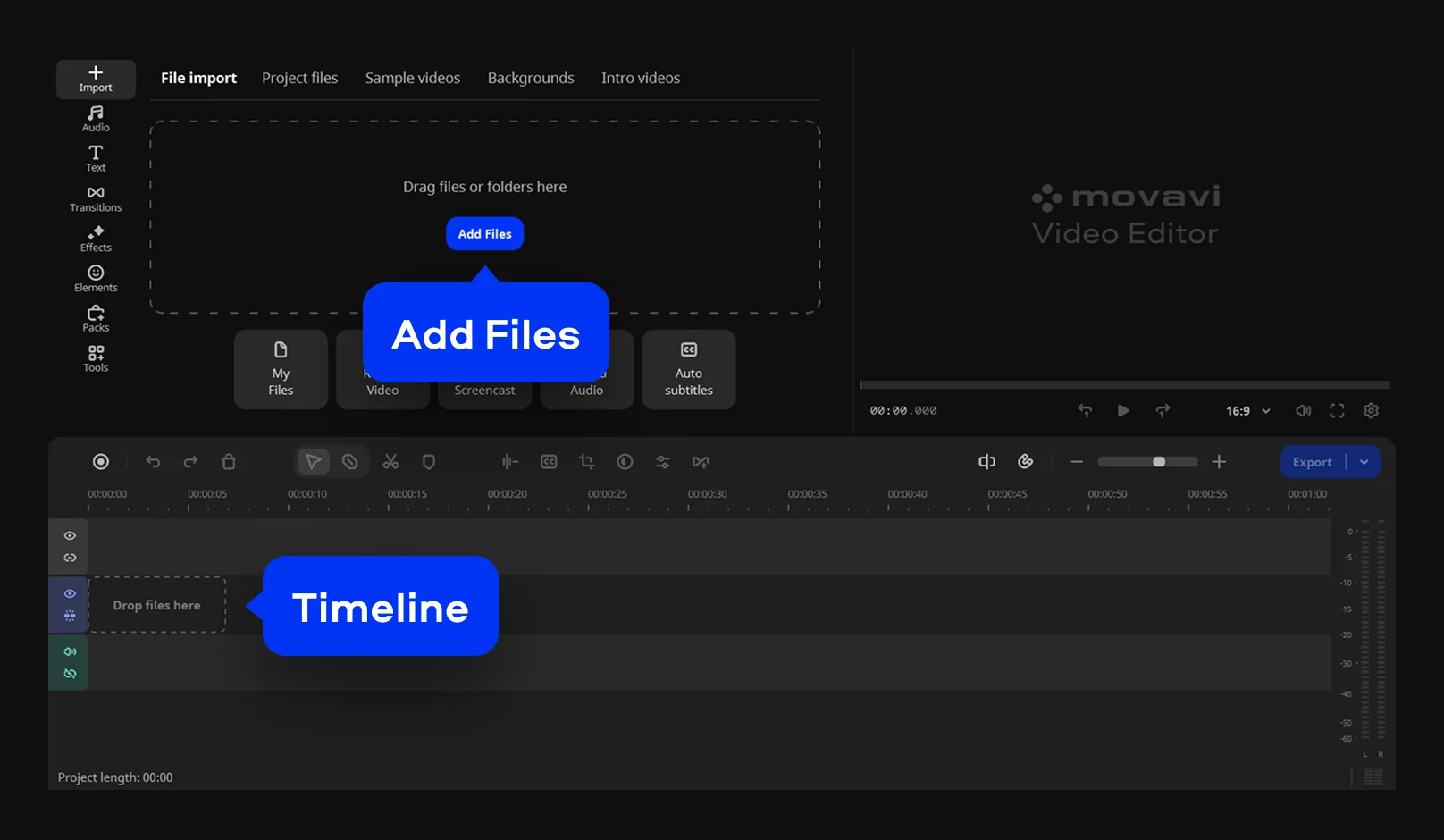
Step 1. Install the wedding video maker

Download the program for a PC or Mac, install, and launch it. Click Add files to import video files, pictures, speeches, soundtracks, and songs. Begin by arranging the major events chronologically: preparation, the ceremony, the kiss, the celebration, the first dance, and anything unplanned but particularly memorable.
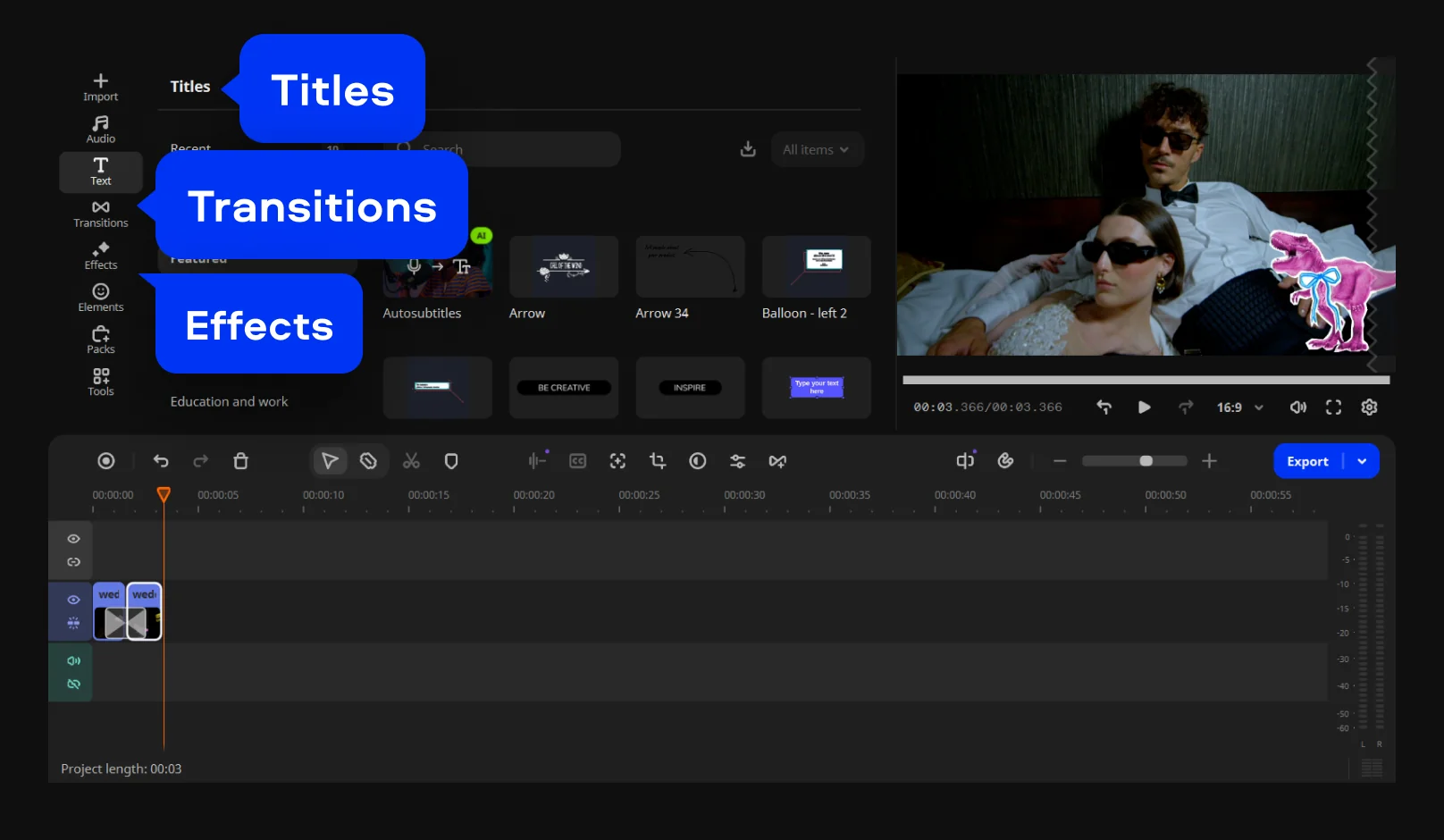
Step 2. Edit the story and enhance the footage

Remove all unnecessary parts such as lengthy silences, duplicate shots, and shaky footage. Insert titles only if needed, rather than for everything. Apply transitions sparingly. Correct colors and lighting if they affect some shots' quality, and make sure the volume doesn't conflict between the vows, speeches, music, and background sound.

Insert any additional elements like subtitles, filters, or effects if you like the overall vibe of your wedding video.

Step 3. Export the video file

Review the entire video through once more. It is common practice to discover at least one place where there is an awkward cut or an excessively long clip. Fix that, and click the Export button.

Movavi Video Editor
Create awesome videos easily

*The free version of Movavi Video Editor may have the following restrictions depending on the build: watermark on exported clips, 60-second video or 1/2 audio length limit, and/or some advanced features unavailable when exporting videos.

Frequently asked questions

What video-editing software do wedding videographers use?

These types of video editing software include Adobe® Premiere® Pro, Final Cut Pro, and DaVinci Resolve. But if your objective is not to create highly sophisticated videos, then a much simpler video editing software like Movavi Video Editor will be enough as it contains all the features you need.

Which app is best for marriage video editing?

Movavi Video Editor is a solid option if you need marriage video editing software with trimming, transitions, titles, filters, stabilization, audio tools, and AI features in one place.

How do I edit my wedding video?

Arrange the clips chronologically according to your day, edit out any repetitive parts or things that are unnecessary, insert music and titles, edit the colors and sound, and then export the final version.

Can I edit a wedding video in CapCut?

Yes, CapCut works for simple edits. For a longer desktop project with more control over the timeline, audio, titles, transitions, and export settings, Movavi Video Editor may be a better wedding video editor.

Movavi Video Editor
Create awesome videos easily

*The free version of Movavi Video Editor may have the following restrictions depending on the build: watermark on exported clips, 60-second video or 1/2 audio length limit, and/or some advanced features unavailable when exporting videos.

Join us for discounts, editing tips, and content ideas

1.5M+ users already subscribed to our newsletter

By signing up, I agree to receive marketing emails from Movavi and agree to Movavi's Privacy Policy.