
VEED Desktop App and Offline Editing: What to Know Before You Download

Edited by
Ben Jacklin
4,656

VEED.io has become one of the most popular online video editors, thanks to its clean interface, one-click auto subtitles, and AI-powered tools. But there's one question creators keep asking before they commit to it: is there a real VEED desktop app you can install and run offline? If your workflow depends on editing without a constant connection, the answer matters a lot. Below, we break down exactly what a VEED download gets you, how to cope when your Wi-Fi drops, where the browser-only model falls short, and which fully offline editor makes a strong alternative.

Does VEED have a desktop or offline app

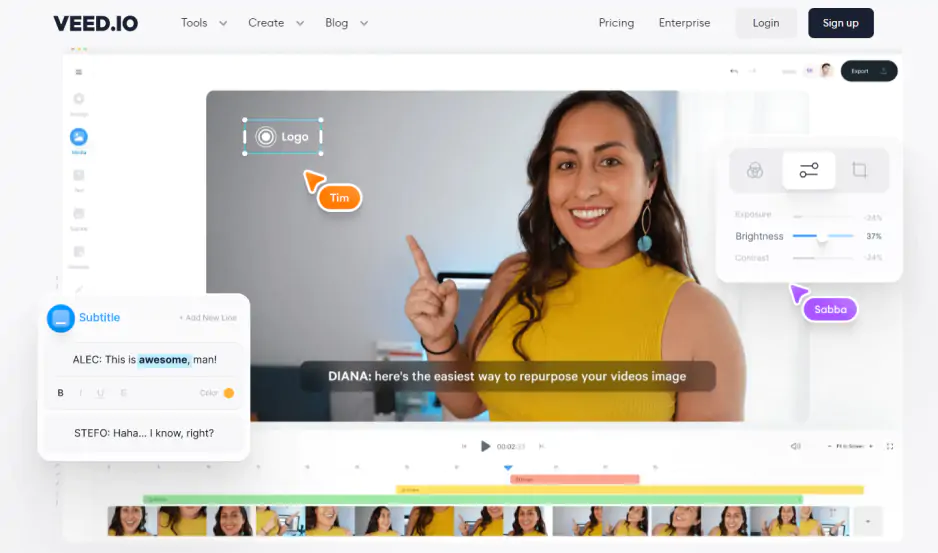
Here's the short version: VEED is fundamentally a browser-based, cloud-first editor. It launched in 2018 and was built from the ground up to run inside a web browser, which means the entire editing experience lives on VEED's servers rather than on your hard drive.

So when people search for a VEED desktop app or try to download VEED for PC, what they usually find is one of two things. The first is VEED's Progressive Web App (PWA) option: on Chrome, Edge, or Safari you can "install" the site so it opens in its own window with a dock or taskbar icon. This gives you an app-like feel, but under the hood it's still the website. The second is third-party wrappers listed on sites like WebCatalog that repackage the web app into a VEED for PC shortcut. Neither of these is a true native program, and neither unlocks genuine offline editing.

That distinction is important. A real VEED download in the traditional sense – a standalone installer that works with your Internet unplugged – does not exist. Even after a VEED app is downloaded through a PWA or wrapper, the editor still needs to reach VEED's cloud to render, export, and run its AI features. If you were hoping the VEED desktop app would free you from the browser entirely, it won't.

How to use VEED with an unstable Internet connection

Because there's no offline mode, a stable connection is essential. VEED recommends roughly 5 Mbps at minimum, 25+ Mbps for smooth 1080p work, and 50+ Mbps for 4K. If your connection is patchy, you don't have to give up – but you do need to work smarter.

Start by installing VEED as a PWA. The app-style window caches some assets locally and can keep your timeline and media arrangement responsive during brief connection dips, even though rendering still needs the cloud. Next, work in shorter segments. Large, complex projects hammer your bandwidth every time the editor syncs, so breaking a long video into smaller clips reduces the load and the risk of losing progress mid-edit.

VEED auto-saves every change to the cloud, so there's no manual "FileSave," but that also means a dropped connection can interrupt a save. Whenever you finish a milestone, confirm the project has synced before closing the tab. Most importantly, when you finish editing, download VEED.io video exports to your computer right away. Don't leave finished files sitting only in the cloud. Being able to download VEED video files promptly means a later outage won't lock you out of your own work. If you frequently need to download VEED video projects on the go, treat every stable window of connectivity as a chance to export and back up. There's no separate VEED downloader utility for pulling projects offline, so this manual habit is your safety net, and a reliable VEED download video routine is the closest thing to insurance the platform offers.

Drawbacks of working in a browser-based editor without an offline mode

The cloud model has real advantages – instant access from any machine, effortless collaboration, and no heavy installation. But editing entirely in a browser without an offline fallback comes with trade-offs worth weighing before you rely on it.

First and most obvious: total dependence on your connection. If your Internet goes down, your editor goes down with it. There's no way to download VEED.io as a self-contained program and keep working through an outage, a flight, or a trip to a location with weak signal. For creators who travel or work in areas with unreliable service, this is a dealbreaker.

Second, performance ceilings. Browsers cap how much memory and processing a single tab can use, so long timelines, high-resolution footage, and multiple effects can slow things down in ways a native application handles more gracefully. When you try to download VEED for PC and expect desktop-class horsepower, you're still bound by browser limits.

Third, rendering and exporting are tied to VEED's servers. Your final export speed depends on their infrastructure and your upload bandwidth, not just your machine. During busy periods or on a slow connection, exporting can crawl. A true VEED download for PC that is rendered locally would sidestep this entirely – but that option isn't on the table.

Finally, there are privacy and control considerations. Every clip you edit is uploaded to the cloud, which some creators and businesses handling sensitive footage prefer to avoid. Combined with subscription pricing for higher tiers and export limits on free plans, the case for a locally installed, offline-capable editor gets stronger the more serious your projects become.

Video editor with full offline functionality: Movavi Video Editor

If offline editing is a must-have and no amount of VEED app download workarounds will cut it, Movavi Video Editor is a strong alternative built exactly the way VEED isn't – as a genuine desktop program.

Movavi Video Editor installs directly on Windows 11/10 and macOS, and it runs entirely on your own computer. That means no connection required to cut, trim, add transitions, apply effects, or export. The install is lightweight, so it runs comfortably on everyday machines rather than demanding a powerhouse rig.

Despite living offline, it doesn't skimp on modern features. Recent versions include AI-powered auto subtitles with speech recognition, 30+ subtitle styles, one-click silence removal to cut out awkward pauses, AI denoise for cleaning up grainy or low-light footage, and fast effect copying so you can apply a look from one clip to another instantly. You also get hundreds of drag-and-drop filters, transitions, titles, and overlays. In practice, it covers the same everyday jobs people reach VEED for – social clips, YouTube videos, presentations – without ever touching a browser.


Have questions?
If you can’t find the answer to your question, please feel free to contact our Support Team.
Join us for discounts, editing tips, and content ideas

1.5M+ users already subscribed to our newsletter

By signing up, I agree to receive marketing emails from Movavi and agree to Movavi's Privacy Policy.