VEED Free Plan Limitations: What You Need to Know

Edited by
Ben Jacklin
4,572

Before you commit hours to a project, it pays to understand the VEED free plan limitations. VEED is a capable browser-based editor, but its free tier is built for testing rather than publishing. Every export carries a watermark, resolution is capped, videos are limited to 10 minutes, and AI tools come with strict monthly caps – all of which push serious creators toward a paid plan.

What's included in the free plan

VEED free plan features are surprisingly generous for a no-cost tool. Everything runs in your browser, so there's nothing to download and no powerful computer required. You get access to the core timeline editor, letting you cut, trim, split, and rearrange clips with drag-and-drop ease.

Beyond basic editing, free users can record their screen and webcam directly inside the platform – handy for tutorials, demos, and quick presentations. A built-in teleprompter helps you deliver scripted content smoothly, reading naturally while you film.

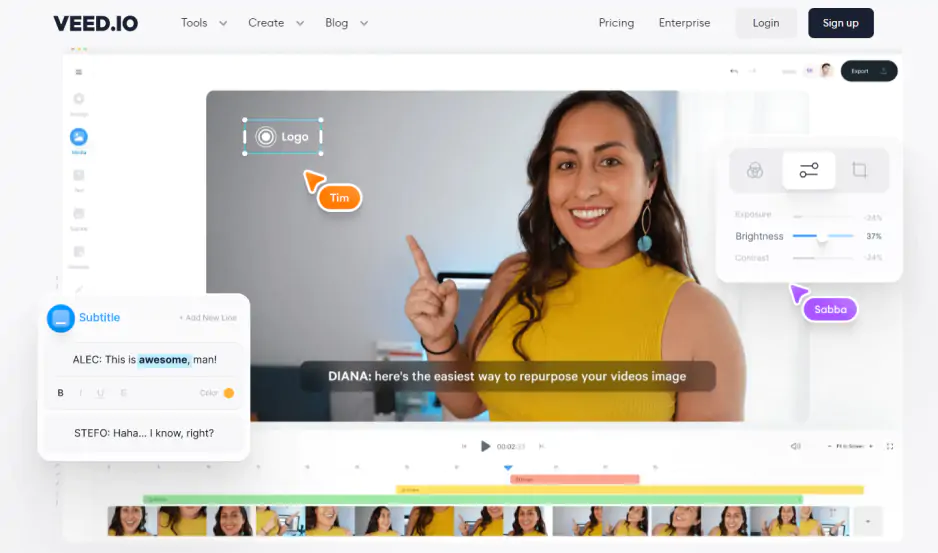
The standout among the VEED free plan features is AI auto-subtitling. VEED transcribes your speech across 100+ languages with impressive accuracy, then lets you edit timing and wording in a dedicated subtitle panel, though free monthly minutes are limited.

Rounding things out, you'll find a library of templates, stock media, transitions, text overlays, and basic caption styling. Together, these tools make VEED a legitimately usable editor for testing ideas and producing short, casual videos.

Free tier limitations explained

The most visible catch is branding. The VEED free plan watermark sits in the corner of your finished video – a small "Made with VEED" badge that quietly tells every viewer which tool you used. For personal drafts it's harmless, but for client work or public content it undercuts a polished, professional impression.

Crucially, there's no way around it without paying. Every VEED free plan watermark export carries that badge baked into the file, so you can't simply crop or remove it afterward. Whether you save one clip or fifty, the branding travels with each download, which is why so many creators view it as the single biggest reason to upgrade.

Timing is the other hard ceiling. The VEED free plan video length limit caps each exported project at ten minutes. That works for reels, ads, and social snippets, but it rules out webinars, full tutorials, podcast episodes, or long-form YouTube uploads without splitting them awkwardly into pieces.

Together, these two barriers define the free tier's real boundary. You can edit freely and experiment as much as you like, but the moment you need clean, extended, publish-ready output, the plan gently but firmly points you toward a subscription.

Should you upgrade to VEED Pro?

Whether Pro earns its price tag depends entirely on how you use video. At roughly $25–29 per month billed annually, it removes the watermark, lifts the length cap, and pushes exports up to crisp 4K turning VEED from a trial tool into a genuine production platform.

The real value, though, lies in the AI extras. Pro unlocks the full suite: unlimited auto-subtitles, translation, AI voiceovers, and AI avatars that generate talking-head clips without a camera. For creators who publish regularly, these features can replace several separate paid apps, which makes the monthly cost easier to justify.

That said, Pro isn't the only step up. If you mainly need clean, watermark-free 1080p video, the cheaper Basic tier at around $12 a month may be plenty. Reach for Pro only when 4K, heavier AI use, or longer projects become part of your everyday workflow.

Free video editors worth trying

If the VEED free plan watermark limitations are your main sticking point, several rival editors let you export clean video at no cost. DaVinci Resolve offers unlimited 4K exports for free, making it the strongest pick for anyone building a serious editing workflow, though it carries a steeper learning curve than a browser tool.

For quicker, simpler jobs, Microsoft Clipchamp is a friendly option. Built into Windows 11, its free plan exports at 1080p with no watermark and includes AI auto-captions, text-to-speech, and a stock media library. On mobile, VN Video Editor and CapCut both deliver watermark-free exports.

None of these tools replicate VEED's exact all-in-browser convenience, but they remove the two biggest frustrations at once: no badge on your footage and no ten-minute ceiling. Test a couple with real clips, and pick whichever workflow feels most natural for the content you actually make.

Best value among paid editors

For the most features per dollar, DaVinci Resolve Studio stands out: a one-time $295 unlocks pro-grade color, effects, and audio with no subscription – cheaper than most rivals by year two. If you prefer low monthly commitment, InShot at around $19.99 a year covers captions, chroma key, and beat-sync on mobile. CapCut Pro (~$19.99/month) suits heavy social creators, while VEED Basic (~$12/month annually) remains the simplest watermark-free browser option for straightforward, everyday editing.

Beginner-friendly desktop pick: Movavi Video Editor

Movavi Video Editor is a desktop app with an exceptionally clean interface and a gentle learning curve, making it a favorite for beginners, YouTubers, and educators. Its AI extras – background removal, noise reduction, and motion tracking – cover most everyday needs without professional complexity, and it runs on both Windows and macOS.

There's one trade-off to keep in mind: Movavi doesn't offer a lasting free tier. Its 7-day trial stamps a watermark on every export, so clean video requires a purchase.

Have questions?
If you can’t find the answer to your question, please feel free to contact our Support Team.
Join us for discounts, editing tips, and content ideas

1.5M+ users already subscribed to our newsletter

By signing up, I agree to receive marketing emails from Movavi and agree to Movavi's Privacy Policy.


