How to Remove a Clipchamp Watermark

Edited by
Ben Jacklin
4,903

Clipchamp's free plan watermarks every video you export, which can look unprofessional if you're sharing content publicly or with clients. The good news is you have several legitimate options to remove it – from upgrading your plan to trying alternative editors with better free tiers. This guide walks you through practical methods for exporting watermark-free videos, so you can choose the approach that fits your budget and workflow.

The reason behind Clipchamp's watermark

The app includes the Clipchamp free version watermark as a way to promote its brand while still offering a functional editor at no cost. Since the software itself requires ongoing development, hosting, and support, the watermark serves as a subtle trade-off: you get access to solid editing tools, and in return, Clipchamp gets visibility every time your video is shared or viewed.

This branding approach isn't unique to Clipchamp. Many freemium tools use similar tactics. The Clipchamp free export watermark specifically appears on downloaded files, not within the editing workspace, so it only becomes visible once you've finished your project and exported the final version.

Removing the watermark through a subscription

The most straightforward and fully supported method for eliminating the Сlipchamp free watermark is upgrading to a paid plan. Microsoft, which owns Clipchamp, offers premium subscription tiers that unlock a range of features beyond watermark removal, including access to premium stock media, higher export resolutions, and additional storage for your projects. This is the approach Clipchamp itself recommends, since it directly supports the platform's development.

To upgrade, log into your Clipchamp account and navigate to the pricing or plans section, usually found in account settings or during the export process. From there, you can compare tiers and select the one that matches your needs, whether that's a personal creator plan or a business-tier subscription bundled with a Microsoft 365 membership. Payment is typically handled through standard billing methods like credit card or PayPal.

Once your upgrade is confirmed, the Clipchamp watermark disappears automatically from all future downloads. You won't need to change any settings within your existing projects; the removal happens at the account level, meaning any video you export moving forward will be clean and watermark-free.

This method is ideal for people who use Clipchamp regularly, whether for professional content, marketing videos, or social media. It guarantees consistent quality and ensures your account remains compliant with Clipchamp's terms of service, avoiding any risk associated with third-party workarounds.

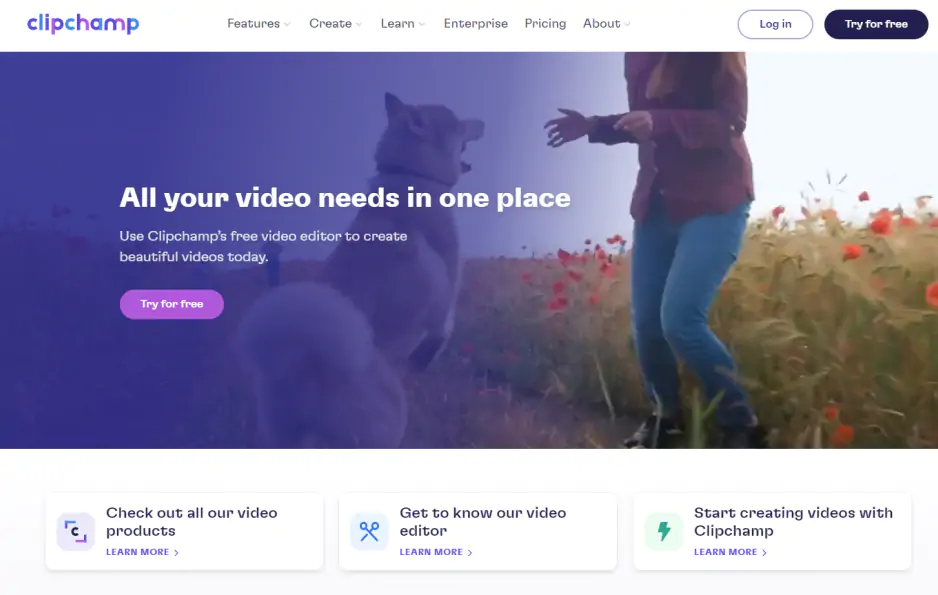
Is it possible to remove a watermark for free?

If upgrading isn't in your budget right now, you might be wondering whether there's a workaround. The honest answer is that removing the Clipchamp watermark in the free version without a subscription isn't something Clipchamp officially supports. There's no hidden setting, promo code, or export trick within the platform itself that strips the watermark while keeping you on the free tier. So anyone claiming otherwise is likely referring to a third-party tool or unofficial method rather than a built-in feature.

That said, "free" doesn't have to mean "stuck with a subscription upgrade." Several alternative video editors offer watermark-free exports on their free plans, which means switching platforms could solve the problem without costing you anything. Additionally, some standalone watermark-removal tools and video editing apps can crop, blur, or cover a watermark after the fact, though these methods often reduce video quality or require extra editing steps.

It's worth weighing convenience against effort here. Switching your entire workflow to a new editor takes time to learn, while post-export fixes can look unpolished if not done carefully. The next sections will walk through both approaches in more detail, so you can decide which option realistically fits your project, timeline, and comfort level with video editing tools.

What you risk when using unofficial removal tools

Searching online for ways to remove the Clipchamp watermark will turn up numerous third-party apps and websites promising quick, free results. While some of these tools do work to some extent, they come with real risks that are worth understanding before you download or upload anything to an unfamiliar service.

Security is the biggest concern. Many free watermark-removal websites require you to upload your video to their servers, which means you're handing over your content to a company with unclear data practices. Some of these platforms have been linked to malware, intrusive ads, or hidden charges after a "free trial" period ends. Others quietly retain rights to process or store your footage indefinitely.

Beyond security, quality is often compromised. Tools that crop or blur out a watermark frequently distort the surrounding footage, leaving visible artifacts or an awkward black bar where the logo used to be. Given these trade-offs, it's generally safer to explore legitimate alternatives rather than trusting an unverified third-party tool with your video files.

Alternative editor without watermarks

Another strong option worth considering is Movavi Video Editor, known for its intuitive interface and beginner-friendly editing tools. It's particularly appealing if you want a balance between simplicity and professional features like transitions, color correction, and audio syncing, without needing a steep learning curve.

Movavi offers a 7-day free trial, giving you enough time to test its full feature set before deciding whether to purchase a license. For anyone editing short-term projects or simply wanting to compare Movavi Video Editor against Clipchamp, the trial window offers a practical, no-risk way to see if it fits your editing style and output needs.

Have questions?
If you can’t find the answer to your question, please feel free to contact our Support Team.
Join us for discounts, editing tips, and content ideas

1.5M+ users already subscribed to our newsletter

By signing up, I agree to receive marketing emails from Movavi and agree to Movavi's Privacy Policy.


