
InShot Free Version Limitations

Edited by
Ben Jacklin
6,533

InShot is one of the most popular mobile editing apps, but the free tier comes with real trade-offs worth understanding before you commit. While the InShot free version features cover basic trimming, transitions, and text, they also include watermarks, ads, and locked premium tools. This article breaks down exactly what you get, what you don't, and whether those limits will hold back your projects.

Features included in the free plan

Before weighing the drawbacks, it helps to see what the app offers without spending a cent. The InShot app free version features are surprisingly generous for casual editing, covering the essentials most people need for social media clips.

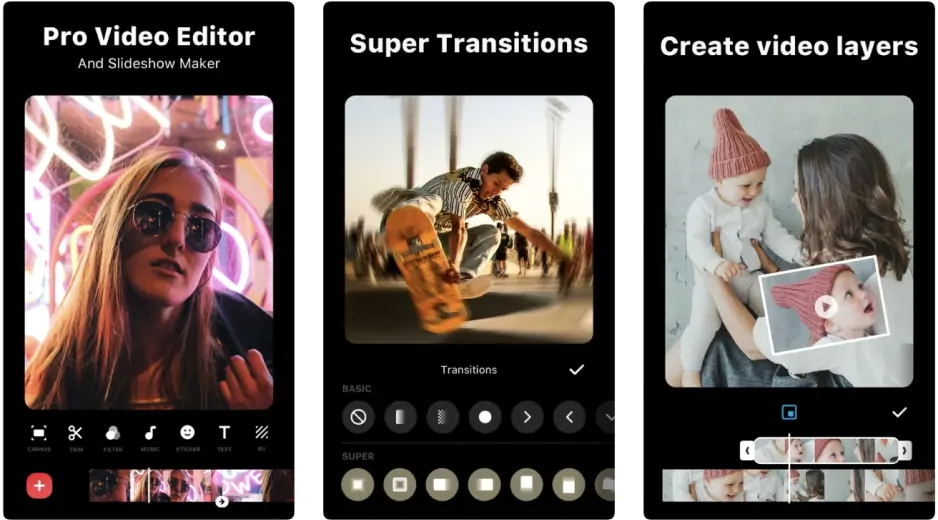
On the video side, you can trim, cut, split, and merge footage with ease. Speed controls, basic transitions, and background options let you shape a rough idea into a shareable post within minutes.

The InShot video editor free version features also include a solid text and sticker library. You can layer captions, adjust fonts, and drop in emojis or animated stickers to give clips personality without any extra download.

Audio tools round out the package. Free users can add music from the built-in library, import their own tracks, record voiceovers, and fine-tune volume levels across separate layers.

Finally, the app supports photo editing and collages too. You can apply filters, adjust brightness and contrast, and export in common aspect ratios for Instagram, TikTok, or YouTube, making it a flexible all-in-one starting point.

What's locked behind the paywall

For all its generosity, the app draws a firm line between casual and professional use. The InShot free version limitations become obvious the moment you try to polish a video for a client, a brand, or a wider audience.

The most visible barrier is the watermark. Every exported clip carries the InShot logo unless you either pay or complete the awkward workaround of watching an ad to remove it one project at a time.

Ads themselves are the second friction point. Banner and full-screen interruptions appear between actions, breaking your rhythm during longer editing sessions and nudging you toward the subscription with steady persistence.

A large slice of creative content sits behind the paywall too. Premium filters, effects, transitions, stickers, and fonts are marked with a crown icon, so the free library is only a fraction of what the app actually contains.

Finally, the InShot free version features limitations extend to output quality and control. Higher frame-rate exports, certain resolution options, and some advanced tools are reserved for paying users, capping how far a free project can be refined.

Should you upgrade to Pro?

The upgrade question comes down to how often you edit and who your videos are for. For anyone posting more than the occasional clip, the math tends to shift toward the paid tier fairly quickly.

Start with cost. The InShot Pro price is modest compared with desktop editing suites: roughly $3.99 per month or $17.99 per year, with a one-time lifetime option around $39.99. Exact figures vary by region and can shift with promotions, so it's worth checking the in-app store before you commit.

What you unlock is the real draw. The core InShot Pro features remove the watermark, strip out ads, and open the full library of premium filters, transitions, stickers, and fonts, alongside higher-quality export settings for a cleaner finish.

The InShot free vs. Pro features gap matters most for creators building a consistent brand. If your clips represent a business or channel, the watermark alone can undercut a professional look, making the subscription an easy justification.

For everyone else, the free tier remains perfectly capable. Casual users editing a birthday video or a one-off reel rarely need the extras, so paying only makes sense once editing becomes a regular habit rather than an occasional task.

Free alternatives worth trying

If the InShot app free version limitations feel too restrictive, several other editors offer more generous free tiers.

For desktop editing, DaVinci Resolve stands out. Its free version is genuinely professional-grade, exports without a watermark, and handles color grading and audio work that most mobile apps can't touch, though it carries a steeper learning curve.

For mobile editing, VN Video Editor is a popular pick. It offers layered timelines, keyframes, and watermark-free exports at no cost, making it a natural step up for creators who have outgrown simpler tools.

CapCut is another common choice, with a deep effects library and quick social-media templates. Just note that its free terms shift over time, and some assets or exports may still be gated, so check current conditions before relying on it.

The best value paid editor: Movavi Video Editor

If you're ready to pay but want the most features for the least money, Movavi Video Editor is hard to beat. It pairs a clean, beginner-friendly interface with a deep toolkit – layered timelines, keyframes, a large effects and transitions library, and AI-assisted extras like auto-captioning.

What makes it easy to recommend is that you can test it risk-free. Movavi offers a 7-day free trial that lets you explore the full editor before spending anything, though trial exports carry a watermark and a 60-second cap. Try it, edit a real project, and you'll quickly know whether the price fits your workflow.


Have questions?
If you can’t find the answer to your question, please feel free to contact our Support Team.
Join us for discounts, editing tips, and content ideas

1.5M+ users already subscribed to our newsletter

By signing up, I agree to receive marketing emails from Movavi and agree to Movavi's Privacy Policy.