
Movavi Video Editor
Create awesome videos easily
CapCut has become a go-to video editing app for creators, but many subscribers eventually want to cancel – whether due to CapCut pricing, changing needs, or simply no longer using premium features. This guide walks you through the cancellation process step by step, so you can avoid unwanted charges and manage your subscription with confidence, no matter which device or platform you originally signed up through.
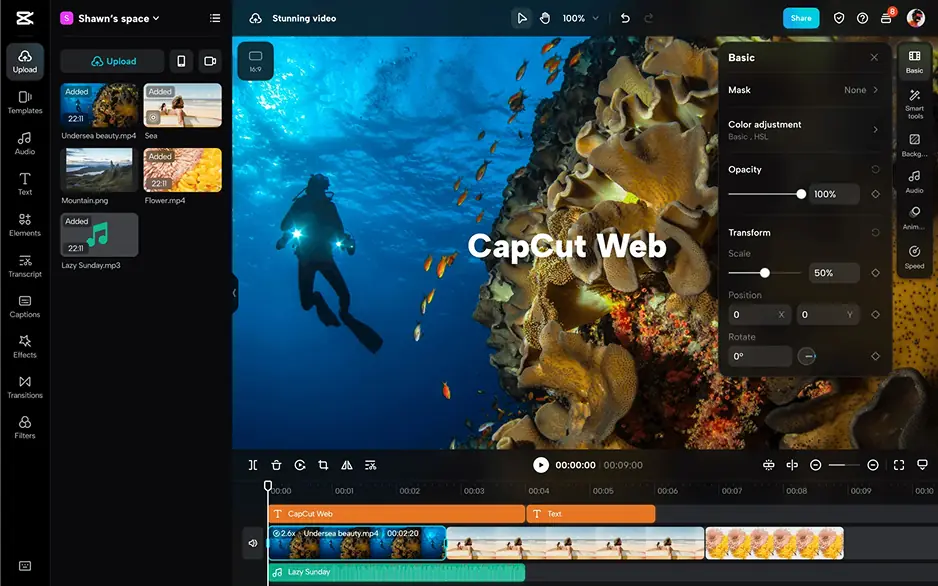
Canceling your CapCut subscription is straightforward once you know where to look, but the exact steps depend on how you originally signed up. Most users subscribe either directly through CapCut's website, through the App Store on iOS, or through Google Play on Android, and each method requires a slightly different cancellation path. Below are detailed instructions on how to cancel a CapCut subscription.
If you subscribed through CapCut's website:
If you subscribed via iOS (App Store):
If you subscribed via Android (Google Play):
Regardless of which platform you used, always confirm the cancellation was successful by checking for a confirmation email or reviewing your account status afterward to ensure no further charges occur.
A common concern for users who cancel CapCut subscription plans is whether their projects, exported videos, and creative work will disappear along with their premium access. The good news is that canceling doesn't automatically delete your existing content.
Your previously created projects remain saved in your account, and any videos you've already exported stay on your device exactly as they were. Cancellation simply stops future billing and removes access to premium-only features going forward. It doesn't erase your editing history or wipe your project library.
That said, some limitations do apply after you cancel. Projects that relied on premium assets, such as certain fonts, effects, templates, or stock footage, may become locked or unavailable for further editing. If you open an older project containing these elements, you might see a prompt indicating that a premium subscription is required to continue editing or exporting it in its original form.
To avoid losing access to specific creative elements, consider exporting your finished videos in their final format before your subscription ends, ensuring you retain a usable copy regardless of future account changes.
So, how much is CapCut Pro? The answer depends on billing frequency and platform. As of 2026, CapCut Pro costs $19.99 per month, or $179.99 per year when billed annually, making the annual plan noticeably cheaper over twelve months than paying monthly.
The CapCut Pro price also shifts depending on where you subscribe. Subscribing through app stores typically costs more than through the official website or desktop app, because app stores charge platform service fees. On iOS, in-app subscriptions run higher, around $21.99 to $22.99 per month for Pro, so choosing the web checkout keeps costs lower.
Regional pricing adds another layer of variation to the CapCut Pro subscription price. CapCut's pricing varies significantly across countries, with lower-priced regions like Turkey seeing rates around $5 to 6 per month, while Brazil, the Philippines, and India range from $6 to 11 per month.
Given these fluctuations, always verify current rates directly in your account before subscribing or renewing.
If CapCut Pro pricing feels steep for your editing needs, you're not without options. Several video-editing tools offer comparable features at different price points, giving you flexibility based on how often you edit and what your budget allows.
One popular option is Movavi Video Editor, a desktop-based editor known for its beginner-friendly interface and solid AI-powered tools like automatic subtitles and background removal. It's a practical pick for anyone comparing CapCut cost against alternatives, since Movavi offers a 7-day free trial before requiring payment giving you a chance to test its workflow risk-free.
Keep in mind that free trials often come with limitations. During Movavi's trial period, exported videos carry a watermark, so it's best suited for evaluating the interface rather than producing finished content.
Ultimately, the right alternative depends on your workflow – whether you prioritize mobile editing, desktop power, or a specific price range.




1.5M+ users already subscribed to our newsletter