If you find iMovie's music options limiting – or you want a more streamlined solution on Windows – Movavi Video Editor is worth considering. Unlike iMovie, Movavi includes a built-in library of royalty-free music tracks that you can use directly in your projects without sourcing music elsewhere. It's a clean, beginner-friendly editor available for both Mac and Windows, with audio syncing tools, beat detection, and a subscription-based music library that takes the guesswork out of licensing. For creators who regularly need fresh music for videos, the all-in-one approach can save a significant amount of time.
How to Add Music to iMovie
Whether you're polishing a travel montage or finishing a school project, adding the right soundtrack transforms a good video into a great one. The good news is that iMovie – Apple's free video editor – makes it relatively easy to add music to your projects, both on iPhone and Mac. The less obvious part? Not all music you own actually works in iMovie. Here's everything you need to know about how to add audio to iMovie, why some songs get blocked, and where to find tracks that always work.
Adding your audio file to iMovie
The most reliable way to add music to iMovie is to import an audio file you already have – an MP3, AAC, WAV, or M4A that lives locally on your device.
On iPhone or iPad
To add music to iMovie on iPhone, start by opening your iMovie project and tapping the + button in the timeline. Select Audio, then choose from the following options:
- My Music – browse your local music library
- Files – import any audio file saved to your Files app
- Soundtracks – built-in iMovie tracks
Once you tap a track, hit the green + icon to add it directly to your project. The audio clip will appear as a green bar beneath your video in the timeline. You can drag it left or right to reposition it, and pinch the edges to trim it.
On Mac
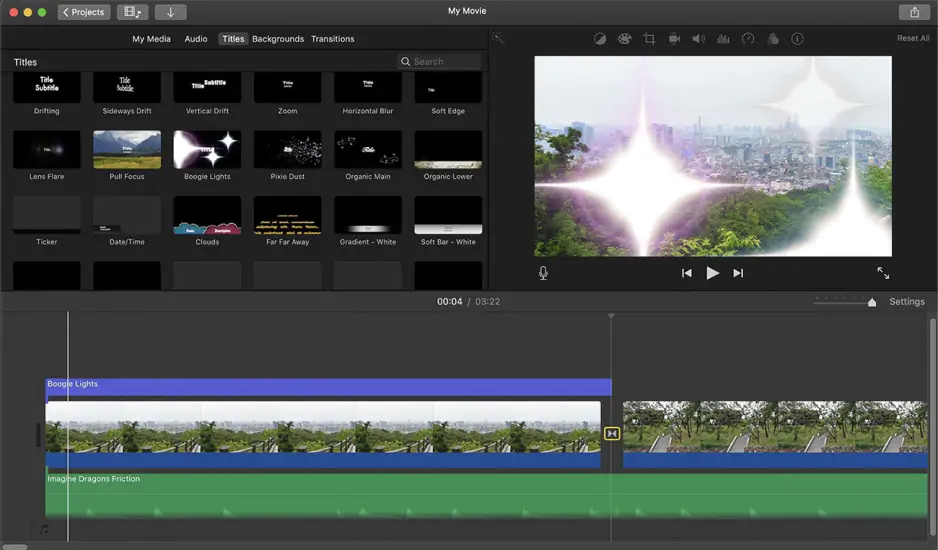
To add music to iMovie on Mac, open your project in iMovie and click the Audio tab in the top-left panel. From there you can browse your Music library, GarageBand compositions, or your iTunes/Music app library. You can also drag and drop any audio file directly from Finder into the iMovie timeline – one of the quickest methods available.
Once the audio is in your project, a green bar appears below the video clips. Click and drag it to the right position, and use the clip trimmer to set the start and end points.
Why Apple Music isn't added to iMovie
A very common frustration: you want to add Apple Music to iMovie, find the song in your library, tap the + button – and nothing happens, or iMovie shows a warning. So why can't you add Apple Music to iMovie?
The answer is DRM – Digital Rights Management. Songs available through an Apple Music subscription are streamed and downloaded in a format that is encrypted with FairPlay, Apple's copy-protection technology. These files are licensed to you for personal listening only; they are not transferable or editable by third-party or even first-party tools like iMovie.
In practical terms: iMovie cannot use Apple Music tracks because it cannot decrypt the protected files. This applies whether you're on iPhone or Mac. The song appears in your library, but iMovie simply refuses to import it.
The only Apple Music tracks that work in iMovie are songs you purchased individually from the iTunes Store (not streamed through a subscription). Purchased tracks are DRM-free and can be added to iMovie like any other audio file.
If you want to add music from Apple Music to iMovie without purchasing it, you'd need to record or re-capture the audio through another method – which typically violates Apple's terms of service and isn't recommended.
Free DRM-free music sources for videos
Since Apple Music is off-limits, the good news is there are excellent sources of free, DRM-free music built specifically for video creators. These tracks are either public domain, Creative Commons licensed, or royalty-free – meaning you can add music to iMovie projects and, importantly, publish those videos online without copyright strikes.
YouTube Audio Library – Google's own free music and sound effects library, available at studio.youtube.com. All tracks are free for video use, many with no attribution required.
Free Music Archive (FMA) – A vast catalog of Creative Commons music across genres, available at freemusicarchive.org.
ccMixter – A community of musicians sharing remixable, Creative Commons-licensed music, great for finding unique tracks.
Pixabay Music – Completely royalty-free music and sound effects, no account required, fully usable in commercial projects.
Bensound – A popular source of royalty-free background music, with free tiers for non-commercial use.
Once you've downloaded a track from any of these sources as an MP3 or WAV, simply import it into iMovie using the Files option on iPhone or drag-and-drop on Mac – no restrictions, no blocked imports.
As for how to add music to iMovie on iPhone from Spotify – unfortunately Spotify has the same DRM limitations as Apple Music. Spotify tracks are encrypted and cannot be exported or imported into iMovie. Your best bet is to replace Spotify tracks with equivalent royalty-free music from the sources above.

Built-in iMovie library
iMovie comes with its own built-in collection of music and sound effects, and it's worth knowing what's available before you go looking elsewhere.
To access it on iPhone, tap + in the timeline, then Audio, then Soundtracks. On Mac, click the Audio tab and select iMovie Soundtracks.
The built-in library includes:
- Soundtracks – full-length background music tracks across moods like "Cinematic," "Bright," "Upbeat," and "Dreamy." These are Apple-composed, royalty-free tracks.
- Sound Effects – a solid library of ambient noise, transitions, and audio cues.
These tracks are completely free, DRM-free, and safe for personal use. However, they are somewhat generic, and if you plan to monetize your videos on YouTube or other platforms, check Apple's licensing terms first – generally they're permitted for personal and non-commercial use.
How to properly sync music with video
Adding music is one thing; making it feel intentional is another. Here's how to sync audio and video effectively in iMovie:
1. Use the waveform view. On Mac, iMovie shows an audio waveform on your music clip. Use this to visually align beats or musical phrases with your video cuts. On iPhone, you can pinch to zoom into the timeline for finer control.
2. Trim to the best section. Most songs have a strong hook or chorus – trim your audio clip so the best part plays during your most important footage. Use the yellow handles at the ends of the audio clip to adjust in and out points.
3. Fade in and fade out. Abrupt audio starts and endings feel jarring. iMovie on Mac lets you add fade handles directly on the audio clip (small circles at the clip edges). On iPhone, tap the audio clip and use the Volume option to set fade durations.
4. Adjust relative volume. If you have background music alongside spoken narration or natural video sound, lower the music volume. Tap the audio clip and drag the volume slider down – 20–30% often works well for background music under dialogue.
5. Detach audio from video (Mac only). If your video clip has its own audio track you'd like to keep or replace separately, right-click the clip and choose Detach Audio. This separates the audio into its own editable strip in the timeline.
6. Cut on the beat. The most professional-looking videos cut between clips on musical beats. Listen through your track first, note where the beats fall, and try to align your video cuts to those moments.
1.5M+ users already subscribed to our newsletter