
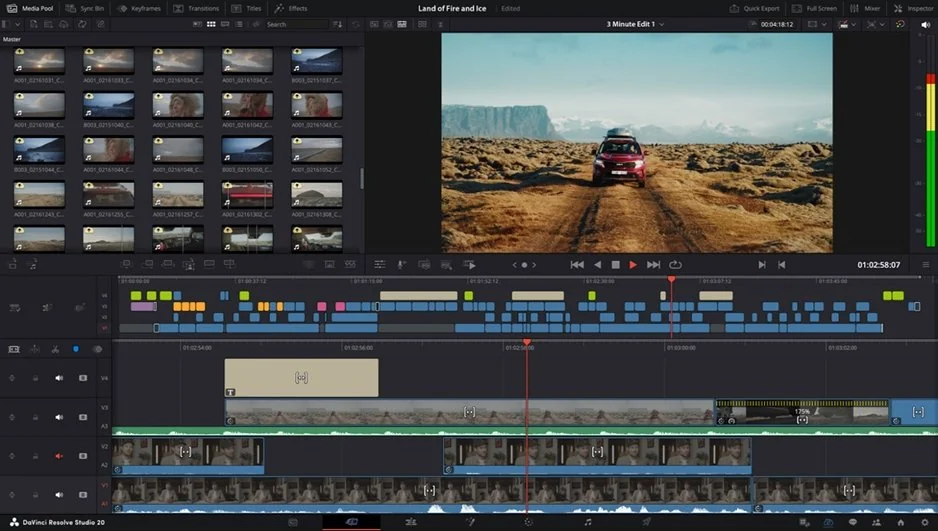
How to Fix DaVinci Resolve Playback Lag

Edited by
Ben Jacklin
4,908

If you've ever watched your timeline stutter mid-edit or waited endlessly for a preview to catch up, you know how frustrating DaVinci Resolve lagging can be. This performance drag usually stems from a mix of hardware limits, project settings, and cache management rather than a single culprit. The good news is that most slowdowns are fixable once you know where to look. In this guide, we'll walk through the practical causes and proven solutions to get your editing back up to speed.

Pinpointing the cause of the lag

So, why is DaVinci Resolve so laggy? Before fixing anything, it helps to pinpoint what's actually holding you back. If DaVinci Resolve is lagging while editing, it rarely has one cause. Running a quick check on each component tells you where to focus your effort instead of guessing.

Your CPU handles timeline calculations, effects, and general project management. If it spikes to 100% during playback, older or lower-core processors simply can't keep pace with complex sequences or heavy color grades, leading to dropped frames and sluggish response.

The GPU does most of the heavy lifting in Resolve, especially for Fusion, noise reduction, and rendering. A weak or outdated graphics card or too little VRAM will choke on high-resolution footage. Studio users lean on the GPU even more, so an underpowered card shows its limits fast.

RAM and disk speed round out the usual suspects. With too little memory, Resolve can't hold enough of your project in active use, forcing constant reloading. Meanwhile, editing off a slow external drive or a nearly full disk starves the program of the fast read speeds that smooth 4K playback demands.

Finally, don't overlook software-side factors: outdated drivers, background apps eating resources, or overly ambiguous project settings.

Settings to speed up your work

Once you've identified the bottleneck, the next move is to learn how to make DaVinci Resolve less laggy. Tuning Resolve's built-in settings is often the fastest route to smoother performance without spending a cent on hardware. A handful of well-chosen adjustments can transform a stuttering timeline into a responsive one.

Memory and GPU configuration

Next, adjust your memory and GPU configuration under Preferences. Resolve lets you set how much system RAM it can claim and which GPU processing mode to use. Allocating a generous memory limit and selecting the correct GPU (rather than Auto) ensures the program taps your best hardware instead of defaulting to weaker options.

Timeline proxy mode and render cache

Switching proxy handling on and setting your cache to Smart lets Resolve pre-render demanding sections in the background. This is a core trick because playback then reads lightweight cached files instead of recalculating effects on the fly.

On-screen tools

Finally, disable unused on-screen tools like scopes and live overlays when you don't need them, and keep your timeline free of stacked, unrendered effects during rough cuts.

Reduce preview resolution without losing final quality

One of the most common worries editors have is that lowering preview quality will somehow degrade their finished video. It won't. The preview resolution setting affects only what you see while working. The render engine always exports at your timeline's full resolution. Understanding this separation is the key to beating DaVinci Resolve playback lag without any compromise on the delivered file.

To make the change, head to the Playback menu at the top of the screen, then hover over Timeline Proxy Resolution and choose Half or Quarter. On lower-end machines, Quarter delivers the biggest relief from DaVinci Resolve laggy playback, letting you scrub and cut in real time. Once you switch to color grading or a final review, simply toggle back to Full to inspect fine detail.

It's worth pairing this with proxy or optimized media for particularly stubborn footage. High-bitrate formats like H.265 or raw 6K are decode-heavy, and even a strong system may show DaVinci Resolve playback lagging with them. Generating lighter stand-in files lets Resolve play them back effortlessly while keeping the originals linked for export.

Minimum specs vs. real performance

Blackmagic publishes official minimum specs, but those numbers tell only part of the story. The listed requirements will technically launch the program, yet they rarely deliver the fluid experience most editors expect. If you're running the bare minimum, a DaVinci Resolve laggy timeline is almost guaranteed the moment you add color grades, transitions, or multiple video layers.

In practice, what you truly need depends on your footage. For 1080p editing with light effects, a mid-range GPU with 6–8 GB of VRAM, 16 GB of RAM, and an SSD scratch disk keeps things comfortable. Step up to 4K or heavy Fusion work, and preview lag creeps in unless you have 32 GB of RAM and a stronger graphics card. Memory and GPU muscle matter far more here than raw CPU clock speed.

Lightweight alternatives worth considering

If your hardware consistently struggles no matter how many settings you tweak, switching to a lighter editor may save your sanity. Programs like DaVinci Resolve's own cut-focused workflows aside, tools such as Shotcut, OpenShot, or CapCut demand far less from your GPU and RAM, making them viable for older laptops or basic 1080p projects. They won't match Resolve's professional color and Fusion tools, but for quick edits, social clips, or learning the fundamentals, a lightweight alternative keeps playback smooth without forcing a costly hardware upgrade.

A smooth, beginner-friendly option: Movavi Video Editor

Among the lighter options, Movavi Video Editor stands out for anyone who wants a smooth, approachable experience. Its interface is refreshingly intuitive, so beginners can drag, drop, trim, and add transitions within minutes with no steep learning curve required. Because it's built to run efficiently, Movavi Video Editor stays responsive on modest laptops and older desktops, making it a genuine relief for hardware-limited editors.

It handles everyday projects – vlogs, family videos, social content, and simple promos – with speed and ease, offering built-in effects, titles, and stock media. If your priority is finishing edits quickly on a machine that can't handle demanding software, Movavi delivers a friendly, lag-free path from raw clips to a polished final video.


Have questions?
If you can’t find the answer to your question, please feel free to contact our Support Team.
Join us for discounts, editing tips, and content ideas

1.5M+ users already subscribed to our newsletter

By signing up, I agree to receive marketing emails from Movavi and agree to Movavi's Privacy Policy.