
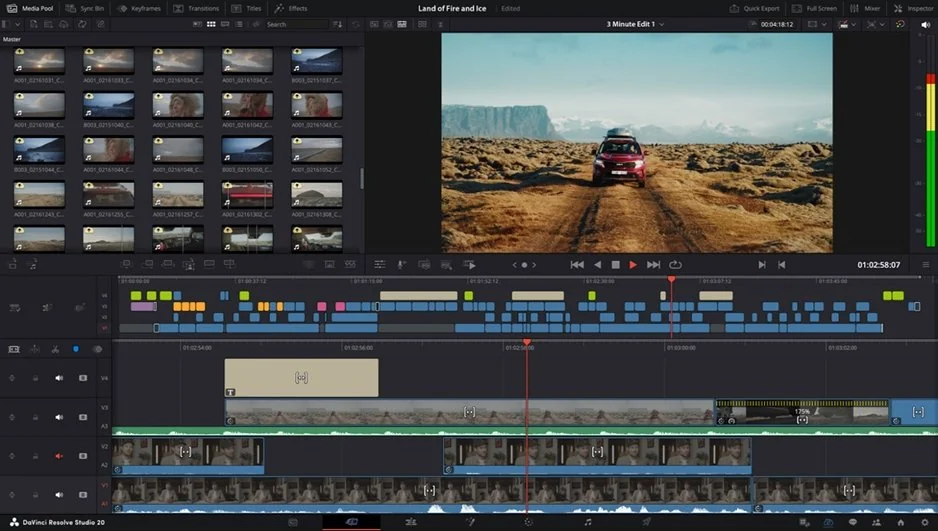
DaVinci Resolve System Requirements

Edited by
Ben Jacklin
4,903

DaVinci Resolve is one of the most powerful tools available for color grading, editing, and visual effects, but it's also famously demanding on hardware. Before diving into a project, it's worth understanding the DaVinci Resolve system requirements in 2026 to avoid laggy playback, crashes, or wasted render time. This guide breaks down exactly what your computer needs so you can run Resolve smoothly, whether you're a hobbyist or a professional editor.

Why DaVinci Resolve shows a GPU error

If you've ever opened Resolve only to be greeted by a red warning about your graphics card, you're not alone. A GPU error typically means the software has detected that your video card doesn't meet the minimum standard needed to process the app's demanding visual workload. Since Resolve relies heavily on GPU acceleration for real-time playback, color science, and effects rendering, this message is Resolve's way of flagging a mismatch before things get worse.

These errors can stem from a few different sources: outdated graphics drivers, an unsupported or too-old GPU model, insufficient video memory (VRAM), or even a loose or overheating hardware connection. Sometimes it's not that your GPU is bad – it's just not powerful enough for the specific project you're working on, especially at higher resolutions like 4K or 8K.

Understanding the DaVinci Resolve system requirements is the first step toward diagnosing the issue correctly, rather than guessing at fixes. Once you know what the software expects from your hardware, you can pinpoint whether the problem is a driver update away or a sign that it's time to upgrade your card entirely.

How to bypass GPU requirements

If your computer doesn't officially meet the DaVinci Resolve GPU requirements, there are a few workarounds worth trying before investing in new hardware. One common method is enabling software-only processing through the preferences menu, found under Memory and GPU Configuration settings. Here, you can sometimes force Resolve to rely more on your CPU for rendering, though this will noticeably slow down playback and export speeds.

Another option involves manually selecting a different GPU processing mode, such as switching from CUDA to OpenCL (or vice versa), which occasionally resolves compatibility issues on borderline hardware. Users have also found success by editing configuration files to unlock unsupported GPU models, though this route is unofficial and can lead to instability or crashes during complex projects.

It's important to remember that these bypass methods aren't long-term fixes. Checking the official DaVinci Resolve system requirements for GPU compatibility is still the safest way to plan ahead, since no workaround fully replaces having a genuinely compatible graphics card for serious color grading or 4K/8K projects.

Minimum requirements for a smooth DaVinci Resolve experience

Knowing the DaVinci Resolve minimum system requirements can save you from frustrating slowdowns and failed exports down the line. At a baseline, you'll want at least an 8-core CPU, 16 GB of RAM (though 32 GB is far more comfortable for HD or light 4K work), and a dedicated GPU with a minimum of 4 GB of VRAM. Storage matters too so an SSD is strongly recommended over a traditional hard drive, since Resolve constantly reads and writes cache files during editing.

With each new release, these baselines tend to creep upward as features become more resource-intensive. The DaVinci Resolve 20 system requirements reflect this trend, pushing recommended RAM and GPU memory higher than earlier versions to support expanded AI-powered tools, higher-resolution color pipelines, and more demanding real-time effects processing.

Meeting these minimums won't guarantee a flawless experience with every project, especially at higher resolutions, but it does provide a realistic starting point.

Alternatives when your computer can't run DaVinci Resolve

Not everyone has access to a machine built for professional editing, and that's okay. If you've checked the system requirements for DaVinci Resolve and realized your setup falls well short, there's no need to abandon video editing altogether. Several alternative programs are designed to run comfortably on modest hardware while still delivering solid editing capabilities.

Before giving up on Resolve entirely, it's worth confirming exactly which component is holding you back. Sometimes a RAM upgrade or an added SSD is enough to bridge the gap, but if your graphics card is the core issue, switching software may genuinely be the more practical route.

Editors with low GPU requirements

Some editing programs simply don't lean as heavily on GPU acceleration as Resolve does. Software like Shotcut, OpenShot, and even lighter versions of Adobe® Premiere® Elements can handle basic cuts, transitions, and color adjustments without demanding a powerful discrete graphics card. These tools rely more on CPU processing, which makes them far more forgiving for older laptops or budget desktops.

That said, lower GPU demands usually come with trade-offs – slower rendering times, fewer real-time effects, and limited support for high-resolution formats like 4K. For casual creators or those just starting out, though, this trade-off is often a reasonable compromise while saving up for better hardware.

Movavi Video Editor: Works without a discrete graphics card

Movavi Video Editor stands out as a genuinely accessible option for anyone whose PC can't meet typical GPU expectations. It's built to function smoothly using integrated graphics alone, making it a practical choice for laptops or older desktops without dedicated video cards.

Beyond its lighter hardware footprint, Movavi offers a simplified interface with drag-and-drop editing, built-in templates, and export presets – features that appeal to beginners who find Resolve's learning curve intimidating regardless of hardware.

Ultimately, understanding DaVinci Resolve system requirements for a PC helps you make an informed decision: upgrade your hardware, or choose software that matches what you already own.


Have questions?
If you can’t find the answer to your question, please feel free to contact our Support Team.
Join us for discounts, editing tips, and content ideas

1.5M+ users already subscribed to our newsletter

By signing up, I agree to receive marketing emails from Movavi and agree to Movavi's Privacy Policy.