
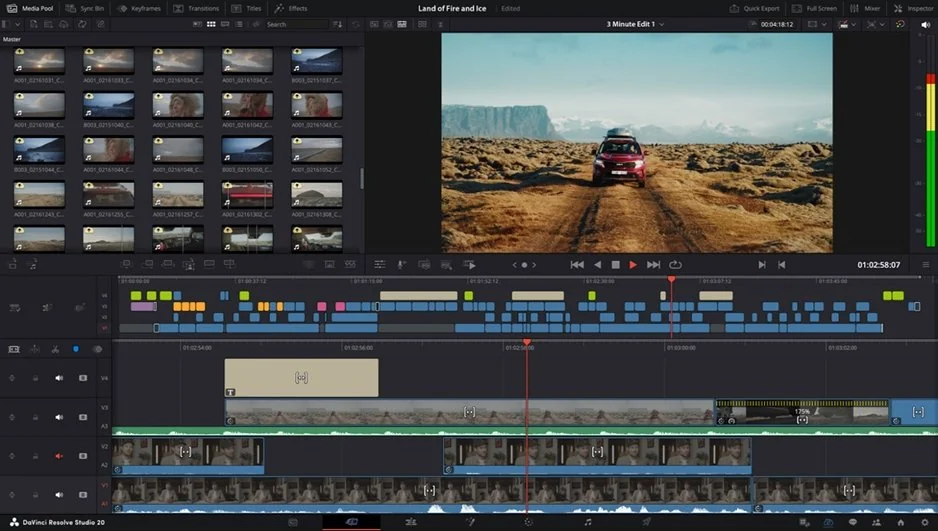
DaVinci Resolve Audio Sync & Sound Problems: Easy Fixes

Edited by
Ben Jacklin
5,932

Few things are more frustrating than finishing an edit only to discover you have DaVinci Resolve no audio playing back at all. Whether the sound cuts out during playback, disappears after import, or vanishes on export, the problem usually traces back to a handful of fixable settings. In this guide, you'll learn the most common causes behind audio issues in Resolve and the step-by-step fixes to restore clear, working sound – so you can get back to editing without the guesswork.

Fixing no sound issues on playback

If you have a DaVinci Resolve no sound issue during playback, it simply means the signal isn't reaching your speakers or headphones, even though the audio may still be perfectly intact on the clip itself.

The first place to check is your audio output device. Go to DaVinci Resolve > Preferences > System > Audio and confirm the selected speaker or interface matches what you're actually using. If Resolve is sending sound to a disconnected device or the wrong output, playback will stay quiet no matter what you try elsewhere.

Next, look at your timeline itself. A common reason for a DaVinci Resolve no audio in timeline issue is a muted track or a track solo left active on another track. Check the M and S buttons on each audio track header, and make sure the master fader in the Mixer hasn't been pulled all the way down.

It's also worth confirming the clips actually contain audio. Sometimes a video is imported as a picture-only file, or the audio track sits disabled in the media pool. Right-click the clip and verify its audio channels are mapped correctly to your timeline tracks.

Don't overlook the obvious: your operating system's volume, the correct sample rate, and whether another application has seized exclusive control of your sound device.

Fixing missing audio in your export

When you get no audio in DaVinci Resolve exports that play perfectly video-wise but stay mute, the render settings are almost always where the answer hides.

Head to the Deliver page and look closely at the Audio tab in your render settings. The most frequent culprit is a completely unchecked Export Audio box, which tells Resolve to skip sound altogether. Make sure it's enabled, then confirm the codec is set to something standard like AAC and the correct output track is selected beneath it.

Format and codec mismatches cause trouble too. Certain container-and-codec combinations don't carry audio reliably across every player, so if your file opens silently in one program but not another, try rendering to a widely supported format such as MP4 with AAC audio. It's also smart to verify your bit depth and sample rate match the project so nothing gets dropped during the render.

Finally, if you can't hear audio in DaVinci Resolve, check that your timeline's master output is actually routed to the render. If you've been working with custom bus assignments or a multi-track mix, an unmapped master can quietly strip sound from the finished file.

Fixing audio sync issues

When you notice that DaVinci Resolve audio is out of sync, the drift usually points to a mismatch between the footage and the project rather than a fault in the clip.

The most common trigger is a frame rate conflict. If your project timeline runs at 24 FPS but your source clip was recorded at 30 FPS, Resolve has to interpret the difference, and the audio can gradually slide away from the picture over the length of the clip. Before importing, check your source frame rate and set your project's timeline to match it under Project Settings > Master Settings.

Variable frame rate footage – common from phones, screen recorders, and some action cameras – is another frequent problem. These files don't hold a steady cadence, so the audio and video can separate unpredictably. The reliable fix is to convert the clip to a constant frame rate using a free tool like HandBrake before you ever bring it into your edit.

If the drift appears only after a long session, the culprit may be your hardware. An underpowered system or a full scratch disk can cause playback to stutter and desync in the viewer, even when the rendered file is perfectly aligned. Try rendering a short test clip to confirm the sync issue is real and not just a preview hiccup on your machine.

Fixing choppy and glitchy playback audio

The leading cause is a buffer setting that's too small for your machine. Open Preferences > System > Memory and GPU, then look at your audio buffer or "hardware buffer" size. Raising it gives your computer more breathing room to process sound without dropping samples, which is what produces those tell-tale clicks and crackles.

Overloaded playback is another common source. Stacking heavy effects, color-corrected footage, and multiple audio filters forces your processor to keep up in real time, and the audio is often the first thing to break. Try lowering your timeline proxy resolution or rendering a cache so Resolve can play back without gasping for resources.

Rule out the signal chain itself. A clip recorded too hot will clip and distort no matter how powerful your system is, so check the waveform for peaks slamming into the top of the meter. Faulty cables, a failing interface, or an outdated audio driver can introduce crackle too, so update your drivers and swap hardware to isolate the fault.

Which audio formats DaVinci Resolve actually supports

Many sound problems disappear once you use a format Resolve handles well. For the smoothest results, stick with uncompressed files like WAV and AIFF, which the software reads reliably across every version. Compressed formats such as MP3 and AAC also work in most cases, though they can occasionally cause hiccups depending on your operating system and codec support. When a stubborn file refuses to play, converting it to WAV before importing is the simplest, most dependable fix.

A beginner-friendly alternative: Movavi Video Editor

If the troubleshooting above feels like more work than the edit itself, you might prefer a tool built with simplicity in mind. Movavi Video Editor is designed for beginners and casual creators who want to cut clips, add music, and export without wrestling with routing menus or buffer settings. Its audio handling is largely automatic, so many of the silence and sync headaches common in more advanced software rarely come up in the first place.

That trade-off is worth understanding clearly. Movavi won't match the professional depth of Resolve's Fairlight audio page or its color tools, so serious post-production work still belongs in a full-featured suite. But for quick projects, social media videos, and family footage, its gentle learning curve and reliable, out-of-the-box sound make it a genuinely practical choice.


Have questions?
If you can’t find the answer to your question, please feel free to contact our Support Team.
Join us for discounts, editing tips, and content ideas

1.5M+ users already subscribed to our newsletter

By signing up, I agree to receive marketing emails from Movavi and agree to Movavi's Privacy Policy.