
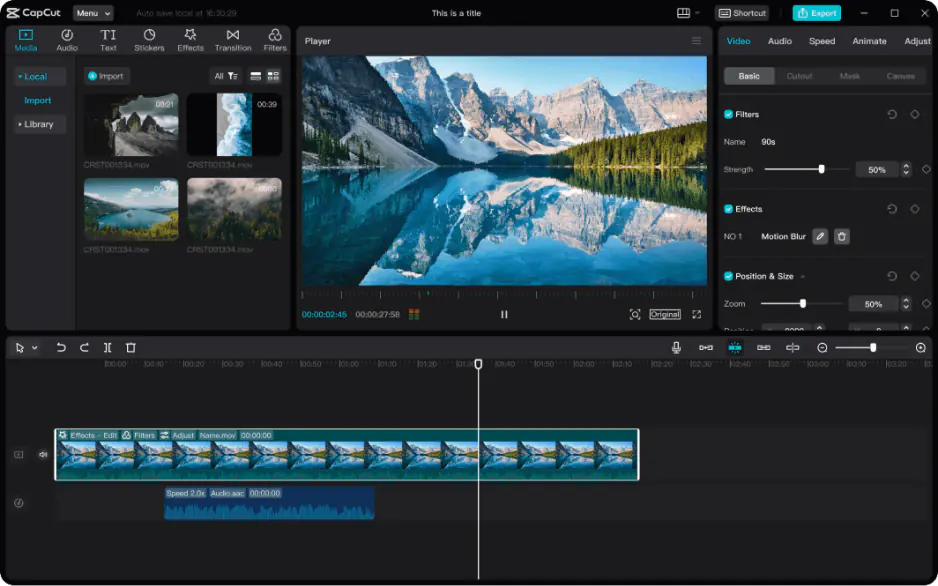
CapCut Slow Playback – Fix Lagging & Loading Issues Fast

Edited by
Ben Jacklin
6,525

If you've ever been mid-edit only to watch your timeline stutter, you already know how frustrating CapCut lagging can be. Whether it's playback freezing, exports crawling, or CapCut not loading at all, these slowdowns interrupt your creative flow and cost you time. The good news is that most performance issues stem from a handful of fixable causes – overloaded caches, outdated versions, heavy projects, or limited device resources. In this guide, you'll learn why CapCut lags and, more importantly, the practical steps to get it running smoothly again.

What makes CapCut slow down on certain devices

So, why is CapCut not loading? Not every performance problem is CapCut's fault. Sometimes the app runs perfectly on one phone or laptop and struggles on another, which points to the hardware rather than the software. Understanding why CapCut is not loading on your specific device is the first step toward a lasting fix.

The most common culprit is limited storage. When your device is nearly full, CapCut has no room to write temporary files, save drafts, or process exports. This is often why you'll notice CapCut not loading videos into the timeline, since the app can't cache the footage it needs to display frames smoothly.

Processing power matters just as much. Older phones and budget devices have weaker CPUs, less RAM, and slower graphics chips. High-resolution 4K clips, layered effects, and multiple overlays demand resources that entry-level hardware simply can't deliver, leaving CapCut slow and unresponsive during playback.

Background activity is another quiet drain. If you have a dozen apps running, streaming music, or downloading updates while editing, they compete for the same memory and processing threads CapCut relies on. The result is stuttering previews and delayed responses to every tap.

Finally, device temperature plays a role. When a phone overheats from long editing sessions, it automatically throttles performance to protect the internal components, slowing CapCut down until things cool off.

Optimize settings for better performance

Once you've ruled out device limitations, the next place to look is inside the app itself. CapCut offers several adjustable options that directly affect how efficiently it runs, and learning how to fix CapCut lagging on mobile often comes down to changing just a few of them.

Start with the preview resolution. Many editors don't realize CapCut lets you lower the playback quality without touching the final export. Dropping the preview to a lighter setting eases the strain on your processor, so the timeline scrolls and plays back far more fluidly.

Proxy editing is another powerful tool. When enabled, CapCut works from smaller, lightweight copies of your footage while you arrange cuts and transitions, then applies your edits to the full-resolution files only at export. This dramatically reduces stutter when you're handling large or 4K clips.

Frame rate settings deserve attention too. If your project is set to a higher frame rate than your source footage requires, you're asking the app to render extra frames for no visible benefit. Matching the project frame rate to your clips keeps things lean and responsive.

Finally, disable auto-features you don't need. Real-time effect previews, automatic captions, and background rendering all consume resources. Turning them off while arranging your cuts is one of the simplest ways to stop CapCut lagging while editing and reserve power for the tasks that matter most.

Clear cache and temporary files

Every time you edit, CapCut generates temporary files to store previews, thumbnails, and processing data. Over time, this cache balloons into a cluttered pile of junk that the app must sift through constantly. When those files become corrupted or simply too numerous, they can jam up core functions and leave CapCut stuck applying features that should take only a second to load.

The fix is simple: clear the cache. Inside CapCut, head to your settings and look for the storage or cache option, then confirm the deletion. This won't touch your saved drafts or exported videos. It only wipes the disposable working files the app rebuilds on its own.

If clearing the in-app cache doesn't help, go one level deeper through your device settings. On both Android and iOS, you can clear the app's stored data directly, which resolves stubborn glitches like CapCut not loading effects or transitions that stall halfway through. This deeper reset removes leftover fragments the app can't reach on its own.

Make cache clearing a habit rather than a last resort. Doing it every week or two, especially after big projects, keeps temporary files from piling up again and helps the app stay quick and dependable session after session.

A lighter alternative: Movavi Video Editor

If CapCut continues to buckle under the weight of your projects, it may be worth reaching for a program built to run comfortably on modest hardware. Movavi Video Editor is a strong choice here. It delivers a clean, intuitive interface and the essential tools most creators need – trimming, transitions, titles, and effects – without demanding the heavy system resources that leave lower-spec devices gasping.

What makes Movavi Video Editor especially appealing is its balance of simplicity and capability. Beginners can find their footing quickly, while the lighter processing load means smoother playback and faster exports on older laptops and phones. If a lag-free editing experience matters more than an exhaustive feature set, Movavi offers a practical, dependable way to keep your projects moving.


Have questions?
If you can’t find the answer to your question, please feel free to contact our Support Team.
Join us for discounts, editing tips, and content ideas

1.5M+ users already subscribed to our newsletter

By signing up, I agree to receive marketing emails from Movavi and agree to Movavi's Privacy Policy.