
CapCut Audio Sync & Sound Problems: Fixes That Actually Work

Edited by
Ben Jacklin
5,174

Nothing kills your editing momentum faster than finishing a video only to discover the sound has vanished. If you've run into CapCut audio not working, you're far from alone. It's one of the most common frustrations for creators on both mobile and desktop. The good news is that most audio problems trace back to a handful of fixable causes, from muted tracks and export glitches to permission settings and corrupted files. In this guide, you'll learn why your audio drops out, how to diagnose the issue quickly, and the step-by-step fixes that get your sound back on track.

Why is there no sound in CapCut?

So, why is CapCut audio not working? Before you can fix anything, it helps to understand what's actually happening. When people report a CapCut with no sound problem, they're usually describing one of two very different situations, and telling them apart saves you a lot of guesswork. The first is silence during editing – you drop a clip onto the timeline, hit play, and hear nothing. The second is silence after export – everything sounded fine while you worked, but the finished file plays mute. Each points to a different set of causes.

A muted timeline track, a volume slider dragged to zero, or your device set to silent mode can all produce a no sound situation that has nothing to do with the app itself. It's worth checking these obvious settings first, because they account for a surprising share of cases.

Playback silence can also stem from your device rather than CapCut. If your phone is connected to Bluetooth headphones you've since walked away from, or your system volume is turned down, the app has no way to route sound to you. Disconnecting external audio devices and testing again is a fast way to rule this out.

Export-related silence is trickier. Here, the audio usually exists in your project but fails to render into the final video. This can happen when a track is accidentally muted before exporting, when the source audio file is missing or corrupted, or when an app bug interrupts the encoding process.

Permissions are another frequent offender, especially on mobile. If CapCut can't access your microphone or media library, recorded voiceovers and imported songs may simply refuse to play.

Fixing audio problems in your finished export

There's a special kind of frustration in exporting a polished video only to play it back to total silence. When you hit a CapCut with no sound after export problem, the fix usually starts with the export settings rather than the timeline you already checked. Re-open the project, confirm every audio track is unmuted, and export again. Sometimes a single silenced track slips through unnoticed.

If the tracks look fine, the culprit may be the file format or the player. Certain formats compress audio in ways some media players struggle with, so a file that seems mute might actually play perfectly in a different app. Try opening the exported clip in VLC or another player before assuming the export itself failed.

Encoding interruptions are another common cause. If your device runs low on storage or battery mid-export, CapCut can finish the video but drop the audio stream entirely. Clearing space, closing background apps, and exporting at a slightly lower resolution often produces a clean file with sound intact.

Fixing audio out of sync

Timing problems can appear long before you ever export. If you notice a CapCut audio out of sync issue right there in the timeline, the cause is usually different from a rendering glitch, and so is the solution.

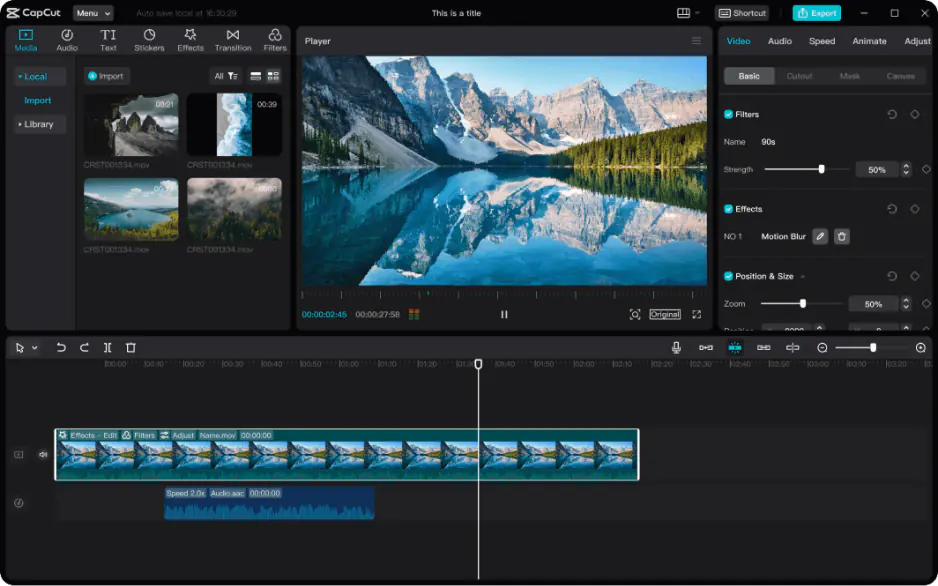
Start by ruling out simple preview lag. On less powerful phones or older laptops, CapCut sometimes struggles to play high-resolution footage smoothly, so sound and picture appear misaligned during playback even though the project itself is fine. Lowering the preview quality in the editor, or letting the timeline cache before you judge the timing, often reveals that your CapCut audio sync was never actually broken.

Manual realignment is your most direct tool. Detach the audio from its clip, zoom in on the waveform, and nudge it until a sharp visual cue lines up with its matching spike in the audio. This hands-on approach fixes stubborn offsets that automatic tools miss.

Layering can quietly break timing too. If you've added voiceovers, sound effects, and background music on separate tracks, deleting or trimming a clip earlier in the sequence can shift everything downstream. Reviewing your tracks from the beginning helps you catch a single misplaced edit that cascaded into the rest.

Source footage remains a common trigger, particularly clips recorded on screen-capture apps or downloaded from social platforms. Because their frame rates fluctuate, alignment that looks perfect while editing can slip apart during rendering, producing the classic CapCut audio out of sync after export result even when everything looked correct beforehand.

Movavi Video Editor: A reliable alternative for clean audio

If troubleshooting the same sound problems again and again has worn you down, it may be worth trying an alternative. Movavi Video Editor is a strong option for creators who want their audio to simply work. Clips play as expected on the timeline, and finished exports keep their sound and timing intact. Its simple interface makes tasks like detaching audio, adjusting levels, and syncing tracks feel intuitive rather than fiddly.

Movavi Video Editor also handles a wide range of formats and frame rates gracefully, which sidesteps many of the sync and export issues that trip up other tools. For beginners and busy creators who value a smooth, predictable workflow over endless tinkering, it offers a dependable way to edit video without second-guessing whether the sound will survive the final render.


Have questions?
If you can’t find the answer to your question, please feel free to contact our Support Team.
Join us for discounts, editing tips, and content ideas

1.5M+ users already subscribed to our newsletter

By signing up, I agree to receive marketing emails from Movavi and agree to Movavi's Privacy Policy.