
Canva Free Plan: Features & Limitations

Edited by
Ben Jacklin
5,393

Canva's free plan gives anyone a solid entry point into graphic design, offering thousands of templates, basic editing tools, and enough storage to get started without spending a dime. But like any free tier, it comes with trade-offs – limited premium assets, fewer brand kit options, and capped storage space. This article breaks down exactly what you get, what you don't, and whether the Canva free version features are enough for your design needs or if it's time to consider upgrading.

What's included in Canva's free plan

Once you sign up, a wide range of tools becomes immediately accessible, making the Canva free plan available to virtually anyone with an internet connection. From social media graphics to resumes, the platform covers most everyday design needs without requiring payment.

At its core, the Canva free plan features include access to over 250,000 templates, a drag-and-drop editor, and a library of free photos, icons, and fonts. Users can also create designs across dozens of formats, from Instagram posts to printable flyers.

Storage is another important piece of the puzzle. Free accounts receive 5 GB of cloud storage, enough for casual users to save and organize multiple projects without immediately hitting a wall.

Collaboration tools are included too. Teams can share designs, leave comments, and edit projects together in real time, even on the free tier.

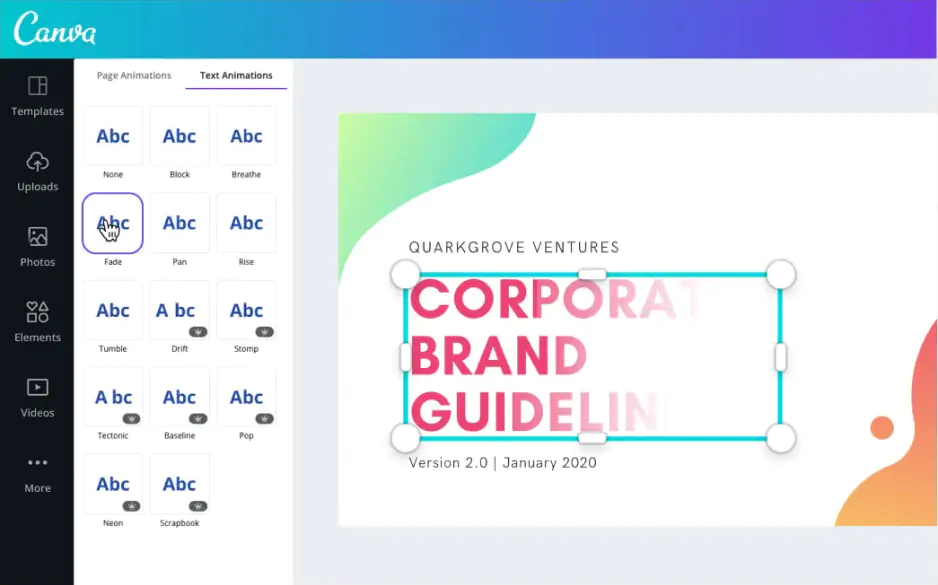
Looking at the Canva free plan details more closely, users also get basic animation tools, a simple background remover (with limits), and access to Canva's mobile app – rounding out a surprisingly capable free toolkit.

Limitations of Canva's free tier

While the free plan covers the basics well, several features remain locked behind a paywall. Comparing Canva pricing free vs. Pro reveals a clear gap in premium content – millions of stock photos, videos, and graphics are only accessible to paying subscribers.

One of the most noticeable Canva free plan limitations is the lack of a full Brand Kit. Free users can't upload custom fonts, save unlimited brand colors, or maintain multiple brand profiles for different projects or clients.

Advanced tools are restricted too. The Magic Resize feature, which instantly reformats designs for different platforms, and the premium background remover both require a Pro subscription.

Team-focused features also take a hit. Free accounts can't access advanced admin controls, approval workflows, or the extended cloud storage that larger teams typically need for managing high-volume design work.

Is Canva Pro worth the upgrade?

Deciding between Canva free vs. Pro ultimately comes down to how often you design and what you need from the platform. Casual users who post occasionally or design simple graphics may never feel the need to upgrade.

For freelancers, marketers, and small business owners, though, the calculus shifts. The time saved from bulk features, like generating multiple content sizes at once or removing backgrounds instantly, can quickly justify the monthly cost.

Looking closely at Canva free vs. Pro features, the difference isn't just about extra templates. Pro unlocks tools that streamline entire workflows, from scheduling social posts directly within Canva to accessing a much larger library of premium content without watermark concerns.

Businesses managing multiple team members also benefit significantly. Pro's collaboration tools, brand consistency features, and administrative controls make it easier to maintain a cohesive look across an organization's designs.

Ultimately, if design work is a regular part of your job or business, the upgrade often pays for itself in saved time and improved output. Occasional users, however, will likely find the free plan more than sufficient for their needs.

Free editors with no hidden restrictions

For those who find themselves consistently bumping into paywalls, several alternative editors offer a more generous free experience. Tools like Photopea provide a full-featured interface entirely free, with no watermarks or locked layers standing between users and their finished designs.

Similarly, platforms such as Gravit Designer and Vectr cater to users who need vector-based editing without subscription pressure. These tools may lack the massive template libraries that make Canva appealing, but they compensate with fewer artificial restrictions on exporting, layering, or file formats.

Ultimately, the right choice depends on priorities. Users who value ease of use and design inspiration may still prefer Canva's free plan, while those who want complete creative control without eventual upsells might find these alternatives better suited to long-term, unrestricted use.

Best value paid editors worth considering

When it comes to balancing affordability with a powerful feature set, Movavi Video Editor stands out as a strong option worth considering. It combines an intuitive interface with a surprisingly deep toolkit, making it accessible for beginners while still offering enough depth for more advanced editing tasks.

Movavi keeps its pricing straightforward while still delivering effects, transitions, and export options that rival pricier alternatives. This makes it a practical choice for content creators who need reliable results without an enterprise-level budget.

Better still, Movavi Video Editor offers a 7-day free trial, giving users a genuine opportunity to test the software's capabilities before committing financially. This hands-on trial period helps ensure the tool actually fits your workflow before you spend a cent.


Have questions?
If you can’t find the answer to your question, please feel free to contact our Support Team.
Join us for discounts, editing tips, and content ideas

1.5M+ users already subscribed to our newsletter

By signing up, I agree to receive marketing emails from Movavi and agree to Movavi's Privacy Policy.