
How to Rotate a Video 90 Degrees and Save Permanently: 6 Best Tools

Use Movavi Video Editor!

  • NEW: Adjustable video templates for any vibe – made of Blocks

  • NEW: Blocks – pre-edited video segments you can customize

  • Fast and easy editing: cut, crop, adjust colors and speed

  • Auto subtitles, noise removal, hundreds of effects, and more

By clicking the download button, you're downloading a trial version of the program.*

Edited by
Ben Jacklin
11,877

You copy a clip from your phone, open it on your computer, and it’s lying on its side. Here’s how to rotate a video so it stays upright in every app: turn it in an editor or converter, then save it as a new file. For that, Movavi Video Editor works on Windows and macOS, Clipchamp on Windows 11, and iMovie on the Mac. VLC and FFmpeg cost nothing on any desktop, and Clideo runs right in your browser.

Read on if you shoot travel vlogs or unboxings on your phone and want every clip straight before the editing starts. The same steps help if you collect family road-trip videos and want them to play the right way up on the TV and in the group chat.

Why a player can't rotate video permanently

Phones usually store a video in one fixed orientation and add a small rotation flag that tells players how to display it. Players that read the flag turn the picture for you. Apps and sites that skip it show the raw frames, so the clip lies on its side again.

That leaves two ways to correct video orientation:

  • Change the flag. This is lossless rotation: no frame is touched, so nothing is lost. Any app that ignores the flag still shows the clip sideways.
  • Re-encode the frames. The tool redraws every frame upright and compresses the video again. Every player shows the result correctly. The trade-off is extra time and a small quality loss, because codecs such as H.264 are lossy.

A rotation you set while watching, such as VLC's Transform filter, changes only what's on your screen. To keep it, you export or convert the clip into a new file. Photos follow the same idea: the Exif standard records an image's orientation as one of eight values instead of moving the pixels.

How we picked

Every video rotator here had to meet four criteria:

  • The turn survives export. The tool writes the rotation into a new file that opens upright anywhere, or has a documented way to do so.
  • It runs where you work. Windows, macOS, or a browser, so every reader has at least one option.
  • A free route exists. Each tool has a free version or costs nothing, with paid limits stated plainly.
  • The learning curve fits the job. The set runs from a full editor to a single terminal command, so you can match effort to the clip.

How to rotate a video: 6 ways that keep the result

Program

Platforms

Speed

Quality

Ease of use

Starting price

Windows 10 and 11, macOS 12.0+

Hardware acceleration speeds up processing

Re-encodes on export; you set resolution and quality

Easy: intuitive interface, hover previews, drag-and-drop

Free version (60-second exports, watermark); full version from $19.95/month

Browser, Windows 11 app, iOS app

Fine for short clips; large files can lag or freeze at export

Up to 1080p free, 4K with Premium

Easy: simple timeline, preset and custom angles

Free; Premium $11.99/month

macOS and other Apple devices

Re-encodes the whole clip; export time grows with length, resolution, and frame rate

Re-encodes on export; file can come out larger

Easy: rotate buttons inside the cropping controls

Free

Windows, macOS, Linux

Conversion runs as a separate pass after the filter

Re-encodes during conversion (H.264 + MP3 profile)

Medium: filter first, then convert, or the turn is lost

Free

Browser

Upload and download add time on large files

Free up to 720p with a watermark; Pro removes limits

Easy: one rotate button in the browser

Free; Pro $9/month

Windows, macOS, Linux

One command rotates a whole folder

Re-encodes; -crf sets the quality/size balance

Hard: command line only

Free

Best for: straightening a travel vlog or unboxing shot on your phone, then editing it in the same project.

Price and platforms: Movavi Video Editor Free exports up to 60 seconds with a watermark; the full version starts at $19.95/month. Windows 10 and 11 (64-bit), macOS 12.0 or later.

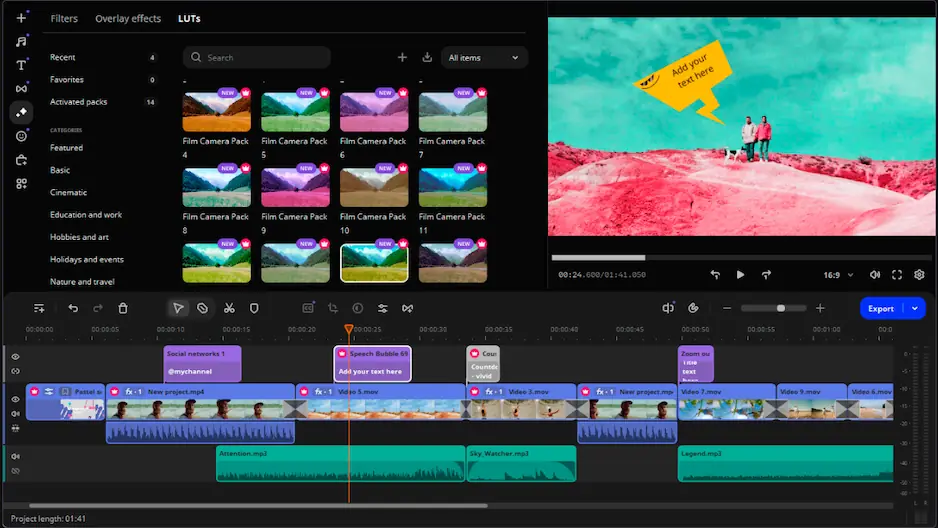
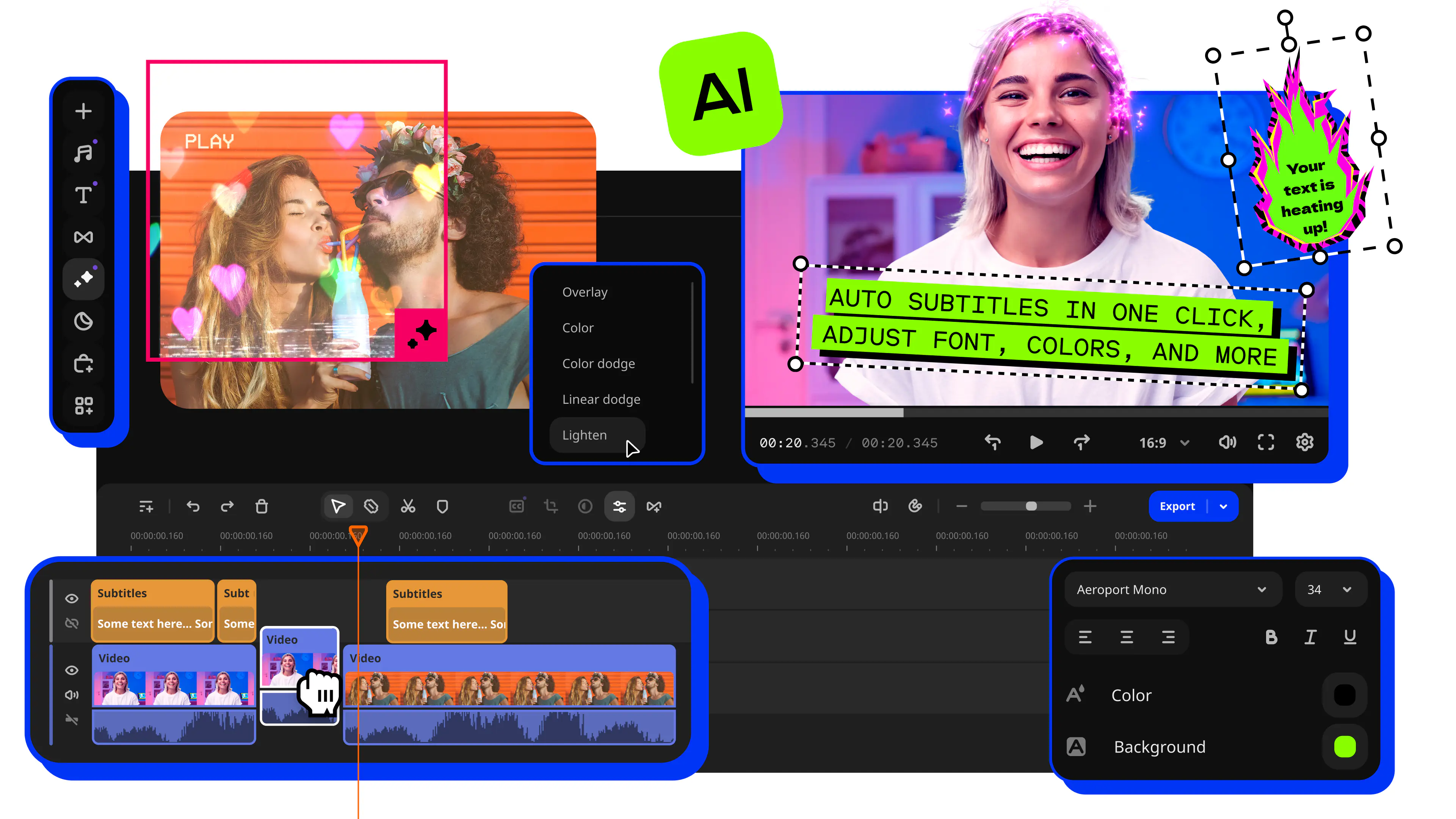
Movavi Video Editor is an intuitive video editor with customizable video templates, one-click AI tools, and hundreds of drag-and-drop effects. It's a desktop app for Windows and macOS, so you rotate, trim, and export in one window. Drag-and-drop keeps every tool one move away, so your first export already plays the right way up. New to editing? The free Movavi Ideas hub adds step-by-step tutorials every week.

Quality and re-encoding: export writes a new file with the rotation built into the frames, so it opens upright on any player. You set the resolution and quality before saving.

Once the clip is upright, it may still be the wrong shape for where it's going. Auto-tracked cropping turns horizontal footage vertical and keeps the speaker or product centered, so an unboxing can become a Reel in one click instead of a frame-by-frame reframe.

Key features:

  • Rotation in 90° steps, plus a slider that straightens a tilted horizon
  • Cropping in auto or manual mode, which also removes black bars left after a turn
  • Auto-tracked cropping for horizontal-to-vertical reframing
  • Export presets for iOS and Android devices, plus direct upload to YouTube, Vimeo, or Google Drive
  • MP4, MOV, AVI, MKV, and WMV support

Pros:
  • Rotation, cropping, and editing happen in one project

  • Hover previews show a turn or effect before you apply it

  • Uploads go straight to YouTube from the export window

Cons:
  • No advanced, detailed controls for a professional workflow

  • No flexible UI customization

How to rotate a video 90 degrees in Movavi Video Editor

The steps below take a sideways travel vlog clip from your phone to an upright file you can share or keep editing.

Step 1. Install and open the editor

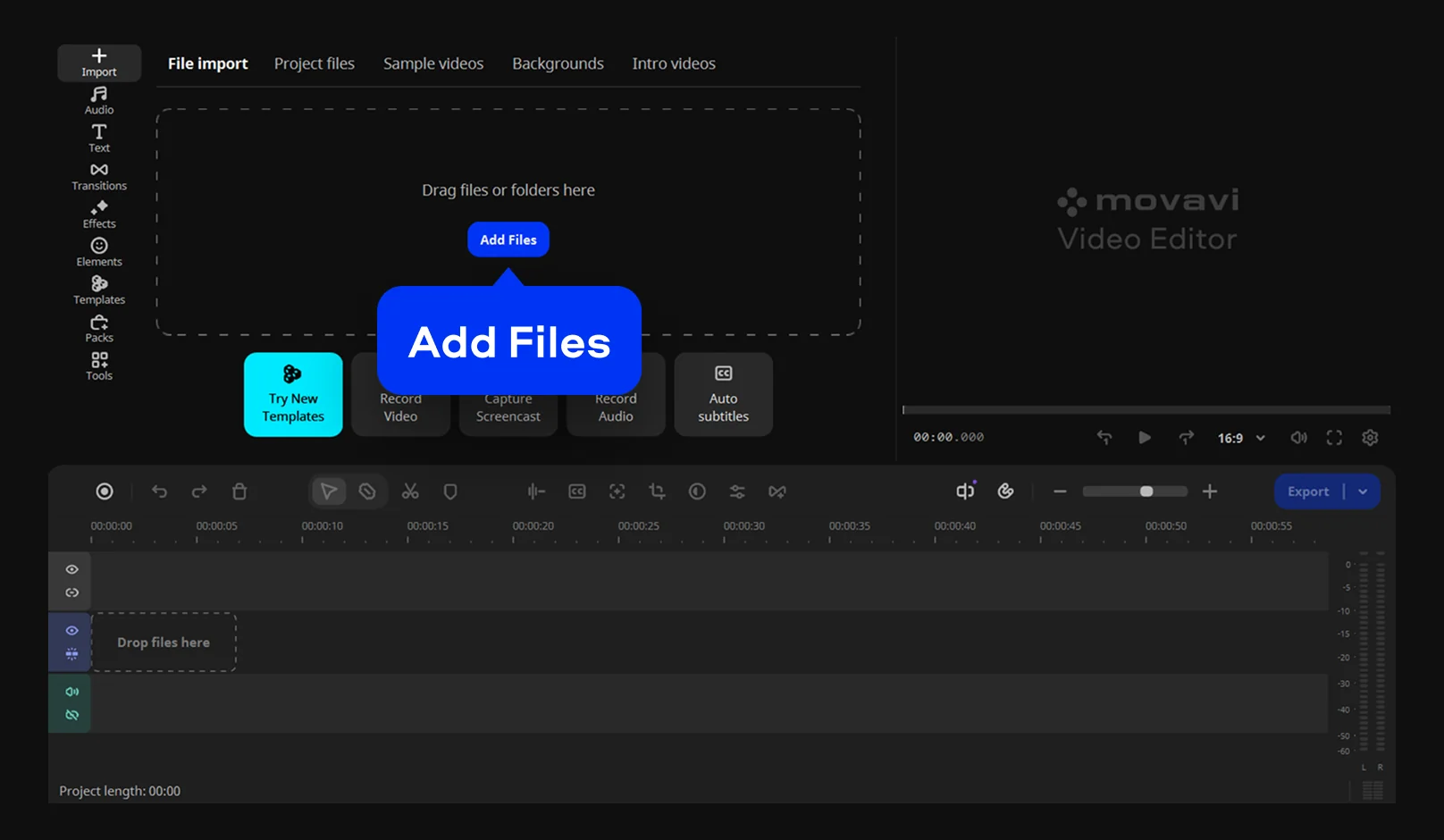
Download Movavi Video Editor for your PC or Mac and install it.

Step 2. Add your sideways clip

Drag your video into the program window to upload it. Then, drag the clip onto the timeline.

Step 3. Rotate the clip

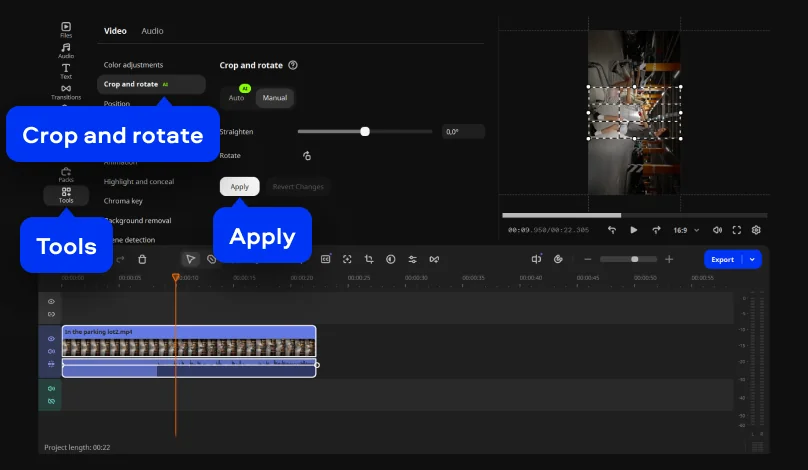
Open the rotation tool by clicking Tools > Crop and rotate. Open the Manual tab and click the Rotate button until the picture is upright. Drag the Straighten slider if the horizon still looks tilted.

Step 4. Export the rotated video

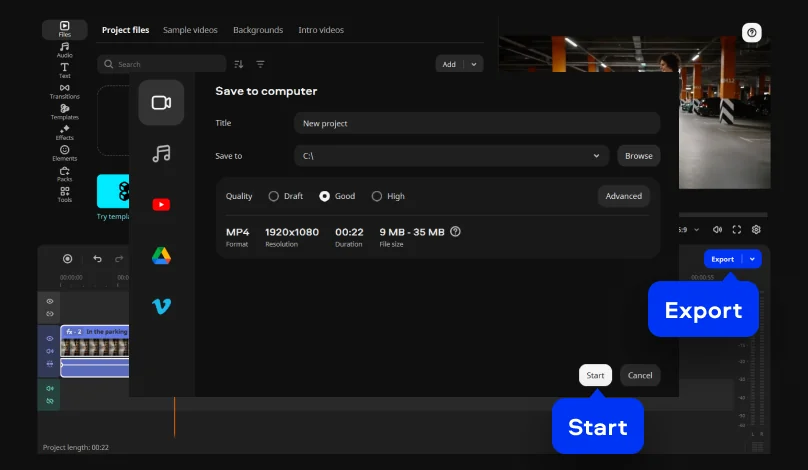
Click Export, choose the output format, such as MP4. Set the resolution and quality, and choose the folder for the new file. Finally, hit the Start button.

Way 2. Clipchamp (Windows 11)

Best for: a quick fix for a family travel clip on a Windows 11 PC.

Price and platforms: free; Premium costs $11.99/month or comes with Microsoft 365 Personal and Family. Browser (Edge, Chrome), Windows 11 app, iOS app.

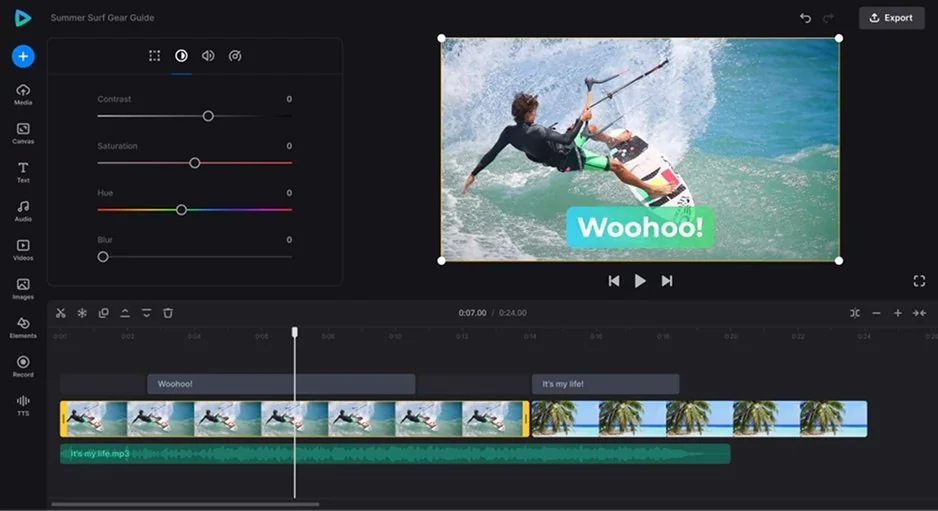
Clipchamp is Microsoft's browser-based editor, built into Windows 11, and it replaced Windows Movie Maker. It runs in Edge or Chrome, which also makes it a way to rotate a video on Windows 10 without installing an app. Beside the usual 90° turns, it accepts a custom angle.

Quality and re-encoding: export renders a new file with the turn applied. The free plan exports at up to 1080p with no watermark.

Key features:

  • Simple timeline with screen and webcam recording
  • AI silence removal and audio noise reduction at no cost
  • Unlimited 1080p exports without a watermark on the free plan
  • Ready-made templates for social media, work, and school

How to rotate a video on Windows 11:

  1. Create a new project.
  2. Upload the video and drag it onto the timeline.
  3. Select the clip and click Transform or Rotate in the top toolbar.
  4. Choose 90°, 180°, 270°, or Custom.
  5. Export the video.
Pros:
  • Already part of Windows 11 and Microsoft 365

  • Custom rotation angles beside the standard presets

  • Free auto subtitles, with a transcript you can download

Cons:
  • Requires a Microsoft account

  • Large files can cause lag, and export can freeze at the final stage

  • 4K exports and paid stock media need a subscription

Way 3. iMovie (Mac)

Best for: turning family road-trip clips upright on a Mac and trimming them in the same pass.

Price and platforms: free. Mac and other Apple devices.

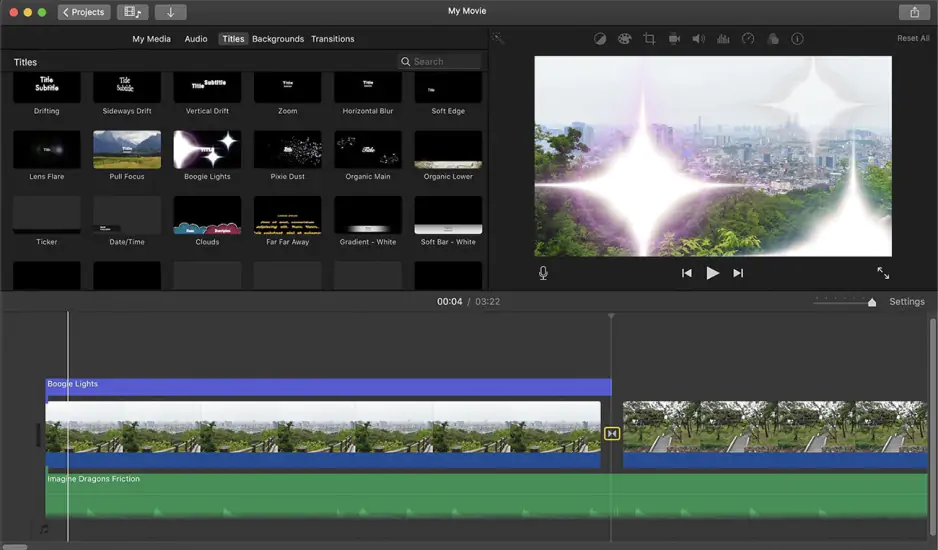
iMovie is Apple's free, simple editor, preinstalled on its devices. The rotate buttons sit inside the cropping controls, so you can fix orientation and frame the shot in one go.

Quality and re-encoding: iMovie rotates videos on your Mac and re-encodes on export, so the turn is permanent. The exported file can come out noticeably larger than the original.

Key features:

  • Clockwise and counterclockwise rotate buttons in 90° steps
  • Basic editing with simple color correction
  • Ready-made trailer templates

How to rotate a video permanently in iMovie:

  1. Create a new project and import your video.
  2. Drag the clip into the timeline.
  3. Select the clip and click the Cropping controls above the viewer.
  4. Click a rotate button until the picture is upright, then click the checkmark.
  5. Choose File > Share > File and save.
Pros:
  • Completely free, with no watermark or export limits

  • Already on most Macs, so there's nothing to download

  • Rotation and trimming live in the same project

Cons:
  • Works only on Apple devices

  • Few effects, weak export control, and no AI features

Way 4. VLC (rotate videos with Transform + Convert / Save)

Best for: fixing a travel clip in a player you already have installed.

Price and platforms: free. Windows, macOS, Linux; mobile versions exist for Android and iOS.

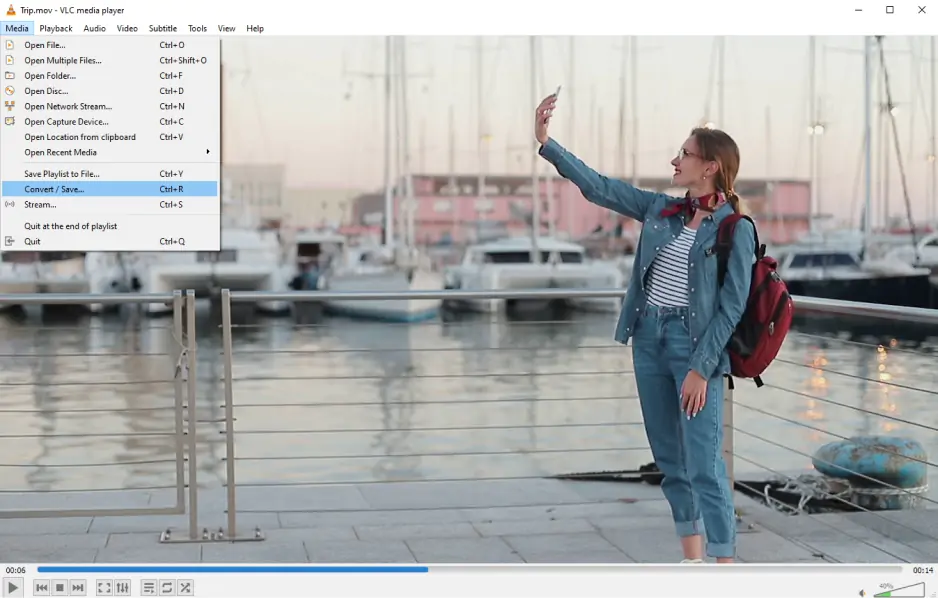
VLC is a free, open-source, cross-platform media player, and its desktop version has filters that rotate and mirror video. The catch is that the Transform filter only changes playback. To keep the turn, you run the clip through Convert / Save.

Quality and re-encoding: the conversion re-encodes the video. Skip it, and the rotation disappears when you close VLC.

Key features:

  • Transform presets for 90, 180, and 270 degrees
  • A Rotate dial for custom angles
  • Mirror filters for a horizontal flip
  • Converts to MP4 and other containers

How to rotate a video in VLC and save it:

  1. Open the video and go to Tools > Effects and Filters (Window > Video Effects on a Mac).
  2. On the Video Effects tab, open Geometry, check Transform, and pick Rotate by 90 degrees.
  3. Press Ctrl + P and select All under Show settings.
  4. Tick Video transformation filter under Video > Filters and under Stream output > Sout stream > Transcode, then click Save.
  5. Go to Media > Convert / Save (File > Convert / Stream on a Mac) and add the same file.
  6. Choose Video - H.264 + MP3 (MP4), click the wrench icon, check Video transformation filter under Video codec > Filters, and click Save.
  7. With the rotate filter still on, save the result as a file.
Pros:
  • Free, and many people already have it

  • The same steps work on Windows, macOS, and Linux

Cons:
  • Rotation stays in playback unless you convert the file

  • The filter-then-convert routine takes more clicks than a one-button export

Way 5. Clideo (online)

Best for: rotating one unboxing clip on a work or borrowed computer where you can't install software.

Price and platforms: free with a watermark, 500 MB limit, and 10 AI credits; Pro costs $9/month or $72/year and removes the watermark and limits. Works in a browser.

Clideo is a set of 30+ separate web utilities, and its rotate tool runs in any browser. The free tier takes files up to 500 MB, which fits most short phone clips.

Quality and re-encoding: Clideo re-encodes the video on its servers, so expect a slight quality loss, and the output defaults to MP4 (H.264), which plays almost anywhere. Because your clip is uploaded, keep private footage on a desktop tool.

Key features:

  • Separate web tools to trim, merge, compress, and convert
  • Nothing to install
  • Recently added AI Video Enhancer and Script-to-Video

How to rotate a video 90 degrees online with Clideo:

  1. Open Clideo's rotate tool in your browser.
  2. Upload your video.
  3. Click the rotate button until the picture is upright.
  4. Download the result.
Pros:
  • Works from any computer with a browser

  • Handles one-off jobs without switching between programs

Cons:
  • Free exports carry a watermark and stop at 720p

  • No unified timeline for multi-layer editing

Way 6. FFmpeg (for advanced users)

Best for: rotating a whole folder of trip footage in one go.

Price and platforms: free. Windows, macOS, Linux.

FFmpeg is a free, open-source command-line tool for Windows, macOS, and Linux. Its transpose filter always re-encodes, so the turn shows correctly on every platform.

Quality and re-encoding: every rotation re-encodes. Add -crf 20 to the command to control the balance between quality and file size.

Key features:

  • transpose=1 turns the clip 90° clockwise; transpose=2 turns it counterclockwise
  • transpose=2,transpose=2 gives an upside-down fix
  • hflip mirrors the frame and vflip flips it vertically
  • A shell loop applies the same command to every file in a folder

How to use FFmpeg to rotate a video:

  1. Install FFmpeg (on a Mac with Homebrew: brew install ffmpeg).
  2. Open Terminal or Command Prompt in the folder with your clip.
  3. Run ffmpeg -i input.mp4 -vf "transpose=1" output.mp4.
  4. Open output.mp4 and check the orientation.
Pros:
  • Free for any use, on every desktop system

  • One command handles a whole folder with identical settings

Cons:
  • No visual interface; you type every command

  • Setup takes an extra install step, such as Homebrew on a Mac

How to choose the right video rotator

  • You're about to edit the clip anyway. Go with Movavi Video Editor: the turn, the trim, a vertical reframe for Reels, and the export all happen in one project.
  • You're on Windows 11 and need one quick fix. Clipchamp is already there.
  • You're on a Mac and the clip goes into a family movie. iMovie costs nothing and keeps everything in Apple's apps.
  • You only watch the clip, and VLC is your player. Use Transform, then Convert / Save, or the fix won't stick.
  • You can't install anything. Clideo works in the browser, as long as a watermark on free exports is fine.
  • You have fifty clips from one trip. Script it with FFmpeg.

If your next step after the rotation is cutting a vlog together, start with Movavi Video Editor Free to try the workflow on your own footage. When you need longer exports without a watermark, the full version adds them, and Movavi Effects and other add-ons are there only if a project calls for them.

Movavi Video Editor
Create awesome videos easily

*The free version of Movavi Video Editor may have the following restrictions depending on the build: watermark on exported clips, 60-second video or 1/2 audio length limit, and/or some advanced features unavailable when exporting videos.

Frequently asked questions

How do I rotate a video without losing quality?

Only a change to the rotation flag is truly lossless, and some apps ignore that flag. Every desktop method in this guide re-encodes, which costs a little quality but makes the fix permanent. Keep the original resolution, pick the highest quality setting on export, and save as MP4, which Movavi Video Editor recommends for broad compatibility.

How do I rotate a video 180 degrees?

Click the rotate button twice in Movavi Video Editor, iMovie, or Clideo, or pick 180° directly in Clipchamp or VLC's Transform list. In FFmpeg, chain two filters: transpose=2,transpose=2. Avoid vflip for this job: it mirrors the picture top to bottom, so on-screen text reads mirrored.

Can I rotate several videos at once?

Yes, with FFmpeg. On macOS or Linux, this loop turns every MP4 in a folder 90° clockwise and saves new copies:

for f in *.mp4; do ffmpeg -i "$f" -vf "transpose=1" "rotated_$f"; done

How do I rotate a video on my phone?

Movavi App for iOS is a mobile video and photo editor for social media posts. VLC has Android and iOS versions, but its rotation filters are in the desktop app. For a clip you plan to edit on a computer anyway, rotate it there with any tool above.

What's the difference between rotating and flipping a video?

Rotation turns the whole frame; video flipping mirrors it. Flipping fixes selfie footage that came out reversed. Use hflip in FFmpeg, Movavi Video Editor’s or VLC's mirror filters for a horizontal flip.

Have questions?
If you can’t find the answer to your question, please feel free to contact our Support Team.
Join us for discounts, editing tips, and content ideas

1.5M+ users already subscribed to our newsletter

By signing up, I agree to receive marketing emails from Movavi and agree to Movavi's Privacy Policy.