
Top 10 YouTube Outro Maker Tools for End Screens and Channel Branding

Edited by
Ben Jacklin
6,331

A YouTube outro is the last stretch of your video: the part where you ask people to subscribe and send them to the next video before they click away. On YouTube, this is where end screens live for the final 5–20 seconds, showing up to four clickable elements. That's audience retention at its simplest, and a good outro leaves room for those links instead of covering them.

This guide is for you if you film lifestyle vlogs, unbox gadgets, post gaming highlights, or publish tutorials and explainers. Our quick picks: Movavi Video Editor for creators who cut whole videos on a Mac or PC, Canva and Adobe® Express if you design channel graphics in a browser, MiniTool MovieMaker for free Windows end credits, and FlexClip, Renderforest, or Panzoid for a ready-made outro online.

Quick comparison: 10 outro makers at a glance

Tool

Best for

Platforms

Free version

Starting price

How you build the outro

Vlogs, reviews, and tutorials edited start to finish on a computer

Windows, macOS (desktop app)

Yes – 60-second export cap, watermark

From $19.95/month

Templates made of Blocks, featuring dedicated intros and outros, plus titles and drag-and-drop effects

Social media managers needing quick graphics

Browser, desktop and mobile apps

Free, with limits on premium content and AI

$18/month

Edit a design template on a canvas

Small businesses and SMM managers creating fast promo videos and social ads

Web browser

Free to use

From $11.99/month

Online outro and end screen templates

How we chose

Every tool earned its place on the same criteria:

  • Room for end screen elements: clear space for the video, playlist, and subscribe elements YouTube adds on top.
  • Call-to-action animations: subscribe buttons, social icons, or animated text.
  • Branding: your logo, channel colors, and fonts.
  • Free version terms: what you can export without paying, and whether a watermark comes with it.
  • Price and platforms: desktop, browser, or phone, and what the paid plan costs.

We didn't score or benchmark the tools against each other.

The 10 best YouTube outro maker tools

1. Movavi Video Editor

Best for: lifestyle vloggers and reviewers who edit the whole video, outro and credits included, on a computer.
Why we picked it:

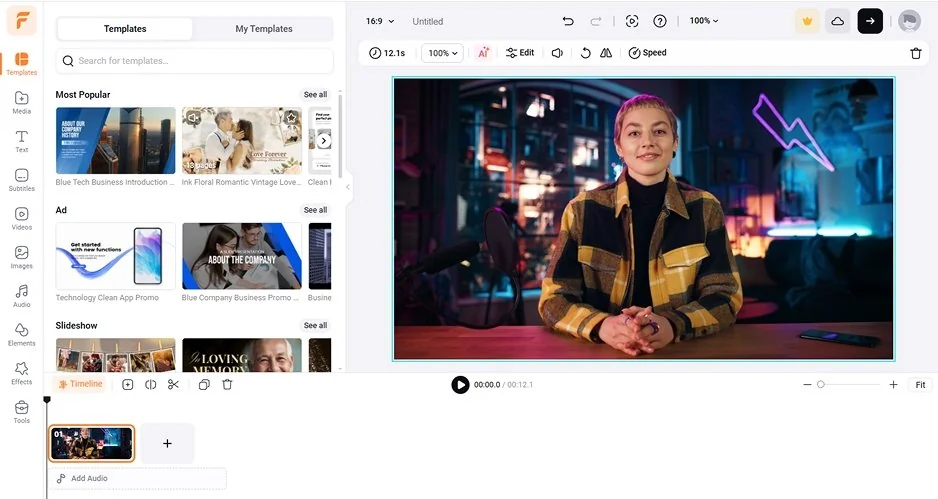
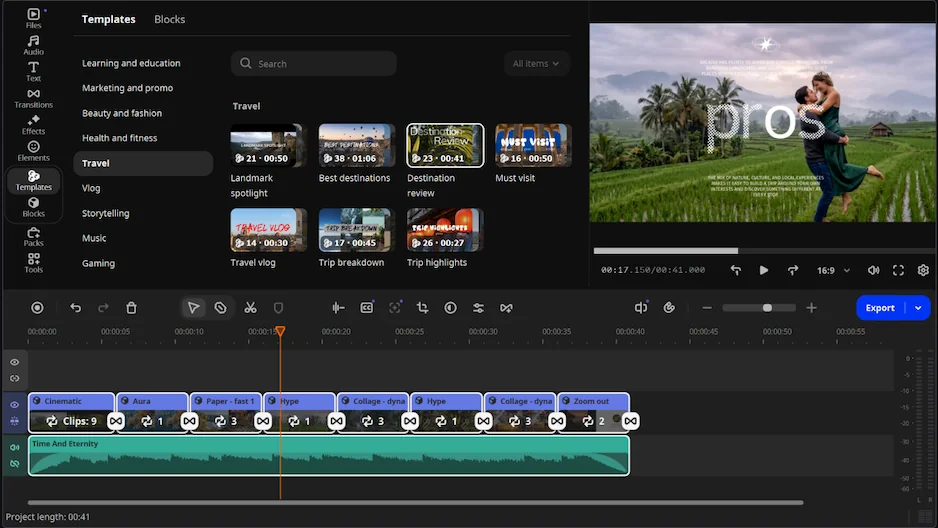
Movavi Video Editor is an intuitive video editor with customizable video templates, one-click AI tools, and hundreds of drag-and-drop effects. For an outro, that means you don't start from an empty timeline: you start from a template and drop in your own clips.

A vlog outro needs a strong call to action, your channel's look, and a sound you'll reuse. To get all of this quickly, you need the right tools. Movavi Video Templates is a multi-style library of customizable, pro-looking, modular templates for any kind of video. Each template is a ready-made project built from Blocks – short, pre-edited segments with text, transitions, and effects already in place. Because every template arrives with its own music, even your very first attempt will have professional pacing and a finished soundtrack. Hover previews show an effect on your footage before you drop it on the timeline. The outro also doesn't live in a separate tool: you edit the vlog itself in the same project, from cutting and cropping to color correction and speed changes, and export the finished video with the ending already in place.

Key features:

  • YouTube outro video template and Movie credits video template Replace the placeholders with your footage and photos, then reorder, add, or delete Blocks: for example, keep a clean closing card where YouTube's end screen elements will sit, or add a credits Block that names everyone who appeared in a collab vlog.
  • Hover previews and drag-and-drop titles. Move the cursor over a title or transition to see it on your clip, then drag it onto the timeline.
  • Movavi Effects subscription. Adds 10,000+ effects and 1,500+ music tracks, including extra intros, titles, and stickers. You can preview any of them on your own video for free and even save it with a watermark before buying.
  • AI motion tracking. Lock a title or graphic to a moving subject in one click, so a "Subscribe" label follows you as you walk out of frame at the end of a travel vlog.
  • AI background removal and chroma key. Remove the background behind a person without a green screen and place yourself over any backdrop for the outro of a gaming video. Shot on green or blue? Chroma key removes a selected color instead.
Pros:
  • Outro, credits, and the main video live in one project, so fonts and colors stay consistent.

  • Templates bend to your channel: reorder, add, swap, or delete Blocks one by one.

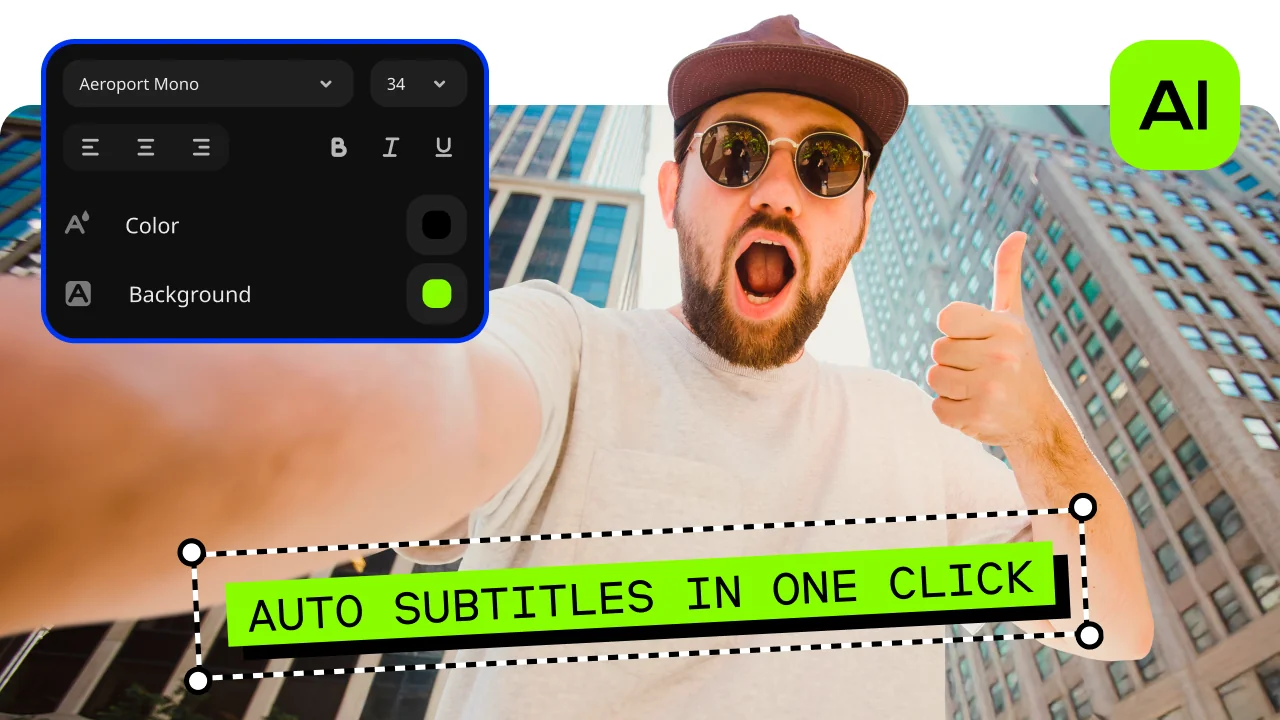
  • One-click AI tools come with the full version, including auto subtitles in 100+ languages with 99% transcription accuracy.

Cons:
  • No advanced, detailed controls for a professional workflow.

  • No web version or cloud integration.

  • Although hundreds of effects and several templates are available in the full version, additional sets require separate subscriptions.

Price and platforms: Movavi Video Editor is a desktop app for Windows and macOS. Free version (60-second export cap, watermark), full version starting at $19.95/month, plus optional Movavi Effects and Movavi Templates subscriptions.

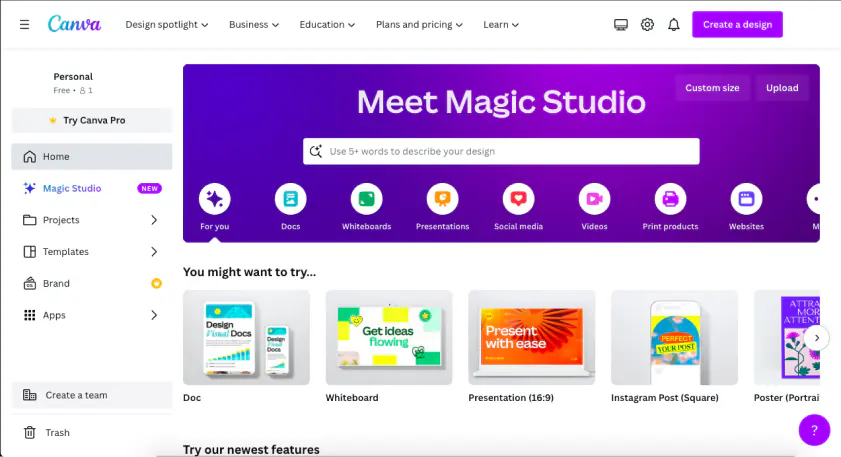
2. Canva

Best for: lifestyle vloggers who design thumbnails and channel graphics and want the outro to match them.

Why we picked it:

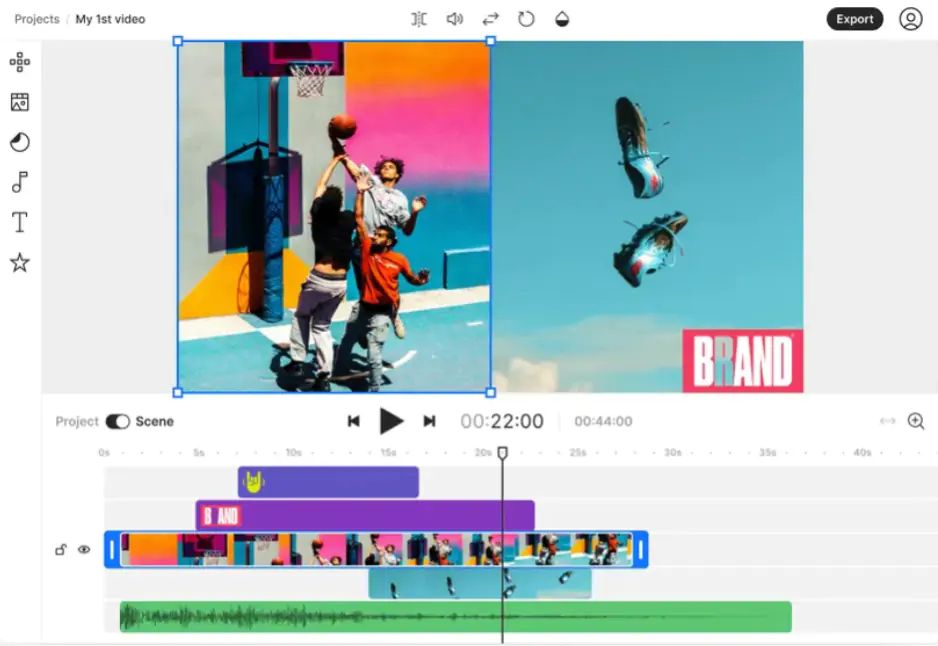
Canva is a graphic design builder where video is a secondary format, and it treats your outro like any other design. If your thumbnails already live there, your outro can reuse the same fonts and layouts.

Key features:

  • 1M+ professionally designed templates, including outro designs you edit by drag and drop.
  • Downloads with transparent backgrounds and animations, handy for an end card you lay over your last shot.
  • Real-time collaboration: several people can work on one video at the same time.
  • Beat Sync matches clips to the rhythm of the music (Pro).
Pros:
  • Familiar drag-and-drop editing for anyone who has used Canva for graphics.

  • A huge library of templates, fonts, and elements in one place.

  • AI auto subtitles with a choice of styles.

Cons:
  • Little control over the timeline, audio, and color.

  • Slows down on long videos and heavy files.

  • Only 9 basic transitions, and the best elements and AI features are Pro only.

Price and platforms: browser, desktop, and mobile apps. Free with limits on premium content; Pro and Teams are per-user subscriptions from $18/month.

3. FlexClip

Best for: Small businesses creating fast promo videos and social ads without any learning curve.

Why we picked it:

FlexClip works as an online end screen maker with themed outro templates and one-click call-to-action overlays.

Key features:

  • Outro templates in themes such as gaming, music, travel, and food.
  • End screen templates like Travel Outro and Outro For Game Channel.
  • Like and subscribe buttons and social icons added in one click.
  • Your own logo, colors, and fonts, plus millions of royalty-free media files.
Pros:
  • Many free, editable outro templates.

  • Ready-made subscribe and like buttons.

  • Stock library inside the editor.

Cons:
  • Because it is browser-based, the editor can lag when handling high-resolution footage or complex layered projects.

Price and platforms: web browser. Free to use; paid plans from $9.99/month (billed annually).

4. Renderforest

Best for: gaming and tech channels that want an animated logo reveal as their outro.

Why we picked it:

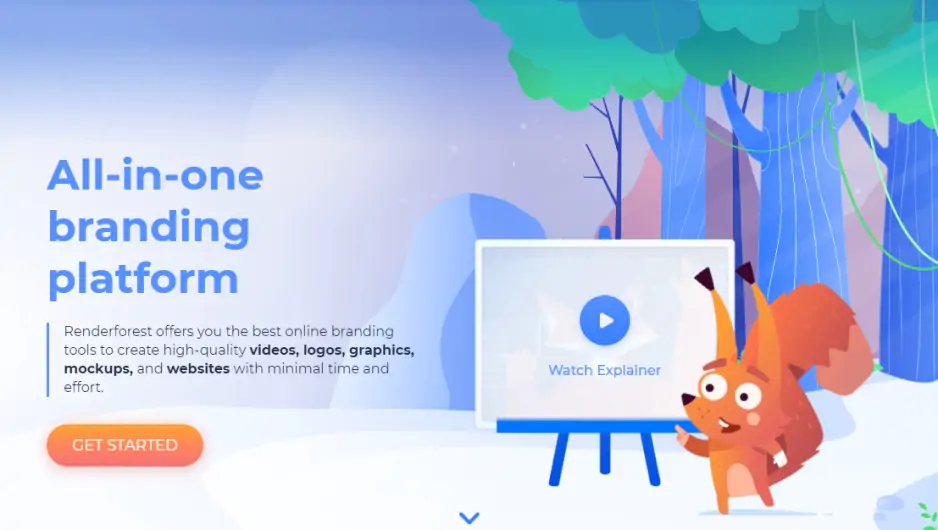
Renderforest offers 100+ outro and end screen templates, and its YouTube End Screen Pack is built around the exact pieces a YouTube outro needs. Logo reveal templates such as Neon Power Logo Reveal are pitched at tech vlogs and gaming channels.

Key features:

  • YouTube End Screen Pack with social accounts, a subscription box, latest upload, related video, and photo and video holders.
  • YouTube Outro Pack for a call to action at the end.
  • Dozens of animated logo reveals, including 3D options, some in widescreen, portrait, and square versions.
Pros:
  • End screen packs designed around YouTube's elements.

  • A big choice of logo animations.

  • Free outro templates to start from.

Cons:
  • Registration required.

  • You pay to remove the watermark.

  • Free exports are lower quality.

Price and platforms: browser, plus iOS and Android apps. Free plan with a watermark; Lite from $15/month, Pro from $39/month.

5. Panzoid

Best for: gaming and music channels that want a free outro without a watermark.

Why we picked it:

Panzoid is completely free and puts no watermark on exports. Its outro templates lean toward gaming, music, and animation styles.

Key features:

  • Hundreds of outro templates for gaming, music, and animation.
  • Start from a template or from scratch.
  • Design elements for customization.
Pros:
  • Entirely free, no watermark.

  • Plenty of templates and design elements.

Cons:
  • A busy interface that's hard to navigate.

  • Multiple ads on the site.

Price and platforms: web browser. Free, ad-free plans with 20 GB to 1 TB of cloud storage from $7.99.

6. Biteable

Best for: review channels that want a simple animated ending without building one from zero.

Why we picked it:

Biteable lets you start an outro from a blank project or a professionally designed template, and it has free outro templates made for YouTube.

Key features:

  • Free YouTube outro templates.
  • A large library of footage, animations, and templates.
  • Music and sound effects you can add to the outro.
Pros:
  • Straightforward to pick up.

  • Branding in a few clicks.

Cons:
  • Watermark on free videos.

  • The free plan is limited to 5 video projects a month and 1 GB of storage.

  • Registration required.

Price and platforms: web browser. Free plan with a watermark and a free trial; paid plans from $29/month.

7. Adobe® Express

Best for: creators who make short outros on a phone or in a browser between other tasks.

Why we picked it:

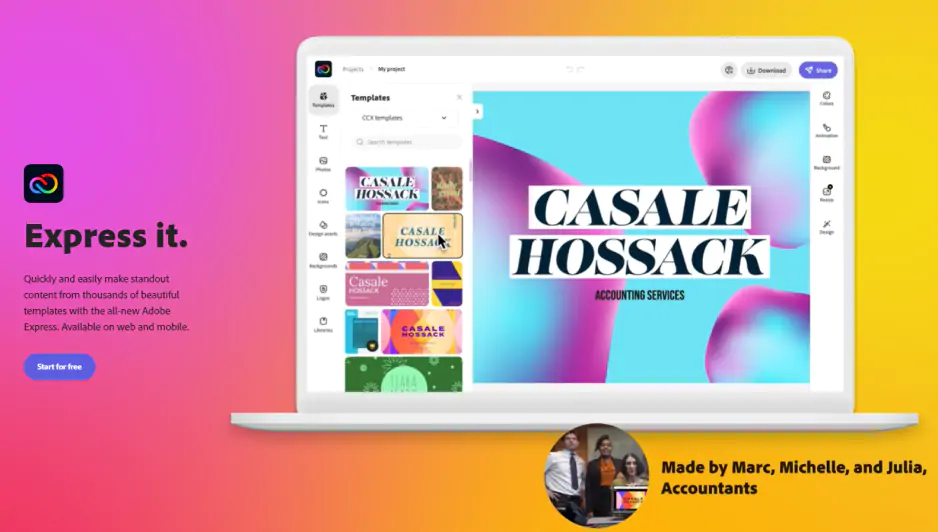
Adobe® Express is a lightweight web builder for social visuals, with customizable outro templates you finish with icons, text, and animated effects.

Key features:

  • Customizable outro templates with icons, graphics, text, and animated effects.
  • An Adobe® Stock soundtrack, or your own music or voiceover.
  • Outros in multiple languages, plus auto-captioning for any video.
Pros:
  • Plenty of templates and stock media to start from.

  • Works across devices.

  • No watermark on exports.

Cons:
  • Limited video customization.

  • One video track plus overlays, so layered edits are out.

  • Brand kits and 4K export are on the paid plan.

Price and platforms: browser, iOS, and Android. Free with limits on features, content, and AI; Free with limits on features, content, and AI; monthly or annual subscription with a 30-day trial from $9.99/month.

8. Animaker

Best for: entertainers who want an animated outro assembled from large asset libraries.

Why we picked it:

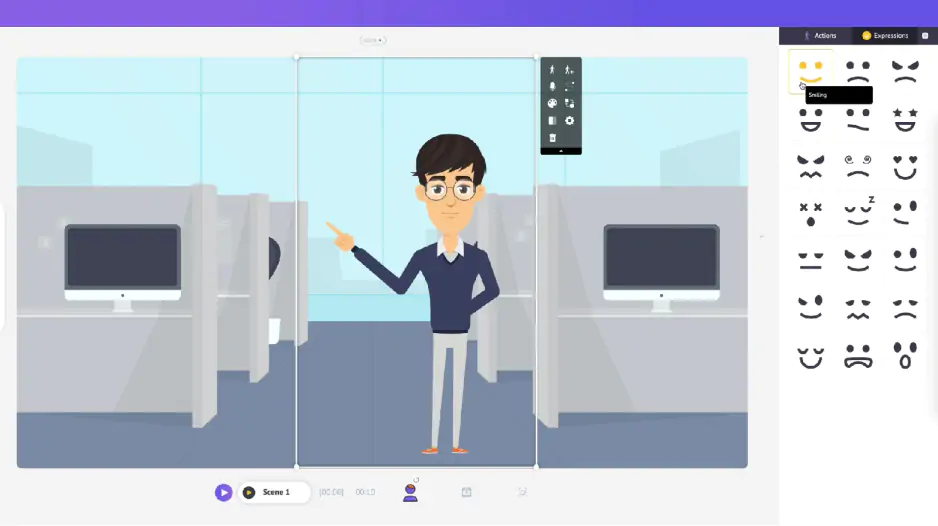
Animaker pairs 100+ outro templates with a drag-and-drop editor, and you can swap every color, font, and music track to fit your channel.

Key features:

  • 100+ outro templates.
  • 30,000+ animated assets.
  • 100 million+ stock images, videos, and music tracks.
  • Swap colors, fonts, and music across a template.
Pros:
  • Templates give beginners a clear starting point.

  • Huge stock and animation libraries.

Cons:
  • No complex animation like 3D or motion graphics.

  • The free version adds a watermark.

Price and platforms: web browser. Free version available; paid plans from $12 per month (billed annually) or $19 per month (billed monthly).

9. InVideo

Best for: tech bloggers who'd rather describe the outro in a prompt than edit it on a timeline.

Why we picked it:

InVideo AI turns a text prompt into an outro video, so there's no timeline to learn. It also writes outros in 50+ languages.

Key features:

  • Outro videos generated from a text prompt.
  • 50+ languages.
  • 16 million+ stock images and videos.
Pros:
  • No editing skills needed for a first version.

  • Wide language support.

Cons:
  • Exporting large videos can take a while.

  • The result depends on how well you write the prompt.

Price and platforms: web browser. Free option; paid plans from $20/month.

10. MiniTool MovieMaker

Best for: gaming and review channels on Windows that need end credits without paying.

Why we picked it:

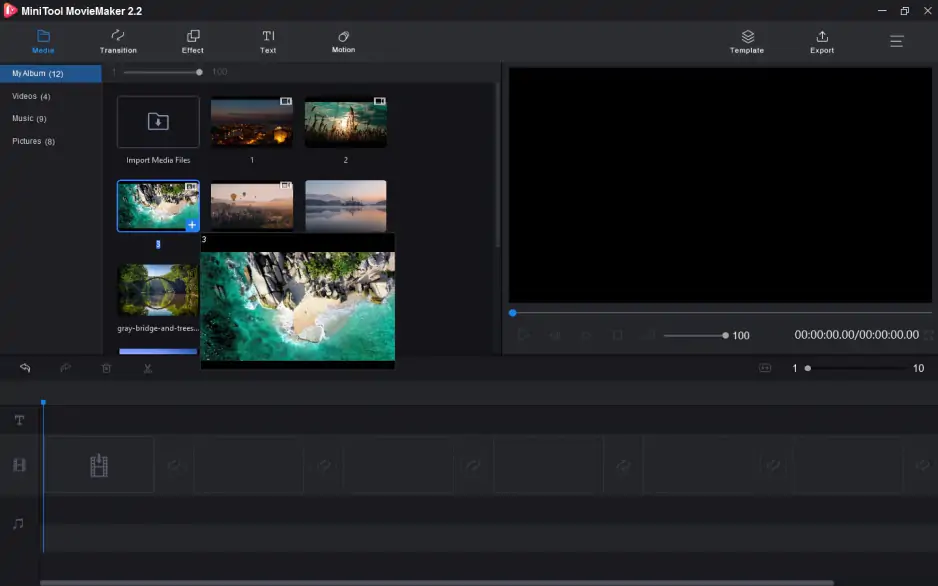
MiniTool MovieMaker is a free outro maker for Windows with text templates grouped into Trending, Caption, Credits, and Title. It exports up to 4K in MP4 for free, without a watermark.

Key features:

  • Text templates for title cards, overlays, and end credits, many of them animated.
  • Multitrack, drag-and-drop timeline.
  • Animated elements, filters, transitions, frames, and overlays.
Pros:
  • Free 4K MP4 export with no watermark.

  • A dedicated Credits group for end titles.

  • Multitrack editing for layered outros.

Cons:
  • Windows only.

  • You assemble the outro yourself from text templates, elements, and effects.

Price and platforms: Windows. Free; paid plans from $13 per month.

How to make an outro that turns viewers into subscribers

Whatever tool you pick, the outro works only if YouTube's clickable elements have somewhere to land.

How to choose the right outro maker

Start from how you already make videos, then match the tool to it:

  • You edit full vlogs, reviews, or tutorials on a computer. Movavi Video Editor keeps the outro in the same project as the video. The workflow is built to stay out of your way: hover to preview, drag to apply, and the edit moves on.
  • Your channel graphics already live in a design app. Canva reuses your thumbnail fonts and layouts; Adobe® Express does the same on a phone.
  • You want a YouTube outro template you can finish online in one sitting. FlexClip for subscribe buttons and social icons, Renderforest for animated logo reveals and end screen packs.
  • Your budget is zero. Panzoid online or MiniTool MovieMaker on Windows, both without a watermark.
  • You'd rather describe the outro than edit it. InVideo builds one from a text prompt.
  • You want lots of animation to play with. Animaker and Biteable both start from animated templates.

Once your outro is done, the next video needs an idea too. Movavi Ideas, Movavi's free tutorial hub, adds new editing tricks with step-by-step guides every week, from vlog transitions to short vertical clips, so your next upload has something fresh before the outro even starts.

Frequently asked questions

How long should a YouTube outro be?

Long enough to hold your end screen: YouTube lets you add end screen elements to the last 5–20 seconds, and the whole video must be at least 25 seconds long.

How do I add end screen elements in YouTube Studio?

Sign in to YouTube Studio, open Content, and click the video. Select Editor, then End screen, and add the elements you want (or apply a template). Drag each element into place, set its timing, and click Save. Note that end screens don't show on videos set as made for kids, and viewers can choose to hide them.

Do I need an outro in YouTube Shorts?

YouTube's end screen help covers standard videos: up to four elements at 16:9, and possibly fewer for other aspect ratios. For a vertical Short, a quick on-screen or spoken ask to subscribe in the last seconds is the simplest outro. Check the current Shorts options in YouTube Studio before you plan clickable elements.

What music should I use in an outro?

Use tracks you have the rights to: royalty-free libraries or music licensed for your channel. Movavi Video Editor includes copyright-free music and sounds, Adobe Express offers Adobe Stock soundtracks.

Is there a free outro maker with no watermark?

Yes. Panzoid is entirely free with no watermark, MiniTool MovieMaker exports up to 4K MP4 without one on Windows, and Adobe Express exports without a watermark on its free plan. Biteable, Animaker, and Renderforest add a watermark to free exports.

What's the difference between an end card and an end screen?

They usually mean the same thing: the closing seconds where viewers get clickable links to more of your videos. In YouTube Studio, the feature is called End screen, and the clickable pieces you add to it are called elements.

Have questions?
If you can’t find the answer to your question, please feel free to contact our Support Team.
Join us for discounts, editing tips, and content ideas

1.5M+ users already subscribed to our newsletter

By signing up, I agree to receive marketing emails from Movavi and agree to Movavi's Privacy Policy.