
Best Video Editor with Templates: 10 Tools Compared

Use Movavi Video Editor!

  • NEW: Adjustable video templates for any vibe – made of Blocks

  • NEW: Blocks – pre-edited video segments you can customize

  • Fast and easy editing: cut, crop, adjust colors and speed

  • Auto subtitles, noise removal, hundreds of effects, and more

By clicking the download button, you're downloading a trial version of the program.*

Edited by
Ben Jacklin
8,923

An online video editor with templates is enough when your video is short, your files are light, and your Wi-Fi is reliable. A web-based editor needs nothing beyond a browser and an internet connection, which is perfect for a quick Reels ad or a channel announcement. Once you're cutting a weekend of travel footage into a 20-minute vlog, or you'd rather keep your clips on your own drive, a desktop video editor with templates is the better fit.

Our quick picks: Movavi Video Editor if you want a desktop app that works offline, or a Canva video alternative for long videos and large files; Canva and Adobe® Express® if your video sits next to social graphics; Clipchamp if you need a free online video maker on Windows 11; VEED and Kapwing for teams editing together; InVideo for script-first marketing videos; FlexClip for a big browser template gallery; Renderforest for logo reveals and intros; Animoto for slideshows built from your own photos.

This guide is for you if you film daily routines, unboxings, or travel days for your channel, if you run a small online shop and need a promo for Instagram or Facebook, or if you're putting together a school or university project presentation.

How we chose

Every tool earned its place on the criteria we'd apply to any video-editing software built for beginners:

  • Free plan terms. Export resolution, video length limits, and whether a watermark lands on your video.
  • Template library. How many video templates there are, how many are free video templates, which formats they cover, and how much of each template you can change.
  • Commercial use. Whether you can put a finished template video in an ad or on a product page.
  • Brand kit. Saved logos, colors, and fonts you can reuse across a series.
  • Speed to a finished video. How many steps it takes to go from your clips to an export, including AI tools for subtitles and audio cleanup.
  • Where you edit. In a browser, in a desktop app, or both, and what that means for long videos and large files.

The 10 best video makers with templates

Tool

Best for

Platforms

Free version

Starting price

Lifestyle vlogs and long videos edited offline

Windows, macOS (desktop)

60-second cap, watermark, no 4K

From $19.95/month

Social posts and stories with video inserts

Browser, desktop and mobile apps

1080p; watermark only if you use a Pro element

$18/month

Template-based social posts and short ads

Browser, mobile app

Yes; 4K export needs Premium

$9.99/month

Script-first marketing videos

Browser

Limited AI credits, watermark

$17/month, billed yearly

Simple social and office videos on Windows

Browser, Windows 11 app, iOS app

1080p, no watermark

Included with Microsoft 365 Personal ($9.99/month)

Teams editing short social clips together

Browser

720p, 4-minute cap, watermark

$16/month, billed yearly

One promo made inside a single browser tool

Browser

720p, 10-minute cap, watermark

$11.99/month

Logo reveals and short intros

Browser

Watermarked exports

$8/month, billed yearly

Slideshows and promos built from your own photos and clips

Browser

720p, watermark

$9/month, billed yearly

Captioned business videos made by teams

Browser, mobile app

720p, 10-minute cap, watermark

$12/month, billed yearly

Best for: lifestyle vloggers who edit daily routines, unboxings, and travel days on a computer, plus small business owners who need a promo for social media.

Price and platforms: desktop app for Windows and macOS. Movavi Video Editor Free (60-second cap, watermark, no 4K export), Movavi Video Editor Lite, and the full version from $19.95/month. Movavi Effects and Movavi Templates subscriptions for the whole template library are sold separately.

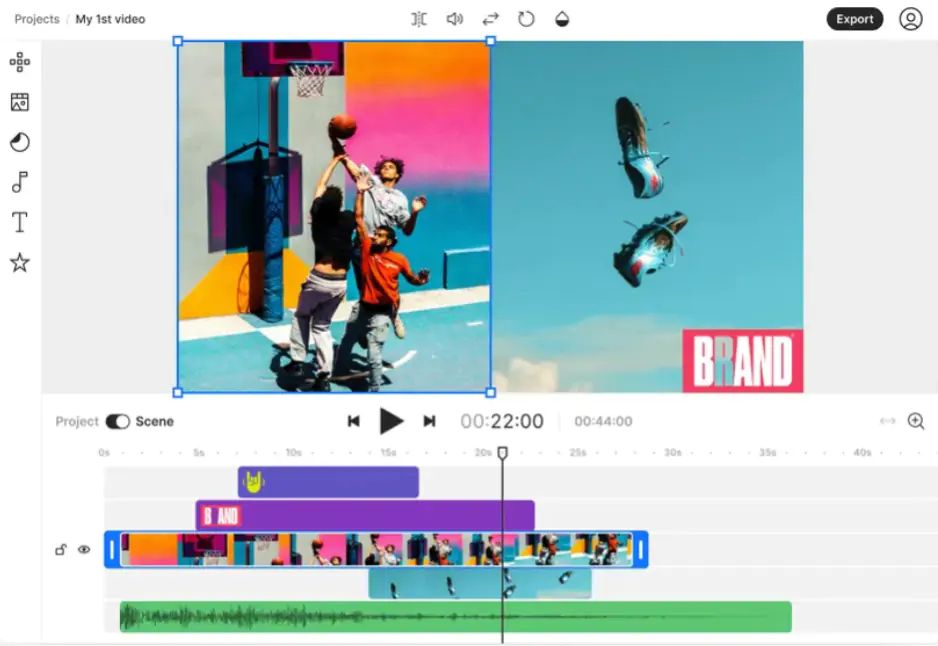
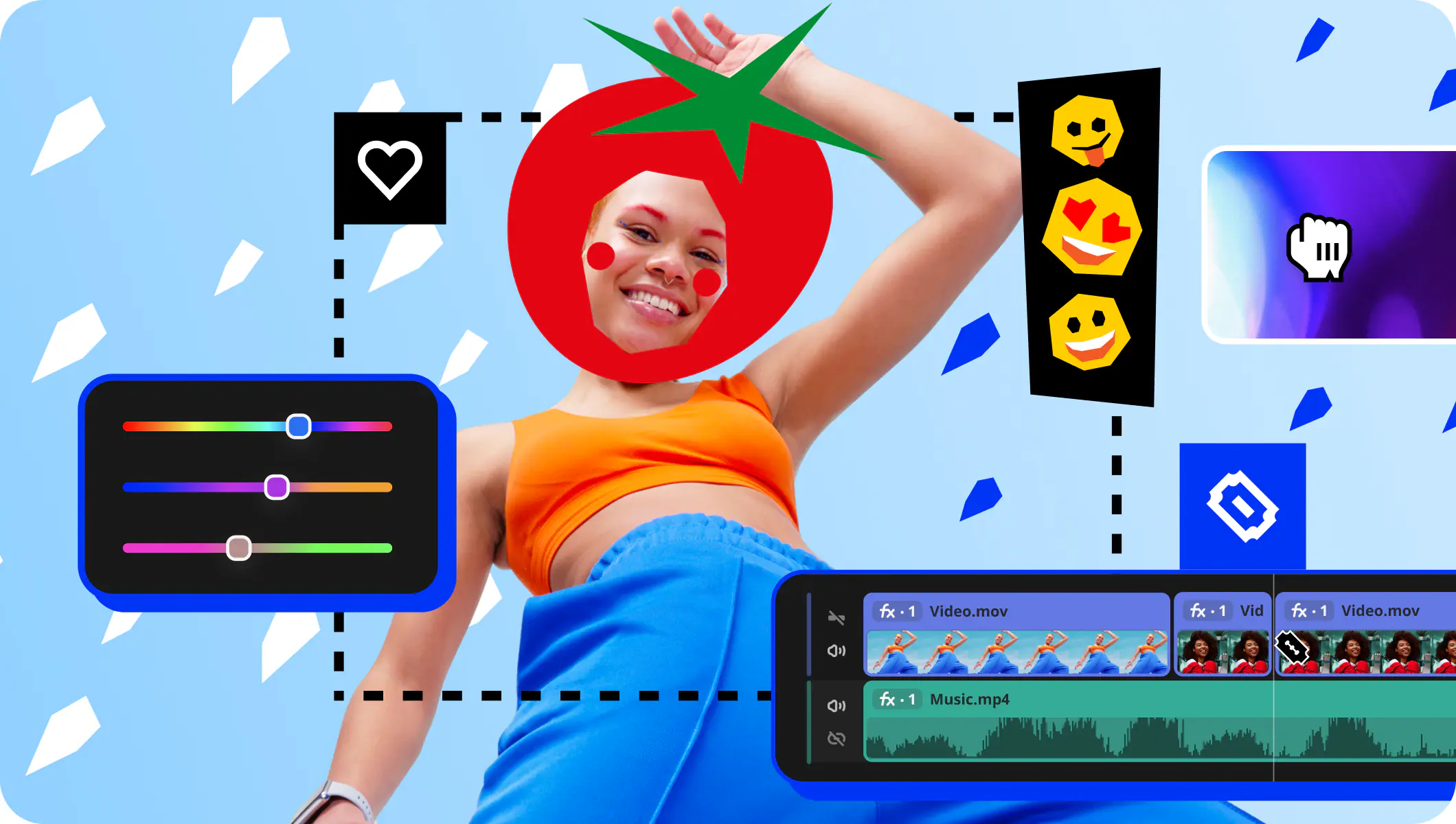
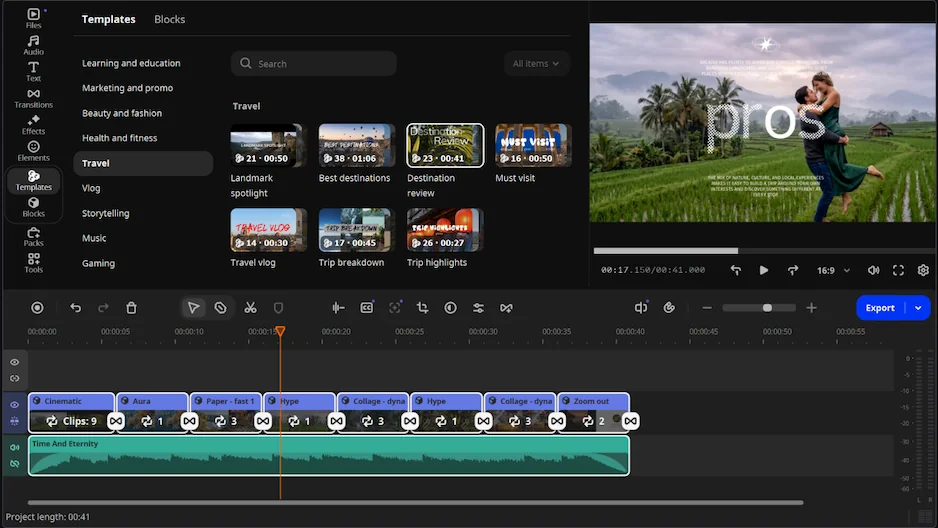
Movavi Video Editor is an intuitive video editor with customizable video templates, one-click AI tools, and hundreds of drag-and-drop effects. It's a desktop app for Windows and macOS, so you edit offline, with no cloud upload, and an hour of travel footage doesn't depend on your Wi-Fi. Hover over a clip, effect, or transition to preview it, then drag it onto the timeline, so you spend your time creating instead of figuring out the software. Drop your clips into a template and the first cut already has its pacing, music, and titles in place, so a beginner's vlog looks finished on the first try. Movavi Video Templates is a multi-style library of customizable, pro-looking, modular templates for any kind of video.

Key features:

  • Templates built from Blocks. Each template is a ready-made project made of Blocks, short pre-edited segments of the video. You fill them with your own clips and photos, then reorder, add, swap, or delete Blocks, so two vlogs from the same template don't look alike. The library covers vlogs, business promos, family videos, holidays, and reviews.
  • Marketing and promo templates. The category includes the promo video, video resume, portfolio video, and other marketing video templates.
  • AI subtitles. Speech turns into captions with over 99% transcription accuracy in 100+ languages, with 60+ designs and word-by-word highlighting synced to the audio.
  • One-click AI tools. Each one takes a tedious job off your hands in a single click. Video denoise, audio noise removal (about 95% of background noise), silence removal, auto-tracked cropping for vertical versions, and motion tracking all come with the full version.
  • Hundreds of drag-and-drop effects. Titles, transitions, filters, overlays, and copyright-free music come built in. The optional Movavi Effects subscription adds 10,000+ effects and 1,500+ music tracks for every theme and mood, and every effect and template can be previewed on your own footage before you buy.
Pros:
  • Edits offline, and your clips stay on your computer

  • Every template stays editable: swap its music, and change the text and transitions

  • Every one-click AI tool is part of the full version, not a separate add-on

  • Trusted by 70M+ users in 190+ countries, with 25+ updates a year

  • The full version exports in 4K, with no watermark

Cons:
  • No flexible UI customization

  • No web version or cloud integration, so you can't edit from a browser or co-edit with a team

Best for: social media managers who design posts and stories and add short video inserts.

Price and platforms: browser, desktop, and mobile apps; works online with an account. The free plan exports 1080p with no watermark unless your design uses a Pro element. Canva Pro costs $18/month or $180/year.

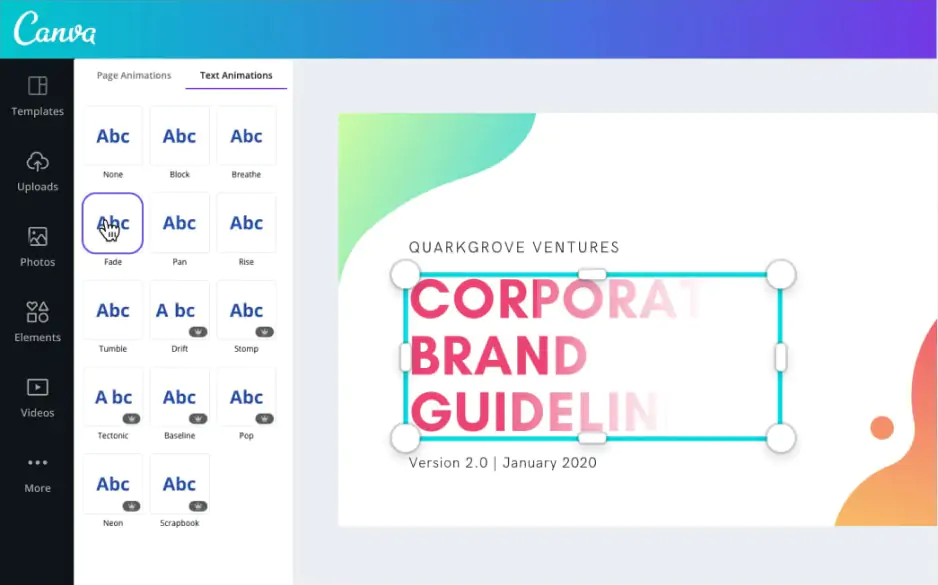
Canva is a graphic design builder where video is a second format, and its library of design templates for posts, stories, and promos is giant. If your promo video ships alongside a carousel and a story cover, building all three in one place saves a lot of tab-switching.

Key features:

  • Design templates for video: posts, stories, and promos you edit as a layout on the canvas
  • AI auto subtitles with a choice of styles
  • Beat Sync: matches your clips to the rhythm of the music track (paid plan)
  • Co-editing: several people can work on one video at the same time
Pros:
  • A good-looking video comes together from a template fast

  • A huge library of templates, fonts, and elements

  • Video and design live in the same workspace

Cons:
  • Little control over the timeline, audio, and color

  • Can slow down on long videos and heavy files

  • Templates preview on hover, not on your own footage

Best for: marketers who need a template-based post, banner, or short ad.

Price and platforms: browser and mobile app; needs an Adobe account and an internet connection. Free plan with limits on templates, features, and AI credits; Premium costs $9.99/month.

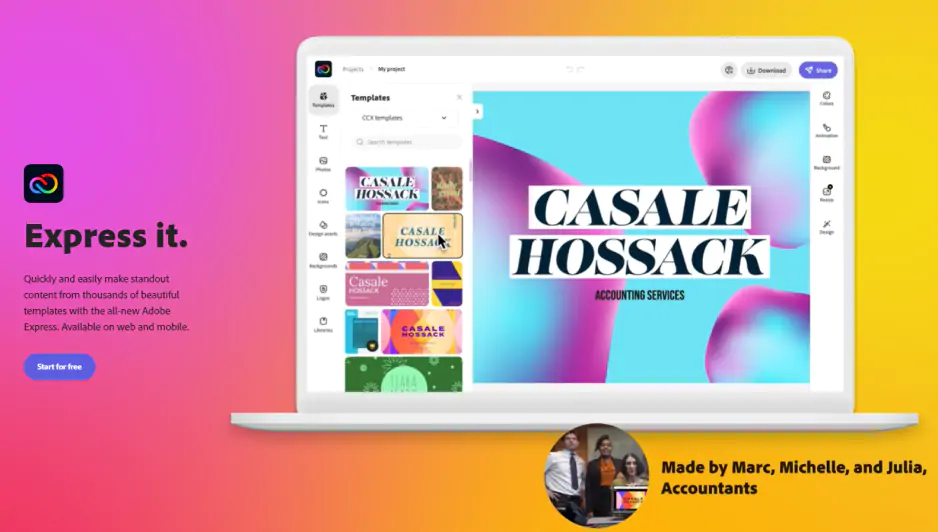
Adobe® Express® is a lightweight web builder for social media and marketing, with a wide selection of templates you edit right on the canvas. Users often praise its commercially safe generative AI, Firefly, which matters if your video ends up in a paid campaign.

Key features:

  • Templates for posts and short videos, with a basic video editor on top
  • Firefly generation of images, text styles, and templates
  • Enhance Speech: cleans background noise from a voice track
  • One-click resizing for Reels, TikTok, and Shorts
Pros:
  • Quick path from template to finished post

  • Works with the Adobe ecosystem and Adobe® Stock

  • Commercially safe generative AI

Cons:
  • Very limited as a video editor, with about 10 transitions

  • Adobe® Stock access beyond the basics is paid

  • Can slow down in the browser on large projects

Best for: teams who start from a written script and need a first draft they can refine together.

Price and platforms: browser. Free plan with limited AI credits; paid plans from $17/month, billed yearly.

InVideo organizes its templates around marketing goals and uses a script or short brief to lay out scenes, text, and supporting media. It fits first drafts of product explainers, list videos, and campaign concepts.

Key features:

  • Script-to-video drafting: a written script becomes a template-shaped video
  • Marketing template categories for promos, explainers, and list videos
  • Stock media built into templates
  • AI voices and voice clones, plus 16:9, 9:16, and 1:1 formats for YouTube and social
Pros:
  • Useful when the message is already written and only needs structure

  • Suitable for testing many versions of one ad with different hooks

Cons:
  • Stock media and template restrictions can affect the final video, even on the free plan

  • Free exports carry an InVideo watermark

Best for: Windows users and office workers who need a simple video quickly.

Price and platforms: browser, a Windows 11 app, and an iOS app; needs a Microsoft account. The free plan exports 1080p with no watermark. Premium comes with Microsoft 365 Personal ($9.99/month) or Family, or costs $11.99/month on its own in the Microsoft Store.

Clipchamp is Microsoft's browser-based editor, built into Windows 11 and Microsoft 365. Its templates for social media, work, and school (intros, promos, slideshows) and its free AI features make it an easy first stop on a Windows PC.

Key features:

  • Templates for intros, promos, and slideshows
  • Free AI auto subtitles with a downloadable transcript
  • Free AI tools: silence removal, audio noise reduction, and AI voiceover from text
  • Screen and webcam recording for tutorials and presentations
Pros:
  • All AI features are free

  • A clear timeline that beginners pick up fast

  • Already on Windows 11

Cons:
  • Templates are applied as a whole to your clips

  • Slows down on large files, and export can freeze at the final stage

  • No auto-reframing with subject tracking, and chroma key removes only blue, red, or green

Best for: teams and agencies editing short social clips together.

Price and platforms: browser. Free plan with watermarked 720p exports; Pro costs $16/month and lifts exports to 4K with no watermark.

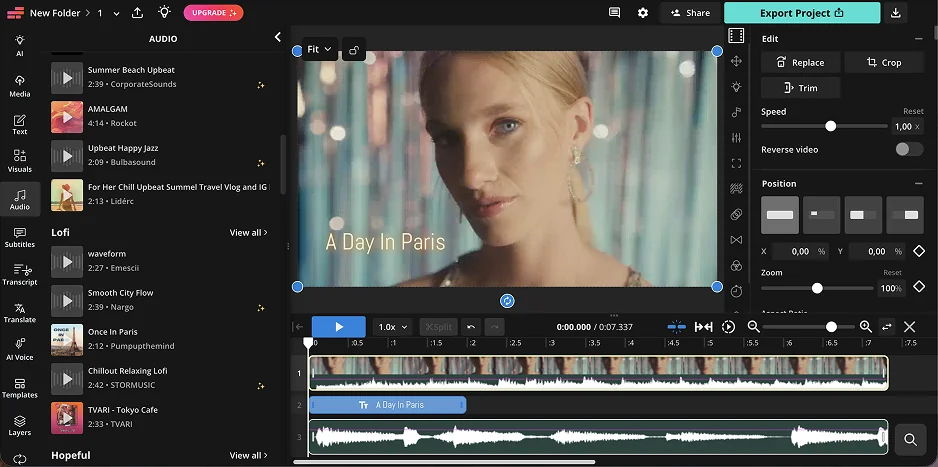
Kapwing is a browser-based editor with real-time collaboration and a gallery of social media templates. Smart Cut trims pauses automatically, which shortens the first pass on a talking-head clip.

Key features:

  • Smart Cut: automatic pause removal
  • Real-time collaborative editing in the browser
  • AI Clip Maker and auto subtitles for multilingual audiences (monthly AI credit allowance)
  • Social media templates for short marketing clips
Pros:
  • Several people can edit the same project at once

  • Subtitles for multilingual audiences in a few clicks

  • Nothing to install

Cons:
  • AI features run on a monthly credit allowance

  • Paid stock and some templates need a paid plan

  • Free exports are watermarked and capped at 720p and 4 minutes

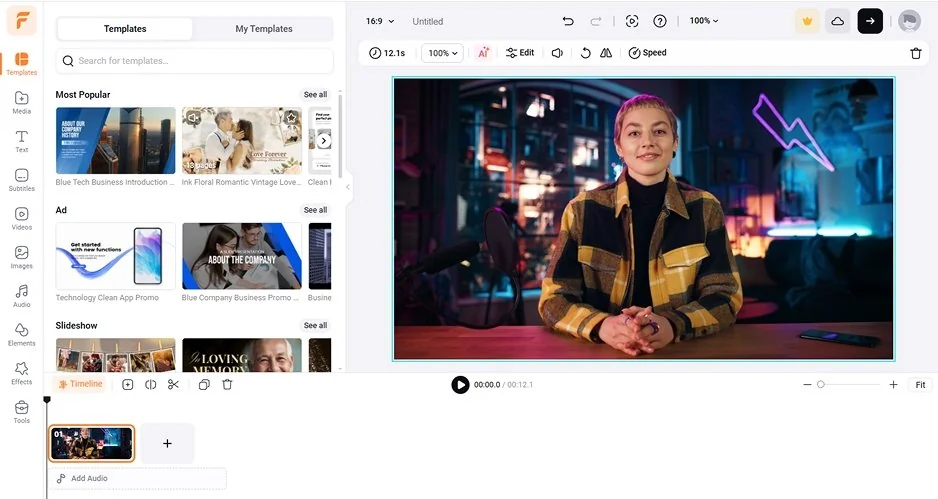
Best for: in-house marketers who want one promo made without leaving a single browser tool.

Price and platforms: browser. Free plan (720p, watermark); Plus costs $11.99/month and Business $19.99/month.

FlexClip is a browser editor with a drag-and-drop gallery of 10,000+ video templates across business, education, social media, and lifestyle. It’s an option for shipping one paid social video a week without a dedicated editor.

Key features:

  • 10,000+ video templates with drag-and-drop editing
  • Brand elements: logos, animated captions, and background music you add to any project
  • AI generation of photos, video, audio, and text, paid for with AI credits
Pros:
  • From template to export inside one tool

  • Paid plans allow commercial use of the stock library and the videos you make

Cons:
  • Free exports are watermarked and capped at 720p and 10 minutes

  • AI features spend credits on top of the subscription

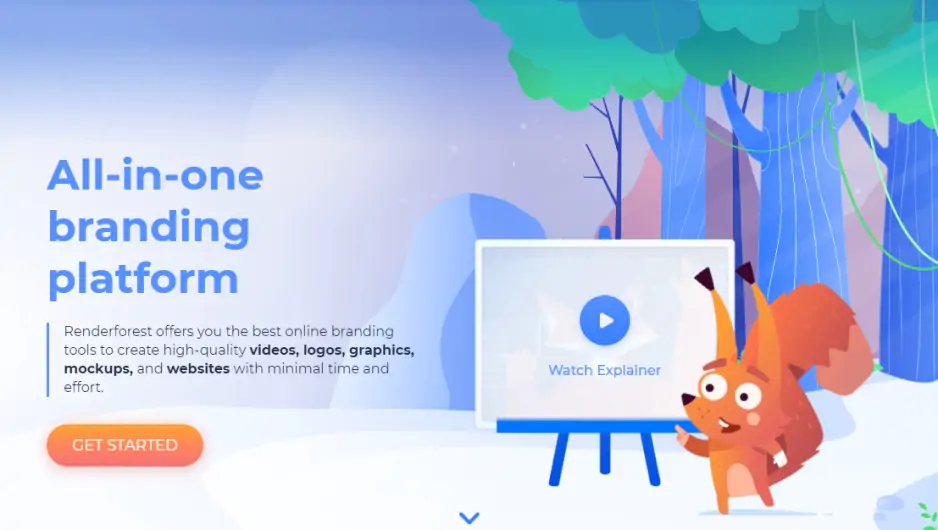
Best for: logo reveals and short intros.

Price and platforms: browser. Free plan with watermarked exports; Lite costs $8/month.

Renderforest is built around ready-made video projects, including logo reveals, intros, presentation videos, and promotional scenes. Use it when you have a logo, a short message, and a clear ending, but no storyboard.

Key features:

  • Logo reveal projects you fill with your own logo
  • Intro and presentation video projects
  • Promotional scenes for short promos
Pros:
  • Fast results for a recognizable intro

  • Works from a whole project instead of a blank timeline

Cons:
  • Template controls are narrower than in a desktop editing project

  • Free exports carry a Renderforest watermark

Best for: small businesses and educators who turn their own photos and clips into slideshows and promos.

Price and platforms: browser. Free plan (720p, watermark); Basic costs about $9/month billed yearly and adds 1080p exports with no watermark.

Animoto's pre-built templates and motion graphics turn a set of photos, clips, and recordings into a finished video without editing experience. You can switch the same project between vertical, square, and horizontal formats.

Key features:

  • Customizable templates, including industry-specific ones for retail, fitness, and education
  • Format switching between vertical, square, and horizontal versions
  • Getty Images library of 1M+ licensed photos and videos
  • Voice-over and screen-plus-webcam recording
Pros:
  • Unlimited video creation, even on the free plan

  • A quick path from a folder of photos to a polished slideshow

  • Logo and brand colors on the Professional plan

Cons:
  • Free exports are 720p with a watermark

  • Some users find the templates restrictive or dated

  • Getty stock, voice-over, and branding sit on the Professional plan

10. VEED

Best for: marketers, agencies, and remote teams making captioned business videos.

Price and platforms: browser and mobile app. Free plan with 720p exports, a 10-minute cap, and a watermark; paid plans start at about $12/month billed yearly and add 1080p exports with no watermark.

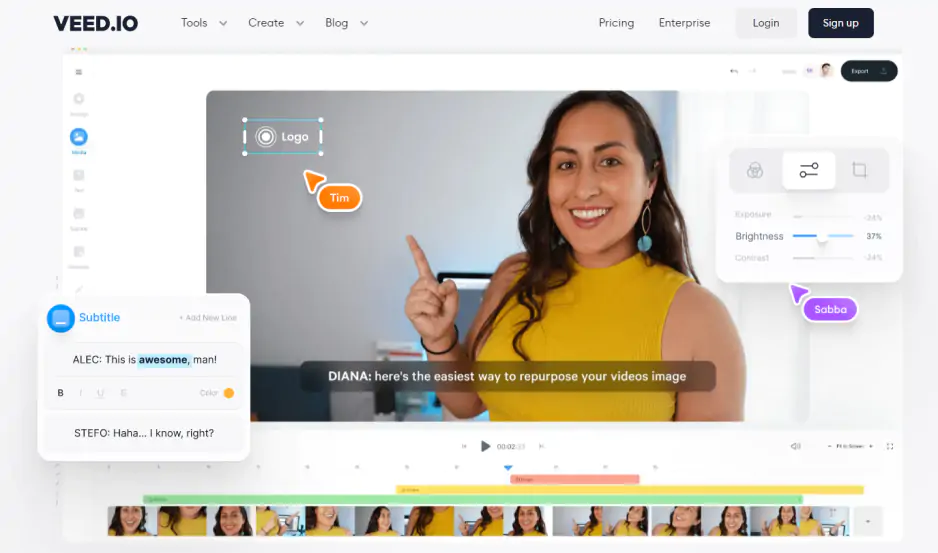
VEED is a browser-based AI editor with a large library of business and social templates (promos, webinars, onboarding, stories). Each template works as a prompt blueprint: AI generates a video from your clips, which suits teams that want a fast branded draft.

Key features:

  • AI subtitles with translation into other languages (translation spends AI credits)
  • Remove Silences: cuts pauses and filler words automatically
  • Clean Audio: one-click audio cleanup (paid plan)
  • Brand kit and real-time collaboration for team projects
Pros:
  • A simple browser interface with nothing to install

  • Accurate auto subtitles with styles and translation

  • Clean Audio and Remove Silences save time on talking-head videos

Cons:
  • Every template generation and change spends AI credits

  • Most templates are vertical, though you can regenerate them horizontally

  • Long, heavy projects can lag or fail to export

How to choose a video maker with templates

Promo videos for a channel, merch, or product: Movavi Video Editor or InVideo. If you run a small online shop, the promo video template gives you a ready-made project for an Instagram or Facebook ad, so you replace its placeholders with your product shots. Working from a written script? InVideo drafts the first version from text. Only need a logo opener? Renderforest is the quick promo video maker for that one job.

Video resumes: Movavi Video Editor. Movavi's Marketing and promo category includes video resume templates. Record your intro straight into the project with the built-in webcam recording, then place it in the video resume template's Blocks.

Portfolio videos: Movavi Video Editor. Freelancers building a personal brand can use the portfolio video template and reorder its Blocks so the strongest project plays first. Video templates stay fully editable, so the reel grows as you add new work.

Infographic videos: Movavi Video Editor or Canva. For a project demo at work or a university project presentation, the infographic video template works as an infographic video maker: your numbers and screenshots go into ready-made Blocks. If most of your frame is design graphics rather than footage, Canva fits better.

Social clips made by a team: VEED or Kapwing. Both video makers with templates let several people edit one project in the browser at the same time. On a Windows PC with a one-off task, Clipchamp is already installed.

New to editing and short on ideas? Movavi Ideas publishes new editing ideas every week, each with a step-by-step tutorial, free for Movavi users. Pick one, open Movavi Video Editor, and see what your first template project looks like by tonight.

Frequently asked questions

Is there an online video editor with no watermark on the free plan?

Yes: Clipchamp's free plan exports 1080p with no watermark, and Canva's does too as long as every element in your design is free. Most others, including VEED, Kapwing, FlexClip, and Animoto, watermark free exports. Movavi Video Editor Free adds a watermark and caps exports at 60 seconds; the full version exports with no watermark or other export limits.

Can I use video templates in ads?

Usually, but permission depends on the individual template and the media inside it. For example, a license may cover the finished video while restricting resale of the template file, so save the license page with your project.

Online or desktop: which video editor with templates should I choose?

Go online for short clips and team edits: there's nothing to install, and several people can work in one project. For long footage, choose a desktop app. A browser editor depends on your connection, makes you upload every clip before you can start, and often has you edit lower-resolution copies of your footage. A desktop editor works with the files already on your computer.

Where are my files stored?

With an online editor, your clips are uploaded to the service before you edit. In desktop software like Movavi Video Editor, all media files stay on your computer.

Have questions?
If you can’t find the answer to your question, please feel free to contact our Support Team.

Frequently asked questions

Is it free to remove sound from video?

Yes – every tool on this list has a free way to mute a clip or remove sound from video, though most free tiers add a watermark or cap your export length and resolution. iMovie is the only one with no limits at all, since it has no paid tier to unlock.

How to mute a video without losing quality?

Muting only touches the audio track, so the picture itself doesn't need to be re-encoded at a lower quality just to silence the clip. The bigger risk to quality usually comes from exporting at a lower resolution to fit a free plan's limits, not from the mute itself.

Can I remove audio from only part of a video, not the whole thing?

Some tools, like VEED, let you select and mute a specific segment instead of the entire clip. On a timeline-based editor like Movavi Video Editor, you can split the clip first and then mute only the piece you want silent, leaving the rest of the audio untouched.

Will removing the audio track let me add a voiceover or music afterward?

Yes. Once a clip is muted, its video track is free for new audio – a voiceover, licensed background music, or sound effects. Movavi Video Editor also lets you detach and save the original audio track first, in case you want to reuse part of it later.

Which video formats can I remove audio from?

Most of the tools here handle common formats like MP4, MOV, AVI, and MKV without a separate conversion step. If a tool doesn't support your file type, converting it to MP4 first is usually the simplest fix.

Do I need video editing software, or can I remove audio online for free?

Either works. Browser tools like Clideo and VEED need no video editing software at all – just a file to upload. If you're also editing the rest of the video, a desktop app like Movavi Video Editor, Filmora, or iMovie saves you from switching between a muting tool and an editor.

Why would I want to remove background music from a video before uploading it?

Platforms like YouTube and TikTok can flag or mute a video automatically if it contains copyrighted background music, which is a common reason gamers and reviewers strip the original audio from highlight clips before publishing.

Can I undo muting a video after I export it?

Not from the exported file itself – once you render a muted video, the original audio is gone from that export. Keep your project file, or the audio track you detached beforehand, if there's any chance you'll want the sound back later.

Is it legal to remove audio from a video?

Removing audio from your own footage is fine. The usual legal concern runs the other way – leaving someone else's copyrighted music or dialogue in a video you didn't make, which is often the actual reason creators mute a clip before uploading it.

Join us for discounts, editing tips, and content ideas

1.5M+ users already subscribed to our newsletter

By signing up, I agree to receive marketing emails from Movavi and agree to Movavi's Privacy Policy.