
Splice vs. CapCut: Features, Pricing, Performance Compared

Edited by
Ben Jacklin
16,222

Splice and CapCut take opposite approaches. Splice is a subscription-based mobile app built for fast, social-ready clips, keeping the workflow simple and focused on phones. CapCut is free to start, works across mobile, desktop, and web, and is packed with AI tools and templates. Splice suits quick, on-the-go edits, while CapCut fits creators who want more depth and cross-platform flexibility without an upfront cost.

Comparison parameter

Splice

CapCut

Who it's for

Mobile creators, vloggers, on-the-go editors

TikTok, Reels, and Shorts creators; casual and AI-focused editors

Supported platforms

iOS, Android

iOS, Android, Windows, macOS, web

Ease of use

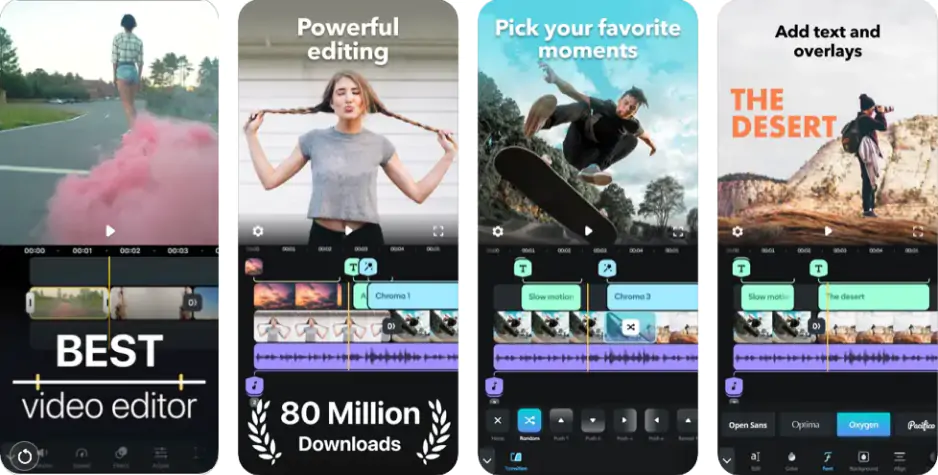
Simple, tap-based mobile interface

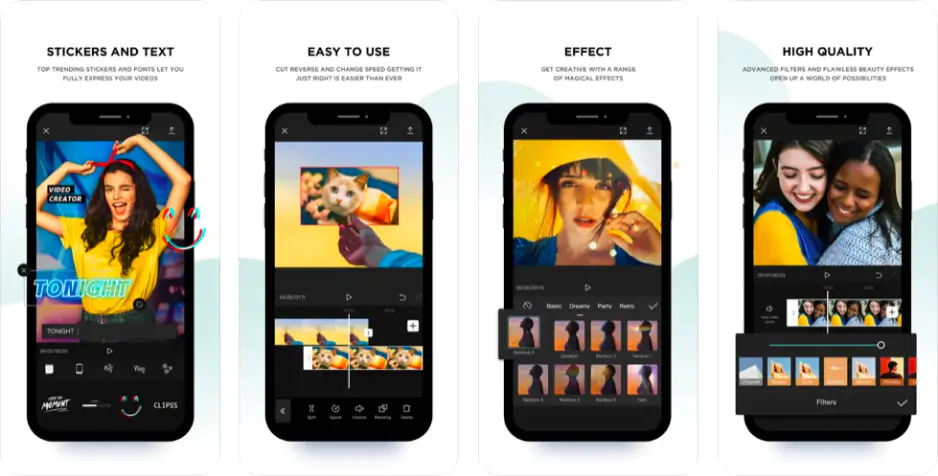
Beginner-friendly with templates and guided tools

Quick summary

Best for TikTok: CapCut, built by ByteDance, offers native TikTok links and trend-ready templates that speed up vertical edits.

Best for beginners: CapCut lowers the barrier with one-tap effects and auto-captions that turn raw clips into polished videos.

Best mobile workflow: Splice is designed purely for phones, staying smooth from import to export.

Best free option: CapCut's free tier covers full editing without paying upfront.

Ease of use

Splice

CapCut

Both CapCut and Splice get creators editing quickly, but by different routes. Splice opens into a single, tap-driven timeline where importing, trimming, and adding music flow together, with little to configure before the first cut. CapCut greets newcomers with templates, tutorials, and auto-suggestions that assemble a rough edit almost instantly, softening the curve for anyone who has never edited before. Splice feels more direct once footage loads, while CapCut spreads more options across the screen, so beginners lean on its guided tools instead of exploring on their own. Neither requires technical setup, and both stay comfortable on a phone.

Winner: CapCut, since its templates and onboarding prompts shorten the gap between opening the app and finishing a first video.

Features

The Splice vs. CapCut gap widens once you look past basic cutting. CapCut has a vast, trend-driven template library, one-tap auto-captions, editable subtitles, and a library of effects and transitions tuned for vertical video. Its export presets map directly onto TikTok, Shorts, and Reels, so aspect ratios and frame rates are handled without manual tweaking. Splice takes a leaner path, offering clean filters, speed controls, manual overlays, titles, and a built-in music library, but no template system and only simple captioning.

For creators who need viral formats, that difference matters. CapCut's captions and transitions arrive ready-made, while Splice expects you to build most looks by hand, which suits editors who prefer control over presets. Both export polished vertical clips, yet CapCut removes far more friction between raw footage and a platform-ready upload.

Winner: CapCut, thanks to its richer templates, automatic captions, and platform-specific export options.

Performance

Both editors stay responsive on modern phones, though their limits show in different places. Splice renders short clips quickly and rarely stumbles, but its free version blocks the final export until you subscribe, which effectively gates the whole workflow behind payment. CapCut exports fast across mobile and desktop and keeps most tools open on its free tier, yet heavier projects can lean on cloud storage and stronger hardware, and certain premium templates or AI effects stamp a watermark unless you upgrade. Stability is solid on both, though CapCut's larger feature set occasionally means more to load. On mobile specifically, Splice is confined to iOS and Android, while CapCut adds desktop and web as an escape route when a project outgrows the phone.

Winner: CapCut, for faster watermark-free exports on its free tier and fewer hard limits on everyday editing.

Pricing

The CapCut vs. Splice cost gap here is stark. Splice has no permanent free plan for finished work: after a short trial you pay a recurring subscription, billed weekly, monthly, or yearly, just to unlock exporting. CapCut flips that model, letting you edit and publish watermark-free on its free tier, then charging only if you want extras, with a Standard plan near $9.99 a month and a Pro plan around $19.99 (often cheaper through the website than app stores). So a casual creator can finish videos on CapCut without spending anything, whereas Splice turns every saved export into a paid action. The main watermark risk on CapCut appears only when you use certain premium templates or AI tools.

Winner: CapCut, since its capable free tier avoids the mandatory subscription Splice requires to export.

Platform compatibility

This is where the two diverge most clearly. Splice lives entirely on mobile, running on iPhone, iPad, and Android devices, which keeps it lightweight but ties every project to a phone or tablet. CapCut reaches much wider, with apps for iOS and Android plus full desktop versions on Windows and macOS and a browser-based editor, so a clip started on a phone can be finished on a larger screen. For anyone who edits solely on mobile, Splice fits naturally, but CapCut suits creators who move between devices or prefer a computer for heavier work.

AI tools

Artificial intelligence is where CapCut pulls furthest ahead. Beyond automatic captions, it packs a broad toolkit: one-click background removal, text-to-speech and voice effects, image upscaling, motion and camera tracking, and generative options that can produce or extend footage from a prompt. Many of these run on the free tier, while the most advanced generative and cloning tools sit behind the Pro plan and a monthly pool of AI credits.

Splice keeps its automation far narrower. It offers a handful of AI-assisted shortcuts, such as smart adjustments and quick auto-editing that helps assemble a rough cut, but nothing approaching CapCut's generative or object-aware features. That restraint keeps the app simple and predictable, which some editors prefer, yet creators who lean on AI to speed up captioning, cleanup, or effects will find CapCut does far more of the heavy lifting.

Pros & cons

Splice

Pros:
  • Purpose-built mobile editor that stays smooth on all devices

  • Clean workflow with almost no setup

  • No watermark on exported videos

  • Built-in music library and easy speed controls

  • Manual overlays and titles give hands-on control

Cons:
  • Exporting requires a paid subscription

  • Mobile-only, with no desktop or web version

  • Limited AI and no template system

  • Fewer effects and transitions than rivals

CapCut

Pros:
  • Capable free tier

  • Works across mobile, desktop, and web

  • Huge library of templates, effects, and transitions

  • Extensive AI toolkit, including auto-captions and background removal

  • Export presets tuned for TikTok, Shorts, and Reels

Cons:
  • Advanced AI and 4K locked behind the Pro plan

  • Some premium templates add a watermark

  • Heavier projects lean on cloud storage and stronger hardware

  • More on-screen options can feel busy at first

Best use cases

Both apps handle short-form content, but each leans toward a different creator.

TikTok and social clips: CapCut is the natural pick, since its templates and platform presets turn trends into finished vertical videos fast.

YouTube: CapCut suits creators wanting captions, effects, and a desktop for longer edits, while Splice covers quick vlog-style uploads shot and cut on a phone.

Beginners: new users tend to settle into CapCut's guided tools sooner, though Splice's stripped-back layout also stays approachable.

Casual editing: for casual editing such as trimming holiday footage or a birthday clip, Splice keeps the process light and phone-friendly.

Business: users making product demos, promos, or training videos benefit from CapCut's captions, branding options, and cross-device flexibility.

Final verdict

In the end, the choice comes down to how you work. Splice is suitable for creators who edit entirely on a phone and want a clean, direct path from footage to a watermark-free clip, provided they accept a subscription to export. CapCut is the more complete and flexible option for almost everyone else, pairing a genuinely capable free tier with templates, AI, and cross-device reach that carry a project from a quick TikTok to a polished upload. For most creators today, CapCut offers more for less, while Splice remains a tidy pick for pure mobile simplicity.

Alternative: Movavi Video Editor

If neither app quite fits, Movavi Video Editor is worth a look. It sits between the two: easier to approach than a full professional suite, yet more capable than a phone-first tool. Running on Windows and Mac computers, it gives you a proper desktop workspace with drag-and-drop editing, transitions, filters, titles, subtitles, and a set of AI-assisted extras, without demanding that you learn a segmented, studio-style workflow.

That balance suits creators who want to edit on a computer but feel boxed in by Splice's mobile-only reach or wary of CapCut's busy feature set. For everyday videos, tutorials, and social content made at a desk, Movavi Video Editor offers a calmer middle lane.


Frequently asked questions

Is CapCut really free to use?

Yes. CapCut's free tier lets you edit, add captions, and export watermark-free videos without paying, which covers most short-form projects. You only need a paid plan for extras like 4K export, the full AI toolkit, or certain premium templates, and a watermark appears only when you use that locked content. For casual creators, the free version is often enough on its own.

Can I use Splice on a computer?

No. Splice is a mobile-only editor for iPhone, iPad, and Android, so every project stays on a phone or tablet.

Which app is better for a complete beginner?

CapCut usually feels easier to start with, thanks to templates, tutorials, and one-tap tools that build a rough edit quickly. Splice is also beginner-friendly, with a simple layout and few setup steps, but it leans on manual editing.

Have questions?
If you can’t find the answer to your question, please feel free to contact our Support Team.
Join us for discounts, editing tips, and content ideas

1.5M+ users already subscribed to our newsletter

By signing up, I agree to receive marketing emails from Movavi and agree to Movavi's Privacy Policy.