
Movavi Video Editor
Create awesome videos easily
Some editing software gets opened with a very specific mindset: finish the video, upload it, forget about it until the next deadline appears. Other programs seem to assume there will be revision folders, backup drives, color notes taped somewhere nearby, and at least one discussion about frame rates that nobody actually wanted to have.
This Movavi vs. Premiere® Pro comparison looks at that split through the lens of real editing work. Movavi Video Editor fits projects you want finished without much ceremony, while Adobe® Premiere® Pro (now called simply Adobe® Premiere®) leans toward larger edits that gradually pull in multicam footage, motion graphics, layered workflows, and far more technical decisions than the project originally seemed to require.
Best for professional workflows: Adobe® Premiere® makes more sense once projects involve multicam footage, layered timelines, client revisions, and connected Adobe® apps. It is built for longer production cycles where technical control matters more.
Best for color grading: Premiere® Pro gives editors more control over the final look of a video. Matching footage, adjusting skin tones, and building a consistent visual style feels easier once projects move beyond basic correction.
Best for advanced editing: Adobe® Premiere® handles motion graphics, nested sequences, and larger editing pipelines more comfortably. Movavi Video Editor keeps things simpler, which helps speed up smaller projects but limits deeper technical work.
Best overall performance: Movavi Video Editor often feels faster for everyday editing because it asks less from both the system and the editor. Adobe® Premiere® performs better on heavier projects, though it usually needs stronger hardware and more setup.
Best for beginners: Movavi Video Editor is easier to settle into if you want to start editing as fast as possible. Most tools stay visible, exports are straightforward, and smaller projects move quickly from timeline to finished video.
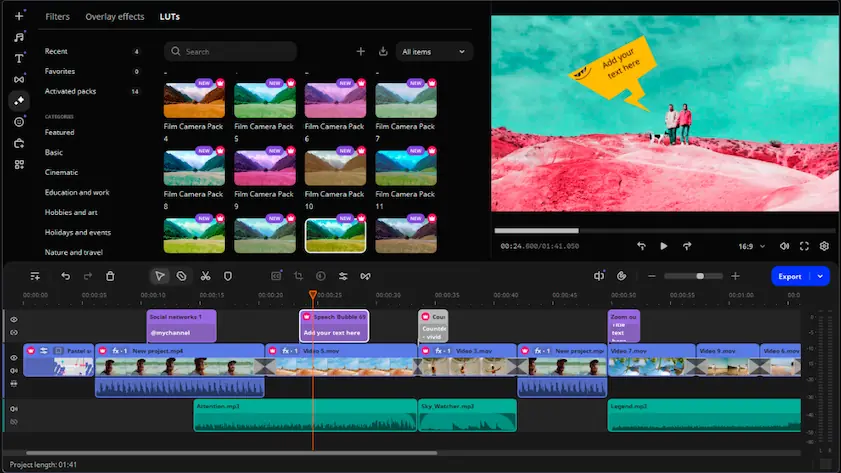
Movavi Video Editor
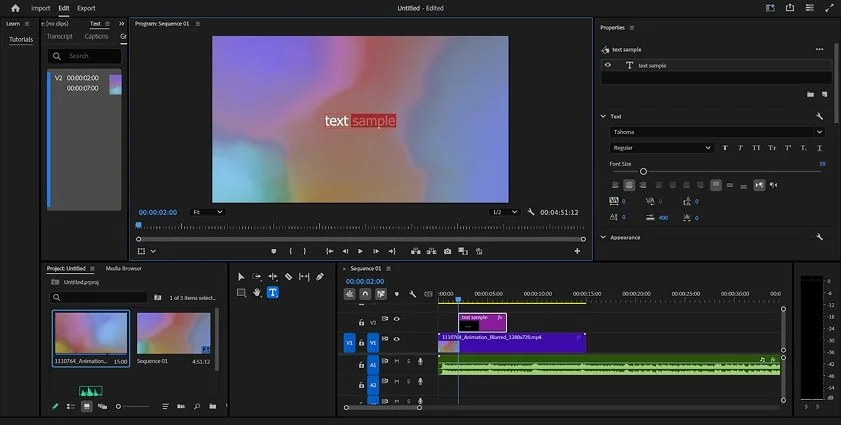
Adobe® Premiere®
Movavi Video Editor does a good job of keeping editing work moving without constantly asking you to think about the software itself. Most tools are easy to find, drag-and-drop editing behaves the way people expect it to, and smaller tasks like trimming clips, fixing audio levels, or adding subtitles rarely turn into multi-step processes. The timeline also stays readable once projects start growing a bit beyond a few clips and transitions.
Adobe® Premiere® gives editors much more control over the workspace, but that flexibility comes with extra friction. Panels multiply quickly. Media bins, effects settings, scopes, and layered timelines can easily take over the screen, especially on smaller monitors. Experienced editors usually adapt to it, though simple edits sometimes feel slower than they probably should.
Winner: Its onboarding process feels less demanding, and the learning curve is far easier to manage.
Users looking for a quick start can try Movavi Video Editor without spending days adjusting to the interface.
Movavi Video Editor treats a lot of editing tasks like they should already be halfway finished before you even start thinking about them. Need a title screen, transitions, background music cleanup, a quick LUT, maybe some animated overlays for a YouTube intro? Most of it is already sitting inside the software waiting to be dropped onto the timeline. Basic keyframing is included, LUT support works well for simple grading, and the audio tools are good enough for cleaning up voiceovers or reducing background noise directly inside the editor. Most of the feature set feels designed for people who want editing to stay practical rather than highly technical.
Adobe® Premiere® approaches features from a very different direction. Multicam editing, layered timelines, professional codec support, advanced color grading, and detailed audio mixing all become much more important once projects start growing beyond a simple edit. Motion graphics editing also fit more naturally into Adobe® Premiere® because of the After Effects® integration. RAW footage, large media libraries, shared production folders, multiple revision rounds — this is the kind of environment the software is built for.
Movavi Video Editor feels faster on smaller projects. Adobe® Premiere® gives editors more room to build complicated workflows without quickly running into limitations.
Winner: Adobe® Premiere® handles advanced production environments far more comfortably once projects become technically demanding.
Movavi Video Editor does not seem particularly interested in testing the limits of your computer. That alone makes it easier to live with. A fairly standard laptop with 16 GB of RAM and integrated graphics is usually enough for smooth 1080p editing, even after subtitles, transitions, music tracks, and a few effects start piling onto the timeline. You hit export, the system keeps functioning, life goes on. The software feels built around the assumption that people may also want to keep Chrome open at the same time.
Adobe® Premiere® has different expectations entirely. Big 4K timelines, multicam footage, motion graphics, RAW media, layered color work. Projects expand quickly, and system resources disappear with them. At a certain point, 32 GB of RAM and a dedicated GPU stop sounding excessive and start sounding reasonable. The software still runs on weaker machines, though usually with enough dropped frames and long renders to make the hardware limitations impossible to ignore.
Winner: Movavi Video Editor fits lightweight editing on regular hardware more comfortably. Adobe® Premiere® makes far more sense once production workloads become large, technical, and difficult to simplify.
Movavi Video Editor gives users several payment options, which already makes it feel less restrictive than many modern editing tools. There is a monthly subscription, a yearly plan, and a lifetime license for anyone who would rather pay once and move on. Current pricing starts around $19.95 per month, while the yearly option costs roughly $54.95. The trial version does watermark exports and restrict some features, though at least the limitations are clear from the beginning. For YouTube uploads, school projects, or occasional freelance work, the overall cost usually feels manageable.
Adobe® Premiere® sits inside the Creative Cloud® subscription system, with the single-app plan currently starting around $22.99 per month on an annual contract. That pricing becomes easier to justify once Photoshop®, After Effects®, or other Adobe apps become part of the workflow. For occasional editing, though, the recurring payment can feel difficult to justify long term.
Winner: for casual creators and smaller projects, the Movavi Video Editor pricing feels more practical overall.
Both Premiere® Pro and Movavi video editors support Windows and macOS, though they fit into desktop workflows a little differently. Movavi Video Editor keeps things relatively compact. The main desktop app does most of the work, but there are also mobile apps for iPhone, iPad, and Android, along with browser-based tools for trimming clips, resizing videos, or converting files quickly. Some of those online tools feel surprisingly handy for small jobs that would be annoying to open a full editing project for. On newer Apple Silicon Macs, the software runs smoothly for standard 1080p and lighter 4K editing without much setup.
Adobe Premiere® is built more around interconnected production work. Projects move easily between Premiere®, After Effects®, Photoshop®, Audition®, and Media Encoder, which becomes useful once graphics, sound cleanup, or shared editing workflows start piling onto the same project. Apple Silicon performance has improved noticeably over the last few versions, and the plugin ecosystem is much larger overall.
Movavi Video Editor keeps AI tools closely tied to everyday editing tasks instead of hiding them inside more technical workflows. Most features are built directly into the editor and usually take only a few clicks to use. The software focuses mostly on practical shortcuts people actually use regularly, including auto subtitles, AI background removal, noise removal, AI video enhancement, and smart motion tracking.
For tutorials, YouTube videos, travel clips, and social content, these tools help remove repetitive editing work and keep projects moving without much interruption.
Adobe® Premiere® leans much further into AI-assisted production workflows through Adobe® Sensei and related Adobe® technologies. Its AI features are designed more around large editing environments where timelines, revisions, formats, and assets become harder to manage manually. The current toolkit includes speech-to-text, scene edit detection, auto reframe, generative extend, AI masks, AI-powered color assistance, and audio enhancement.
Movavi’s AI tools feel easier to start using immediately. If you want simpler AI-assisted editing, try Movavi Video Editor on a real project. Adobe® Premiere® offers more depth once AI features become part of a larger professional editing pipeline.
Movavi Video Editor
Easy to learn and navigate
Quick editing workflow for shorter projects
More affordable pricing options
AI tools included directly in the editor
Fewer professional production tools
Limited advanced color grading controls
Smaller plugin ecosystem overall
Adobe® Premiere®
Industry-standard editing tools
Strong multicam, audio, and timeline controls
Excellent integration with other Adobe apps
Large plugin and workflow extension ecosystem
Steeper learning curve
Subscription pricing adds recurring costs
Higher hardware requirements for larger projects
Both editors can handle YouTube videos, social content, business clips, and personal projects, though they are built for fairly different workloads:
Premiere® Pro vs. Movavi debate becomes less about individual tools and more about the kind of editing environment you actually work in. Movavi Video Editor fits smaller projects comfortably. The software stays approachable and usually lets edits move along without much friction.
Adobe® Premiere® is designed for more demanding production work. Larger timelines, collaborative editing, motion graphics, shared assets, ongoing revisions. The software handles those situations with far more flexibility, though it also expects more time, hardware, and technical involvement from the editor.
Movavi Video Editor suits everyday editing better. Adobe® Premiere® makes more sense for professional production pipelines.

Yes. Movavi Video Editor is easier to learn because the interface stays simple and most tools are immediately accessible. Basic editing tasks like trimming clips, adding music, and exporting videos feel quick and straightforward. Adobe® Premiere® offers far more control, but new users usually need more time to get comfortable with the interface and editing tools.
For many types of content, it probably can. Tutorials, reaction videos, school projects, product demos, travel videos, and regular YouTube uploads all work well in Movavi Video Editor. Adobe® Premiere® becomes harder to replace once edits involve multicam footage, detailed color work, motion graphics, or collaborative editing between several people.
Movavi Video Editor works better for creators who upload often and want editing to stay relatively quick. Adobe® Premiere® fits channels where videos involve heavier editing, custom graphics, detailed audio work, or longer production schedules between uploads.



1.5M+ users already subscribed to our newsletter