InShot
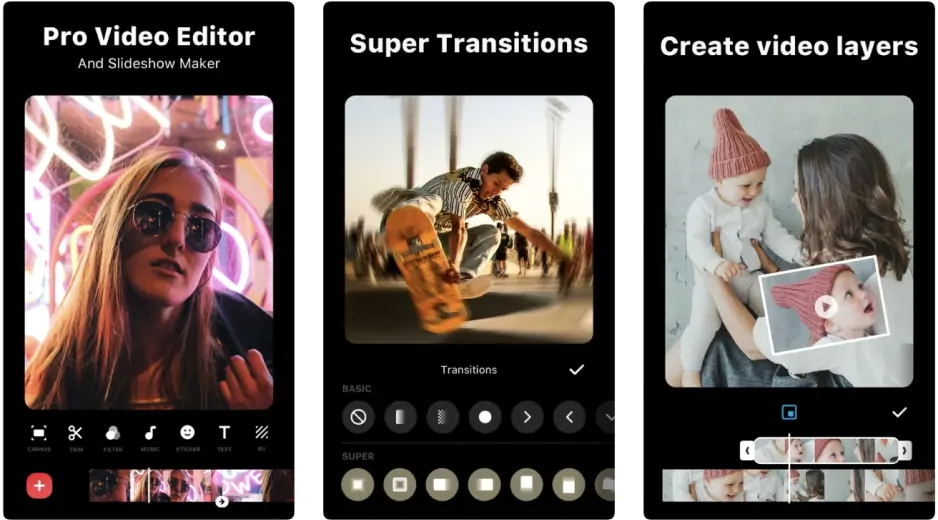
Fast and easy editing: cut, crop, adjust colors and speed
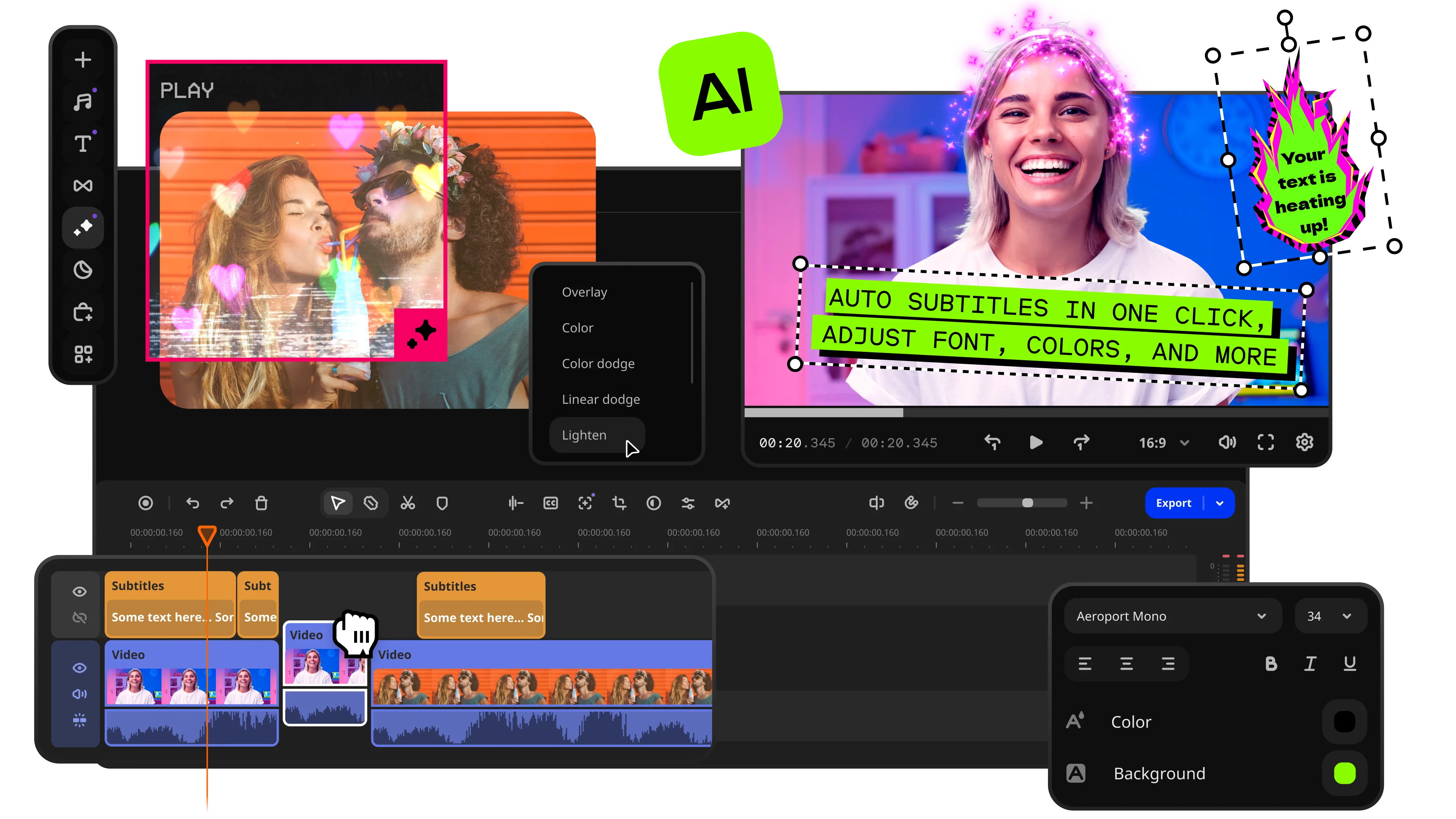
One-click AI tools: auto subtitles, noise removal, and more
Hundreds of filters, transitions, titles, overlays
Movavi vs. InShot feels less like two apps competing for the same audience and more like editors meant for different kinds of projects. InShot is geared toward quick phone editing, especially for TikTok, Reels, and other short vertical videos where trimming clips and adding music only takes a few taps. Movavi Video Editor is more comfortable for longer videos with subtitles, layered audio, transitions, and footage from a camera rather than a smartphone. InShot is easier to get used to at first, though editing on a small screen starts to feel restrictive once the timeline gets crowded with cuts, text, and effects.
InShot keeps the interface compact and easy to navigate on mobile devices. Core tools like playback speed, filters, text overlays, and clip adjustments stay visible on the main editing screen, so there is very little menu navigation during basic edits. Most actions are optimized for touch controls, including timeline zooming, repositioning text, and adjusting clip length directly with gestures.
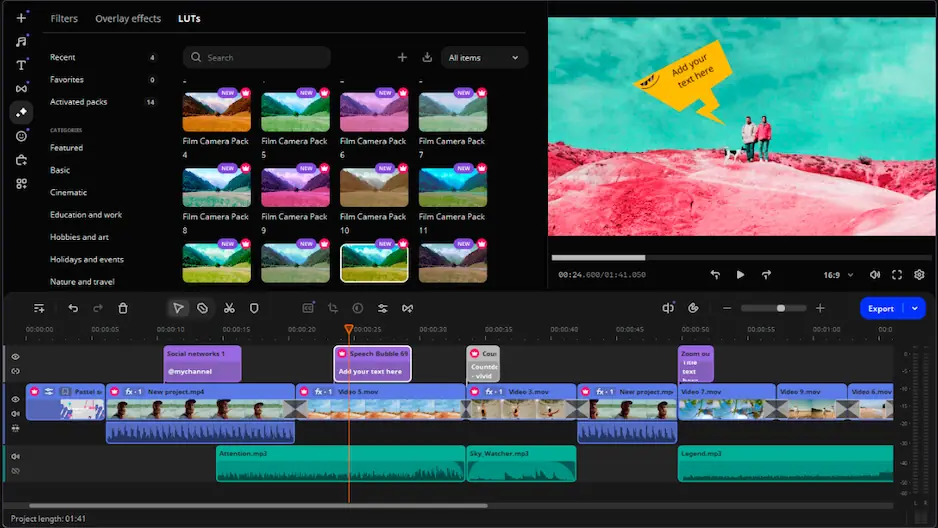
Unlike InShot, Movavi Video Editor uses a desktop layout with separate sections for media files, effects, transitions, subtitles, and export settings. There are more tools visible at once, so the interface takes longer to learn during the first few uses. The larger workspace is better suited to projects with multiple media tracks, voice-over recordings, subtitle timing, or more detailed export adjustments. Editing with a mouse and keyboard also gives more precision when working on longer timelines.
Winner: InShot’s mobile interface is easier to learn, faster to navigate, and more practical for quick everyday editing.
InShot keeps most of its features centered around short social videos. The app includes animated text, filters, stickers, transitions, speed controls, and preset canvas sizes for TikTok, Instagram Reels, Stories, and YouTube Shorts. Export options are also optimized for vertical content, with built-in aspect ratios and direct settings for social media formats. Auto captions are built into the editor, which is useful for quick subtitle work, though editing longer subtitle sections on a phone starts to feel tedious after a while. The timeline stays intentionally simple. Good for fast edits, less ideal once several layers, sound clips, and effects start piling up.
Movavi Video Editor gives projects more room to grow. Titles, transitions, overlays, effects, and subtitle tools are separated into desktop libraries, so larger edits are easier to organize without constantly scrolling through the same menu. The editor also supports multiple video and audio tracks, voice-over recording, motion tracking, and AI-generated subtitles. Export settings go further than InShot’s as well, with manual controls for resolution, frame rate, and file format alongside presets for TikTok, Instagram Reels, YouTube Shorts, Vimeo, and other platforms.
Winner: Movavi Video Editor’s editing tools, multi-track timeline, and export settings handle larger and more detailed projects more effectively.
Download Movavi Video Editor for Windows or Mac if your projects involve longer videos or more detailed social content.
InShot performs reliably during shorter mobile edits and exports vertical videos for TikTok, Reels, and Shorts relatively quickly. Performance becomes less consistent once projects include longer clips, several effects, multiple text layers, or higher resolutions, particularly on older smartphones. The free version also includes ads and adds a watermark to exported videos by default, although the watermark can be removed manually by watching an ad before saving.
Movavi Video Editor requires more system resources, but desktop hardware handles larger projects more effectively than a mobile device. Playback remains more stable with layered audio, subtitles, voice-overs, and higher-resolution footage. Export settings are also more detailed, with manual adjustment options for resolution, frame rate, bitrate, and file format. The trial version includes watermarking and export restrictions, so it functions mainly as an evaluation version.
Winner: Movavi Video Editor provides more stable performance on larger projects and offers broader export customization options.
InShot keeps the starting cost fairly low. The free version covers basic editing, although ads appear regularly and exported videos include a watermark unless you remove it manually by watching an ad before saving. Some filters, effects, and stickers also require Pro access. At the moment, InShot Pro costs around $17.99 per year, or $34.99 for a lifetime purchase.
Movavi Video Editor follows a more typical desktop pricing model. The free trial includes export limits and watermarks, so it is mainly useful for testing features. Paid plans currently start around $54.95 per year, with package options also available. Most editing tools are included in the main package rather than split into smaller add-ons.
Winner: Movavi Video Editor’s license offers better long-term value.
InShot is available on Android, iPhone, and iPad, with the interface built specifically for touch-based editing. Videos can be recorded, edited, and uploaded to TikTok or Instagram from the same device, so there is no need to move files between platforms during basic editing.
Movavi Video Editor supports Windows and Mac, alongside companion apps for Android and iOS and several browser-based tools. The desktop version includes the complete editing toolkit, while the mobile apps focus on lighter tasks. Users who regularly switch between a computer and a phone during production have more flexibility with Movavi than with InShot.
Winner: it’s a draw between InShot and Movavi Video Editor, as the better option depends on whether you need mobile-only editing (InShot) or cross-device and desktop flexibility (Movavi Video Editor).
InShot approaches AI features from a social media angle. Auto captions generate subtitles directly from speech, and the app also includes AI cutout tools for separating people from the background in short clips. There are automated effects and tracking options too, mostly aimed at TikTok and Reels content. These tools are convenient for quick phone edits, although subtitle timing and background edges occasionally need manual correction afterward.
Movavi Video Editor handles AI tools more like desktop production software. Auto subtitles help with interviews, tutorials, and longer spoken videos where manual captioning would take considerably more time. AI background removal can isolate subjects without a green screen, while enhancement tools improve lower-quality footage and reduce visible video noise. Motion tracking and audio cleanup are included as well. Compared to InShot, Movavi gives users more adjustment settings instead of relying mainly on automated presets.
WInner: Movavi Video Editor is the winner thanks to more advanced features and greater control over AI tools.
Simple mobile interface
Fast export for TikTok, Reels, and Shorts
Built-in vertical video presets
Watermark can be removed in the free version by watching an ad
Good selection of filters, stickers, and text animations
Direct mobile editing and publishing workflow
Limited timeline and layer management
Fewer manual export controls
Ads in free version
Many effects and filters require Pro access
Multi-track timeline editing
AI subtitles, motion tracking, and background removal
Detailed export settings for resolution and frame rate
Lifetime license available
Screen recording and voice-over tools included
Better organization for larger media libraries
Trial version adds watermarks and export restrictions
Higher hardware requirements than mobile apps
More interface elements to learn at first
Full feature set available mainly on desktop versions
Most of the differences above show up in fairly practical ways during everyday editing tasks.
YouTube videos: Movavi Video Editor suits longer-form content far better. Tutorials, interviews, reviews, and commentary projects often involve separate audio tracks, subtitles, screen recordings, and more demanding export settings. Desktop editing simply handles that type of structure more comfortably.
TikTok and Instagram Reels: InShot feels more natural in this category. Vertical framing, caption placement, music timing, and social exports are all tightly connected to the mobile interface. Short clips move from recording to publishing fairly quickly.
Casual editing: InShot fits travel videos, Stories, personal clips, and quick social uploads where opening desktop software would probably feel excessive.
Business content: Movavi Video Editor works better for presentations, training materials, promotional videos, and product walkthroughs. Cleaner audio handling and more precise subtitle editing matter more here than mobile effects or stickers.
Beginner creators: InShot introduces editing more gently because the interface exposes fewer controls at once. Movavi Video Editor is still approachable, although desktop editing naturally involves more menus, panels, and export settings.
Professional workflows: Movavi Video Editor adapts better to structured productions with layered media, longer runtimes, and more technical editing requirements. The desktop version for Windows and Mac also gives more room for file management and detailed project organization.
What this InShot vs. Movavi comparison highlights is how strongly the editing experience changes depending on the device and production style. InShot keeps everything condensed into a phone-first interface built around short social uploads, quick revisions, and direct publishing. It suits creators who edit frequently and prefer staying inside a mobile app from start to finish.
Movavi Video Editor puts far more emphasis on project structure and editing flexibility. Separate media tracks, screen capture tools, AI-assisted cleanup, subtitle controls, and detailed export adjustments give desktop users much more precision once videos start becoming more layered or technically demanding.
By clicking the download button, you're downloading a free version of the program.*

Usually, yes. Movavi Video Editor offers more detailed subtitle controls, cleaner audio editing, screen recording, and broader export settings than InShot. It also fits desktop editing far better for tutorials, commentary videos, interviews, and presentation-style content.
Not as a dedicated desktop editor. InShot was created mainly for Android and iPhone devices, and the mobile interface still defines how the app operates. Some people use Android emulators to run it on Windows or Mac, though the controls still feel designed around touch input rather than keyboard-and-mouse editing.
InShot is usually easier during the first few editing attempts because the interface keeps most tools visible on one screen. Movavi Video Editor asks for a bit more adjustment early on, mainly because desktop editing includes more menus, tracks, and export settings.



1.5M+ users already subscribed to our newsletter