
Movavi Video Editor
Create awesome videos easily
Movavi Video Editor and iMovie are both built for people who want clean videos without learning a giant editing system. iMovie is the free, elegant Apple option – simple, fast, and surprisingly capable inside the Apple ecosystem. Movavi is more flexible for everyday desktop editing, especially if you want AI subtitles, background removal, effects, and a broader “finish this quickly” toolkit. In the Movavi vs. iMovie debate, iMovie wins on price and Apple-device convenience; Movavi Video Editor wins on guided creative tools and cross-platform desktop use.
Best for beginners: iMovie is the easiest place to start if you already own a Mac, iPhone, or iPad. It’s free, clean, and doesn’t make the timeline feel like cockpit glass.
Best ease of use: iMovie, by a hair. Apple has spent years sanding down the rough edges. Movavi is also easy, but it gives you more tools upfront, which means there’s a little more to look at.
Best desktop workflow: Movavi Video Editor. It feels more complete for desktop-first editing, especially if you’re making YouTube clips, promos, tutorials, or social videos on a laptop.
Best overall value: iMovie if you’re already inside the Apple world. Movavi Video Editor if you need Windows support or AI-powered editing help that iMovie doesn’t really offer.
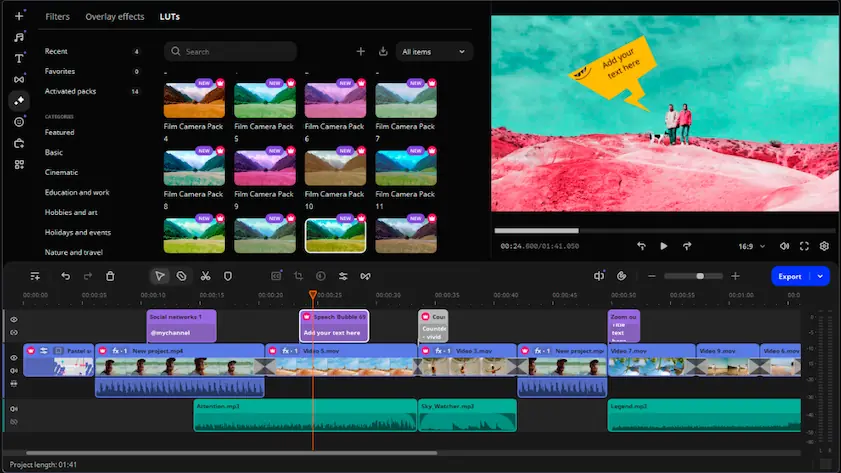
Movavi Video Editor
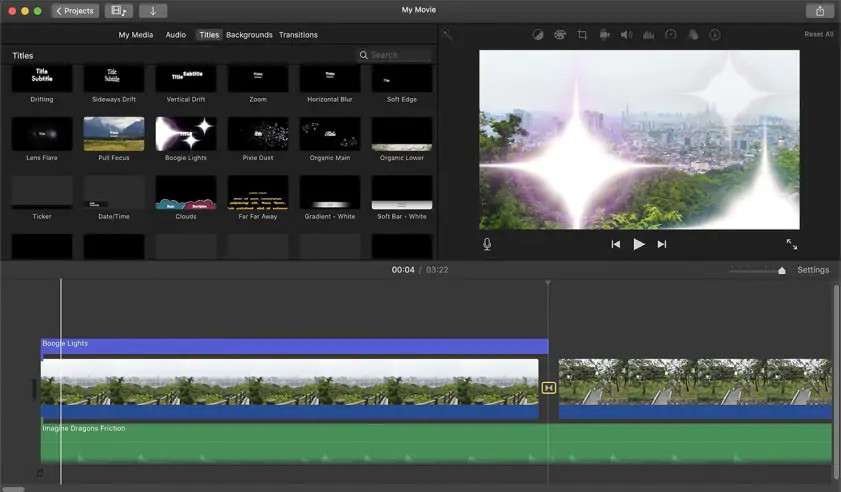
iMovie
iMovie has that Apple thing where the interface almost disappears. You open it, drop in a few clips, trim the boring parts, add a title, and suddenly your beach footage looks like someone cared. Apple describes iMovie as free and easy to use, with Mac, iPhone, and iPad versions that work together through AirDrop or iCloud Drive. It also supports features like Magic Movie and Storyboards on iPhone and iPad, which help shape a project when you don’t want to stare at an empty timeline.
Movavi Video Editor is easy too, but in a different way. It feels less minimal and more practical. You get obvious buttons, clear tool panels, effects, subtitle options, audio cleanup, and export settings that don’t require a manual. Movavi’s official product page lists basic editing tools like cutting, cropping, rotating, color adjustments, video speed controls, audio recording, beat detection, and synchronization.
For pure simplicity, iMovie wins. For users who want simple editing plus a few more creative shortcuts, Movavi Video Editor feels more useful after the first hour.
Winner: iMovie for absolute ease. Movavi if you want beginner-friendly software with more room to grow.
If you want more creative tools without jumping into professional editing software, downloading Movavi Video Editor is a practical next step.
iMovie is not trying to be Final Cut Pro in a smaller coat. It’s a clean editor for making good-looking videos quickly. Apple lists trimming, transitions, audio fading, picture-in-picture, split-screen effects, green-screen effects, 13 video filters, titles, backgrounds, trailer templates, and support for 4K video. It can also import and edit ProRes video and add Apple ProRAW images on supported devices.
That’s plenty for a birthday video, school assignment, travel montage, or simple YouTube upload. The trailer templates are still oddly charming, even if they can make your cat look like the subject of a prestige HBO documentary.
Movavi Video Editor has the broader creator toolkit. Along with standard editing, its current paid plans list automatic subtitles in multiple languages, quick background removal, noise reduction, motion tracking, one-click silence removal, fast effect copying, auto-subtitle styles, adjustable effects, media file conversion, and screen recording. These are not tiny extras if you make content regularly. Subtitles alone can eat half an evening if you’re doing them manually.
For desktop workflow, Movavi also feels more prepared for business content: tutorials, explainers, ads, webinar clips, product demos. iMovie can do some of this, but it’s more comfortable with personal and casual creative projects.
Winner: Movavi Video Editor for the stronger editing and effects package.
iMovie performs beautifully when you stay inside Apple’s garden. On a Mac and iPad, it’s quick, stable, and nicely optimized for the hardware. Apple says iMovie on iPad Pro can work with multiple 4K clips and play back effects like green screen, picture-in-picture, and split screen instantly. The Mac version requires macOS 11.5.1 or later, 4GB of RAM, and 3.5GB of available disk space.
Movavi Video Editor is also designed for regular computers rather than monster workstations. Its paid plans remove caps on video and audio length, and the app is built around quick consumer and creator editing rather than high-end post-production. In practice, Movavi is the better bet if your workflow lives on Windows or if you need the same general experience across Windows and macOS.
For large projects, neither app is the final boss. If you’re cutting a feature-length documentary with heavy grading and a messy sound mix, you’ll eventually want something more advanced. But for daily editing, both behave well when your hardware is reasonable and your expectations are sane.
Winner: iMovie on Apple hardware. Movavi Video Editor for mixed desktop environments.
This is where iMovie strolls in, drops the mic, and doesn’t even ask for parking money. iMovie is free for compatible Mac, iPhone, and iPad users. There’s no standard iMovie export watermark, no subscription, and no paid upgrade hidden behind the export button.
Movavi Video Editor is paid software with a free trial option. At the time of research, Movavi listed subscription and package options, including a monthly plan. Paid plans include benefits such as no watermark and no cap on video or audio length.
So, iMovie vs. Movavi on pricing is easy. iMovie wins if you can use it. Movavi Video Editor costs money, but the price buys you broader desktop support and more AI-assisted tools.
Winner: iMovie for price. Movavi Video Editor for paid-feature value.
iMovie is Apple-only. That’s not a flaw so much as a house rule. It works on macOS, iOS, and iPadOS, and Apple specifically highlights the ability to start on iPhone or iPad and continue on Mac. If your footage starts on an iPhone and your laptop is a MacBook, this workflow feels natural.
Movavi Video Editor runs on Windows and macOS. That makes it more practical for users who don’t live entirely on Apple devices, or for small teams where one person has a MacBook and another has a Windows laptop. Movavi’s site lists Windows and Mac product paths, and the current editor is sold for desktop use.
Winner: Movavi Video Editor for desktop platform flexibility. iMovie for Apple ecosystem continuity.
This is not a close match. Movavi Video Editor has a clearer AI toolkit. Its current product page lists automatic subtitles, quick background removal, powerful noise reduction, precise motion tracking, one-click silence removal, and auto-subtitle styles. These are the kinds of tools that help when your video was shot in a noisy room, your captions need to be done today, or your background looks like laundry staged a coup.
iMovie does have smart creation features. Apple promotes Magic Movie and Storyboards on iPhone and iPad, which can help shape videos quickly. But iMovie does not present itself as an AI-heavy editor in the way Movavi does. There’s no comparable built-in package for auto subtitles, AI background removal, AI enhancement, and smart audio cleanup.
Winner: Movavi Video Editor due to the fact that its AI toolkit is significantly broader and more practical for everyday video editing tasks.
If AI-assisted editing sounds useful, Movavi is the stronger editor to download and try.
Movavi Video Editor
Easy desktop editing for Windows and macOS
Built-in AI tools for subtitles, background removal, noise reduction, and motion tracking
Good fit for YouTube, TikTok, tutorials, product videos, and business clips
Paid version removes watermark and export-length limits
Stronger effects and subtitle workflow than iMovie
Full version requires payment
Trial/free version has export limits and may add a watermark
More features mean a slightly busier interface than iMovie
iMovie
Free for compatible Apple users
No standard export watermark
Very simple interface
Great iPhone-to-iPad-to-Mac workflow
Good built-in templates, trailers, green screen, split screen, and 4K support
Apple-only
Fewer advanced creative tools
No comparable AI subtitle or background-removal suite
Not ideal for users who need Windows support
Limited compared with professional editors
For YouTube, Movavi Video Editor is stronger if you care about subtitles, cleaner audio, effects, and a more flexible desktop workflow. iMovie is perfectly fine for simple vlogs, travel edits, and personal channels, especially if you shoot on iPhone.
For TikTok and social content, Movavi Video Editor has the edge because captions, background tools, and effects matter. Short-form video moves fast, and Movavi’s smart tools cut down the repetitive work. Download Movavi Video Editor if your social clips need to look finished without eating your whole evening.
For a beginner, iMovie is the gentlest option. It doesn’t overwhelm you. Movavi is still beginner-friendly, but it’s a little more ambitious.
For professional use, neither is a full professional editor. Still, Movavi Video Editor is better for business clips, ads, product explainers, internal training videos, and marketing content. iMovie is better for casual Apple-first projects.
For casual editing, iMovie is hard to beat. It’s free, quick, and already sitting there if you use a Mac or iPhone. Movavi Video Editor makes more sense once casual editing turns into a regular habit.
iMovie and Movavi comparisons usually come down to one question: are you editing inside the Apple ecosystem, or do you want a more flexible desktop tool with AI features?
Choose iMovie if you use Apple devices, want a free editor, and mostly make simple personal or school videos. Choose Movavi Video Editor if you need Windows support, faster subtitle work, background removal, audio cleanup, and a richer effects workflow. iMovie is the better free app. Movavi is the better everyday creator tool.

Movavi Video Editor is better for AI tools, subtitle generation, background removal, and Windows/macOS desktop editing. iMovie is better if you want a free Apple editor for simple videos.
No. iMovie does not add a standard export watermark, and Apple lists it as a free app for compatible Mac and iOS devices.
Movavi Video Editor is usually better for regular YouTube editing because it has more built-in tools for subtitles, audio cleanup, effects, and desktop workflow. iMovie works well for simple YouTube videos, especially if you shoot and edit on Apple devices.



1.5M+ users already subscribed to our newsletter