
Movavi Video Editor
Create awesome videos easily
Movavi vs. Final Cut Pro is really a comparison between speed and simplicity on one side, and deeper professional control on the other. Movavi Video Editor is easier to pick up for quick social videos, YouTube uploads, and everyday editing tasks, while Final Cut Pro is aimed more at Mac users working on larger or more demanding projects. Both include modern AI-powered tools, but the editing experience feels very different once you start spending time on the timeline.
Best for professional workflows: Final Cut Pro
Final Cut Pro is the stronger choice for large editing projects, detailed timeline control, and high-resolution production work on a Mac. Movavi Video Editor is less technical and faster to navigate, which makes it more practical for shorter videos and everyday editing tasks.
Best for beginners: Movavi Video Editor
Movavi Video Editor is easier to learn for first-time editors thanks to its cleaner layout, drag-and-drop workflow, and built-in templates. Basic tasks like trimming clips, adding subtitles, or exporting videos for social media take only a few minutes to figure out.
Best for color grading: Final Cut Pro
Final Cut Pro includes more advanced color correction tools, HDR support, and professional grading controls. Movavi keeps adjustments simpler and easier to apply without spending much time fine-tuning settings.
Best for advanced editing: Final Cut Pro
Editors working with layered effects, complex audio edits, or demanding workflows will get more flexibility from Final Cut Pro. Movavi works better for straightforward editing with a cleaner, less crowded interface.
Best overall performance: Movavi Video Editor
Movavi Video Editor runs smoothly on most Windows and Mac systems, including mid-range laptops. Final Cut Pro performs better on high-end Mac workflows, but Movavi feels lighter and more responsive for everyday editing tasks.
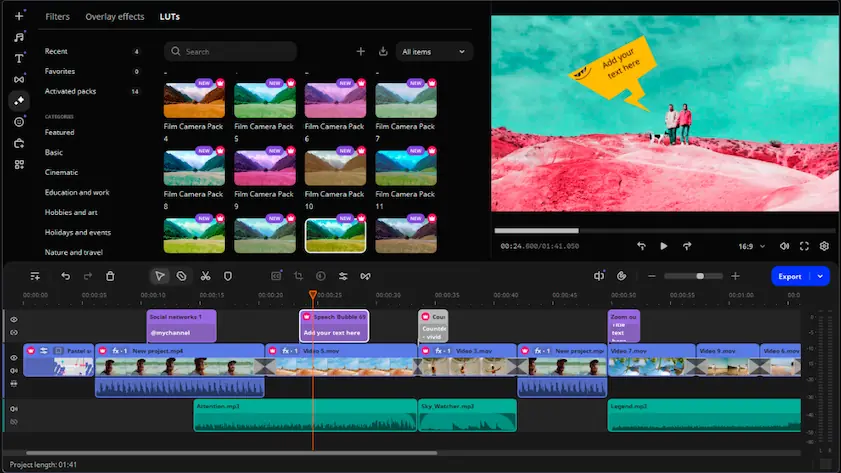
Movavi Video Editor
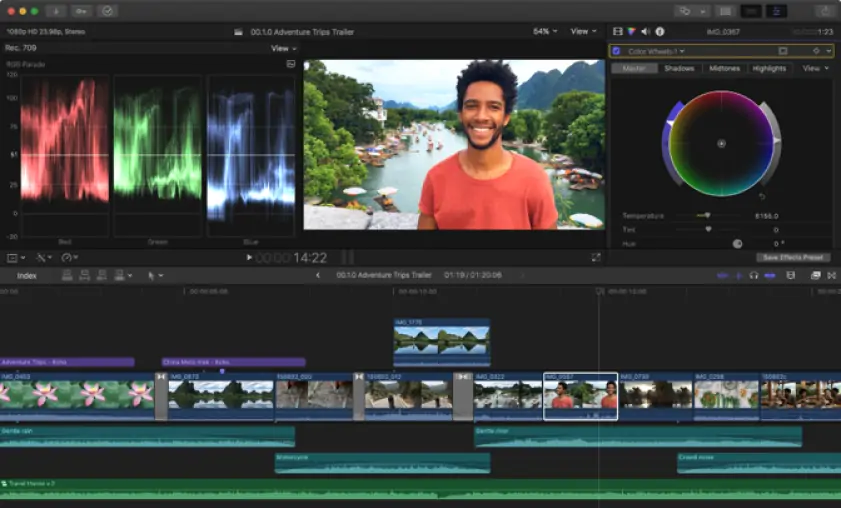
Final Cut Pro
Movavi Video Editor keeps the editing process direct. Most tools are visible from the start, so adding text, trimming clips, or adjusting audio doesn’t require digging through menus. The timeline is easy to read, and built-in templates for titles, transitions, and social media formats help speed up smaller projects. In regular use, it’s possible to move from importing footage to exporting a finished video without much setup.
Final Cut Pro is more demanding at the beginning. Its magnetic timeline and media organization tools offer far more control, but the interface takes time to understand, especially for users coming from simpler editors. Once learned, the workflow becomes efficient, though there’s a noticeable adjustment period.
Winner: Movavi is easier to navigate for shorter projects and everyday editing. Try Movavi Video Editor if you want to start editing without a steep learning curve.
Movavi Video Editor focuses on standard desktop editing workflows and short-form production. The software includes multi-track timeline editing, motion tracking, screen recording, subtitle generation, transitions, filters, and preset title animations inside a single editing workspace. Audio tools cover noise reduction, synchronization, volume adjustment, and equalization for basic dialogue and music editing. Support for formats such as MP4, MOV, AVI, and MKV allows direct import of footage from smartphones, mirrorless cameras, webcams, and screen capture applications. Preset aspect ratios and export profiles are particularly useful for YouTube, TikTok, and presentation-based content.
Final Cut Pro is designed for professional post-production workflows. Its magnetic timeline improves clip organization during multi-track editing and multicam synchronization. Color grading tools include HDR support, waveform scopes, masks, and secondary color correction controls. Audio mixing features support channel-based editing, surround sound, and detailed cleanup adjustments. Final Cut Pro also supports professional codecs such as ProRes and MXF and integrates directly with Apple Motion for advanced motion graphics and animation workflows.
Winner: Final Cut Pro includes a broader set of tools for professional editing, color grading, audio mixing, codec handling, and post-production workflows.
The performance gap between Movavi and Final Cut Pro is most noticeable during 4K editing, multicam projects, and multi-layer timelines. Final Cut Pro is heavily optimized for Apple hardware, particularly Macs with M-series chips. Playback is smooth with 4K footage, multicam edits, and high-bitrate formats like ProRes, while rendering and export times stay consistently fast. The software also handles long editing sessions more reliably, especially during complex post-production work.
Movavi Video Editor takes a lighter approach to system resources. It launches quickly and runs well on mid-range Windows laptops and older Macs that would struggle with heavier editing software. Export speeds are competitive for tutorials, presentations, short-form videos, and standard YouTube projects, particularly when hardware acceleration is enabled. Resource consumption also stays lower during everyday editing tasks.
Final Cut Pro benefits from tighter integration with Apple hardware, while Movavi remains more accessible for users working on less powerful systems.
Winner: Final Cut Pro provides stronger rendering performance, GPU acceleration, and stability for demanding editing workloads.
Movavi Video Editor starts at $19.95 per month or $54.95 per year, with bundle licenses also available. The 7-day trial includes export restrictions and places watermarks on rendered videos, though most editing tools remain accessible during testing.
Final Cut Pro costs $299.99 as a one-time purchase on Mac, while the iPad version uses a subscription model. Apple’s 90-day free trial includes full functionality and does not add watermarks to exported files. Compared to Final Cut Pro, Movavi has a lower entry cost and more flexible purchase options, especially for users who do not want to commit to a large upfront payment.
Winner: Movavi Video Editor offers lower upfront pricing and more flexible purchase options.
Movavi Video Editor works on both Windows and Mac computers, which immediately makes it easier to fit into mixed-device setups. Projects can be edited on a Windows desktop at work and reopened later on a MacBook without changing software. The system requirements are also relatively forgiving. During testing, the editor ran comfortably on older Windows laptops that tend to struggle with heavier post-production tools. Movavi also offers separate mobile apps and browser-based tools for smaller editing tasks, though the desktop version remains the main product.
Final Cut Pro is tied entirely to Apple’s ecosystem. The desktop version runs only on macOS, with a separate version available for iPad. Performance on Apple Silicon Macs is excellent, but Windows users are simply excluded from the platform.
Winner: support for both Windows and Mac makes Movavi Video Editor far more flexible for most users.
Movavi Video Editor approaches AI features as practical editing shortcuts rather than advanced post-production tools. Auto subtitles work well for tutorials, talking-head videos, and social clips, especially when quick captioning matters more than perfect transcription accuracy. AI background removal is integrated directly into the editor and works reasonably well for simple shots without requiring a separate compositing workflow. The software also includes AI-based enhancement tools for sharpening footage, reducing noise, and adjusting lighting automatically. Small automation features, like smart motion tracking and quick object highlighting, help reduce repetitive editing work.
Final Cut Pro focuses more on AI-assisted workflows inside the editing process itself, including scene detection, object tracking, Smart Conform, and automatic caption generation. These tools are generally more precise, but they also assume a more technical editing workflow and stronger hardware.
Winner: Movavi’s AI tools are easier to access and require less manual setup for everyday editing tasks.
Movavi Video Editor
Easier to learn for first-time desktop editors
Lower pricing and flexible license options
Built-in AI tools for subtitles and background removal
Available on both Windows and Mac
Runs well on mid-range systems
Limited advanced color grading tools
Basic multicam editing support
Smaller plugin and motion graphics ecosystem
Final Cut Pro
Fast performance on Apple Silicon Macs
Advanced editing, audio, and color tools
ProRes and MXF codec support
Integration with Apple Motion
Stable during large editing projects
Available only on Apple devices
Steeper learning curve for new users
Higher upfront purchase cost
Most of the differences between Final Cut Pro and Movavi Video Editor appear during everyday editing work rather than isolated feature tests.
YouTube videos: Movavi Video Editor handles tutorials, commentary videos, educational content, and regular uploads more comfortably for smaller creators. Subtitle tools, screen recording, and simplified export settings reduce setup time. Final Cut Pro makes more sense for long-form productions with multicam footage, advanced color work, or larger media libraries.
TikTok and social media: Movavi fits short-form production better. Vertical templates, AI background removal, quick transitions, and faster project setup work well for Reels, TikTok clips, and promotional content that needs quick turnaround.
Casual editing: Movavi is easier for travel videos, family footage, and occasional editing projects where full professional software would feel excessive.
Business content: Movavi works well for webinars, presentations, onboarding videos, and product demos. Subtitle editing and screen recording tools are especially useful here.
Professional filmmaking: Final Cut Pro is the stronger choice for commercial editing, documentary production, HDR workflows, advanced audio mixing, and cinematic post-production.
The Final Cut Pro vs. Movavi comparison mostly comes down to editing depth versus accessibility. Final Cut Pro is the better fit for Mac-based production environments that involve HDR grading, multicam editing, ProRes workflows, and detailed post-production control. Movavi Video Editor focuses more on efficient desktop editing, lower hardware demands, and integrated AI tools that reduce manual work during everyday projects. It also requires far less time to get comfortable with the interface and export settings.

Yes. Movavi Video Editor takes less time to understand, especially for people moving from phone editors or basic desktop software. Most controls are visible immediately, and tasks like adding subtitles, trimming clips, syncing music, or exporting a video don’t require much setup. Final Cut Pro feels more technical from the start and takes longer to navigate comfortably.
No. Final Cut Pro is available only on macOS and iPadOS. Apple has kept the software exclusive to its own ecosystem, so there is no official Windows version.
Movavi Video Editor is more practical for regular uploads, tutorials, reaction videos, and social content. Final Cut Pro suits channels working with cinematic footage, multicam shoots, advanced color correction, or larger editing projects that involve heavier post-production work.



1.5M+ users already subscribed to our newsletter