
Filmora vs. Premiere® Pro: Features, Pricing, Performance Compared

Edited by
Ben Jacklin
10,072

Filmora vs. Premiere® Pro is a comparison between a beginner-friendly video editor built for speed and simplicity and a professional-grade tool designed for demanding, large-scale production work. Filmora suits casual creators, students, and social media editors who want polished results without a steep learning curve, while Premiere® Pro is the stronger choice for professional editors managing complex, multi-layered timelines.

Comparison parameter

Filmora

Premiere® Pro

Who it's for

Casual creators, students, social media editors, beginners

Professional editors, content creators, production teams

Supported platforms

Windows, macOS, iOS, Android

Windows, macOS

Ease of use

Simple, intuitive drag-and-drop interface

Feature-heavy interface with customizable workspaces

Quick summary

  • Best for professional workflows: Premiere® Pro handles large, multi-layered productions more comfortably, especially when projects involve client revisions, mixed media, and collaborative pipelines that demand consistent organization across long timelines.
  • Best for color grading: Premiere® Pro's Lumetri Color panel offers deeper control through curves, LUTs, masking, and secondary corrections. Filmora covers basic adjustments well, but lacks the precision needed for serious color work.
  • Best for advanced editing: Premiere® Pro supports proxy workflows, nested sequences, multicam editing, and deep integration with After Effects®. Filmora covers everyday editing needs but runs into limits once projects become more technically demanding.
  • Best overall performance: Filmora runs more smoothly on mid-range hardware and feels noticeably lighter during routine editing. Premiere® Pro handles high-resolution footage and complex timelines better, but requires stronger hardware.

Ease of use

Filmora

Premiere® Pro

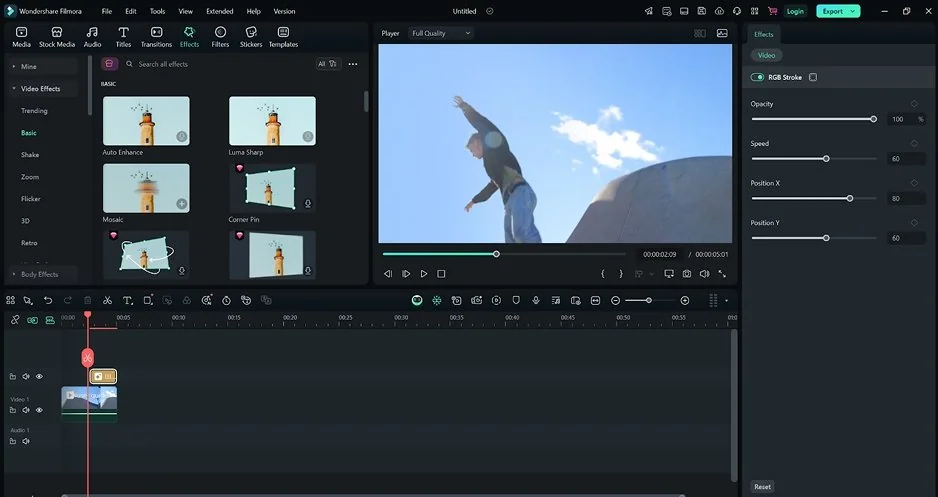
Filmora keeps nearly everything inside one clean workspace. The drag-and-drop timeline, organized effect panels, and export options mean most editors can start cutting footage within minutes of opening the software. Onboarding feels natural because the interface avoids overwhelming users with controls they may never need during everyday editing.

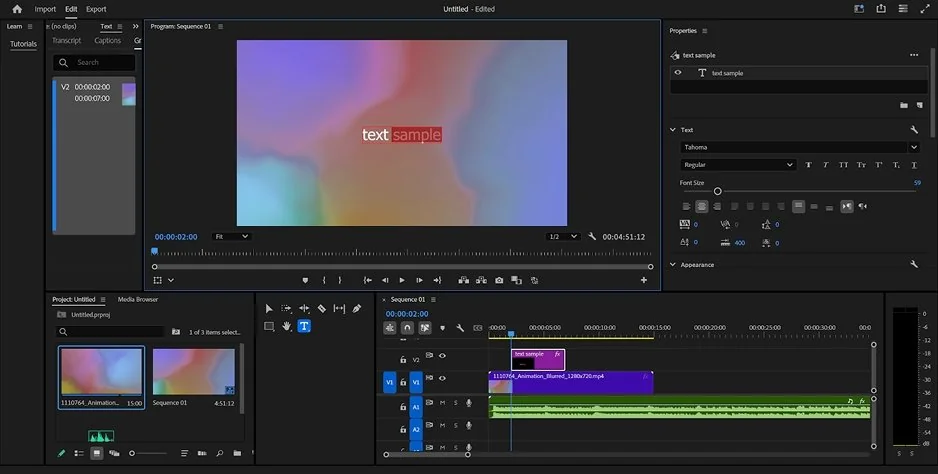
Premiere® Pro takes a different approach and assumes editors want access to everything at once: media bins, audio meters, effect controls, color panels, and a multitrack timeline all share the screen simultaneously. That layout becomes genuinely useful once projects grow more complex, but it can feel crowded and difficult to navigate during simpler edits, particularly for anyone coming from a lighter editing environment.

Winner: Filmora is easier to learn and more comfortable to navigate from the start, making it the stronger choice for editors who prioritize a smooth onboarding experience over deep feature access.

Features

Filmora covers the editing tools most creators actually reach for on a regular basis. Its timeline handles trimming, transitions, speed adjustments, and basic audio mixing without requiring much setup. Color tools include presets, basic correction controls, and a handful of filters that work well for social content and casual YouTube production. Motion graphics come through built-in templates and title presets, which keeps things accessible but limits how far custom animations can go.

Premiere® Pro is built around the assumption that projects will keep growing. Its multitrack timeline supports nested sequences, proxy workflows, mixed frame rates, and advanced trimming modes that make managing large media libraries considerably more organized. Audio mixing goes deeper too, with proper channel routing, keyframe automation, and direct integration with Adobe® Audition® for more demanding sound work. Motion graphics connect directly to After Effects® through Dynamic Link, which opens compositing and animation tools that go well beyond anything available inside Filmora.

Winner: Premiere® Pro offers a significantly more complete toolset across editing, color, audio, and motion graphics once projects move beyond straightforward cuts and exports.

Performance

The Premiere® Pro vs. Filmora performance gap becomes more noticeable as project complexity increases. Premiere® Pro is built to handle high-resolution footage, effects-heavy timelines, and demanding post-production workflows, but it asks considerably more from the hardware in return. GPU acceleration improves rendering and real-time playback, though overall responsiveness still depends heavily on available VRAM, RAM, and storage speed. On well-equipped systems, Premiere® Pro handles large multicam sequences and layered graphics with strong consistency.

Filmora runs comfortably on mid-range hardware and rarely demands much from the system during routine editing tasks. Playback stays smooth on standard 1080p and basic 4K timelines, and exports move at a reasonable pace without requiring much manual optimization. That lightweight footprint makes it a practical choice for editors working on laptops or older machines that would struggle under heavier software.

Winner: Filmora performs more efficiently on everyday hardware, while Premiere® Pro is the stronger choice for demanding, high-resolution production work on properly equipped systems.

Pricing

Filmora offers a free version, though exports include a watermark until users upgrade to a paid plan starting at around $7.99 per month.

Premiere® Pro operates entirely on a subscription model starting at $22.99 per month for the single-app plan, with no permanent license alternative. A 7-day free trial provides full access before committing, and the subscription also brings Creative Cloud® integration, shared cloud assets, and access to tools like After Effects® and Audition®.

Winner: Filmora offers more accessible entry-level pricing and a perpetual license option, making it the more affordable choice for independent creators and casual editors watching their software budget.

Platform compatibility

Filmora runs on Windows, macOS, iOS, and Android, which gives it a wider device footprint than most editors in its category. Mobile support means creators can start or continue projects on a phone or tablet without switching to a separate app, and the cross-device experience stays consistent across platforms.

Premiere® Pro covers Windows and macOS on the desktop side, which handles the majority of professional editing environments without issue. Mobile workflows extend through Premiere® Rush, and Creative Cloud® syncing allows assets and projects to move between devices and collaborators without manual file transfers.

Neither editor locks users into a single OS, which keeps both Filmora and Premiere® Pro open for Windows and Mac editors alike. The choice between them on platform grounds depends more on whether mobile editing access or desktop production depth matters more to the workflow.

AI tools

Filmora’s toolkit focuses on tasks that come up frequently in social and YouTube editing:

  • AI Cutout for automatic background removal
  • AI Portrait for subject isolation and stylized effects
  • Auto Beat Sync for music-driven timeline editing
  • Auto Reframe for resizing footage to vertical and square formats
  • Smart Cutout for object selection and removal
  • Auto Captions for speech-based subtitle generation

Premiere® Pro concentrates its AI development on production efficiency and post-production automation, with tools designed to reduce manual work on larger, more technically demanding projects.

Premiere® Pro AI tools:

  • Speech to Text for caption and transcript generation
  • Auto Reframe for intelligent format conversion across aspect ratios
  • Enhance Speech for AI-driven dialogue clarity and noise reduction
  • Scene Edit Detection for identifying cuts inside exported footage
  • Media Intelligence for smart tagging and content search
  • Generative Extend for lengthening clips and ambient audio through Adobe Firefly

Filmora's AI features lower the barrier for everyday editing tasks, while Premiere® Pro's tools lean toward automating steps that would otherwise slow down more involved production workflows.

Pros & cons

Filmora

Pros:
  • Beginner-friendly interface with minimal setup required

  • Available across Windows, macOS, iOS, and Android

  • Affordable pricing with perpetual license option

  • Lightweight performance on mid-range hardware

  • AI tools for fast social and YouTube editing

  • Drag-and-drop workflow

Cons:
  • Free version adds a watermark to exported videos

  • Color-grading tools lack depth for serious correction work

  • Limited advanced editing features for complex productions

  • No direct integration with professional post-production ecosystems

Premiere® Pro

Pros:
  • Powerful multitrack timeline with advanced editing controls

  • Lumetri Color delivers precise, professional-grade grading tools

  • Deep integration with After Effects®, Audition®, and Creative Cloud®

  • Broad codec and format support including RAW and MXF workflows

  • Strong AI tools built around production efficiency

  • Works across Windows and macOS with collaborative pipeline support

Cons:
  • Subscription-only pricing with no permanent license option

  • Steeper learning curve for editors coming from simpler software

  • Higher hardware demands on complex, effects-heavy projects

  • No mobile editing app built directly into the core workflow

Best use cases

YouTube production: Filmora suits channels built around vlogs, tutorials, reaction videos, and regular upload schedules where speed matters more than deep finishing work. Premiere® Pro fits YouTube creators producing longer videos with layered audio, multicam footage, animated graphics, or content that goes through multiple rounds of revision before publishing.

TikTok & social content: Filmora feels natural for short-form editing, particularly on mobile where its iOS and Android apps keep the workflow moving without switching devices. Premiere® Pro becomes more useful when social videos rely on precise formatting, animated captions, or platform-specific aspect ratio conversions at scale.

Beginner editing: Filmora asks very little from new editors. Importing clips, arranging footage, adding transitions, and exporting a finished video rarely requires navigating settings that feel unfamiliar or intimidating.

Professional editing: Premiere® Pro is the stronger fit for commercial work, agency projects, client deliverables, and productions that involve ongoing collaboration, repeated revisions, and strict format requirements.

Business & casual editing: Filmora handles internal videos, presentations, and product demos comfortably without demanding much technical knowledge. Premiere® Pro suits business teams running larger content operations where consistency, branding, and post-production quality carry more weight.

Final verdict

Choosing between Premiere® Pro and Filmora comes down less to which editor is objectively better and more to what the editing routine actually demands on a regular basis.

Filmora works best when the priority is getting from raw footage to a finished video without friction. For independent creators, students, and anyone building a consistent social media or YouTube presence without needing a full production toolkit, Filmora delivers real value at a price.

Premiere® Pro rewards editors who are willing to invest time into learning it. Once that investment pays off, the depth of its timeline controls, color tools and audio mixing makes it genuinely difficult to outgrow. For professional editors, production teams, freelancers handling client work, and creators whose projects keep growing in complexity, Premiere® Pro remains one of the most capable desktop editors available.

Alternative: Movavi Video Editor
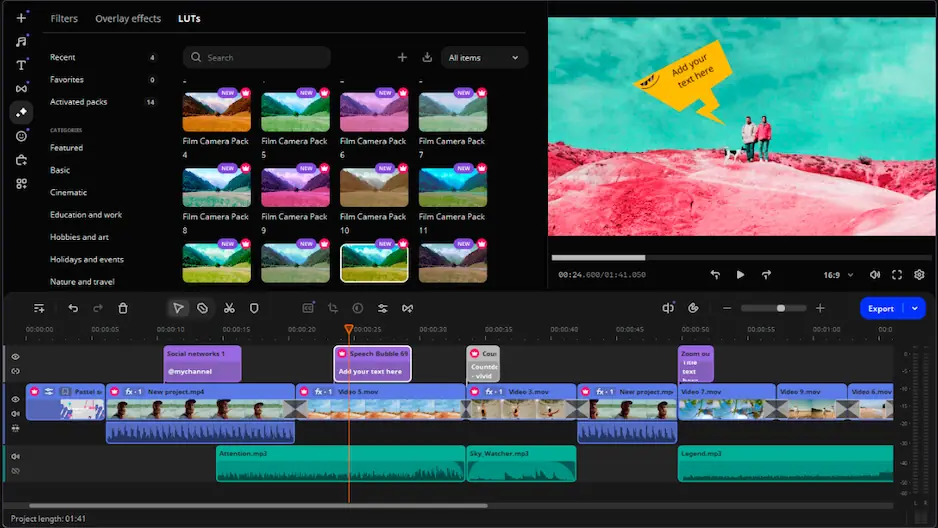
If Filmora feels too limited for your editing ambitions but Premiere® Pro feels like more software than the workflow actually calls for, Movavi Video Editor sits comfortably between the two. It avoids the template-heavy simplicity that can make Filmora feel restrictive on more involved projects, while also skipping the steep learning curve that make Premiere® Pro a harder commitment for editors.

Movavi Video Editor covers the tools that come up most often in everyday editing: timeline trimming, transitions, color correction, audio adjustments, motion tracking, background removal, automatic subtitles, and screen recording. The interface stays clean and direct without hiding useful features behind complex menus or dedicated production workspaces. Most editors can get a project moving within minutes of opening it for the first time.


Frequently asked questions

Is Filmora good enough for professional video editing?

Filmora handles a wide range of projects, including YouTube videos, social content, business presentations, and short promotional clips. Where it starts to show limits is on productions that require advanced color correction, complex audio mixing, or integration with other professional tools. For editors regularly handling demanding commercial or client-facing productions, the toolset eventually feels too narrow.

Does Premiere® Pro work better than Filmora for beginners?

Not for most people starting out. Premiere® Pro offers far more editing power, but that power comes with a more complex interface and a longer adjustment period. Filmora is the more comfortable starting point because the tools are easier to find and the timeline requires less configuration. Beginners who know they want to work professionally long term may still choose Premiere® Pro, but the early learning experience is noticeably steeper.

Which editor is better value for money?

It depends on how frequently and seriously editing happens. Filmora's license makes it a cost-effective long-term choice for independent creators who edit regularly but do not need a full professional toolkit. Premiere® Pro's monthly subscription costs more, but the access it provides to Creative Cloud®, After Effects®, Audition®, and collaborative workflows adds genuine value for editors working inside larger production pipelines.

Have questions?
If you can’t find the answer to your question, please feel free to contact our Support Team.
Join us for discounts, editing tips, and content ideas

1.5M+ users already subscribed to our newsletter

By signing up, I agree to receive marketing emails from Movavi and agree to Movavi's Privacy Policy.