
Filmora vs. PowerDirector: Features, Pricing, Performance Compared

Edited by
Ben Jacklin
12,068

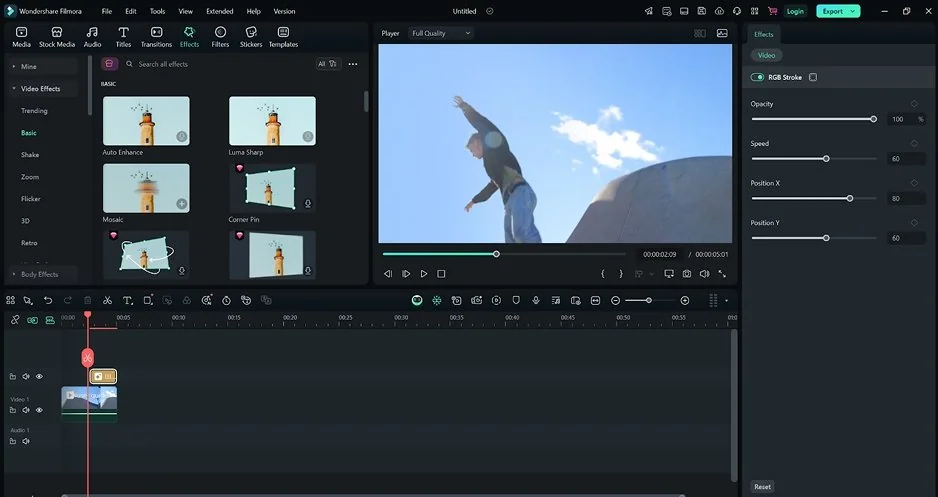
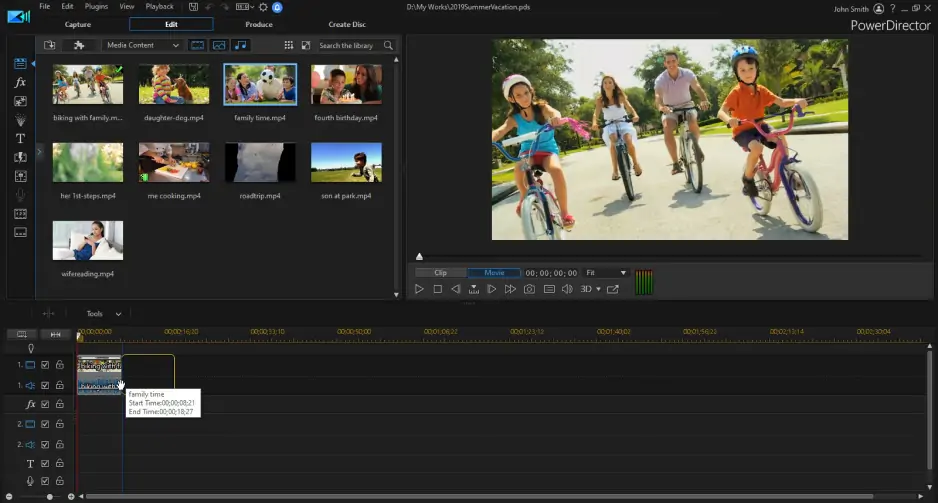
Filmora vs. PowerDirector is a close comparison because they are direct competitors in the video editing world, and there are several reasons why that's true. First off, the two software programs are meant for individuals who need quality video software but don't necessarily need anything overly professional yet. That being said, Filmora seems much easier to use and more user-friendly in terms of quick video editing, tutorials, and other shorter videos. On the contrary, PowerDirector is much more technical and advanced.

Comparison parameter

Filmora

PowerDirector

Who it's for

Beginners, content creators, marketers, educators, casual editors

Beginners, enthusiasts, small businesses, creators who need more control

Supported platforms

Windows, macOS, Android, iOS, iPadOS

Windows, macOS, iOS, Android

Ease of use

Very beginner-friendly, visual, and template-based

Still approachable, but more technical

Quick summary

Best for professional workflows: PowerDirector. It has a stronger setup for serious editing: multicam work, motion tracking, masks, screen recording, nested projects, and deeper timeline control.

Best for color grading: PowerDirector, though not by a huge margin. Filmora has color tools and LUT support, but PowerDirector gives more control when you want a consistent look across a longer video.

Best for advanced editing: PowerDirector. Filmora has grown a lot, but PowerDirector still feels better when the timeline gets crowded.

Best overall performance: PowerDirector. Filmora works well for normal projects, but PowerDirector is better prepared for larger files, hardware acceleration, and longer edits.

Ease of use

Filmora

PowerDirector

Filmora is easier to settle into. You open it, drop clips onto the timeline, trim a few awkward pauses, add music, maybe use a title template, and the whole thing feels fairly obvious. That’s a real advantage. Plenty of users don’t want to study editing theory before making a simple video.

The interface is visual and direct. Templates, effects, captions, AI tools, stock assets, and audio features are easy to find. It can feel a little crowded if you like a clean workspace, but for most creators that extra guidance helps. Filmora clearly understands its audience: people making YouTube videos, Shorts, Reels, online lessons, and quick promo clips.

PowerDirector is also beginner-friendly, but it feels more like a traditional editor made easier. The interface is manageable, yet there are more technical options and more places to fine-tune the edit.

That makes PowerDirector better for people who already know the basics or want to grow into more advanced editing. A complete beginner may need more time with it. Not weeks, probably, but it is less “open and go” than Filmora.

Winner: Filmora wins because its visual interface, built-in templates, and straightforward workflow make it much easier for complete beginners to start editing immediately.

Features

This is where Filmora and PowerDirector begin to separate. Filmora is full of creator-friendly tools: timeline editing, titles, transitions, effects, templates, audio cleanup, AI captions, speech-to-text, text-to-speech, AI music, object removal, smart short clips, and a large asset library. Most of these tools are easy to reach, which is the point.

Filmora’s strength is speed. It helps users make a decent-looking video without building every detail from scratch. Need subtitles? There’s a tool. Need a quick intro? Grab a template. Need to clean up audio or remove something from the frame? It’s right there.

PowerDirector goes deeper. It has timeline editing, MultiCam Designer, Mask Designer, Subtitle Designer, AI object masks, motion tracking, screen recording, nested project editing, blending modes, 4K preview, and high-frame-rate video support. A webinar, product demo, long YouTube episode, or multicam interview will usually feel more comfortable in PowerDirector.

Audio is stronger in PowerDirector too. Filmora has useful sound features, but PowerDirector gives more room for cleanup and adjustment. Speech enhancement, denoise tools, audio ducking, and wind removal can make a real difference when the recording isn’t perfect.

Motion graphics are closer. Filmora has ready-made effects, animated titles, and design assets. PowerDirector gives more control through title design, overlays, motion tracking, shapes, and effects customization.

Winner: PowerDirector wins because it offers deeper editing controls, stronger audio tools, multicam support, and more advanced timeline functionality for complex projects.

Performance

Filmora performs well for everyday editing. Short YouTube videos, social clips, tutorials, promo videos, and basic business content usually run smoothly on a decent computer. It’s not trying to be a huge post-production system, and that’s part of the appeal.

Problems may start when the project gets crowded. Add high-resolution clips, several layers, effects, AI tools, subtitles, stock assets, and color adjustments, and Filmora can begin to slow down. The interface makes editing feel simple, but the computer still has to process everything underneath.

PowerDirector has a stronger performance story. It supports hardware acceleration, high-resolution workflows, and more demanding timelines. It also feels better prepared for 4K video and longer edits. Hardware still matters, of course, but with a reasonably strong machine, PowerDirector gives you more stability and more headroom.

For short edits, Filmora is perfectly fine and often faster in practice because the workflow is so direct. For larger projects, PowerDirector is the safer pick.

Winner: PowerDirector wins because it handles demanding 4K timelines and larger editing projects with better stability and hardware optimization.

Pricing

Filmora offers a free plan, paid yearly plans, and a perpetual license. The free version is useful for testing the interface, but most people publishing finished videos will need a paid plan because watermark-free export is tied to paid versions. Paid plans also include more features, export options, 4K HD export, and creative assets.

Filmora’s pricing is fairly easy to understand. You choose a plan, check whether you need advanced tools or AI credits, and move on. There are still details to watch, especially around AI features and assets, but it doesn’t feel too confusing.

PowerDirector offers PowerDirector Essential as a free version, plus one-time purchase options and PowerDirector 365 subscriptions. The subscription version is better if you want regular updates, AI features, stock media, effects, and newer tools. The one-time version may suit people who dislike subscriptions, though it won’t always include the same ongoing extras.

PowerDirector can offer more value if you use the deeper editing tools. Filmora feels clearer from a buyer’s point of view.

Winner: Filmora wins for simpler and easier-to-understand pricing, while PowerDirector offers better long-term value for users who need more advanced editing tools.

Platform compatibility

Filmora supports Windows, macOS, Android, iOS, and iPadOS. That’s useful if you move between devices or want one general editing ecosystem on desktop and mobile. A lot of creators now shoot on phones, move files around, edit on a laptop, and post from wherever. Filmora fits that rhythm well.

PowerDirector also supports Windows, Mac, iOS, and Android. The Windows version feels especially mature, while the mobile apps are useful for quick edits and social content. For desktop users who want more control, PowerDirector is a strong choice, especially on a capable Windows machine.

Both programs cover the basics. Filmora feels more unified across creator platforms. PowerDirector feels stronger as a desktop editor.

AI tools

Filmora leans into AI in a creator-focused way. Its tools are built around speed: auto captions, text-to-video, image-to-video, AI music, object removal, smart short clips, text-based editing, speech-to-text, text-to-speech, and audio enhancement. Filmora wants to help people produce more content with less manual work.

That works well for social videos. Captions, short clips, background tools, quick music, and object removal are features creators may use often, not once a year.

PowerDirector also has a strong AI toolkit, but it feels more connected to the editing process itself. AI motion tracking, background removal, speech enhancement, audio denoise, wind removal, object masking, voice tools, text-based editing, and generative features fit into a more detailed timeline workflow.

Filmora’s AI tools feel faster and more playful. PowerDirector’s feel more practical inside larger edits.

Pros & cons

Filmora

Pros:
  • Easy to learn

  • Friendly interface

  • Strong template and asset library

  • Good AI tools for social content

  • Broad platform support

  • Paid plans remove watermark

  • Good for YouTube, Reels, tutorials, and marketing clips

Cons:
  • Free version is mostly for testing

  • Some AI tools rely on credits

  • Less suited to complex professional workflows

  • Interface can feel busy

  • Advanced timeline control is limited compared with PowerDirector

PowerDirector

Pros:
  • Stronger editing depth

  • Better performance tools

  • Useful AI features for video and audio

  • Multicam, masking, motion tracking, and nested project editing

  • Good for business videos and longer projects

  • More room to grow as editing needs become serious

Cons:
  • Takes longer to learn

  • Pricing can feel less straightforward

  • Some features require subscriptions or paid plans

  • More technical than casual users may need

  • Mac users should check feature availability before buying

Best use cases

YouTube: Filmora works well for quick YouTube videos, tutorials, reviews, and talking-head edits. PowerDirector is better for longer videos, multi-camera projects, cleaner audio, and channels moving toward a more polished style.

TikTok: Filmora is the easier pick. Its templates, captions, effects, and short-form tools fit TikTok nicely. PowerDirector can do the job too, but Filmora feels faster for this kind of content.

Social content: Filmora is better for Reels, Shorts, ads, and quick posts that need to look good without much setup. PowerDirector works better when the content has more layers, branding, or repeated production needs.

Beginners: Filmora. It’s simpler, friendlier, and less likely to overwhelm someone who has never edited before.

Professional users: PowerDirector. It’s not the deepest professional editor on the market, but between these two, it’s the stronger choice for serious work.

Business: PowerDirector is better for training videos, webinars, product demos, and presentations. Filmora is good for quick marketing clips and social posts.

Casual editing: Filmora. For travel clips, family videos, school projects, and simple announcements, it gets the job done with less fuss.

Final verdict

Both PowerDirector and Filmora are great editing software, but they cater to different styles of editing.

Choose Filmora if you prefer something quick, easy, and contemporary. It's faster to pick up if you mostly do YouTube, TikTok, Reels, tutorial videos, or just basic marketing clips.

Choose PowerDirector if you need more advanced features like the timeline, performance, and control. It may require some time, but the benefits will be seen in complex edits.

Filmora is best if you want something fast. PowerDirector is best if you want something deep.

Alternative: Movavi Video Editor
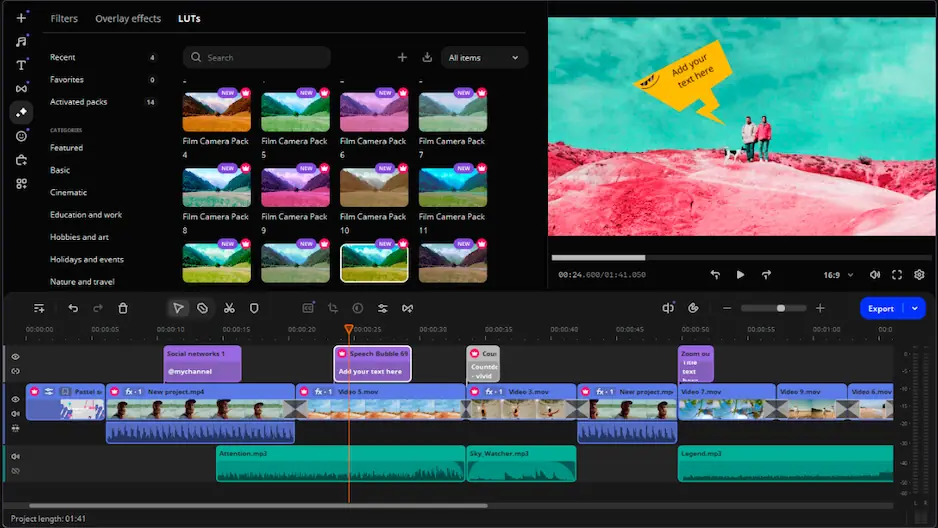
For those who don't see themselves in either program, Movavi Video Editor seems to be a suitable solution. It's more concise than Filmora and less technical than PowerDirector, which may come handy for those seeking to have clear results while not having to spend hours trying to learn how to use this software.

This editor has everything from basic editing features to effects such as cuts, trimming, cropping, rotation, transitions, titling, noise reduction, removal of silences, automatic subtitles, motion tracking, color correction, music, audio effects, and sound editing. This software works on both Windows and macOS, and it was designed based on a concept that its user interface should make the video-editing process easier, instead of complicating it.

For the users who need something more accessible but at the same time versatile, this application may become a good choice, as it is suitable for absolute beginners, teachers, small business owners, casual YouTube creators, and other social media users.


Frequently asked questions

Is Filmora better than PowerDirector for beginners?

When comparing PowerDirector vs. Filmora, Filmora is better for beginners. The interface is more graphic, features are easily accessible, and templates ensure that the user creates decent videos without diving into the details of video editing at first.

Which editor has better AI tools?

Both of these applications offer very good AI capabilities. However, while Filmora is better for fast creation tasks such as creating titles and captions, making short videos, using AI resources, and posting on social media, PowerDirector shines in cases where the AI has to support an edit.

Which is better for YouTube: Filmora or PowerDirector?

It depends on what kind of YouTube video you plan to make. Filmora is better suited for short and simple videos, tutorials, and Shorts, while PowerDirector works better for longer videos, multilayer editing, sound editing, and controlled production processes.

Have questions?
If you can’t find the answer to your question, please feel free to contact our Support Team.
Join us for discounts, editing tips, and content ideas

1.5M+ users already subscribed to our newsletter

By signing up, I agree to receive marketing emails from Movavi and agree to Movavi's Privacy Policy.