
Filmora vs. iMovie: Features, Pricing, Performance Compared

Edited by
Ben Jacklin
13,406

Filmora and iMovie comparison comes down to flexibility versus simplicity. Filmora runs on both Windows and Mac and offers more effects, templates, and export options through its paid plans, while iMovie is free but limited to Apple devices. Filmora suits creators who want extra creative tools; iMovie fits casual Apple users editing quick projects.

Comparison parameter

Filmora

iMovie

Who it's for

YouTubers, hobbyists, semi-pro creators

Casual creators, students, Apple users

Supported platforms

Windows, macOS

macOS, iPhone, iPad

Ease of use

Beginner-friendly, drag-and-drop interface

Simplified single-workspace layout

Quick summary

Best for beginners: iMovie is the gentler starting point. The interface keeps almost everything in one place and there are few technical decisions to make before editing begins.

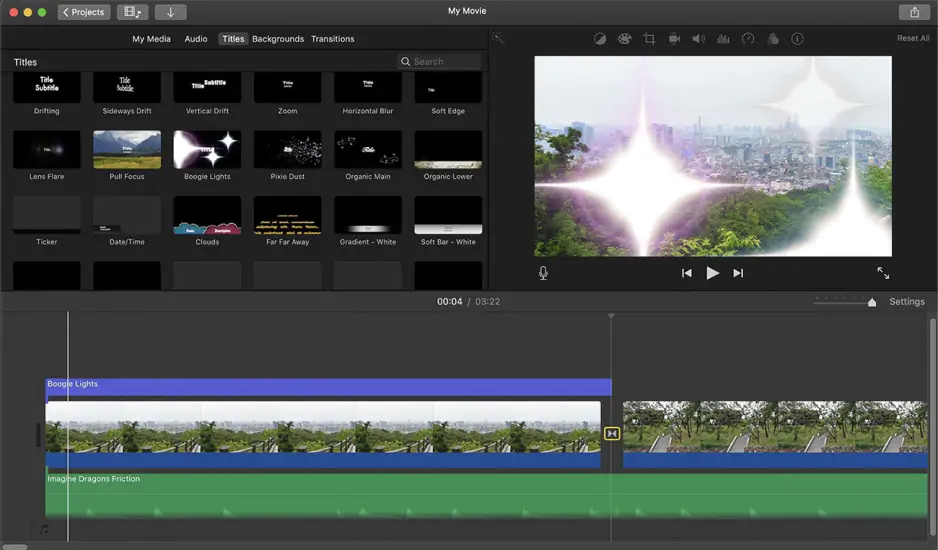
Best ease of use: iMovie wins on pure simplicity thanks to its single-workspace layout and magnetic timeline that keeps clips connected.

Best value: iMovie is free on every Apple device and exports without a watermark, which makes it hard to beat on cost alone.

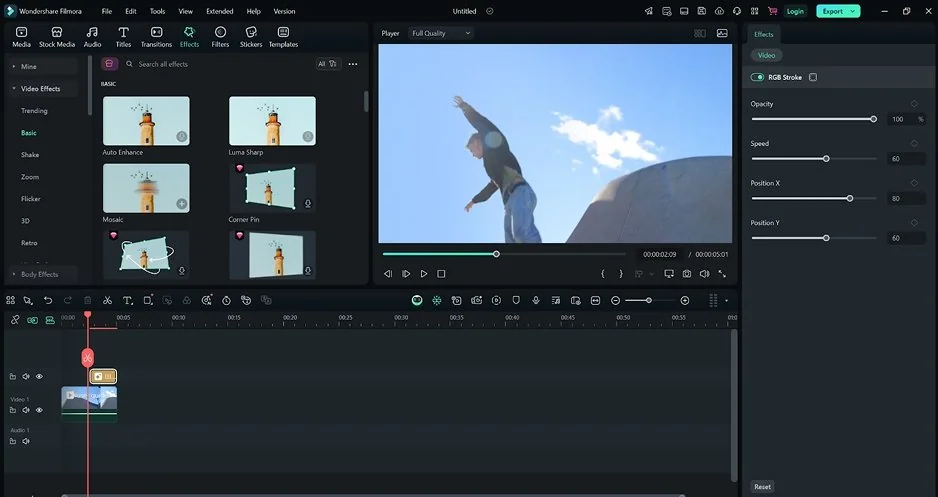
Best for content creators: Filmora is the stronger fit for regular uploads. It runs on both Windows and Mac, includes templates, transitions, and AI features aimed at faster production.

Ease of use

Filmora

iMovie

iMovie greets Apple users with familiar menus, built-in tutorials, and sample projects, so onboarding feels almost instant on a Mac.

Filmora opens with a slightly busier layout, but guided tooltips and a project-based start screen ease newcomers in. Its menus stay logically grouped, and the drag-and-drop timeline behaves the way most people expect, keeping the learning process gradual rather than overwhelming.

Both iMovie and Filmora stay approachable, though iMovie asks for fewer decisions before the first edit.

Winner: iMovie, for the smoother, more intuitive onboarding.

Features

The Filmora vs. iMovie gap widens the moment you look past basic cutting. Filmora offers a multitrack timeline with keyframing, motion tracking, masking, and a large built-in library of effects, transitions, titles, and royalty-free music. Layered compositing, picture-in-picture, and adjustable speed ramps give editors real room to shape a video. iMovie keeps its toolkit deliberately small: trimming, a handful of themed transitions, filters, titles, and simple green-screen support that cover everyday edits without much fuss.

Filmora lets you fine-tune each element, save presets, and pull in fresh assets from its store, while iMovie leans on ready-made styles that look polished but offer limited control. For creators who like adjusting details, that flexibility matters; for quick projects, iMovie's presets get the job done faster.

Export options reinforce the split. Filmora supports a broad range of formats and resolutions, plus platform-specific presets for social uploads. iMovie exports reliably but stays focused on Apple-friendly settings. Usability remains close, though Filmora simply does more once a project grows.

Winner: Filmora, for its deeper and more versatile feature set.

Performance

Day-to-day speed in the iMovie vs. Filmora matchup depends heavily on hardware. iMovie is tuned tightly for Apple silicon, so playback, scrubbing, and exports stay smooth on most recent Macs with little manual setup. Filmora runs well across mid-range Windows and Mac systems, though heavier timelines with stacked effects lean more on the GPU and available RAM.

Stability follows a similar pattern. iMovie rarely stumbles because its feature set stays narrow, keeping projects predictable. Filmora holds up reliably too, but complex sequences with many effects layers occasionally benefit from closing background apps or lowering preview quality.

System requirements favor iMovie for lightweight editing, since it ships free and optimized on existing Apple devices. Filmora asks a bit more from a machine as projects scale, yet remains accessible on modest configurations.

Winner: iMovie, for smoother, lighter performance during everyday editing.

Pricing

iMovie is completely free on every Mac, iPhone, and iPad, with no subscription, no upgrade fees, and no watermark on exports. For Apple owners, editing simply comes bundled with the device.

Filmora follows a paid model. A free version lets you try the full editor, but exported clips carry a Filmora watermark until you upgrade. Paid plans start at around $49.99 per year, with a one-time perpetual license near $79.99 for users who prefer to avoid recurring fees. Some AI tools and premium assets draw on a separate credit system or add-on purchase.

Winner: iMovie, for being genuinely free and watermark-free.

Platform compatibility

iMovie lives entirely inside Apple's ecosystem, running only on a Mac, iPhone, and iPad. That limitation feels natural for users already managing footage through Photos, AirDrop, and iCloud, since projects move smoothly between Apple devices with almost no extra setup.

Filmora works on both Windows and macOS computers. This flexibility matters in mixed-device households or teams where not everyone uses Apple hardware. Note that Filmora's perpetual license is tied to a single operating system, so cross-platform editing generally requires a subscription plan.

AI tools

Artificial intelligence is where the two editors pull furthest apart. Filmora leans heavily into AI, offering Speech-to-Text for automatic captions, Text-to-Speech voiceovers, Smart Cutout and AI Portrait for background removal, motion tracking, and generative tools that speed up repetitive tasks. Many of these run on a credit system, so heavy use may require a higher plan or add-on.

iMovie has some built-in automation features, but it lacks native AI tools. Rather than production-focused automation, it offers Magic Movie, which assembles clips, transitions, and music automatically, and Storyboards, which provide ready-made structures for common video types. These features simplify quick edits but offer far less control than Filmora's expanding AI toolkit.

Pros & cons

Filmora

Pros:
  • Works on both Windows and Mac

  • Large effects and transitions library

  • Strong AI toolkit

  • Broad export options

Cons:
  • Watermark on the free version

  • Subscription or license required

  • AI credits limit heavy use

iMovie

Pros:
  • Free and watermark-free

  • Simple, beginner-friendly workflow

  • Basic editing tools

  • Optimized for Apple hardware

Cons:
  • Apple devices only

  • Limited advanced tools

  • Few export options

Best use cases

YouTube production: Filmora suits regular uploads that need custom transitions, layered captions, and polished intros, while iMovie handles simple vlogs, tutorials, and talking-head videos on a Mac without extra effort.

TikTok & social content: iMovie is quick for vertical clips on iPhone and iPad. Filmora becomes more useful once posts rely on animated text, effects, or platform-specific export presets.

Beginner editing: iMovie asks for the least setup, making first edits feel direct. Filmora is still beginner-friendly but rewards those willing to explore more tools.

Professional & business projects: Filmora fits training videos, product demos, and client content that need consistent branding across platforms.

Casual editing: both manage home videos and quick personal projects well, though iMovie feels lighter for spontaneous edits.

Final verdict

The choice really comes down to what you own and what you want from editing. iMovie is the natural pick for Apple users who value speed, simplicity, and zero cost. It handles quick clips, home videos, and casual uploads with almost no friction, making it ideal for beginners and anyone who just wants a finished video fast.

Filmora is the better fit for creators who need more range. Its cross-platform support, larger effects library, and growing AI toolkit justify the price for regular content work and branded projects.

Alternative: Movavi Video Editor

If neither program feels quite right, Movavi Video Editor sits comfortably in the middle. It offers a clean drag-and-drop interface without a wall of technical options. Best of all, it runs on both Windows and Mac, so it isn't tied to a single ecosystem.

Movavi Video Editor also covers the essentials most creators actually use: transitions, effects, titles, AI-assisted tools, automatic subtitles, and quick export presets for social platforms. For users who want more flexibility than iMovie but find Filmora's plans or credit system frustrating, Movavi offers a straightforward, budget-friendly middle lane.


Frequently asked questions

Is iMovie or Filmora better for beginners?

Both are beginner-friendly, but iMovie is slightly easier to start with on a Mac thanks to its minimal setup. Filmora takes a little longer to learn, yet gives beginners more tools to grow into.

Can I use Filmora on a Mac?

Yes. Filmora runs on both Windows and macOS, unlike iMovie, which stays exclusive to Apple devices.

Does iMovie add a watermark to exports?

No. iMovie exports are always watermark-free. Filmora's free version adds a watermark until you upgrade to a paid plan.

Have questions?
If you can’t find the answer to your question, please feel free to contact our Support Team.
Join us for discounts, editing tips, and content ideas

1.5M+ users already subscribed to our newsletter

By signing up, I agree to receive marketing emails from Movavi and agree to Movavi's Privacy Policy.