
Filmora vs. DaVinci Resolve: Features, Pricing, Performance Compared

Edited by
Ben Jacklin
5,465

The core of the Filmora vs. DaVinci Resolve decision comes down to who you are: Filmora is a beginner-friendly editor built for speed, templates, and social content, while DaVinci Resolve is a professional-grade suite built for color grading, VFX, and cinematic finishing. Filmora wins on ease of use but locks watermark-free exports and its best AI behind paid plans; Resolve's free version is genuinely free with no watermark and rivals paid software. Choose Filmora if you want fast, polished results with minimal learning; choose DaVinci Resolve if you want professional power without a subscription and don't mind a steeper curve.

Criteria

Filmora

DaVinci Resolve

Target audience

Beginners, YouTubers, social creators, small business

Colorists, filmmakers, pro editors, serious creators

Supported platforms

Windows, macOS, iOS, Android

Windows, macOS, Linux, iPad

Ease of use

Very easy, drag-and-drop

Moderate to hard, multi-page workflow

Quick summary

  • Best for professional workflows: DaVinci Resolve – Fusion VFX and Fairlight audio in one package.
  • Best for color grading: DaVinci Resolve – the node-based Color page is industry-standard.
  • Best for advanced editing: DaVinci Resolve – multicam, deep codec support, scriptable tools.
  • Best overall performance (on modest hardware): Filmora – lighter and less demanding to run.

Ease of use

Filmora

DaVinci Resolve

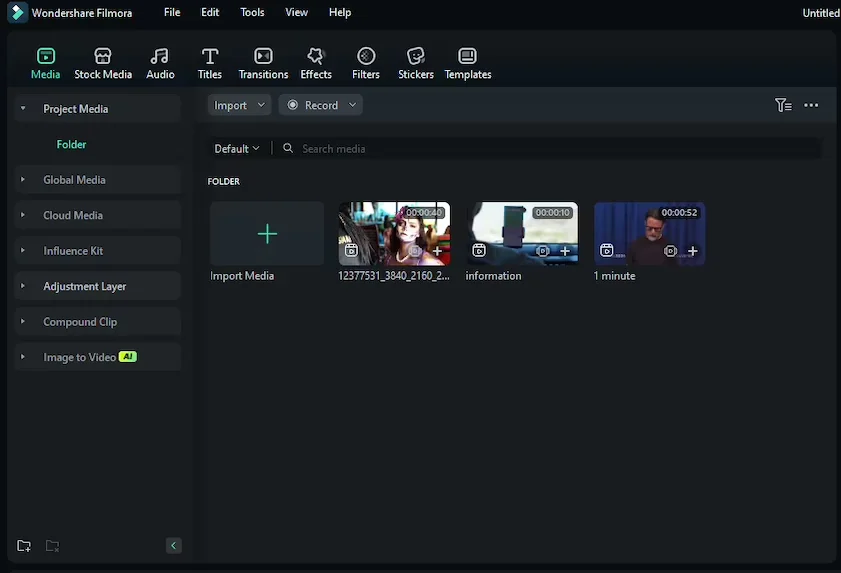
Filmora is designed to get you exporting a finished clip within your first session. The interface is a single clean timeline with drag-and-drop media, one-click templates, and a searchable effects panel. Onboarding is fast, tooltips are everywhere, and most people never touch a manual. This is exactly why the Filmora DaVinci Resolve comparison so often frames Filmora as the "just start editing" option.

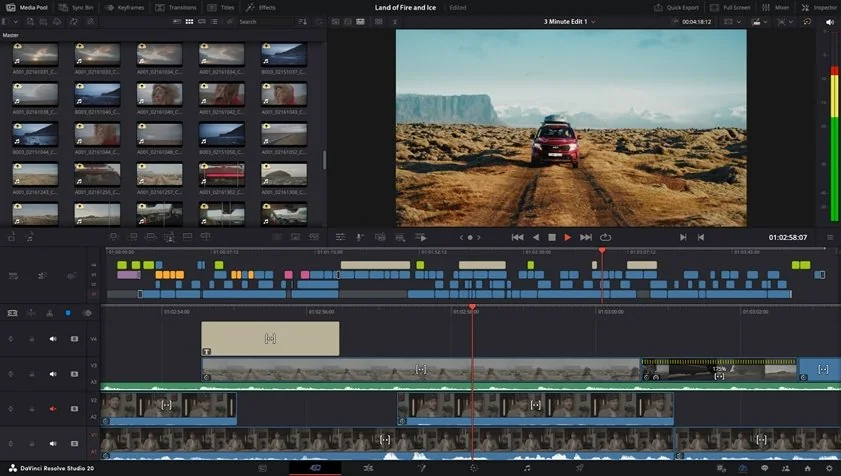
DaVinci Resolve takes a different approach. It splits work across dedicated pages – Cut, Edit, Color, Fusion, and Fairlight – which is powerful but overwhelming at first. The Cut page is built for speed and narrows the gap for quick edits, but genuinely learning Resolve takes a week or two of consistent use. The payoff is a workflow that scales from a TikTok to a feature film without switching software.

Winner: Filmora. For pure onboarding and interface friendliness, nothing about DaVinci Resolve vs. Filmora favors the pro tool here.

Features

On timeline editing, both are strong – Filmora keeps it simple, while Resolve's Edit page mirrors traditional NLEs like Premiere® Pro. For multicam, both support it, but Resolve handles complex multicam and syncing more robustly. Color grading is where the gap is widest: Resolve's node-based Color page (with color wheels, curves, qualifiers, power windows, and scopes) is a genuine industry standard, while Filmora offers approachable but comparatively basic correction.

Audio mixing goes to Resolve too, thanks to the built-in Fairlight suite – a full audio post-production environment. Motion graphics and compositing are handled by Resolve's Fusion page (node-based VFX), which is far deeper than Filmora's keyframes and preset effects. Filmora counters with a massive library of ready-made transitions, titles, and templates that make polished results fast. On codec support and advanced workflows, Resolve's professional codec handling, HDR pipeline, and scriptability leave Filmora behind for demanding jobs.

Winner: DaVinci Resolve. Across the full feature depth, the DaVinci Resolve Filmora matchup clearly favors Resolve for anyone who needs more than templates and clean cuts.

Performance

Rendering speed depends heavily on hardware. On a strong GPU, Resolve is extremely fast and fully GPU-accelerated – the free version uses a single GPU, while Studio unlocks multi-GPU acceleration. Filmora renders competently and, crucially, runs well on modest laptops that would struggle with Resolve.

Hardware requirements are the real dividing line. DaVinci Resolve recommends 32GB+ RAM and a dedicated GPU with 8GB+ VRAM for smooth 4K work; heavy AI features and large timelines can push a 16GB card hard. Filmora is far lighter and forgiving of older machines. On stability with large projects, Resolve is engineered for high-end, long-form pipelines and generally holds up better under load, provided the hardware is there.

Winner: DaVinci Resolve for raw power and large-project stability on capable hardware – but Filmora is the practical winner if your computer is modest.

Pricing

This is Filmora's biggest vulnerability. Filmora offers a forever-free version, but every export carries a watermark, and AI credits and cloud storage are excluded. Paid plans start at roughly $49.99/year (Basic, watermark-free 4K, no AI credits), $59.99/year (Advanced, ~1,000 AI credits/month and more storage), or a $79.99 one-time perpetual license that covers only the current major version – future upgrades cost extra. Premium effects and assets can add further subscription costs.

DaVinci Resolve's model is refreshingly simple: the free version has no watermark, no time limit, and no core feature gating, exporting up to 4K UHD at 60fps. The only paid tier is Studio, a $295 one-time perpetual license with lifetime updates that unlocks the Neural Engine AI tools, higher resolutions, HDR/Dolby Vision, advanced noise reduction, and multi-GPU support. There's no subscription trap.

Winner: DaVinci Resolve. A no-watermark free tier plus a one-time license beats Filmora's recurring costs and watermark gate for most buyers.

Platform compatibility

Filmora runs on Windows and macOS, with dedicated iOS and Android mobile apps for editing on the go. DaVinci Resolve runs on Windows, macOS, and Linux – the Linux support is notable for pros – plus a capable iPad version. Neither offers a full browser-based web editor. If Linux or iPad matters, Resolve is your only option; if phone editing matters, Filmora's mobile apps are the stronger pick.

AI tools

Filmora leans heavily on generative and smart AI: text-to-video, AI smart cutout, background removal, speech-to-text auto subtitles, and AI enhancement. The catch is that many of these consume AI credits – the Advanced plan's monthly allotment can run out quickly for active creators, after which you buy more or wait for renewal.

DaVinci Resolve's AI runs on the DaVinci Neural Engine, and here the split matters: the free version includes some AI (like scene-cut detection and Speed Warp), but the headline tools – Magic Mask (subject isolation), Super Scale (upscaling), Face Refinement, UltraNR noise reduction, Voice Isolation, and AI IntelliScript/Animated Subtitles – are Studio-exclusive. There are no per-use credits: once you own Studio, the AI is unlimited.

For casual creators who want one-click AI on the free tier, Filmora offers more out of the box (with credit limits). For heavy, unlimited professional AI, Studio's flat license wins.

Pros & cons

Filmora pros:

  • Extremely beginner-friendly, fast onboarding

  • Large template, transition, and effects library

  • Runs well on modest hardware

  • Affordable entry price and a one-time perpetual option

  • Handy generative AI tools built in

Filmora cons:

  • Watermark on all free exports

  • AI features are credit-limited

  • Premium effects/assets cost extra

  • Perpetual license excludes major upgrades

  • Limited pro color grading, VFX, and codec support

DaVinci Resolve pros:

  • Genuinely free with no watermark, no time limit

  • Industry-standard color grading (node-based)

  • Fusion VFX and Fairlight audio built in

  • One-time $295 Studio license, lifetime updates, no subscription

  • Cross-platform including Linux and iPad

DaVinci Resolve cons:

  • Steep learning curve

  • Demanding hardware requirements

  • Best AI and some pro features locked to Studio

  • Overkill for quick social clips

Best use cases

  • YouTube: Filmora for fast weekly uploads; Resolve for cinematic, color-graded channels.
  • TikTok / Reels / short-form: Filmora (or its mobile app) for speed and templates.
  • Social content for business: Filmora for volume and ease; Resolve if brand color consistency matters.
  • Beginners / casual editing: Filmora, hands down.
  • Professional / filmmaking: DaVinci Resolve for grading, VFX, and delivery.
  • Business teams: Filmora Business for simple multi-seat editing; Resolve Studio for collaborative pro pipelines.

Final verdict

For most people weighing Filmora vs. DaVinci Resolve, the choice is clean. Pick Filmora if you value speed, simplicity, templates, and light hardware, and you're okay paying to remove the watermark. Pick DaVinci Resolve if you want professional color, VFX, audio, and a no-watermark free tier – and you're willing to invest time and hardware. Filmora gets you finished faster; Resolve makes you better.

Alternative: Movavi Video Editor

If neither fits – Filmora feels too limited by watermarks and credits, but DaVinci Resolve feels too heavy and complex – Movavi Video Editor 2026 sits comfortably in the middle. It's built for beginners and intermediate creators who want polished results in minutes, not weeks.

Movavi runs on Windows and macOS (with companion mobile apps) and pairs an intuitive drag-and-drop timeline with genuinely useful AI: background removal without a green screen, AI noise reduction, motion tracking, upscaling, auto subtitles in multiple languages with SRT export, and automatic silence removal. It won't replace Resolve for professional grading or match Filmora's giant effects store, but for clean cuts, fast titles, and quick exports, Movavi is one of the most practical, low-friction editors available in 2026. Try the free trial with your own footage before you commit.


Frequently asked questions

Is DaVinci Resolve better than Filmora? 

For professional color grading, VFX, and audio, yes – DaVinci Resolve is more powerful. For beginners who want fast, template-driven edits, Filmora is easier. The "better" tool depends on your skill level and goals.

Which is easier to learn, Filmora or DaVinci Resolve? 

Filmora. Most users are editing within their first session, while DaVinci Resolve typically takes one to two weeks to feel comfortable.

Is DaVinci Resolve really free? 

Yes. The free version has no watermark, no time limit, and no core feature gating. Only the optional $295 Studio license (a one-time purchase) unlocks the advanced AI tools, higher resolutions, and multi-GPU support.

Does Filmora put a watermark on free exports? 

Yes. Every export on the free version carries a Filmora watermark. Removing it requires a paid plan starting at about $49.99/year or the perpetual license.

Which should I choose for a YouTube channel? 

For quick, consistent uploads with minimal effort, Filmora. For cinematic looks and serious color grading as your channel grows, DaVinci Resolve.

Have questions?
If you can’t find the answer to your question, please feel free to contact our Support Team.
Join us for discounts, editing tips, and content ideas

1.5M+ users already subscribed to our newsletter

By signing up, I agree to receive marketing emails from Movavi and agree to Movavi's Privacy Policy.