
Filmora vs CapCut: Features, Pricing, Performance Compared

Edited by
Ben Jacklin
32,423

The Filmora and CapCut comparison comes down to control versus speed. Filmora runs on Windows and Mac and offers a deeper timeline, 4K exports, and more creative tools through its paid plans, while CapCut is mobile-first, free to start, and built to turn raw clips into a postable TikTok, Reel, or Short in minutes. Filmora suits creators who want range and polish; CapCut fits fast, social-first editing on almost any device.  

Comparison parameter

Filmora

CapCut

Best for

YouTubers, hobbyists, semi-pro creators

Short-form creators, casual editors, social posters

Platforms

Windows, macOS, iOS, Android

iOS, Android, Windows, Mac, Web

Ease of use

Beginner-friendly, fuller desktop editor

Extremely simple, touch-optimized

Quick summary

Best for TikTok: CapCut is the natural pick for short-form. Templates, trending effects, and one-tap social sizing let you go from clip to post in minutes.

Best for beginners: CapCut asks for the least setup and is usable within minutes, while Filmora stays beginner-friendly but gives you more tools to grow into.

Best mobile workflow: CapCut wins easily here, since it was built mobile-first and moves smoothly between phone, desktop, and web.

Best free option: CapCut is hard to beat, because its free plan is genuinely usable and exports are largely watermark-free.

Ease of use

Filmora

CapCut

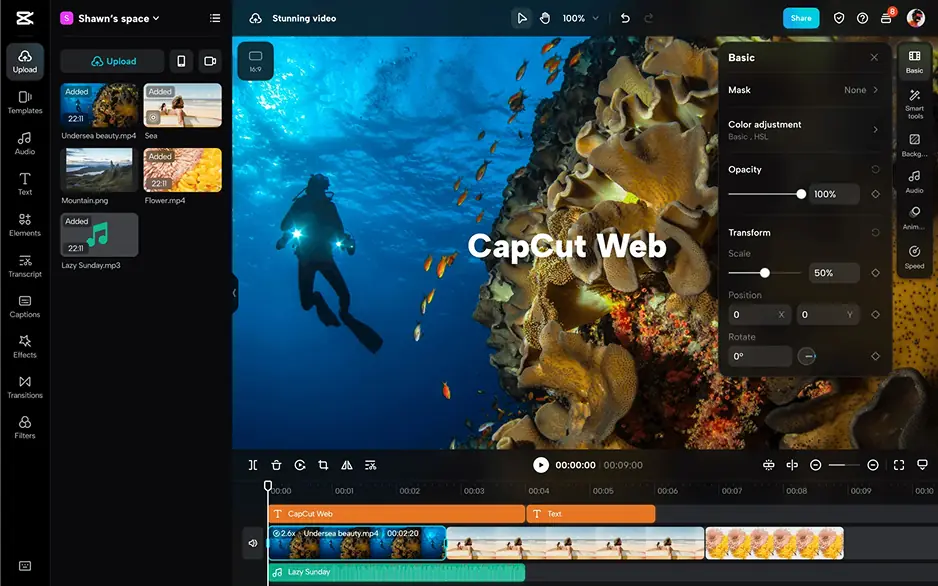
CapCut greets new users with a minimalist, touch-first layout, so trimming a clip, adding captions, dropping in a template, and exporting can all happen within minutes. The entire workflow assumes short vertical video and removes almost every barrier to getting there.

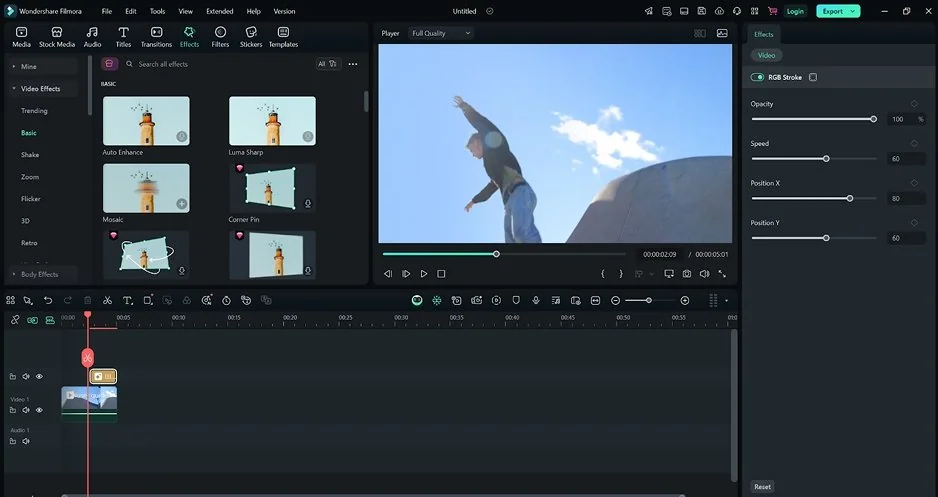
Filmora is also marketed as beginner-friendly, and its drag-and-drop timeline behaves the way most people expect. It opens with a slightly busier layout, though, because it's a fuller desktop editor with more panels, more tracks, and more manual controls. That depth pays off later, but it makes the first hour a touch steeper than CapCut's.

Both stay approachable, yet CapCut asks for fewer decisions before the first edit.

Winner: CapCut, for the fastest, friendliest start.

Features

The Filmora vs. CapCut gap widens the moment you look past basic cutting. Filmora offers a multitrack timeline with keyframing, motion tracking, masking, chroma-key green screen, and serious audio tools like ducking and equalizers, plus full color correction and 3D LUTs. Layered compositing and adjustable speed ramps give editors real room to shape longer projects, and exports reach up to 4K across a broad range of formats.

CapCut keeps its toolkit lean but social-sharp: a large library of templates, trending transitions and effects, one-tap format switching between 9:16, 1:1, and 16:9, and a huge catalog of royalty-free music. Its auto-captions are fast, accurate, and styled to look native on social platforms. Where it falls short is depth, since the simplified timeline caps out quickly for longer, multi-track edits.

For social features CapCut is unbeatable, but once a project grows in layers and length, Filmora simply does more.

Winner: Filmora, for its deeper and more versatile feature set.

Performance

Day-to-day speed in the CapCut vs. Filmora matchup leans on how heavy your project is. CapCut is impressively light: rendering is fast, system requirements are low, and it runs smoothly on older phones and modest computers, which is why beginners with limited hardware often gravitate to it. The trade-off is that its free tier caps exports at 1080p.

Filmora is stable and handles heavier projects, including 4K, proxy files, and stacked effects, but it asks more of a machine as sequences grow, and its free version applies a watermark to every export. That watermark is the single biggest limitation of trying Filmora for free, whereas CapCut's free exports are largely watermark-free.

For raw speed, low hardware demands, and a usable free tier, CapCut stays ahead.

Winner: CapCut, for smoother, lighter performance, especially on modest hardware.

Pricing

CapCut follows a free-first model. The free plan is genuinely usable for everyday short-form video, and paid tiers, roughly a $9.99/month Standard and a $19.99/month Pro plus a Teams plan above them, are optional upgrades for higher exports, premium templates, and advanced AI. Prices vary by region and platform, and subscribing through the web app is usually cheaper than through the iOS or Android stores. There is no lifetime option, so CapCut is subscription-only.

Filmora follows a paid model. A free version lets you try the full editor, but exports carry a watermark until you upgrade. Paid plans start around $49.99 per year, with a one-time perpetual license near $79.99 for users who prefer to avoid recurring fees, though that license typically covers only the current major version. Some AI tools and premium assets draw on a separate credit system.

Winner: CapCut, for the lowest cost of entry and a genuinely usable free plan.

Platform compatibility

Both tools are cross-platform, but their centers of gravity differ. CapCut is strongest on mobile, running on iOS and Android, with solid desktop apps for Windows and Mac and a web editor on top, which suits creators who constantly switch devices. Filmora is desktop-first on Windows and macOS with companion mobile apps, a better fit for people who do most of their work at a computer. Note that Filmora's perpetual license is tied to a single operating system, so cross-platform editing generally requires a subscription plan.

AI tools

Artificial intelligence is where the two editors take different paths. CapCut's AI is social-first: fast multilingual auto-captions with animated styles, one-click background removal, noise reduction, AI script generation, text-to-speech, AI avatars, and a text-to-video generator on its Pro tier. For creators who caption every video, the auto-captions alone can be the deciding feature.

Filmora's AI is editing-first: Smart Cutout for portrait removal, audio denoise, Speech-to-Text, AI Video Enhancer, AI Face Mosaic, and AI Text-to-Video. These lean toward production polish rather than instant social output, and many of them draw down AI credits, so heavy use may require a higher plan or add-on.

Pros & cons

Filmora

Pros:
  • Deep, professional-leaning toolset 4K export and broad format support

  • Rare one-time perpetual license option

  • Strong on desktop for longer projects

Cons:
  • Watermark on the free version

  • Heavier on system resources as projects scale

  • Some AI features consume paid credits

CapCut

Pros:
  • Genuinely usable, largely watermark-free free plan

  • Fastest workflow for TikTok, Reels, and Shorts

  • Excellent auto-captions and template library

  • Runs well on low-end devices

Cons:
  • Simplified timeline limits long-form work

  • Subscription only, with no lifetime license

  • 1080p export cap on the free tier

Best use cases

YouTube production: Filmora suits regular uploads that need custom transitions, layered captions, and polished intros, while CapCut handles simple talking-head clips and quick edits but tightens up on longer runtimes.

TikTok & social content: CapCut is the fastest route to vertical clips with animated text, trending effects, and platform-specific export presets. Filmora can do short-form too, but it takes more manual work.

Beginner editing: CapCut asks for the least setup, making first edits feel direct. Filmora is still beginner-friendly but rewards those willing to explore more tools.

Professional & business projects: Filmora fits training videos, product demos, and client content that need consistent branding and finer control across platforms.

Casual editing: both handle home videos and quick personal projects well, though CapCut feels lighter for spontaneous edits on a phone.

Final verdict

The choice really comes down to what you make and where you make it. CapCut is the natural pick for short-form social video, mobile editing, and a strong free plan. It turns raw clips into postable content with almost no friction, making it ideal for beginners and anyone who wants a finished TikTok, Reel, or Short fast.

Filmora is the better fit for creators who need more range. Its deeper timeline, larger effects library, 4K exports, and one-time license option justify the price for regular content work and branded projects.

Alternative: Movavi Video Editor

If neither program feels quite right, Movavi Video Editor sits comfortably in the middle. It offers a clean drag-and-drop interface without a wall of technical options, and it runs on both Windows and Mac, so it isn't tied to a single ecosystem or a phone-first workflow.

Movavi Video Editor also covers the essentials most creators actually use: transitions, effects, titles, AI-assisted tools, automatic subtitles, and quick export presets for social platforms. For users who want more control than CapCut's simplified timeline but find Filmora's plans or credit system frustrating, Movavi offers a straightforward, budget-friendly middle lane.


Frequently asked questions

Is CapCut or Filmora better for beginners?

Both are beginner-friendly, but CapCut is easier to start with thanks to its minimal, touch-first setup. Filmora takes a little longer to learn, yet gives beginners more tools to grow into.

Is CapCut really free?

Yes. CapCut has a usable free tier with mostly watermark-free exports up to 1080p. Some AI-generated content and premium templates require a paid plan.

Does Filmora add a watermark to exports?

Yes. Filmora's free version adds a watermark until you upgrade to a paid plan. CapCut's standard exports are largely watermark-free.

Have questions?
If you can’t find the answer to your question, please feel free to contact our Support Team.
Join us for discounts, editing tips, and content ideas

1.5M+ users already subscribed to our newsletter

By signing up, I agree to receive marketing emails from Movavi and agree to Movavi's Privacy Policy.