DaVinci Resolve vs. iMovie: Features, Pricing, Performance Compared

Edited by
Ben Jacklin
12,740

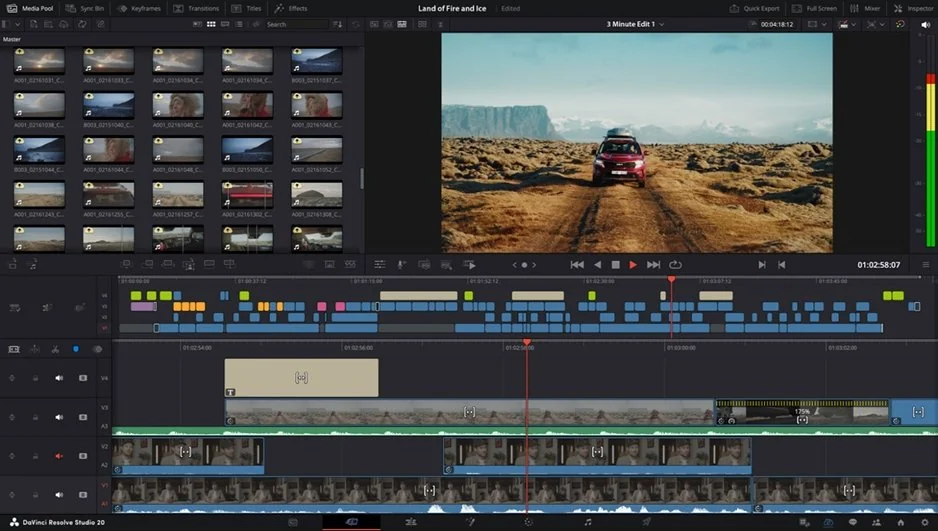
When comparing DaVinci Resolve vs. iMovie, the main difference comes from how much control the software gives you during editing. DaVinci Resolve focuses on more technical work, including color grading, layered timelines, audio repair, effects, and detailed export settings. iMovie keeps things much lighter: trim clips, arrange scenes, add music, export the file. For some people that simplicity feels limiting. For others, it’s exactly the reason they keep using it.

Comparison parameter

DaVinci Resolve

iMovie

Who it's for

Professional editors, filmmakers, advanced creators

Beginners, students, casual creators

Supported platforms

Windows, macOS, Linux, plus iPad version

macOS, iPhone, iPad

Ease of use

Feature-heavy interface with advanced controls

Clean and beginner-friendly interface

Quick summary

Best for professional workflows: DaVinci Resolve is the stronger option for professional editing workflows, especially for larger productions that involve color grading, visual effects, audio post-production, and detailed export control.

Best for color grading: DaVinci Resolve is the clear winner for color work. Its Color page is widely used in film and commercial editing, while iMovie only offers basic color correction and automatic enhancement tools.

Best for advanced editing: Resolve includes multicam editing, Fusion effects, Fairlight audio tools, advanced codec support, and more flexible export settings. iMovie keeps things much simpler and focuses on straightforward editing tasks.

Best overall performance: iMovie usually feels lighter and faster on Mac devices, particularly for short projects and casual editing. DaVinci Resolve performs extremely well too, but it benefits much more from stronger hardware, dedicated GPUs, and additional RAM when handling larger timelines or 4K footage.

Ease of use

iMovie

DaVinci Resolve

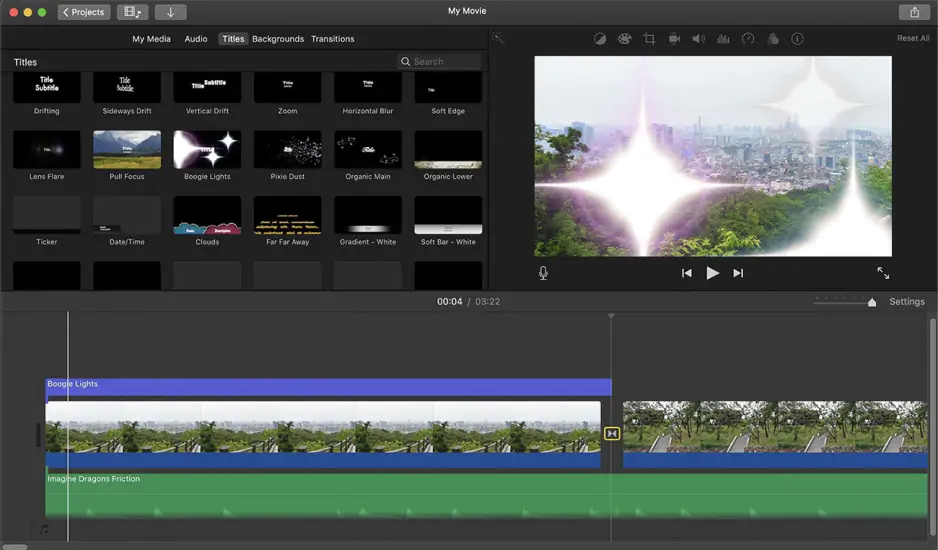
iMovie keeps the interface structured and relatively uncluttered. Importing footage, trimming clips, adjusting audio levels, or inserting transitions requires minimal setup, and the timeline remains easy to navigate as projects become larger. Apple also automates several routine editing tasks that often require manual adjustment in more advanced software. Titles align correctly, transitions apply consistently, and export presets are already configured for platforms like YouTube and mobile devices. Even on a smaller MacBook display, the workspace generally stays manageable.

DaVinci Resolve requires a more deliberate workflow. The software is divided into separate pages for media management, editing, color grading, Fusion effects, Fairlight audio, and export, so project work frequently involves moving between different environments. Some tools, particularly node-based compositing and advanced color controls, take time to fully understand. Media organization and timeline management also require more attention compared to iMovie.

Winner: iMovie’s workflow is easier to learn and more efficient for everyday editing tasks.

Features

DaVinci Resolve covers far more areas of post-production inside one application. The editing page supports multicam timelines, adjustment clips, proxy media workflows, advanced trimming modes, and detailed timeline management for larger projects. Color grading is significantly more advanced than iMovie’s, with HDR tools, tracking, masking, node-based corrections, waveform scopes, and shot matching available directly in the Color page. Fusion handles motion graphics and compositing through a node-based system, while Fairlight includes audio mixing, dialogue repair, automation controls, and surround sound support. Resolve also works with professional codecs like ProRes, DNxHD, and Blackmagic RAW, supports HDR grading and delivery workflows, and DaVinci Resolve Studio includes cloud collaboration and shared project workflows.

iMovie focuses on streamlined editing tasks. You can trim footage, rearrange clips, apply transitions, add titles, adjust audio levels, and use trailer or storyboard templates for faster editing. Codec controls are limited, multicam editing is unavailable, and motion graphics stay restricted to preset titles and simple animations. Proxy media workflows, HDR grading tools, and collaborative editing features are also absent.

Winner: DaVinci Resolves toolset is far more capable for advanced editing, color work, audio production, and larger workflows.

Performance

iMovie runs smoothly on most Apple devices, particularly newer Macs with Apple Silicon processors. Standard 1080p and 4K timelines stay responsive, render times are usually short, and background rendering helps reduce interruptions during editing. Hardware requirements also stay relatively modest, so smaller projects tend to run reliably even on older MacBooks.

Compared to iMovie, DaVinci Resolve is much more hardware-intensive. GPU acceleration plays a major role in playback and rendering performance, especially once HDR grading, Fusion effects, noise reduction, or high-bitrate footage enter the project. Systems with dedicated graphics cards and larger amounts of RAM handle Resolve well, particularly when optimized media or proxy workflows are enabled. Lower-powered laptops usually struggle earlier, often during layered timelines or more demanding color work. Resolve itself remains stable overall, though project complexity has a much larger effect on performance than it does in iMovie.

Winner: iMovie is better suited to lightweight systems, while DaVinci Resolve performs better in demanding production environments.

Pricing

iMovie is completely free for macOS and iOS users through the App Store. There’s no subscription model, no paid upgrade tier, and no watermark on exported videos. For casual editing, the software covers most basic needs without additional costs.

DaVinci Resolve also offers one of the strongest free versions currently available in video editing. The free release includes advanced editing, color grading, Fairlight audio tools, and Fusion compositing features with no export watermark. DaVinci Resolve Studio costs $295 as a one-time purchase rather than a monthly subscription. The paid version mainly adds advanced AI tools, additional Resolve FX plugins, advanced noise reduction, and collaboration features.

Winner: both DaVinci Resolve and iMovie offer excellent value, though iMovie remains the simpler option for completely free editing.

Platform compatibility

iMovie is limited to Apple devices. It runs on Mac, iPhone, and iPad, with iCloud handling project syncing between them. If you already use Apple hardware every day, the workflow feels predictable and easy to maintain. The limitations appear once another operating system enters the picture. There’s no Windows version, no Linux support, and very little flexibility outside Apple’s ecosystem.

DaVinci Resolve takes a broader approach. It supports Windows, macOS, Linux, and also includes a dedicated iPad version. Editors can move projects between different systems, though media formats and hardware configurations still need attention on larger productions. Resolve also scales much better across different types of hardware. It runs on lightweight Apple Silicon laptops, but it can also take full advantage of high-end workstations with dedicated GPUs.

AI tools

DaVinci Resolve integrates AI features much deeper into the editing workflow through the DaVinci Neural Engine. Several tools are genuinely useful during post-production, particularly on larger projects where repetitive adjustments can consume a surprising amount of time. The software includes:

  • Magic Mask for isolating people or objects inside a shot
  • Voice isolation for reducing background noise in dialogue recordings (Studio version)
  • Automatic transcription and subtitle generation
  • Scene cut detection for reconstructing edits from rendered footage
  • Smart reframing for vertical and social media formats

Most tools still require occasional corrections, especially with fast motion or difficult lighting, but the time savings become noticeable on more complex projects.

iMovie takes a much lighter approach to automation. Its tools are designed more around convenience than detailed control. Features include:

  • Automatic video enhancement
  • Background noise reduction
  • Cinematic mode support for iPhone footage
  • Magic Movie for automatic clip assembly and soundtrack generation

The controls stay intentionally simple, and customization remains fairly limited.

Pros & cons

DaVinci Resolve
Pros:
  • Professional color grading and HDR tools

  • Fusion compositing and Fairlight audio included

  • Strong free version with no watermark

  • Supports Windows, macOS, Linux, and iPad

  • Advanced AI features in the Studio version

Cons:
  • Steep learning curve in advanced sections

  • Heavy hardware requirements for larger projects

  • Several AI tools require Studio version

  • Playback can slow down on weaker laptops

iMovie

Pros:
  • Simple interface and short learning curve

  • Free for macOS and iOS users

  • Well optimized for Apple hardware

  • Useful templates and automatic enhancements

  • Reliable for smaller editing projects

Cons:
  • Limited advanced editing and grading controls

  • Apple-only ecosystem

  • No professional multicam or collaboration tools

  • Limited export and codec settings

Best use cases

Both editors can handle YouTube videos, social content, business clips, and personal projects, though they fit very different types of workloads and production styles.

YouTube production: both work well for YouTube, though iMovie usually suits smaller channels, reaction videos, vlogs, tutorials, and faster publishing schedules. DaVinci Resolve becomes far more useful once projects involve multicam footage, detailed grading, sound cleanup, or more layered editing structures.

TikTok & social content: iMovie fits short-form content particularly well. Vertical exports, quick timeline edits, mobile support, and simple project organization help speed up edits for Reels, Shorts, and TikTok videos. Resolve supports social workflows too, but the software clearly expects more involved editing.

Beginner editors & students: iMovie is easier to approach for first-time editors and school projects. The interface stays simpler, and smaller edits rarely turn into technical troubleshooting.

Professional filmmaking & advanced post-production: DaVinci Resolve is significantly stronger for cinematic editing, commercial production, documentaries, music videos, and grading-heavy workflows. It also scales more effectively once projects become larger or client work enters the picture.

Business & casual editing: Both work well here, though iMovie generally feels more practical for presentations, travel videos, internal company clips, and everyday editing tasks.

Final verdict

The iMovie vs. DaVinci Resolve decision is really a question of editing environment and production demands. iMovie works comfortably for shorter projects and routine editing on Apple devices. Family videos, school assignments, travel footage, quick social uploads. The workflow stays compact, and most projects can be finished fairly quickly on a standard MacBook.

DaVinci Resolve is built around much heavier post-production work. Larger timelines, RAW media, advanced grading sessions, sound cleanup, delivery management, collaborative projects. It also expects stronger hardware and a greater level of technical familiarity from the editor.

Both iMovie and DaVinci Resolve do their jobs well. The better choice depends on how complex your projects are likely to become and how much production flexibility you actually need.

Alternative: Movavi Video Editor

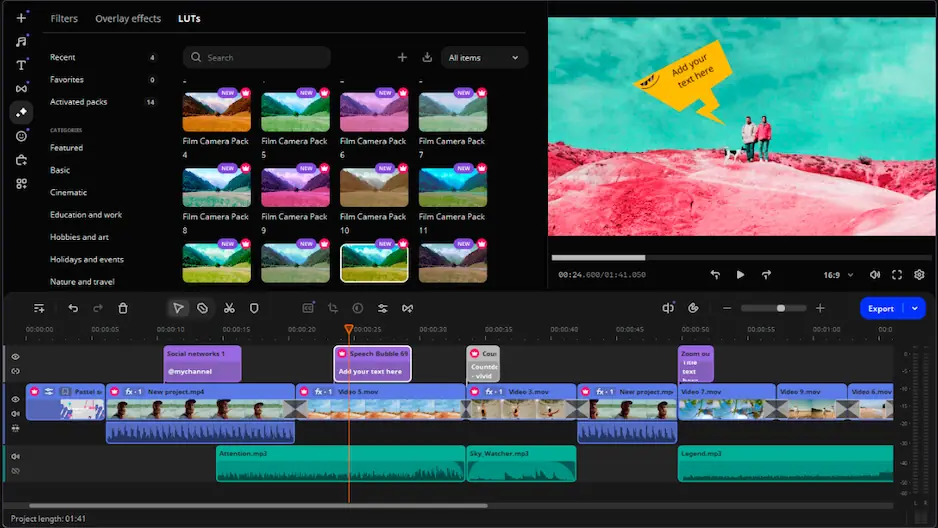
There’s a fairly large gap between what iMovie offers and what DaVinci Resolve expects from the person using it. Movavi Video Editor sits somewhere around the middle. You get more room for manual editing, effects, transitions, and export control than iMovie allows, but the software avoids much of the heavier workflow and technical maintenance tied to Resolve.

On a regular laptop, it usually feels easier to manage for shorter YouTube videos, tutorials, travel footage, and social media edits where spending an hour adjusting color scopes or export settings probably isn’t necessary.

Frequently asked questions

Is DaVinci Resolve better than iMovie for beginners?

Usually no. Resolve introduces color nodes, audio buses, codec settings, and multiple workspaces very early. For basic editing, that can feel excessive. iMovie keeps the workflow much easier to follow.

Does DaVinci Resolve have more features than iMovie?

By a wide margin. Resolve supports HDR grading, RAW footage, multicam editing, Fusion compositing, Fairlight audio mixing, proxy workflows, and collaborative editing. iMovie focuses on standard timeline editing and preset-based tools.

Which editor is better for YouTube videos?

Depends on the channel. iMovie works well for vlogs, tutorials, travel videos, and quicker uploads. Resolve is better suited to heavier grading, layered audio, multicam footage, and more involved post-production work.

Have questions?
If you can’t find the answer to your question, please feel free to contact our Support Team.
Join us for discounts, editing tips, and content ideas

1.5M+ users already subscribed to our newsletter

By signing up, I agree to receive marketing emails from Movavi and agree to Movavi's Privacy Policy.