
Clipchamp vs. CapCut: Features, Pricing, Performance Compared

Edited by
Ben Jacklin
4,576

Clipchamp and CapCut are both free video editors, but they serve different audiences. CapCut is the better choice for mobile-first creators, TikTok content, and social media workflows – it's packed with trend-driven templates, AI tools, and a polished mobile experience. Clipchamp is the stronger pick for Windows users who need a straightforward browser-based or desktop editor integrated into Microsoft 365. If you're making short-form social content on your phone, go with CapCut. If you're editing on a PC and need something simple that works inside your existing Microsoft ecosystem, Clipchamp is the more natural fit.

Feature

Clipchamp

CapCut

Best for

Windows / Microsoft 365 users, beginners, casual editing

Social media creators, TikTok / Reels / Shorts, mobile-first users

Supported platforms

Web (browser), Windows desktop, integrated in Microsoft 365

iOS, Android, Web, Windows, macOS

Ease of use

Simple, clean drag-and-drop interface

Intuitive mobile-first UI, slightly more features to explore

Quick summary

Best for TikTok: CapCut. CapCut is built around short-form social content, with vertical video presets, trending templates, and beat-sync tools that make TikTok editing fast and intuitive.

Best for beginners: Clipchamp (for desktop) / CapCut (for mobile). Clipchamp's minimal interface gets desktop beginners editing in minutes, while CapCut's mobile app is the easiest entry point for creators working on a phone.

Best mobile workflow: CapCut. CapCut's iOS and Android apps are purpose-built for mobile editing, offering a full feature set – including AI tools and effects – optimized for touchscreen use.

Best free option: CapCut. Both tools are free with no watermark, but CapCut delivers significantly more features – including AI background removal and auto captions – without requiring a paid upgrade.

Ease of use

Clipchamp

CapCut

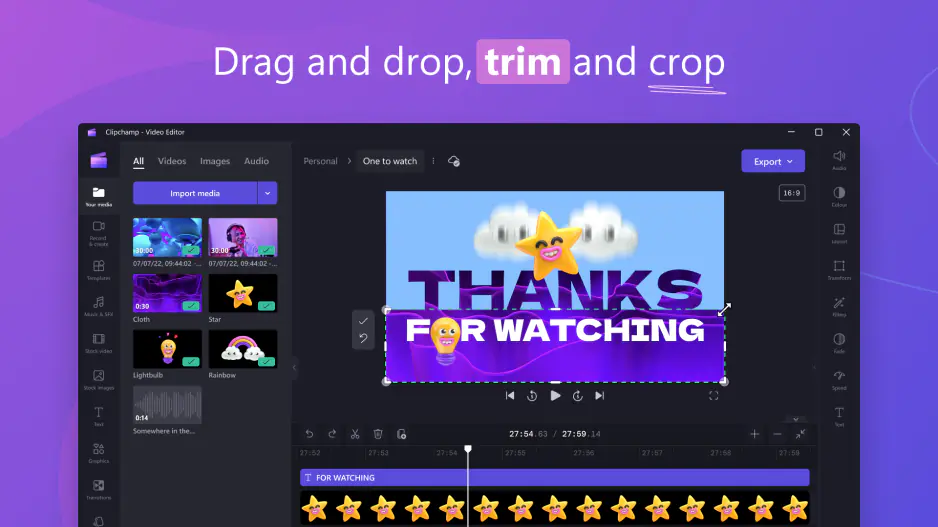
Clipchamp keeps things deliberately simple. When you open it – whether in a browser or the Windows app – you're greeted with a clean timeline-based interface that should feel familiar to anyone who has used iMovie or a basic desktop editor. Dragging clips onto the timeline, adding text, and trimming footage takes minutes to learn, not hours. Because it's integrated into Windows 11 and Microsoft 365, there's almost no onboarding friction for existing Microsoft users.

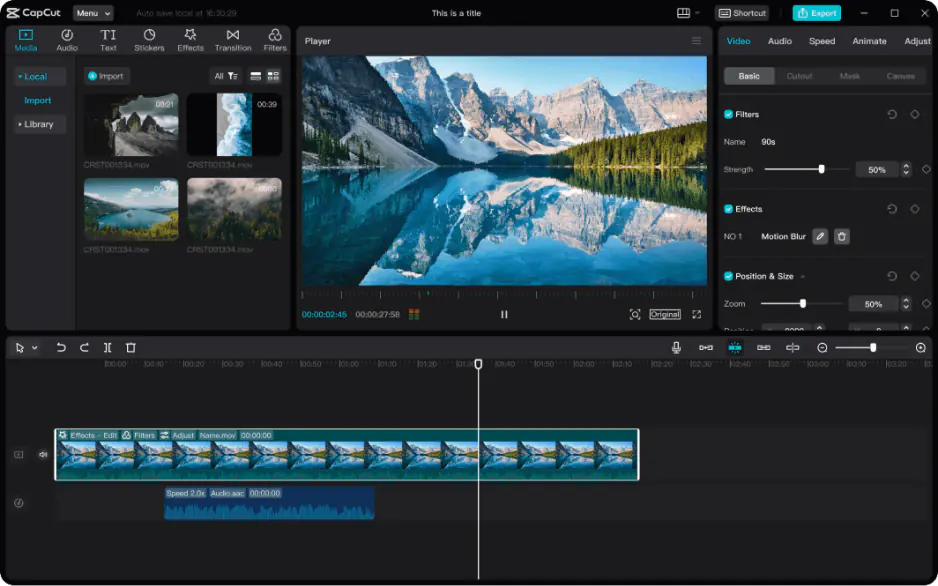
CapCut is also beginner-friendly, but it offers considerably more depth. On mobile, the interface is designed around vertical video and one-tap effects, making it excellent for quick TikTok-style edits. On desktop, the layout is more complex – there are panels for effects, filters, transitions, audio, and AI tools – which means beginners have more to discover before they feel fully at home. That said, CapCut's template system does a lot of the heavy lifting: pick a trending template, swap in your clips, and you're done.

Winner: Clipchamp for pure simplicity and onboarding speed. CapCut is close, but its broader feature set adds a slight learning curve.

Features

Clipchamp covers the core editing toolkit well: splitting and trimming clips, adding transitions, overlaying text and stickers, adjusting speed, applying filters, and recording a webcam or screen. Auto captions are available and work reasonably well. However, the template library is comparatively small and leans toward business and educational use cases rather than viral social content.

CapCut is significantly more feature-rich. Beyond the basics, it offers keyframe animation, chroma key (green screen), multi-layer editing, speed curves, motion blur, and a library of thousands of effects and transitions – many of which are synced to trending audio. Its auto-captions are fast and accurate across multiple languages. The template collection is enormous and updated constantly to reflect current TikTok and Reels trends. Export presets for TikTok, Instagram Reels, and YouTube Shorts are built right in, making it trivial to output the correct aspect ratio and resolution for each platform.

Clipchamp also exports for social formats, but CapCut is clearly built around social content in a way Clipchamp is not.

Winner: CapCut – it offers a noticeably richer feature set, especially for social media content creators.

Performance

Clipchamp is browser-based at its core, which means performance depends on your machine and browser health. For simple 1080p edits it runs smoothly, but longer timelines or heavy use of effects can cause lag. The Windows desktop app performs better than the browser version. Exports are reasonably fast for short clips, though the free tier caps output at 1080p.

CapCut shines on mobile, where it was purpose-built to run efficiently on iOS and Android devices. The desktop app is snappy and handles longer projects without the browser overhead that can slow Clipchamp down. Export speeds are competitive, and the mobile app in particular handles rendering impressively well given the hardware constraints of phones.

Neither tool places a watermark on free exports – a meaningful advantage both share over many competitors. However, CapCut's free tier restricts some AI features and premium assets, while Clipchamp's free tier feels more complete out of the box.

Winner: CapCut – faster exports, better mobile performance, and a more stable experience on complex projects.

Pricing

Clipchamp is free for anyone with a Microsoft account. There are no paid tiers for individual users on the standard consumer version (Microsoft 365 Business subscribers get additional stock footage and content). The free plan includes 1080p export, no watermark, and access to all core editing tools.

CapCut is also free with no watermark on exports. The free tier is genuinely generous – most users will never need to pay. CapCut Pro is available at approximately $7.99/month (or discounted on annual plans) and unlocks higher export resolutions (up to 4K), additional AI features, premium templates, cloud storage, and commercial-use licenses for assets.

For hobbyists and casual creators, both tools are effectively free. For professionals or businesses that need 4K output, extended AI tools, and commercial licensing, CapCut Pro is the relevant paid option (Clipchamp doesn't have an equivalent individual paid tier).

Winner: Tie for casual use. Both are free with no watermark. CapCut Pro adds meaningful value for power users; Clipchamp has no paid upgrade path for individuals.

Platform compatibility

Clipchamp runs in any modern web browser (Chrome, Edge, Firefox) and has a dedicated Windows desktop app integrated into Windows 11. It is not natively available for macOS or as a standalone mobile app, which is a genuine limitation for non-Windows users.

CapCut runs across the board: iOS, Android, Windows, macOS, and a web browser version. It was originally a mobile-first product and its iOS and Android apps remain its strongest implementations. The desktop apps (Windows and macOS) are polished and capable. This cross-platform reach gives CapCut a significant advantage for anyone who edits on multiple devices or primarily works on a Mac or smartphone.

If you're a Windows-only user deeply invested in the Microsoft ecosystem, Clipchamp fits naturally. For everyone else – especially Mac users or anyone who edits on mobile – CapCut is the more versatile choice.

AI tools

AI capabilities are one of the most relevant battlegrounds between these two tools in 2024–2025.

Clipchamp AI tools:

  • Auto captions – automatically transcribes speech and adds styled subtitles
  • Basic text-to-speech – generates voiceover from typed text
  • Filler word removal (in select Microsoft 365 plans)

CapCut AI tools:

  • Auto captions – fast, multi-language, highly accurate; easily stylized
  • Background removal – one-tap AI subject isolation without a green screen
  • Smart cutout – remove or replace backgrounds on a frame-by-frame basis
  • AI enhance – upscales and sharpens video quality
  • AI avatars – generate talking-head video from text scripts
  • Text-to-video – generate short clips from prompts (Pro feature)
  • Auto reframe – intelligently resizes and reframes content for different aspect ratios
  • AI audio – noise cancellation, auto beat sync to music

CapCut's AI toolkit is considerably deeper and more practically useful for everyday content creation, particularly for creators who want to speed up workflows on social media.

Winner: CapCut – it's not close. CapCut has invested heavily in AI features that Clipchamp simply doesn't match.

Pros & cons

Clipchamp

Pros:
  • Completely free with no watermark

  • Extremely easy to learn – ideal for beginners

  • Deep integration with Windows 11 and Microsoft 365

  • Available as a browser app – no download required

  • Screen and webcam recording built in

  • Clean, distraction-free interface

Cons:
  • Not available on macOS or as a native mobile app

  • Limited template library, especially for social media trends

  • Browser-based performance can lag on complex projects

  • Weak AI feature set compared to competitors

  • Free export capped at 1080p

  • Not suited for advanced or professional editing

CapCut

Pros:
  • Free with no watermark

  • Massive, trend-aligned template library

  • Excellent mobile experience (iOS and Android)

  • Cross-platform: iOS, Android, Windows, macOS, Web

  • Advanced AI tools (background removal, auto captions, enhance, avatars)

  • Built-in export presets for TikTok, Reels, Shorts

  • Keyframes, chroma key, speed curves, and more advanced editing tools

  • Frequently updated with new features and trending content

Cons:
  • Some AI features and premium assets require CapCut Pro subscription

  • Mobile interface can feel overwhelming at first for total beginners

  • Concerns around data privacy (ByteDance/TikTok ownership)

  • Pro subscription required for 4K export and commercial asset licensing

  • Desktop app is heavier than Clipchamp for simple tasks

Best use cases

Use case

Best tool

Why

YouTube content

Clipchamp

Easy timeline editing, no watermark, good for talking-head or screen recordings

TikTok / Reels / Shorts

CapCut

Trend templates, vertical video presets, beat sync, auto captions

Social media content creation

CapCut

Broader feature set, platform-specific exports, AI tools

Final verdict

CapCut wins on features, AI tools, platform support, and social media optimization. It's the better tool for the majority of video creators in 2026 – particularly anyone making content for TikTok, Instagram, or YouTube Shorts. Its free tier is genuinely powerful, and the mobile experience is best-in-class.

Clipchamp wins on simplicity and Windows integration. If you're a casual editor who works primarily on a Windows PC, rarely edits on mobile, and wants the lowest possible friction for basic video projects, Clipchamp is a perfectly capable and completely free choice.

The CapCut vs. Clipchamp decision often comes down to one question: are you making social content for mobile audiences, or are you doing straightforward desktop editing? For social content, choose CapCut. For simple PC-based editing within the Microsoft world, choose Clipchamp.

Alternative: Movavi Video Editor
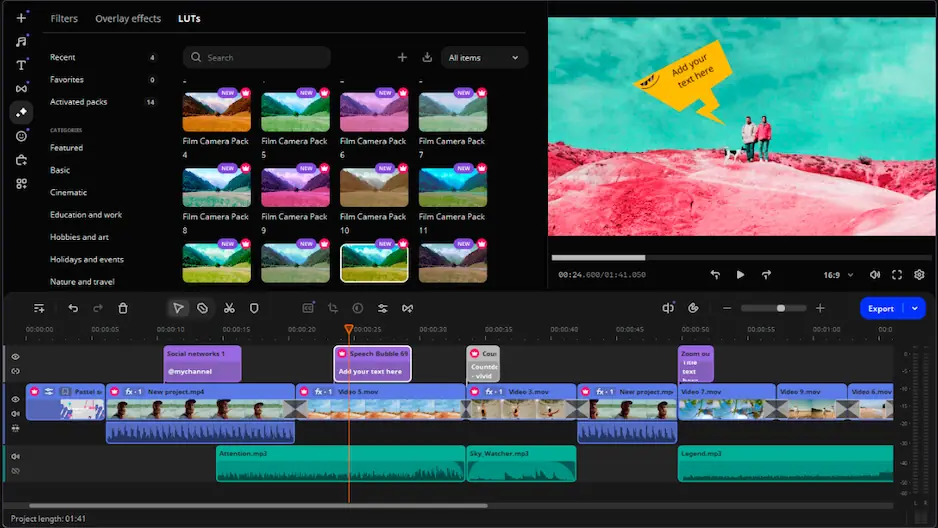
If neither Clipchamp nor CapCut quite fits your needs, Movavi Video Editor is worth a serious look.

Movavi sits between consumer-grade tools and professional software – it offers a genuinely intuitive interface without sacrificing editing power. It's available for both Windows and macOS, supports 4K export, includes a solid library of transitions and effects, and comes with useful AI features like background removal and noise reduction. Unlike Clipchamp, it works fully offline and isn't tied to any single ecosystem. Unlike CapCut, it's not focused exclusively on short-form social content – making it a better fit for longer projects, tutorials, family videos, or small business productions.

Movavi offers a free trial and a one-time purchase option, which appeals to users who prefer not to commit to a subscription. If you want more control and polish than Clipchamp offers, but don't need CapCut's TikTok-centric toolset, Movavi is an excellent middle ground.


Frequently asked questions

Is CapCut better than Clipchamp?

For most users – especially mobile creators and social media content makers – yes. CapCut offers more features, better AI tools, cross-platform support, and a massive template library. Clipchamp is better only in specific scenarios: Windows-only users, Microsoft 365 workflows, or people who need the simplest possible interface.

Does CapCut or Clipchamp add a watermark?

Neither tool adds a watermark to free exports. This is one of the key advantages both share over many competing free video editors. CapCut Pro does not add watermarks either – the upgrade is purely about unlocking additional features like 4K export and premium assets.

Can I use Clipchamp on a Mac?

No. Clipchamp is only available as a Windows desktop app and a browser-based tool. While you can technically access it through a web browser on macOS, the experience is limited and Microsoft does not officially support it on Mac. Mac users should consider CapCut, iMovie, or an alternative like Movavi.

Is CapCut safe to use?

CapCut is developed by ByteDance, the same company behind TikTok. Some users and organizations have privacy concerns due to data handling practices. For personal creative use it is widely used and generally considered safe, but business users or those in regulated industries should review CapCut's privacy policy and consider alternatives if data residency is a concern.

Which is better for YouTube videos: CapCut or Clipchamp?

It depends on the type of YouTube content. For short-form content (Shorts), CapCut's presets and templates are purpose-built. For longer videos, vlogs, or tutorials, Clipchamp's timeline interface is more comfortable for desktop editing. For serious long-form YouTube productions, both tools have limitations and a dedicated editor like DaVinci Resolve (free) or Movavi may serve you better.

Have questions?
If you can’t find the answer to your question, please feel free to contact our Support Team.
Join us for discounts, editing tips, and content ideas

1.5M+ users already subscribed to our newsletter

By signing up, I agree to receive marketing emails from Movavi and agree to Movavi's Privacy Policy.