CapCut vs. Canva: Features, Pricing, Performance Compared

Edited by
Ben Jacklin
5,867

Composing video files has officially become a routine side task of our daily lives, and online vloggers constantly need creative tools that keep pace. Below is a comprehensive CapCut vs. Canva comparison to reveal which platform fits your production goals. Each app uses a different setup to process your visual drafts. You get a simple breakdown of both platforms to pick the best software for your daily clips without wasting time.

Comparison parameter

CapCut

Canva

Who it's for

Social media creators and daily vloggers

Small businesses, educators, and design teams

Supported platforms

Windows, macOS, iOS, Android, Web

Web browsers, Windows, macOS, iOS, Android

Ease of use

Busy layout with dense video timelines

Clean drag-and-drop workspace for layouts

Quick summary

  • Best for TikTok: CapCut wins here because it creates text subtitles from voice clips and changes frame shapes with one click.
  • Best for beginners: Canva takes this spot because the clean screen removes extra timelines and lets you drop elements straight down.
  • Best mobile workflow: CapCut fits phone editing best since you pull current sounds and filters right inside your project timeline.
  • Best free option: Canva provides the top free deal because you never see an unexpected watermark on your finished graphic designs.

Ease of use

CapCut

Canva

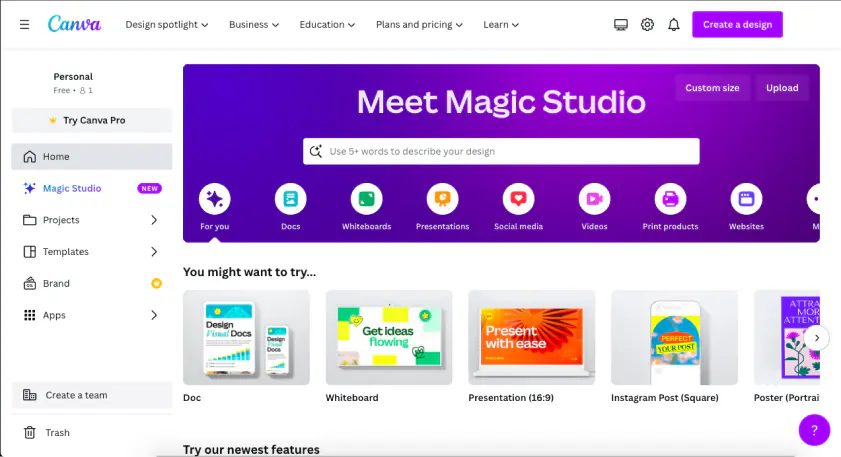
Canva presents a completely clean layout where graphic blocks simply drop into place without any alignment headaches. The platform was originally built for posters, slides, and social graphics, so the entire workspace feels closer to arranging objects on a flat digital sheet than managing a professional editing timeline. Onboarding takes only a few minutes because users drag assets directly onto a static page without learning complicated editing mechanics. Canva intentionally skips advanced video controls, making it especially attractive for students, small businesses, and social media managers who need quick layouts without formal training.

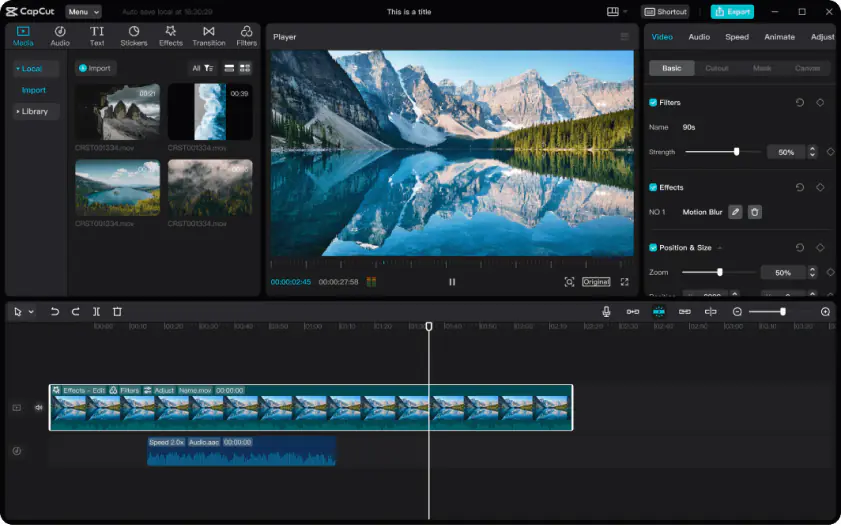
CapCut approaches editing from the opposite direction. ByteDance built the software specifically for fast social-media video creation, so the interface revolves around timelines, layered clips, and moving media rather than static page design. The application includes floating asset panels, scrubbing tools, keyframes, and multiple stacked video tracks. While CapCut still feels simpler than professional editors, beginners usually spend their first hour understanding how the multi-layer timeline system works before comfortably navigating trimming tools.

Winner: Canva has faster onboarding and easier workspace navigation.

Features

CapCut delivers a much broader feature set for actual video editing. The software includes automated subtitles, quick background removal, basic keyframe animation, speed adjustments, trending text templates, and direct exports for TikTok and YouTube Shorts. Since ByteDance designed the editor around modern short-form content, the platform also supports multi-track timelines, layered overlays, music mixing, and one-click aspect ratio changes for vertical videos.

Canva focuses much more heavily on static visual layouts instead. The platform excels at posters, presentations, business graphics, and social media branding kits. Users gain access to millions of templates, vector graphics, fonts, stock images, and collaborative editing tools that work extremely well for office slides and marketing visuals. However, its video editing capabilities remain comparatively lightweight. More advanced subtitling, timeline editing, and layered video manipulation require far more manual work than inside CapCut.

Winner: CapCut offers a stronger video-editing toolkit for social content creators.

Performance

Canva runs primarily through web browsers, which keeps the experience lightweight and stable across most devices. Graphic rendering happens quickly without heavily draining laptop batteries, and the application rarely crashes because it avoids demanding multi-layer video processing. Cloud saving also helps projects stay synchronized automatically between sessions.

CapCut pushes hardware much harder. Multi-track timelines, animated overlays, audio processing, and layered effects consume substantial memory during editing. Older laptops often struggle with 4K playback or large projects containing multiple effects. Mobile exports also attach a visible CapCut logo at the end of rendered files unless users manually remove the branded ending frame.

Winner: Canva has a smoother browser performance with fewer hardware demands.

Pricing

Canva offers one of the strongest free plans in the creative software market. Even without paying, users receive access to a large collection of templates, graphics, and collaborative tools. Canva Pro costs roughly $144 annually per user and unlocks advanced brand kits, premium stock libraries, and additional design assets aimed mostly at businesses and social media teams.

CapCut follows a separate freemium strategy focused on video creation. The Standard free version remains generous, but many premium transitions, effects, templates, and export options stay locked behind CapCut Pro plan which reaches around $19.99 monthly or $179.99 annually. Attempting to use certain premium assets or 4K exports without upgrading often results in blocked renders.

Winner: Canva has better overall value for free and casual users.

Platform compatibility

Canva operates primarily through cloud-based web browsers, which makes it accessible almost everywhere. Chromebooks, Windows laptops, Macs, tablets, and even weaker office computers handle Canva smoothly because projects remain stored online automatically. Teams can also collaborate live inside the same workspace without manually transferring files between devices.

CapCut supports Windows, Mac, Android, and iOS through native applications. That flexibility works well for creators editing videos on phones and computers interchangeably. However, syncing projects between mobile and desktop versions often requires additional cloud uploads and storage management.

AI tools

CapCut integrates far more practical AI automation into its workflow. The editor automatically generates subtitles from speech tracks, isolates subjects from backgrounds with one click, and applies automated voice effects digitally. AI-assisted reframing and quick background removal help creators publish vertical social-media clips significantly faster.

Canva approaches automation much more lightly because the platform focuses primarily on design layouts rather than advanced video editing. While Canva includes basic AI-powered graphic assistance, it lacks the deeper timeline-based automation systems found inside CapCut.

Pros & cons

Canva

Pros:
  • Exceptionally easy to use with drag-and-drop mechanics – just what beginner creators need.

  • Extensive libraries house millions of shapes, business slides, and corporate templates.

  • Team cloud storage allows multi-user real-time asset co-editing.

Cons:
  • The system restricts advanced frame-by-frame timeline adjustments.

  • The web platform locks you out of your project files completely without a live internet connection.

  • Export choices lack file options like raw graphic vectors, which complicates teamwork with outside studios.

CapCut

Pros:
  • The timeline design allows beginners to stitch video clips right after onboarding.

  • You get deep modification tools including text styling, facial filters, and current transition packs.

  • Multi-device availability lets you adjust drafts on mobile screens or laptops.

Cons:
  • Advanced options like smart automation or specific filter assets require a monthly card billing.

  • The software stutters, slows down, or freezes when processing long 4K files.

  • The automated background cutout tool delivers uneven edge accuracy on complex outlines.

Best use cases

Canva handles traditional graphic layouts, school presentations, corporate branding kits, and simple image collages. It fits the marketing team that needs brand consistency across static documents.

CapCut is built for vertical TikTok production, rapid Instagram Reels, and daily YouTube Shorts clips. Business marketing teams pick CapCut to catch online internet trends quickly and sync audio clips to popular music.

Final verdict

This detailed Canva and CapCut breakdown gives you a full look at where each product shines and where it hits a wall. Open Canva if your team creates still banners, business documents, and group slide pitches. Go with CapCut if your daily media output requires frame chops, auto-captions, and fast vertical clips.

Alternative: Movavi Video Editor

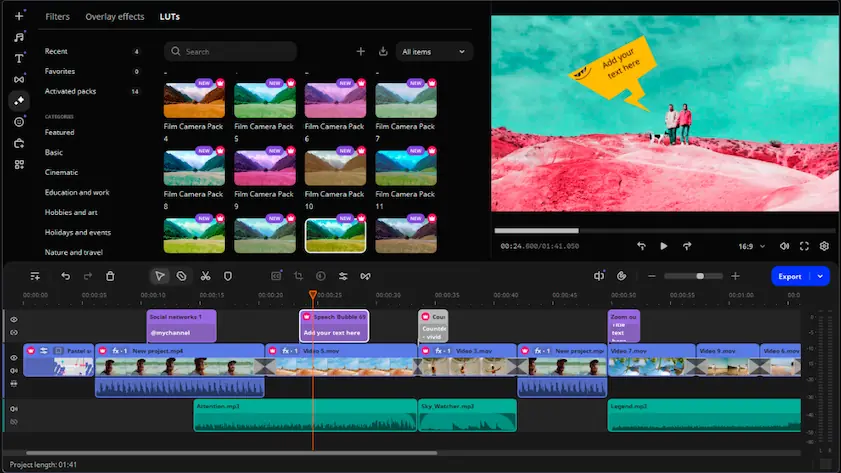
If neither CapCut or Canva seems suitable for you, check out Movavi Video Editor instead. This desktop software combines several video and audio tracks on one screen. It includes automated background removal, a sound noise cleaner, and smart object tracking. The program runs fast on laptops with basic setups. You cut heavy 4K clips without computer freezes.

Frequently asked questions

Canva vs CapCut: which app is ultimately the best for creators?

CapCut works best if you make vertical social clips. Canva fits your goals better when you design still images and slides. Unlike CapCut, Canva separates video timelines from flat page layouts.

What is a decent alternative to both editing tools?

Movavi Video Editor is the best middle ground for your computer. It gives you multiple video tracks and fast processing speeds. The software replaces monthly subscription bills with a single one-time purchase.

How do you handle a watermark on these platforms?

Canva saves your final projects completely clean without any corporate logos. CapCut places a brand frame at the very end of your video timeline. You can avoid this if you click on that terminal brand frame and hit the delete button right before you export. Just scroll to the very end of your timeline, tap the logo segment, and select the trash icon.

Have questions?
If you can’t find the answer to your question, please feel free to contact our Support Team.
Join us for discounts, editing tips, and content ideas

1.5M+ users already subscribed to our newsletter

By signing up, I agree to receive marketing emails from Movavi and agree to Movavi's Privacy Policy.