8 Best Video Stabilizers to Fix Shaky Videos [2026]

Edited by
Ben Jacklin
14,592

Key takeaways

  • Video stabilization software smooths out camera shake after you’ve filmed, so a handheld clip looks steady and less shaky.
  • Movavi Video Editor because of its intuitive user interface and reliable stabilization tools, making it accessible for beginners while still offering powerful features. The other seven go roughly from beginner-friendly to professional.
  • Six of the eight tools have a free version. Premiere Pro and Final Cut Pro offer trials instead.

Handheld footage wobbles, and you can smooth it out after filming. If you’re wondering how to stabilize a video from a weekend trip or a family road trip, the answer is video stabilization software, which several video editors include. Our top picks: Movavi Video Editor for travel vloggers on Windows or Mac, iMovie for family videos on Apple devices, and DaVinci Resolve for creators ready to advance to pro-level color and effects. The eight video stabilizer picks below help you stabilize shaky videos, for beginners with no editing experience and for creators ready for more.

How we picked tools to fix a shaky video

We compared each tool on four criteria:

  • Stabilization: does the editor have a stabilization tool among its video editing tools, and what can you adjust?
  • Platforms: Windows PC, Mac, or both.
  • Price: free version, trial, or paid plan.
  • Learning curve: how quickly a beginner can get a result.

Movavi Video Editor comes first because this list lives on Movavi’s site. No scored test sits behind the order, and the other seven go roughly from beginner-friendly to professional. We list no benchmark results, only what each tool offers.

Quick comparison: 8 video stabilizers at a glance

Tool

Best for

Platforms

Free version

Starting price

Movavi Video Editor

Travel vlogs shot handheld

Windows, macOS

Yes: 60-second cap, 1080p, watermark

From $9.95/month

iMovie

Family travel videos on Apple devices

Apple devices

Yes – completely free, no watermark

Free – no paid tier

CapCut

Short vertical travel clips

Mobile, web, desktop

Yes – watermark on Pro content/AI clips

From $9.99/month

Filmora

Regular lifestyle vlog schedules

Windows, macOS

Yes – always watermarked

From $19.99/month

Shotcut

Tech-savvy users on a budget

Windows, macOS, and Linux

Yes

Free

DaVinci Resolve

Colorists, professional editors, indie film and production

Windows, macOS, and Linux

Yes

A single $295 payment for a perpetual license

Final Cut Pro

Near-professional editors on Mac

Mac

No free version. Trial only

$299.99 one-time, or $12.99/month via the Apple Creator Studio bundle

Adobe® Premiere® Pro

Professional editors and studios

Windows and macOS

No permanently free plan

$34.49/month

The 8 best video stabilizers

1. Movavi Video Editor

Best for: bloggers and lifestyle creators who film travel vlogs handheld and want to edit them without learning pro software.
Why we picked it:

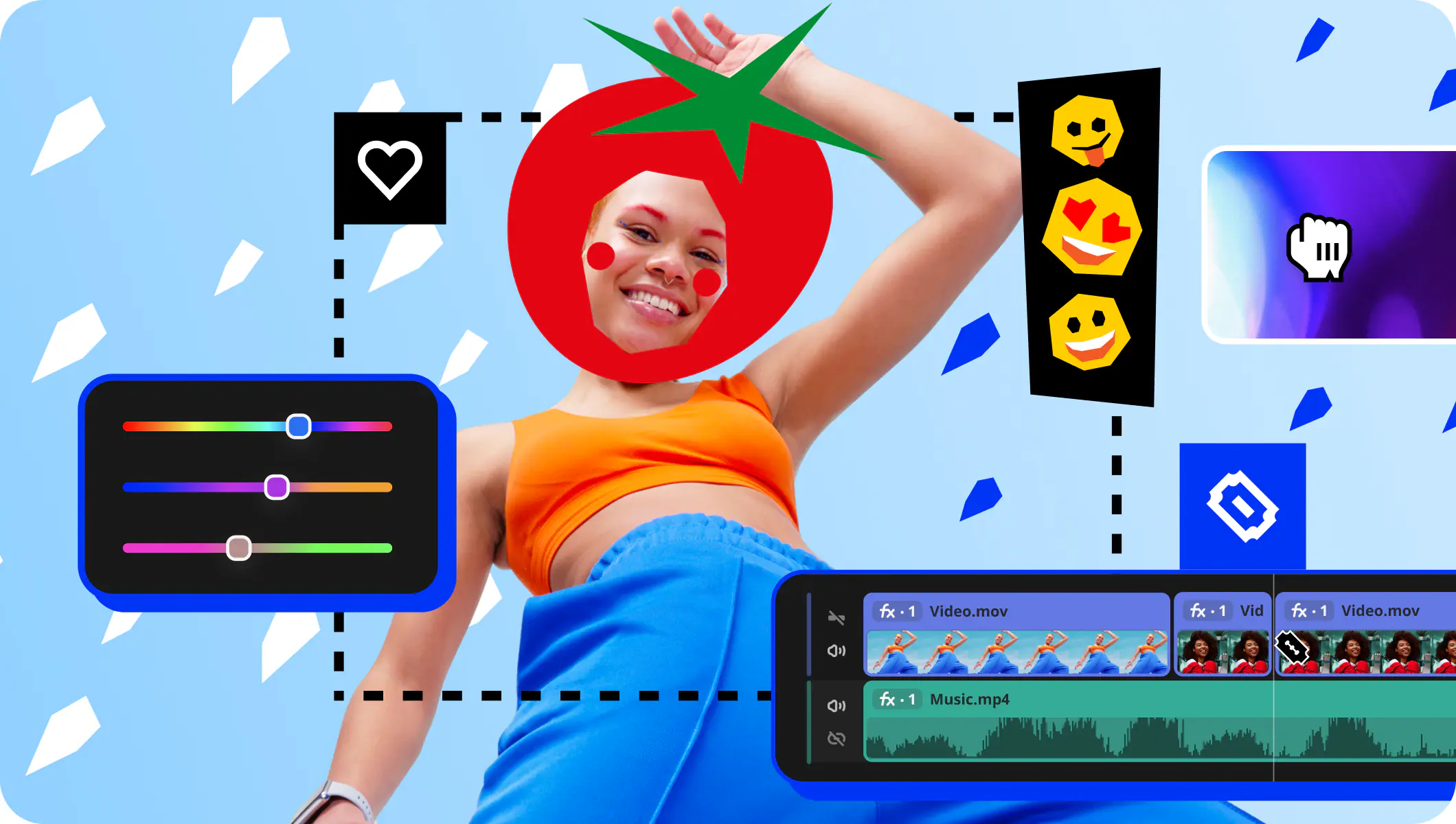
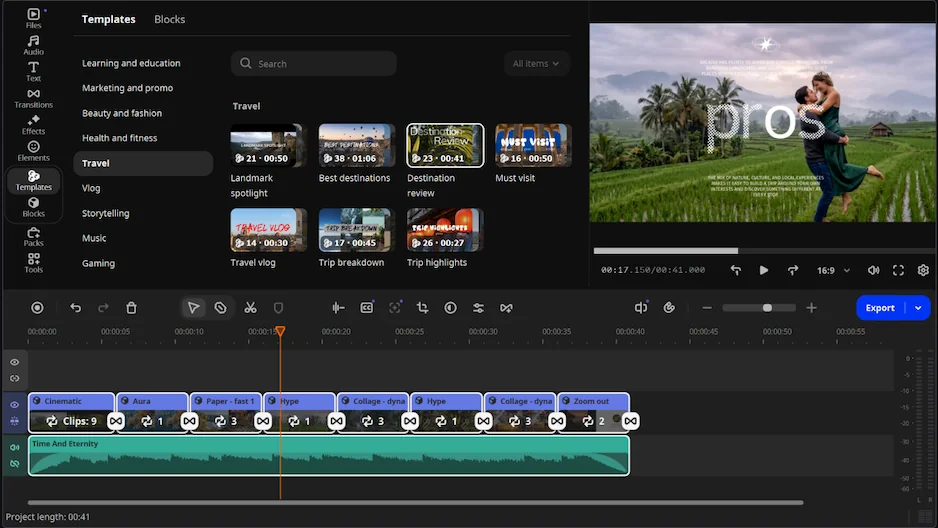
Picture a camera roll full of wobbly walking shots from a weekend away. Movavi Video Editor is an intuitive video editor with customizable video templates, one-click AI tools, and hundreds of drag-and-drop effects. Stabilization works in the same drag-and-drop editor where hover previews show your clips, effects, and transitions before you apply them, and one-click AI video denoise tidies grainy low-light shots, so a first project can already look finished.

Key features:

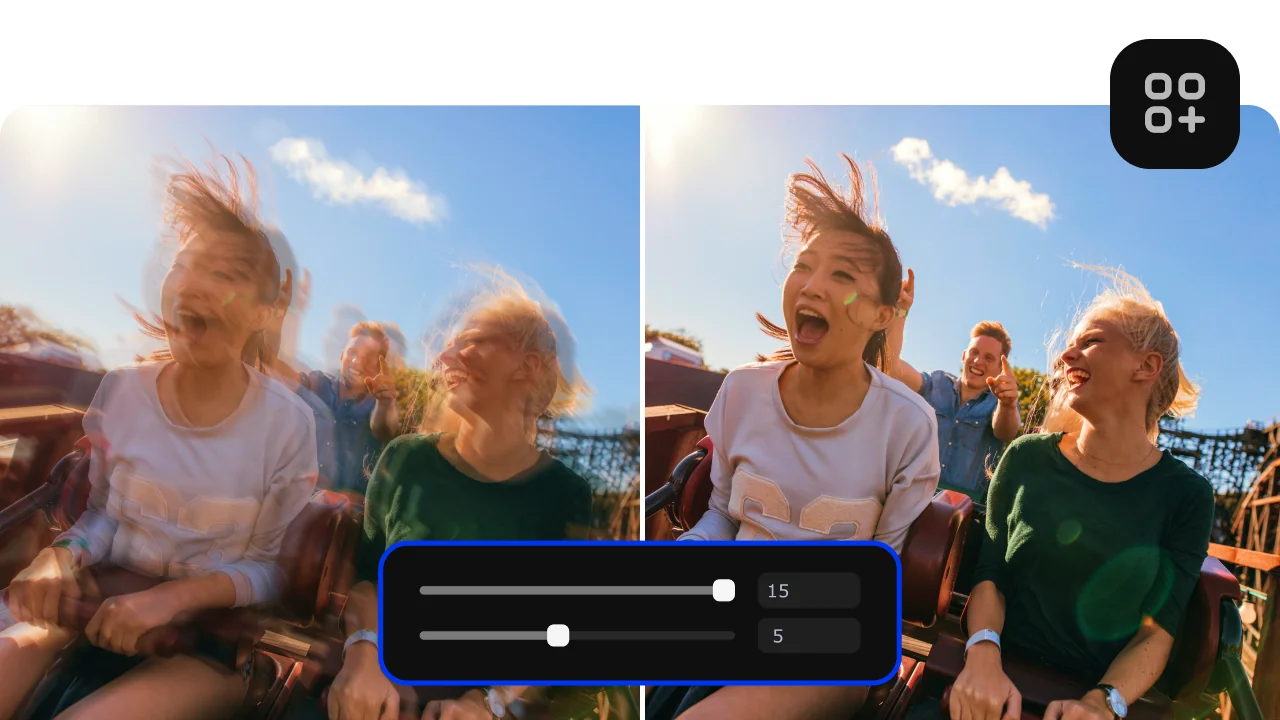
  • Video stabilization: reduces handheld camera shake, with Accuracy, Shaking, Radius, Smoothing, and Edge Cropping (None, Fixed, or Adaptive) settings.
  • AI Video Denoise: removes grain and low-light artifacts in one click while keeping faces, textures, and edges sharp.
  • Auto-Tracked Cropping: AI keeps a speaker or product centered while it reframes, including horizontal footage turned vertical.
  • AI Audio Noise Removal: clears traffic, wind, and steady hums in one click, with 95% noise reduction.
  • Movavi Video Templates: Movavi Video Templates is a multi-style library of customizable, pro-looking, modular templates for any kind of video. Each template comes with pre-set music, transitions, and text, and is built from Blocks: short, pre-edited segments such as an intro, countdown, or animated collage where you drop your own videos, photos, and text. Templates exist for vlogs, business promos, family videos, holidays, and reviews, so a travel vlog starts from a ready-made structure. Several templates come with the full version at no extra charge; the whole collection needs a separate Movavi Video Templates subscription.
Pros:
  • Every AI tool is included in the full version, with no AI credit system.

  • Works offline on the desktop and handles long videos.

  • Movavi Video Editor Free lets you test the tools in the app before you buy.

Cons:
  • Lacks advanced, detailed controls for a professional workflow.

  • No flexible UI customization.

  • No web version or cloud integration.

Price and platforms: a desktop app for Windows 10 and 11 (64-bit) and macOS 12.0 or higher. You can start with Movavi Video Editor Free and add tools as projects grow; a free version is available (60-second export cap, watermark); the full version removes both. Plans start at $9.95/month

2. iMovie

Best for: family travel videos on Apple devices.

Why we picked it:

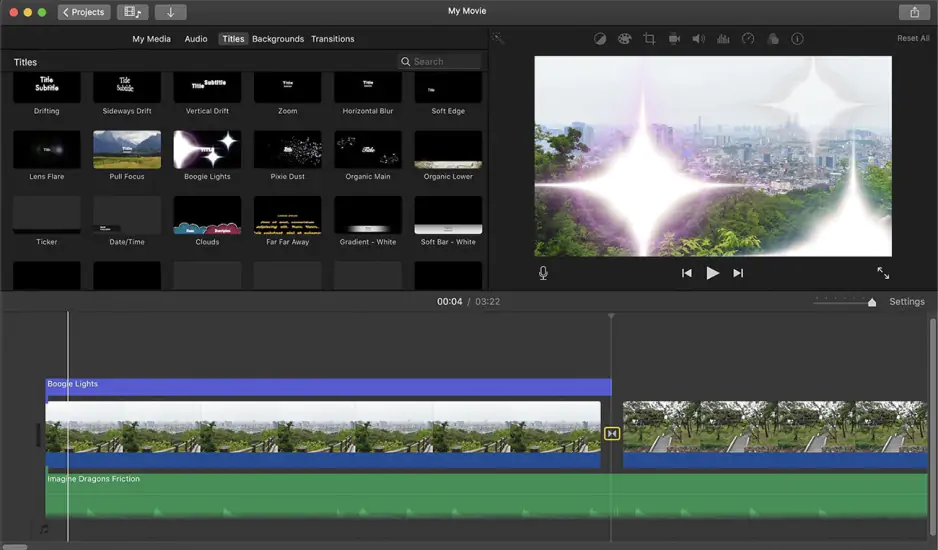
iMovie is Apple’s free, simple editor, and it comes preinstalled on Apple devices, so you can start on a wobbly road-trip clip without downloading anything. On a Mac, stabilization is a checkbox and a slider: select the clip in the timeline, click the Stabilization button, turn on Stabilize Shaky Video, and drag the slider to set how much smoothing the clip gets. A separate Fix Rolling Shutter option handles the wobbly or skewed look that quick panning can leave behind.

Key features:

  • Basic editing: a simple toolset aimed at first attempts at editing.
  • Trailer templates: ready-made trailer templates.
  • Color correction: simple color correction settings.
Pros:
  • Built into Apple devices

  • A simple editor for beginners

Cons:
  • Almost no AI features.

  • Few effects and weak export control

Price and platforms: Mac, iPhone, and iPad only. Completely free, with no paid tier or watermark.

3. CapCut

Best for: lifestyle creators posting short vertical travel clips.

Why we picked it:

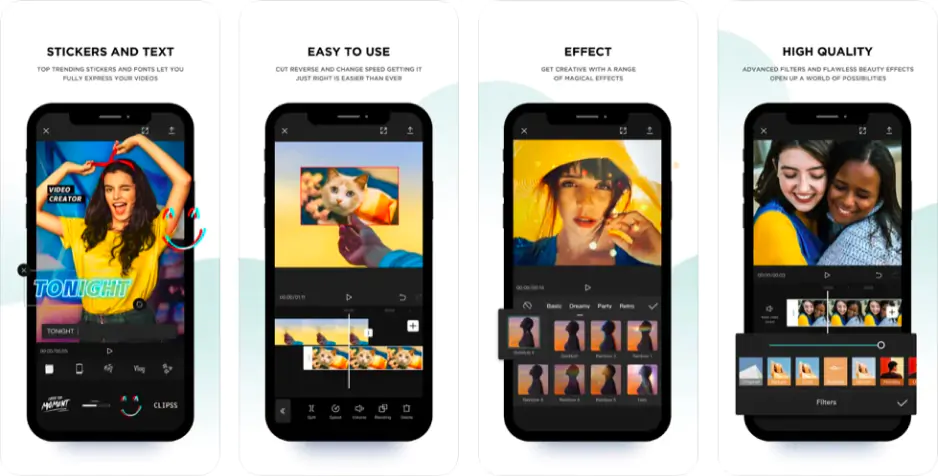
CapCut is a mobile-first editor for short, trending videos and part of the TikTok ecosystem, so it suits shaky clips headed for TikTok, Reels, or Shorts. Stabilization is a toggle in the desktop app: open Video > Basic in the right-side panel, scroll to the Stabilize option, and turn it on. The same tool is available on desktop, mobile, and web, so you can stabilize on whichever device the clip is already on.

Key features:

  • Fast editing: keyframe animation, chroma key, and speed ramping.
  • AI toolkit: camera tracking, relighting, speech recognition for subtitles, retouching, AI voiceover, and background replacement, all on AI credits.
  • AI auto-tracked cropping: keeps the main subject in frame when you change the format.
Pros:
  • Fast, simple editing for short vertical clips

  • A large library of trending templates and effects

Cons:
  • The best assets are marked Pro and need a subscription

  • Some features differ between desktop and mobile

Price and platforms: Windows, Mac, mobile, and browser. Free tier available (watermark only on Pro content or AI clips); paid tiers unlock 4K and the full AI toolkit. Paid plans start at $9.99/month.

4. Filmora

Best for: lifestyle bloggers with a steady posting schedule who want to advance to motion tracking and multitrack editing.

Why we picked it:

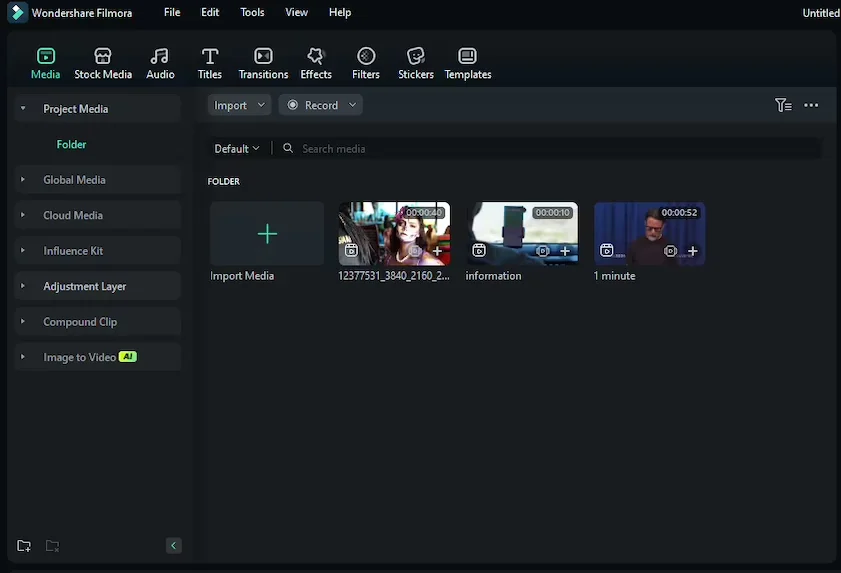
Filmora is an AI-powered video editor aimed at people with a steady stream of videos to produce. Right-click a clip on the timeline and select Stabilization, and Filmora starts analyzing it automatically. After the analysis, a slider sets the smooth level, and an Edge processing setting (Reflect, Tile, or Extend) controls how the stabilized video’s edges are filled.

Key features:

  • Multitrack timeline: built for complex multi-layer projects.
  • Motion tracking: one of many micro-tools for niche tasks.
  • AI auto reframe (Smart Short Clips): resizes footage for different formats with subject tracking.
Pros:
  • Strong AI tools for time-consuming tasks.

  • A large library of effects, transitions, and templates.

Cons:
  • AI features run on credits and a separate subscription.

  • The number of tools and fine-tuning settings can slow down learning.

Price and platforms: Windows and macOS. Free version available (watermarked); paid tiers add AI tools and remove the watermark. Paid plans start at $19.99/month*

5. Shotcut

Best for: budget-minded lifestyle vloggers who don’t mind adjusting most settings by hand.

Why we picked it:

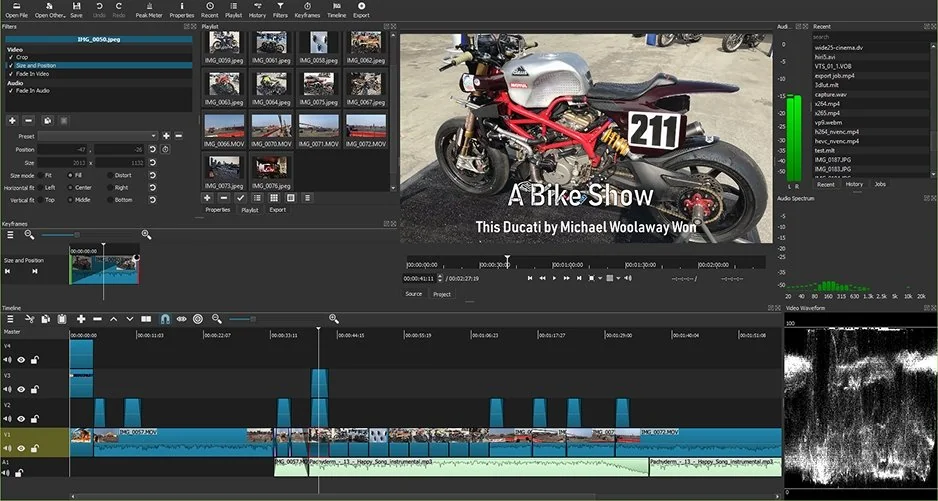
Shotcut is a free, open-source editor, so stabilizing a clip costs nothing on Windows, macOS, or Linux. Its Stabilize filter works in two passes: you have to analyze before the filter affects the video, and clicking Analyze creates an analysis job in Jobs. A Smoothing setting then controls how far the frames are allowed to move from center to steady the image.

Key features:

  • Basic multitrack editing: several tracks on one timeline.
  • Manual settings: most adjustments are set by hand.
Pros:
  • Open source and free

  • Suits tech-savvy users willing to do routine work manually

Cons:
  • No AI features

  • A minimal built-in library of effects and music

Price and platforms: Free; available across Windows, macOS, and Linux.

6. DaVinci Resolve

Best for: bloggers who have outgrown simple editors and want film-grade color control for travel vlogs.

Why we picked it:

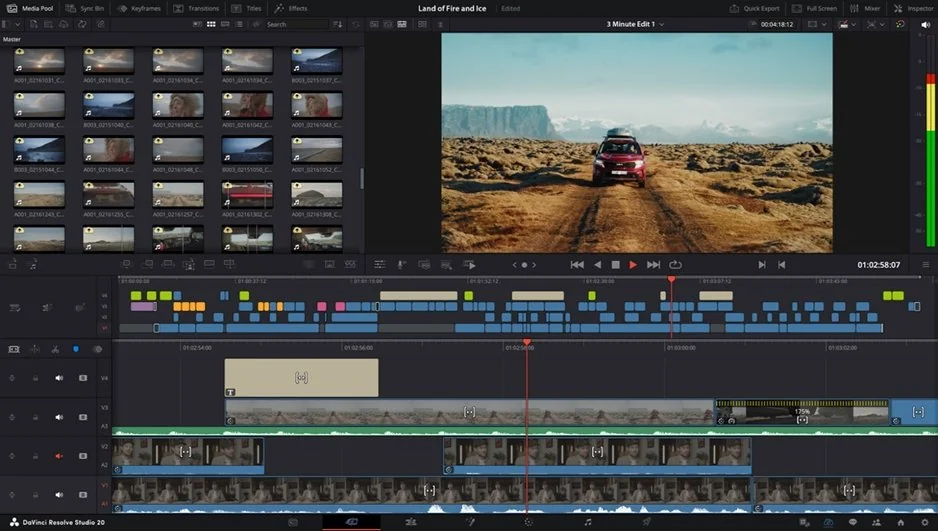
DaVinci Resolve is a professional tool with separate Edit, Color, Fairlight (audio), and Fusion (VFX) modules. Its DaVinci Neural Engine includes auto-stabilization, though the full AI toolkit is available only in the paid Studio version.

Key features:

  • DaVinci Neural Engine: object and face recognition, Magic Mask, AI upscaling, and auto-stabilization.
  • Color: advanced color correction through Nodes, with HSL, HDR grading, and LUTs.
  • Frame-accurate cutting: the industry standard for editing precision.
Pros:
  • The base version is free with no watermark and covers nearly all editing, color, audio, and VFX

  • Maximum flexibility for professional editing

Cons:
  • A complex, multi-part interface that takes time to learn

  • Resource-intensive; strong hardware is recommended

  • The free version has practically no AI tools

Price and platforms: Available across Windows, macOS, and Linux. The standard version is completely free ($0), while DaVinci Resolve Studio costs a one-time fee of $295 for a perpetual license.

7. Final Cut Pro

Best for: Mac-based creators editing iPhone or pro camera footage for YouTube vlogs.

Why we picked it:

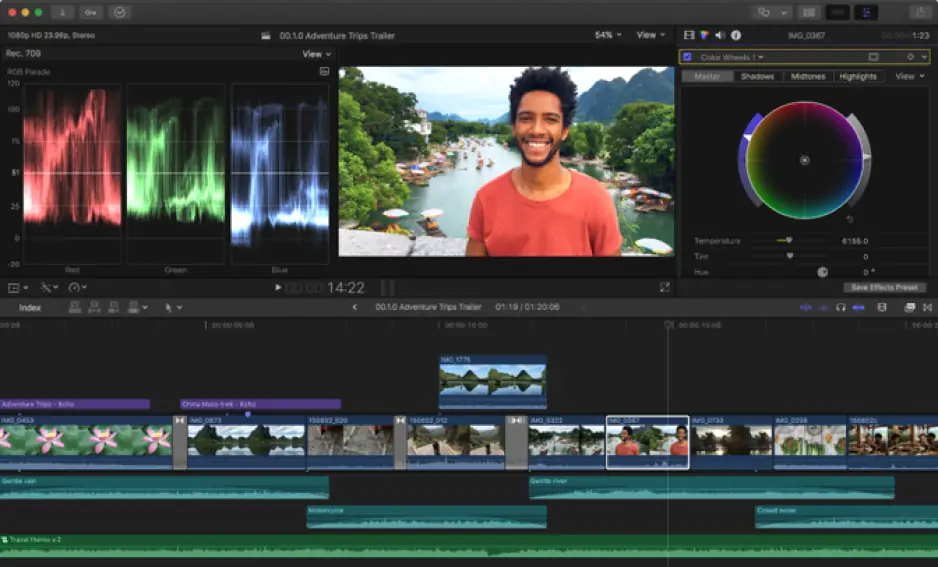
Final Cut Pro is Apple’s editor for professional editing on the Mac. Turn on Stabilization in the Video inspector, and Final Cut Pro analyzes the clip and picks a method, InertiaCam or SmoothCam, by default. InertiaCam is optimized for footage with pans and zooms, and depending on the analysis, it offers a Tripod Mode that makes the shot look like it came from a camera on a tripod.

Key features:

  • Magnetic timeline: the timeline style at the heart of the program.
  • Advanced color correction: part of its professional toolkit.
  • Multicam editing: supported for projects with several camera angles.
Pros:
  • Professional editing for the Apple ecosystem

  • Made for iPhone and pro camera footage on Apple hardware

Cons:
  • AI features are limited compared with newer AI-first products

  • The effects set is basic and expands with paid third-party packs

Price and platforms: Includes a 90-day Mac trial (no free plan). Full access is $299.99 one-time for Mac, or $12.99/month via the Apple Creator Studio bundle for Mac and iPad.

8. Adobe® Premiere® Pro

Best for:  bloggers and YouTubers who plan to advance into complex multicam projects.

Why we picked it:

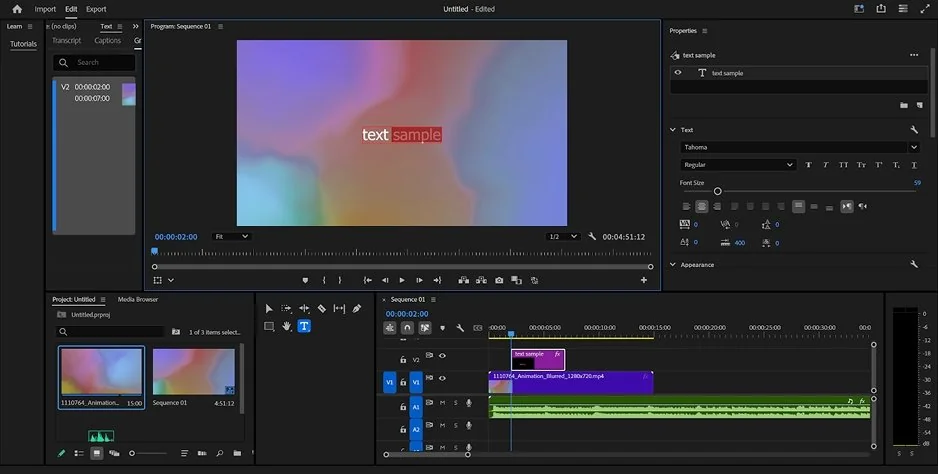
Premiere® Pro is the standard for people who edit video for a living, and it stabilizes footage with the Warp Stabilizer effect. Analysis starts automatically when you apply it, and a Smoothness setting controls how smooth the camera movement becomes. To lock a shot down completely, choose Method > No Motion instead of adjusting the Smoothness slider.

Key features:

  • Multicam editing: part of its full pro toolkit.
  • Advanced color correction: included for grading.
  • VFX plugin integration: supported for visual effects plugins.
Pros:
  • The industry standard for professional video editing

  • Adobe Sensei and Firefly AI built in

Cons:
  • Minimal built-in effects; stock comes from Adobe Stock (paid separately) or third-party plugins

  • The AI features sit inside a complex interface you need to know

Price and platforms: After a 7-day trial, Premiere Pro costs $22.99/month (annual) or $34.49/month. Unlike cross-platform editors, it only runs on modern Windows and macOS.

Our pick and how to choose video stabilization software

For a beginner with a handheld travel vlog, our pick is Movavi Video Editor: one desktop program steadies the shake, cleans the grain, and gives the video a structure.

Match your situation to a tool:

  • Windows PC or Mac, travel vlogs, no editing experience: Movavi Video Editor.
  • Apple device, family videos: iMovie.
  • Short vertical clips: CapCut.
  • Regular uploads and motion tracking: Filmora.
  • Manual control on a budget: Shotcut.
  • Film-grade color and VFX: DaVinci Resolve.
  • Mac and multicam: Final Cut Pro.
  • Complex multicam projects: Adobe Premiere Pro.
Have questions?
If you can’t find the answer to your question, please feel free to contact our Support Team.

Frequently asked questions

How to stabilize a video in Movavi Video Editor?

  1. Click Add Files and drag your video clip to the timeline.
  2. Right-click the track and select Tools > Video > Stabilization > Stabilize.
  3. Adjust the Accuracy, Shaking, and advanced settings (Radius, Smoothing, Edge Cropping).
  4. Click Stabilize, preview the fix, and click Apply.
  5. Click Export, choose your format, and click Start.

How to fix a shaky video for free?

Several tools on this list have a free version: Movavi Video Editor Free, iMovie, CapCut, Filmora, Shotcut, and DaVinci Resolve. Movavi Video Editor Free exports are capped at 60 seconds, with a 1080p limit and a watermark. Upgrading to the full version lifts those limits at any time.

Which video formats does Movavi Video Editor open?

Movavi Video Editor works with MP4, MOV, AVI, MKV, and WMV video. For audio it supports MP3, WAV, and FLAC for import and export, and it opens JPEG, PNG, BMP, and static GIF images. The free version has limited codec support.

Do I need editing experience to stabilize shaky videos?

No, you don't need any prior video editing experience. Many of the programs on our list are built specifically for beginners and use automated tools to do the complex work for you. For example, Movavi Video Editor features an easy learning curve with built-in guides and one-click AI tools, while iMovie lets you smooth out footage with just a simple checkbox and slider. Similarly, mobile-first apps like CapCut offer quick, one-tap stabilization toggles. While professional tools like Premiere Pro or DaVinci Resolve do require more expertise, the beginner-friendly options allow anyone to get steady, high-quality results right away without learning advanced editing techniques.

Join us for discounts, editing tips, and content ideas

1.5M+ users already subscribed to our newsletter

By signing up, I agree to receive marketing emails from Movavi and agree to Movavi's Privacy Policy.