12 Best Slideshow Software of 2026 [Windows/Mac/Online]

Edited by
Ben Jacklin
4,989

Making a slideshow is not just about putting pictures together anymore. Now, you can use special software to make your photos look really cool and tell a story. It doesn't matter if you're making a slideshow for a wedding, a business meeting, or just to post on social media - the right tool can make your pictures come alive and be really interesting.

Key takeaways

Choose by platform: Desktop software like Movavi and PTE offers advanced effects and better performance, while online tools like Adobe Express provide instant access without installation requirements.

Budget considerations: Free plans typically include watermarks and export limitations, while paid versions range from $20-100+ depending on features and licensing terms.

Complexity matching: Beginners benefit from template-driven interfaces, while professionals need timeline control and custom animation options.

Export priorities: Social media creators should prioritize mobile formats and quick rendering, while business users need high-resolution output and presentation compatibility.

How I tested these tools

I spent a couple of weeks creating the same 15-slide presentations on different platforms, using a mix of vacation photos and business graphics. My goal was to see how each platform worked, so I tested a few key things: how easy it was to learn, the quality of the templates, how fast I could export my work, and how good the final result looked. I tried out simple tasks, like dragging and dropping items, as well as more complex customizations to really put each tool through its paces.

12 Best Slideshow Software

Platforms: Windows, Mac

Price: Free trial (7 days with watermark), $54.95 one-time purchase


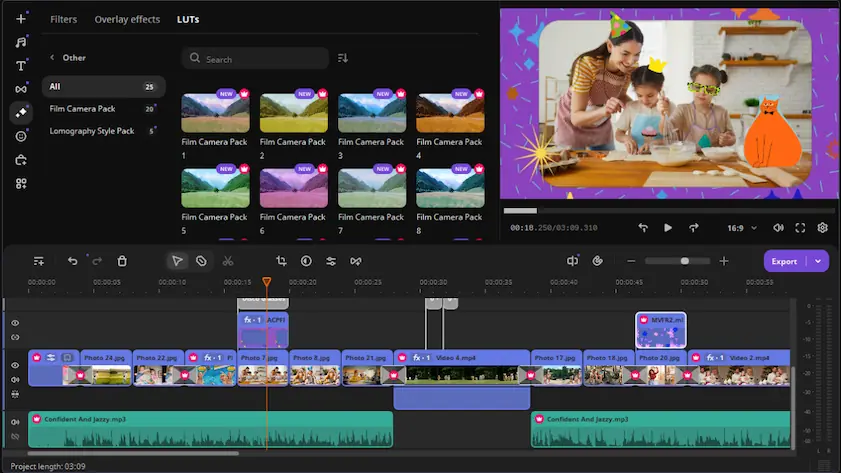
This program makes it easy to create slideshows on your computer. It has a simple guide that helps new users make slideshows automatically. But if you want more control, you can use the manual mode. This mode gives you a lot of options, like over 160 different transitions, the ability to sync your slideshow with music, and advanced timing controls.

What really caught my attention was the automatic beat-matching feature - it looks at your music track and figures out the best timing for your slides so they work with the rhythm. A lot of other programs either don't have this feature at all or they don't do it very well. On Trustpilot, I saw that Movavi has gotten great reviews from more than 21,000 users, and they love how easy it is to make videos and slideshows with this company's products. It's clear that Movavi is doing something right, and that's why so many people are happy with their experience. The fact that they've been able to make video and slideshow creation so user-friendly is a big deal, and it's something that sets them apart from the competition.
Pros:
  • Slideshow Wizard automates complex timing decisions

  • Beat-matching synchronizes slides with music rhythm

  • 160+ transitions and effects included

  • HDR color support for modern photo formats

  • Export presets for social platforms

Cons:
  • 7-day trial limitation with watermark

  • No cloud storage or collaboration features

  • Manual audio editing requires separate software

What users say:

A lot of people genuinely enjoy using the software, mainly because it’s incredibly intuitive. The clean layout and straightforward tools make recording and basic editing feel like a breeze, even for beginners. Reviewers frequently mention how stable the app is, noting that it rarely lags or crashes and keeps everything perfectly in sync. On top of that, the support team gets a ton of credit for being quick to reply and genuinely helpful whenever issues come up.

2. Adobe® Express

Platforms: Web browser, iOS, Android

Price: Free plan available, Premium from $9.99/month

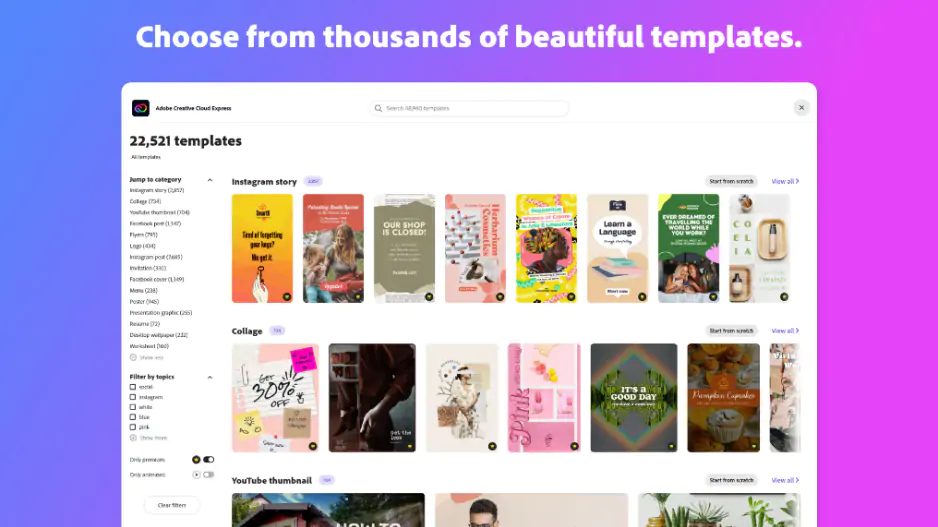
Browser-based slideshow creation with professional templates and Adobe's stock photo library integrated. The free tier provides surprising functionality without watermarks, though premium features require subscription.

When you use templates, they automatically change to fit what you're working on. For example, if you add pictures from work, you'll see layouts that look professional. If you add pictures from a trip, you'll see more casual designs. This makes it really easy to customize things without having to spend a lot of time on it. A well-known tech review site, PCMag, gave Adobe Express a great rating of 4.0, saying it's a powerful and easy-to-use set of tools that lets anyone create professional-looking designs, even if they're not a designer.

Pros:
  • No watermark on free exports

  • Integrated stock photo and music library

  • Templates automatically adapt to content type

  • Cross-device synchronization

  • Direct social media publishing

Cons:
  • Limited offline functionality

  • Premium features require ongoing subscription

  • Advanced animation controls missing

  • Export quality depends on internet connection

What users say:

People on Reddit are really liking Adobe Express because it has a tool that makes your photos look super professional. It can fix the lighting, clean up the background, and make the whole picture look better. This tool is like having a personal photo editor, but it's automatic. Users also love that Adobe Express works well with Microsoft 365 Copilot. This means you can make all sorts of visual things like flyers, posters, and social media posts right inside Copilot. You can even customize them and export them easily. It's making it really simple for people to create professional-looking stuff without needing to be a pro themselves.

PCMag: Adobe Express Review
G2: Adobe Express Reviews

3. FlexClip

Platforms: Web browser

Price: Free plan (480p exports), Pro from $5.99/month


You can make great videos online with this tool. It has lots of slideshow templates that work well on social media. The AI part is really helpful - it suggests music, timing, and transitions that fit your video. This way, you can create content that's ready to go on any platform, and it's fast too.

I was really impressed with how well the social media optimization worked - the templates are made just for Instagram Stories, YouTube intros, and Facebook posts, so they have the right shape and timing already set up. People who reviewed it on Capterra said that FlexClip is great for making clean and polished videos fast, and that it's easy to figure out how to use it. This makes it simple to create good-looking videos without having to spend a lot of time learning how to use the program.

Pros:
  • Social media format optimization

  • AI suggests music and timing combinations

  • Extensive stock media library included

  • Collaboration features for team projects

  • Quick export to major platforms

Cons:
  • Free plan limits to 480p resolution

  • Monthly subscription required for HD output

  • Advanced editing requires video editor knowledge

  • Limited offline access

4. PTE AV Studio

Platforms: Windows

Price: $99 one-time purchase


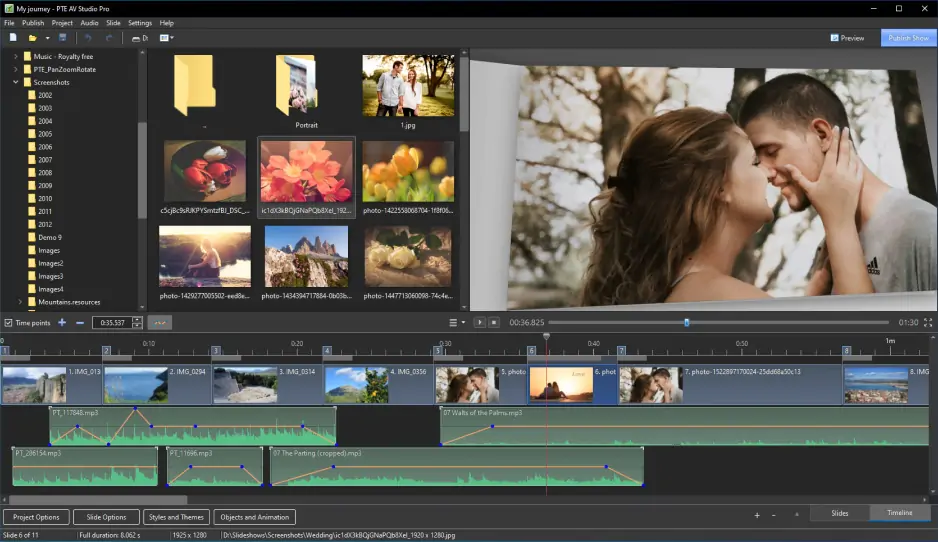
Professional slideshow software designed for photographers and serious content creators. Keyframe animation, precise timing control, and advanced transition options provide cinema-quality results.

When automatic tools just don't cut it, that's when you need something more. The thing is, getting started can be tough - it's like trying to climb a mountain. But once you get the hang of it, you'll have total control over every single detail, right down to the smallest movement of each layer. And the end result? It looks like something a pro would make.

Pros:
  • Keyframe animation for precise control

  • Multi-layer composition capabilities

  • Professional-grade transition options

  • 4K and ultra-high resolution support

  • Advanced audio synchronization tools

Cons:
  • Steep learning curve for beginners

  • Windows-only availability

  • Expensive compared to alternatives

  • Requires significant time investment per project

5. MAGIX Photostory Deluxe

Platforms: Windows

Price: $69.99 one-time purchase

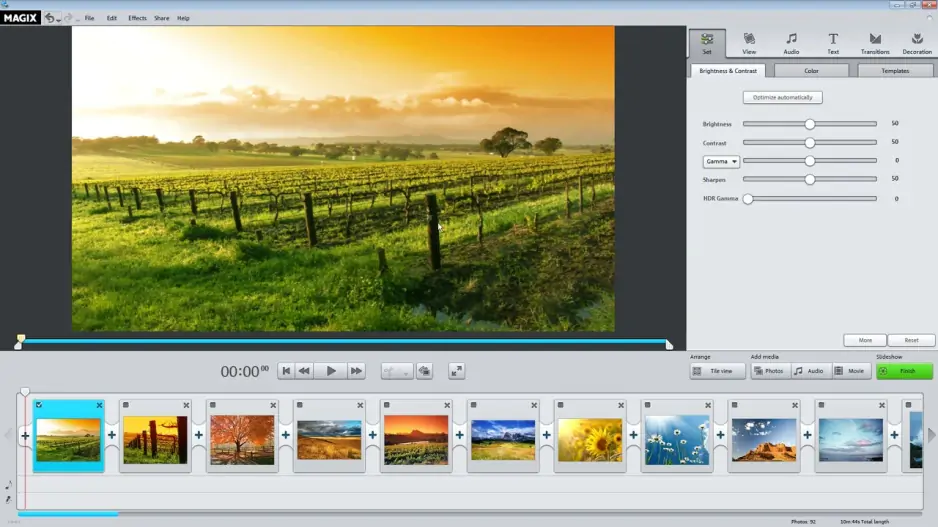
German-engineered slideshow software with extensive built-in effects library. Travel route animations, vintage film effects, and automatic face recognition create distinctive presentations.

What really catches your eye is the travel route feature - it's super handy for reliving your trips. You can either import your GPS data or manually add the places you've been, and it'll create these cool animated maps that show you moving from one spot to another, right between your photos. It's great for putting together vacation slideshows that really tell a story. But, if you look at what people are saying on Trustpilot, you'll see that users have had some pretty mixed experiences with the product. A lot of them are really disappointed with the customer service support they've received, which is a bit of a letdown.

Pros:
  • Travel route animation with GPS integration

  • Automatic face recognition and optimization

  • 1,500+ effects and templates included

  • Vintage film and analog camera effects

  • Professional audio editing tools

Cons:
  • Windows-only platform limitation

  • Interface feels dated compared to modern alternatives

  • Large download size due to effects library

  • Steep learning curve for advanced features

6. Icecream Slideshow Maker

Platforms: Windows, Mac

Price: Free version available, Pro version $29.95

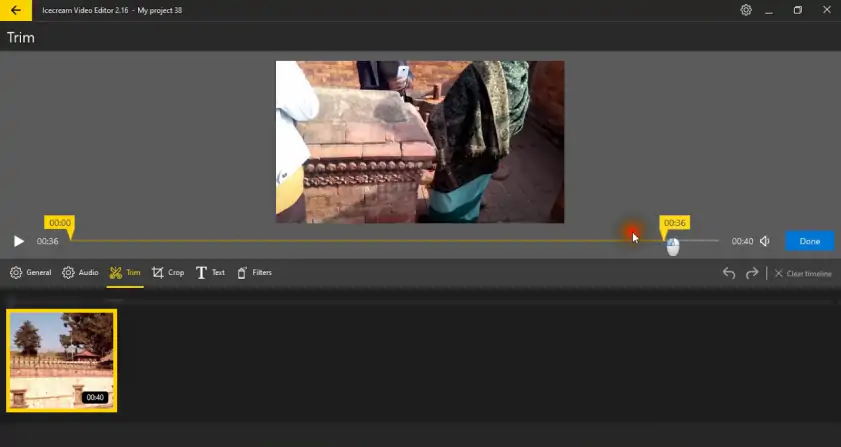
Simple desktop tool focused on quick slideshow creation without complex features. The free version handles basic needs well, while Pro adds HD export and additional transition options.

This tool is great because it keeps things simple. You don't have to deal with a lot of complicated options or timelines. All you have to do is add your photos, pick a transition style, add some music, and then export your project. Sometimes, that's all you need - a straightforward and easy-to-use tool that gets the job done without overwhelming you with too many choices.

Pros:
  • Extremely simple interface

  • Fast processing and export times

  • Affordable Pro upgrade price

  • No subscription required

  • Preview functionality works smoothly

Cons:
  • Limited customization options

  • Free version adds watermark

  • Basic transition selection

  • No advanced timing controls

7. SmartSHOW 3D

Platforms: Windows

Price: Free trial, $49.95 one-time purchase

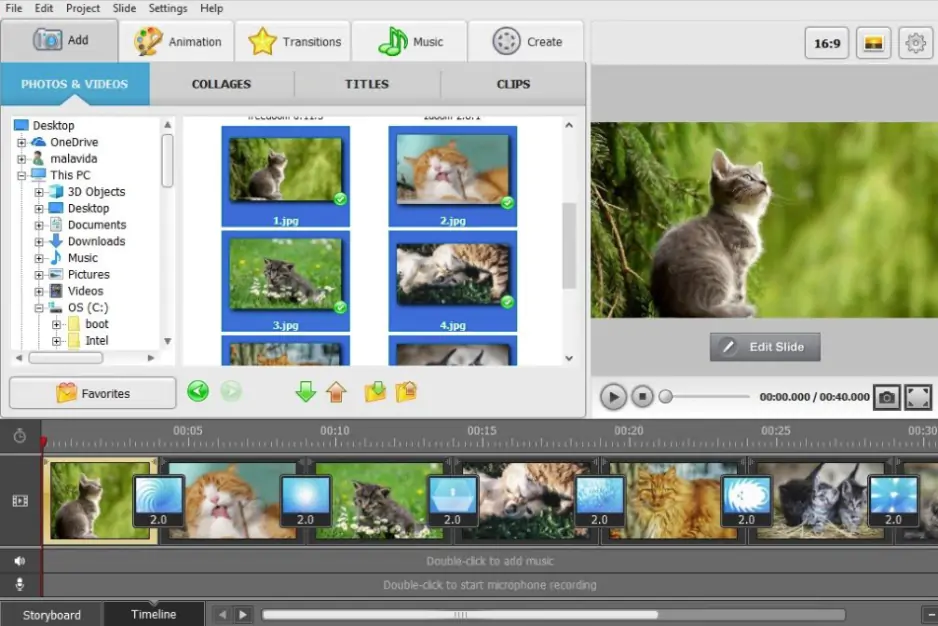
We make 3D animated slideshows that look really cool. They have depth effects and the camera moves around, so it feels like you're right there. The photos seem to be floating in mid-air, with realistic lighting and shadows that make them look super realistic.

The 3D effects really make a difference - they're not just a fancy extra, but actually add to the visuals. When the camera moves through 3D photo layouts, it creates a pretty engaging flow that keeps you interested. Plus, it's way more attention-grabbing than just switching between flat images. People who've used SmartSHOW 3D say it's great, and they love how easy it is to use - the interface is super user-friendly, making it a breeze to whip up slideshows quickly. According to reviews on Capterra, users are really happy with their experience, praising the software for being simple and intuitive.

Pros:
  • True 3D animation effects

  • Realistic camera movement simulation

  • Lighting and shadow effects on photos

  • Hundreds of 3D templates included

  • HD and 4K export options

Cons:
  • Windows-only availability

  • 3D effects may not suit all content types

  • Rendering times longer due to 3D processing

  • Learning curve for effective 3D composition

8. Animoto

Platforms: Web browser, iOS, Android

Price: Free plan (Animoto watermark), Personal from $8/month

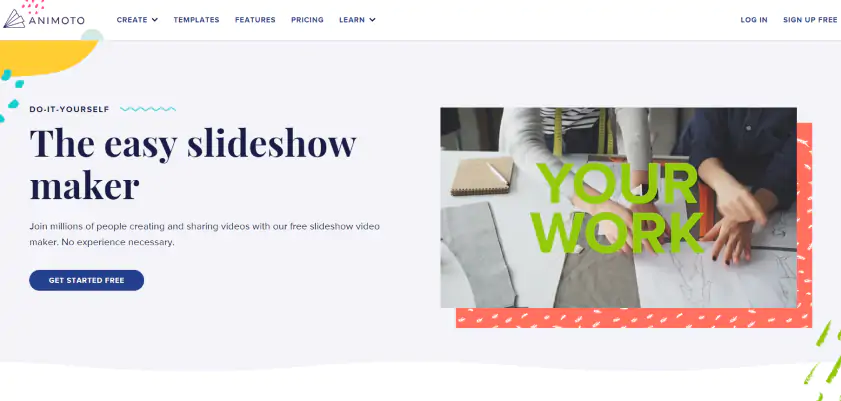
This video-making tool is great for social media marketing. It has lots of slideshow templates that are perfect for businesses. You can easily publish your videos on many different platforms, which makes creating content a whole lot faster.

I was really impressed with the marketing template selection - they have specific layouts for things like product launches, event promotion, and brand storytelling that actually work for businesses. What's more, users on Trustpilot are always saying how much they like Animoto's quick response times and helpful customer support. And if you look at the reviews on Capterra, people are also talking about how easy the platform is to use and how many different templates they have to choose from.

Pros:
  • Business-focused template selection

  • Direct publishing to social platforms

  • Mobile app for on-the-go editing

  • Brand color and logo integration

  • Analytics tracking for published content

Cons:
  • Monthly subscription required for watermark-free exports

  • Limited creative control compared to desktop software

  • Template-dependent workflow

  • Advanced customization options missing

Capterra: Animoto Reviews

9. Canva Video Editor

Platforms: Web browser, iOS, Android

Price: Free plan available, Pro from $14.99/month

This platform is a one-stop shop for all your design needs, including creating slideshows and other types of content. It's really popular for making social media posts quickly, thanks to its huge library of templates and built-in design elements that make it easy to get started.

Canva is great because it lets you make slideshows, social media graphics, and presentations all in one spot, and they all look like they're from the same brand. But the quality of the templates can be really different. For example, some templates are really well-made, while others are not as good. Recently, Canva got even better with the addition of Google's Veo 3 video model, which uses artificial intelligence to generate videos. This means Canva users can now make really cool videos using the latest technology. According to Tom's Guide, this new feature is a big deal and makes Canva an even more powerful tool for making all kinds of content.

Pros:
  • Massive template and element library

  • Unified design ecosystem

  • Team collaboration features

  • Brand kit for consistent styling

  • Multiple export format options

Cons:
  • Premium features require subscription

  • Template quality inconsistent

  • Limited advanced animation options

  • Can feel overwhelming due to feature breadth

10. PhotoStage Slideshow Software

Platforms: Windows, Mac

Price: Free version available, $59.99 for Plus edition

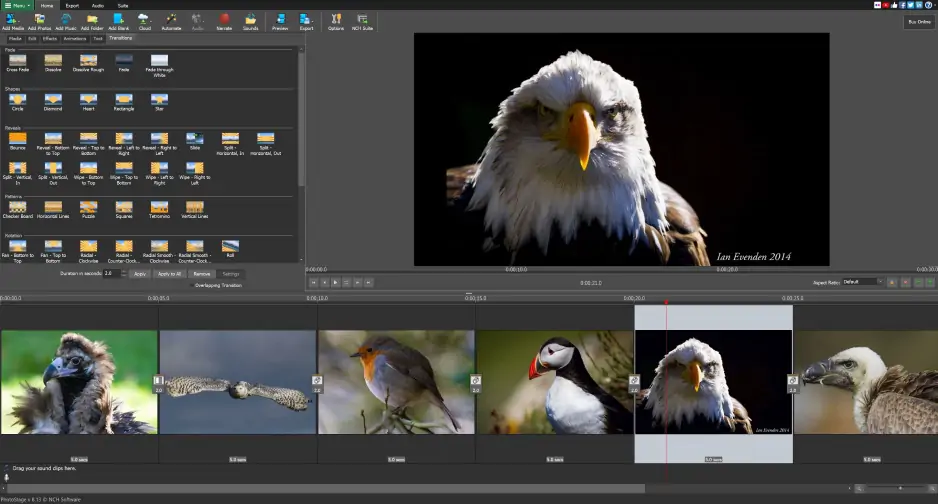
Traditional desktop slideshow software with emphasis on photo editing integration. Edit images directly within the slideshow timeline, apply effects, and create polished presentations.

The integrated photo editing saves workflow steps – adjust exposure, crop, and apply filters without switching to separate software. For photo-heavy presentations, this integration provides real value.

Pros:
  • Integrated photo editing capabilities

  • Cross-platform Windows and Mac support

  • No subscription required

  • Preview effects in real-time

  • Multiple audio track support

Cons:
  • Interface design feels outdated

  • Limited template selection

  • Free version includes watermark

  • Learning curve for photo editing features

11. 4K Slideshow Maker

Platforms: Windows, Mac

Price: Free version (watermarked), $19.95 one-time purchase

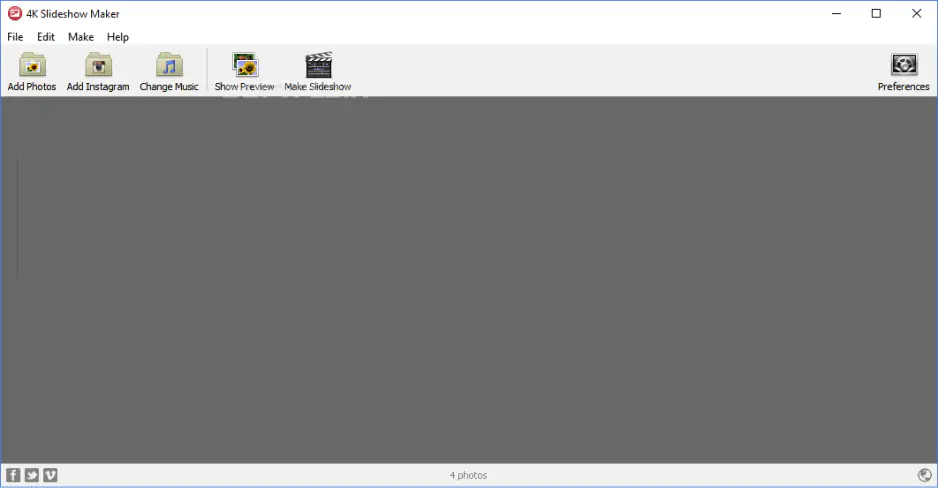
This tool is all about creating high-quality slideshows, especially those with really sharp 4K images. What's nice is that it has a simple and clean interface, which means it focuses on making your pictures look great and play back smoothly, rather than trying to add a bunch of fancy effects.

This tool really shines when the quality of the image is the top priority. When you're working with big screens, the 4K output makes sure everything stays sharp and clear. Plus, the way it renders images helps keep photos looking their best, even better than a lot of other options out there.

Pros:
  • True 4K resolution output support

  • Optimized for high-resolution image processing

  • Fast rendering despite high resolution

  • Simple, focused interface

  • One-time purchase price

Cons:
  • Limited effect and transition options

  • Basic audio editing capabilities

  • Free version watermark placement

  • Minimal template selection

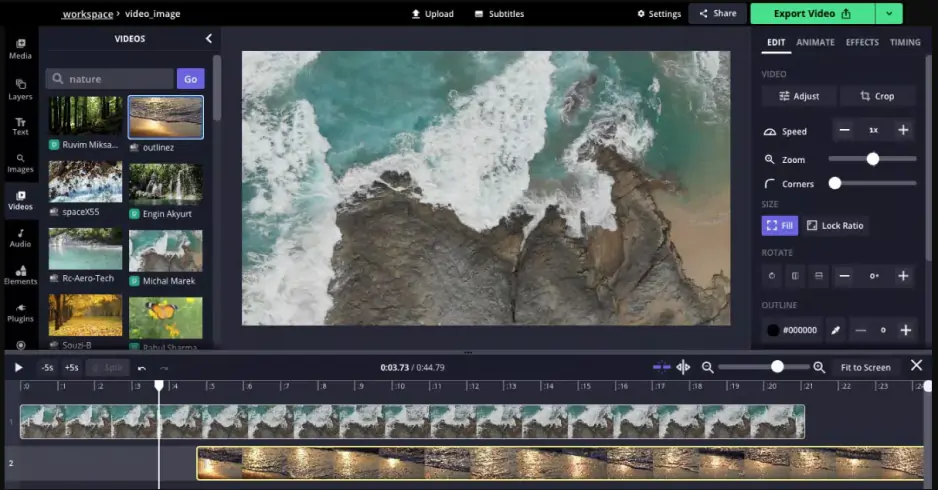
12. Kapwing

Platforms: Web browser

Price: Free plan (watermarked), Pro from $20/month

Web-based video editing platform that includes slideshow creation tools. Team collaboration features and comment system make it suitable for group projects and client review processes.

Kapwing is great for working with a team - you can add comments at specific times, suggest changes, and see how the project has changed over time. This is really helpful for business presentations that need to be approved by several people. Many users think Kapwing is one of the best video editing tools out there, saying it's powerful, affordable, and easy to use. However, some people have noticed that it can be a bit buggy sometimes.

Pros:
  • Real-time team collaboration features

  • Comment and revision tracking system

  • No software installation required

  • Multiple team member access levels

  • Direct social media publishing

Cons:
  • Subscription required for watermark removal

  • Limited offline functionality

  • Advanced features require higher-tier plans

  • Export quality depends on internet speed

Capterra: Kapwing Reviews

Choosing the right slideshow software

For social media creators: For people making content for social media, FlexClip and Canva are really helpful. They have templates that are just right for Instagram, TikTok, and YouTube, and you can even publish your work directly from their sites. This makes it a lot easier to create and share your stuff online.


For business presentations: Adobe Express and Animoto offer professional templates with branding integration and collaboration features suitable for corporate use.

For photography enthusiasts: PTE AV Studio and SmartSHOW 3D provide advanced animation controls and high-quality output that showcases images effectively.

For quick personal projects: For small projects at home, Movavi Slideshow Maker and Icecream Slideshow Maker are great choices because they are easy to use and still offer enough options to make your family or personal slideshows look good.

For budget-conscious users: Adobe Express free tier and PhotoStage free version provide capable slideshow creation without upfront costs.

The best slideshow creator depends on your specific workflow and output requirements. Desktop software generally provides more effects and better performance, while online tools offer convenience and collaboration features that benefit team projects.

Movavi Slideshow Maker
An easy-to-use, yet efficient slideshow making program

Why choose Movavi

We’re the #1 choice for millions of people from all around the world. Join our thriving community and create stunning content with incredible ease.

70M+

users

190+

countries

15+

updates per year

10,000+

effects to choose from

Frequently asked questions

What's the difference between free and paid slideshow software?

Free versions typically include watermarks, limit export resolution, or restrict the number of slides per project. Paid versions remove these limitations and usually add advanced features like 4K export, commercial music libraries, and priority support.

Can I create slideshows on mobile devices?

There are several options that work well on mobile devices, such as Adobe Express, FlexClip, Canva, and Animoto. These mobile apps are perfect for creating quick content for social media, but they do have some limitations. Compared to desktop software, they lack advanced features, which can be a bit of a drawback. However, for simple, on-the-go content creation, they can be really useful.

Which format should I export my slideshow in?

When it comes to sharing videos, you want to make sure they play smoothly on any device. That's why MP4 is a great choice - it works well on most devices. But if you're making a presentation, you might want to use MOV or AVI instead, since they offer better quality. And if you're planning to post your video on social media, it's a good idea to check the platform's guidelines, as they often have specific recommendations for video formats.

How long should each slide appear in a slideshow?

Most slides work well at 3-5 seconds duration, but this varies by content type. Text-heavy slides need longer display time (6-8 seconds), while action photos can work at 2-3 seconds. Music rhythm often dictates optimal timing.

Do I need royalty-free music for my slideshows?

If sharing publicly or commercially, yes. Most slideshow software includes royalty-free music libraries, or you can source tracks from platforms like Epidemic Sound, Artlist, or YouTube Audio Library.

Can slideshow software handle RAW photo files?

When it comes to creating slideshows, you have a few options for working with your photos. Some higher-end tools, like PTE AV Studio and MAGIX Photostory, can handle RAW files right away. But most of the consumer-level tools out there need you to convert your photos to JPG or PNG first. The good news is that you won't really notice a difference in image quality when you're just making a slideshow.

Have questions?
If you can’t find the answer to your question, please feel free to contact our Support Team.
Join us for discounts, editing tips, and content ideas

1.5M+ users already subscribed to our newsletter

By signing up, I agree to receive marketing emails from Movavi and agree to Movavi's Privacy Policy.