14 Best Slideshow Makers for Windows 10 and 11 I've Tested in 2026

Edited by
Ben Jacklin
4,997

Making digital slideshows has really changed a lot since people used to project images with magic lanterns back in the 17th century. Now, you can use special software to turn your pictures into exciting stories with music, transitions, and effects. This is great for showing off your vacation photos or making a presentation for work. With the right tools, you can make your static images come alive and really grab people's attention.

Key takeaways

For quick family slideshows: Start with built-in tools like Photos app or PowerPoint if you need basic functionality.

For creative projects: Desktop software like Movavi Slideshow Maker or PhotoStage offers templates and music libraries.

For professional work: Consider DaVinci Resolve (free but complex) or Adobe® Premiere® Pro (subscription required).

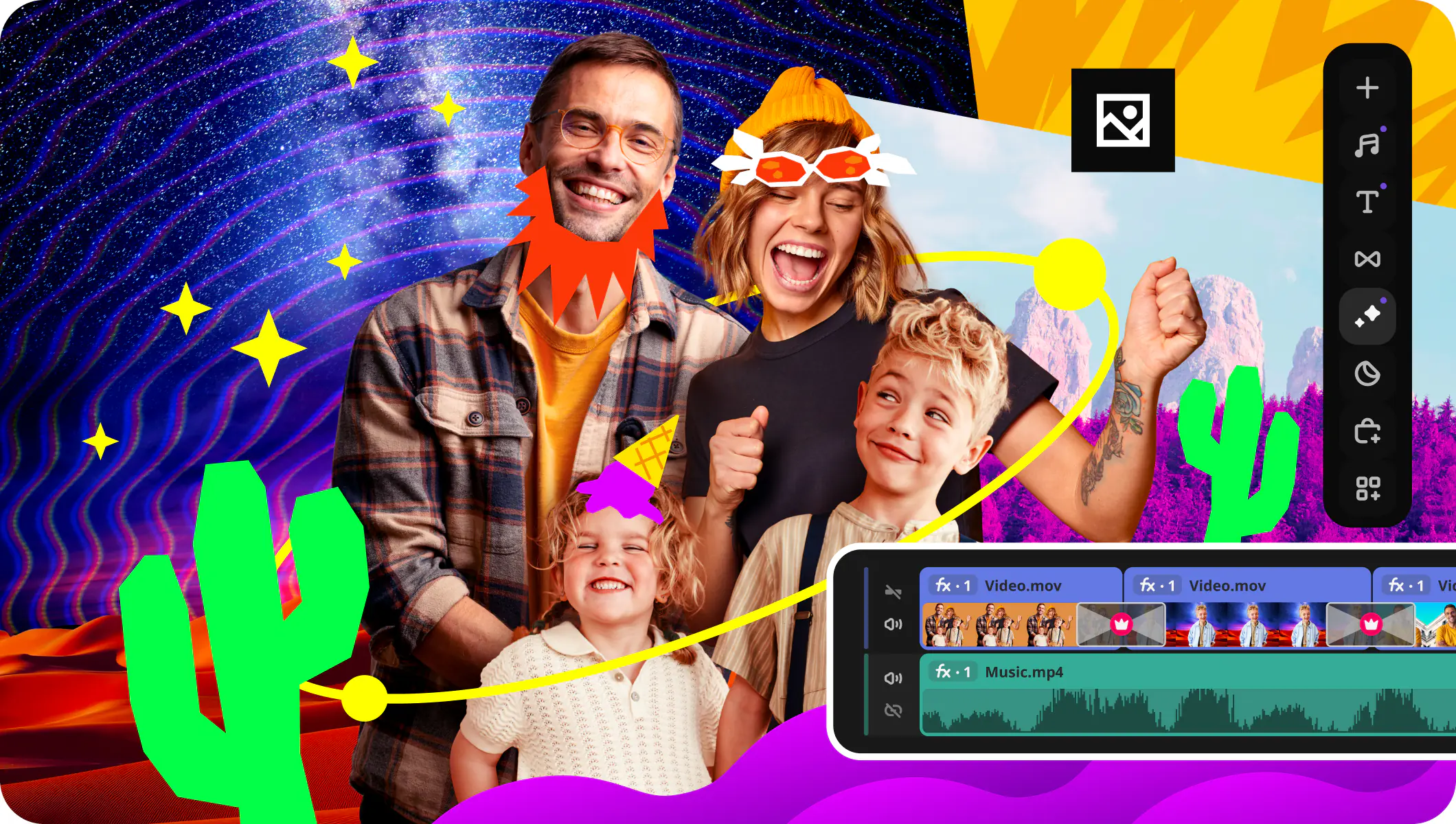
For web-based editing: Clipchamp and Adobe® Express® work entirely in your browser.

Budget consideration: Free options exist but often have watermarks or limited export formats.

How I tested these slideshow makers

I spent the last month trying out a bunch of programs to see how well they work. I used the same 25 vacation pictures and three music tracks for each one. What I was looking for was how easy they were to use, what kind of templates they had, how good the exported slideshows looked, and how fast I could make a 3-minute slideshow. Some of the programs were really great, they had automatic wizards that made things easy. But others were a pain, they would crash when I tried to export my slideshow.

Matrix: Choose by your main goal

Your primary need

Best tool type

Specific recommendation

Quick family memories

Built-in Windows tools

Photos app or PowerPoint

Social media content

Online editors

Clipchamp or Adobe® Express®

Creative storytelling

Desktop software

Movavi Slideshow Maker or PhotoStage

Professional presentations

Pro video editors

DaVinci Resolve or Adobe® Premiere® Pro

Bulk photo processing

Specialized converters

Freemake Video Converter

14 Best slideshow software programs for Windows

I've tried out several programs and I'm going to give you the lowdown on each one, including the good and the bad, based on my actual experience with them.

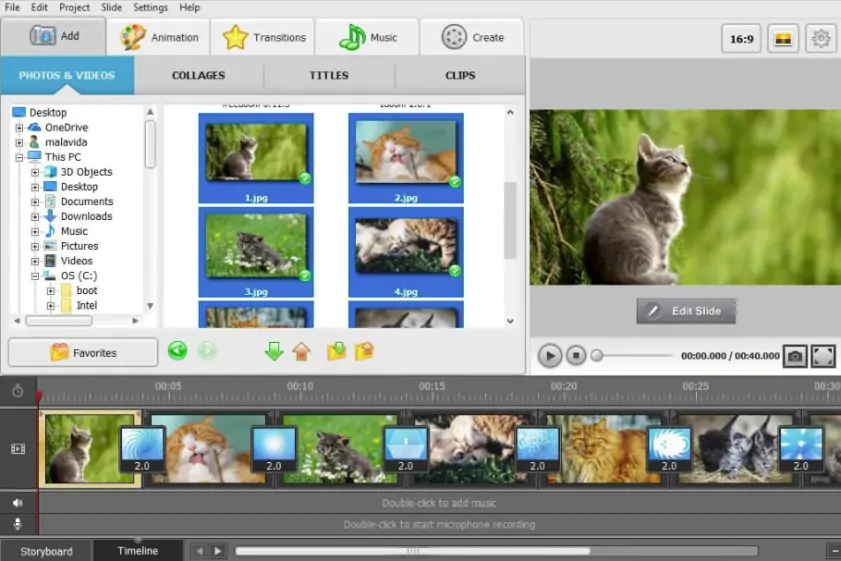
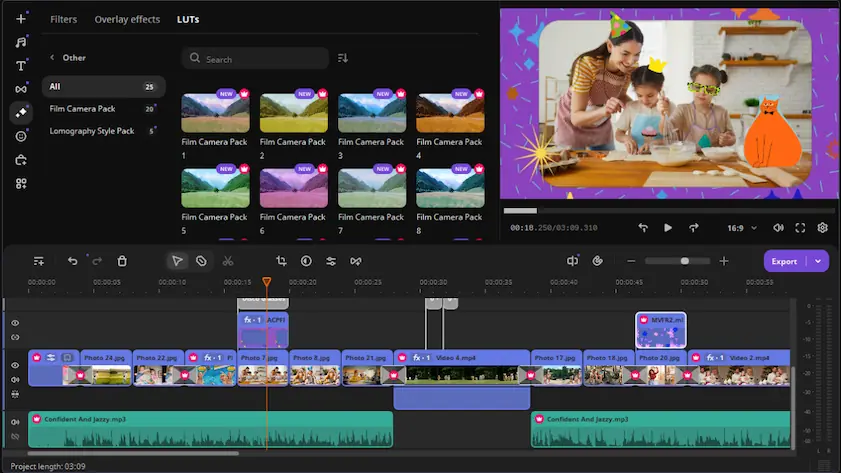
I was really impressed with Movavi Slideshow Maker because it's easy to use but also has a lot of features. The Slideshow Wizard was great, it took me through the whole process in just a few minutes. It even matched the slide transitions to the music I chose, which was a nice touch. Overall, it was really simple to make a slideshow with Movavi, and the results were pretty good.

Key features:

  • Automatic slideshow wizard with music sync
  • 150+ transition effects and filters
  • Built-in music library with royalty-free tracks
  • Advanced timeline editing for precise control
  • Export to popular formats including MP4 and MOV

This software is really easy to use, it has two main ways to create something. One way is guided, where you just pick some photos, choose a template, add some music, and the software does all the work for you. The other way is manual, where you get to control everything, like the timing, effects, and transitions, one frame at a time.
Pros:
  • Slideshow wizard creates professional results in minutes

  • Excellent music synchronization feature

  • No watermark in paid version

  • Intuitive drag-and-drop interface

  • Good selection of royalty-free music tracks

Cons:
  • Free trial adds watermark to exports

  • Limited to 7-day trial period

  • Some advanced effects require learning curve

  • Occasional lag with large photo libraries

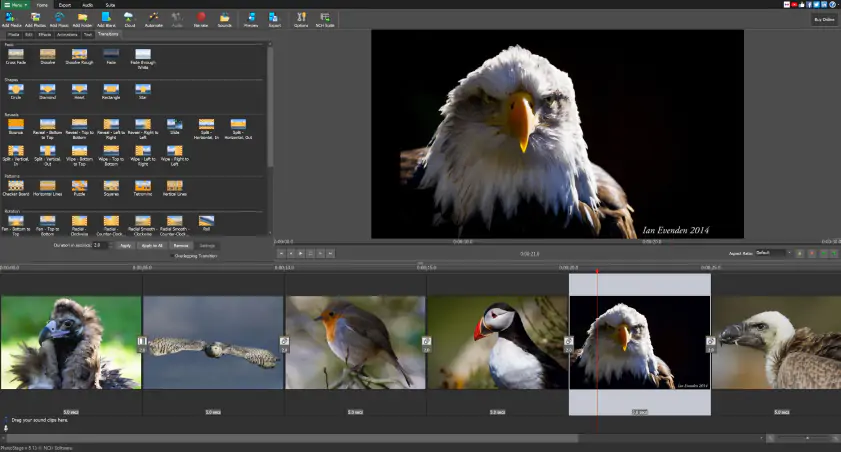
I was really impressed with NCH Software's PhotoStage - it has some amazing features that you'd normally find in professional software, but at a price that's actually affordable. One thing that really caught my attention was the pan and zoom effects - they added this really cool, cinematic feel to my static photos, and it made my vacation slideshow look like a real documentary. Plus, from what I've seen on SourceForge, NCH Software is really reliable and doesn't hog up too much memory, which is great. And the user interface is really well-designed, too, which makes it easy to use. Overall, I'm really happy with PhotoStage - it's a great tool for making slideshows that look professional, without breaking the bank.

Key features:

  • Advanced pan and zoom controls
  • Multi-track timeline for complex projects
  • Cross-platform compatibility (Windows, Mac, iOS, Android)
  • Direct sharing to social media platforms
  • Support for both photos and video clips

This program is really good at dealing with different types of media, like pictures, videos, and sound. You can put them all together easily. But, the way it looks and feels is a bit old-fashioned, especially when you compare it to some of the newer options out there.

Pros:
  • Excellent pan and zoom implementation

  • Handles large photo collections smoothly

  • Good value for the feature set

  • No subscription model – one-time purchase

Cons:
  • Interface looks outdated

  • Steep learning curve for beginners

  • Limited built-in music library

  • Free version has functionality restrictions

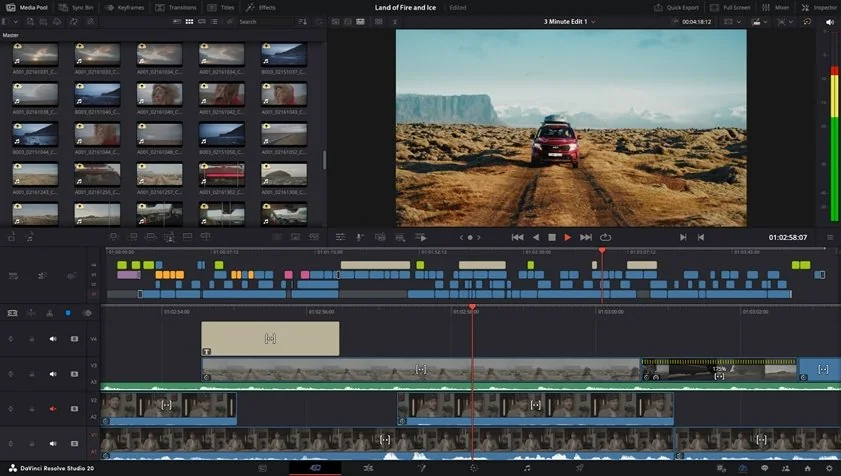
If you're looking for something to make a simple slideshow, Blackmagic's DaVinci Resolve might be too much. But, if you want your video to look like it was made by a professional, this free software is the way to go. PCMag says it's a top-notch video editor that can do everything you need, even though it uses a lot of your computer's resources. I had to spend some time figuring out how to use it, but the end result was amazing - it looked like something a professional studio would make.

Key features:

  • Professional color grading tools
  • Advanced audio mixing capabilities
  • Unlimited tracks and effects
  • Motion graphics and titles
  • No watermarks even in free version

Getting the hang of it was tough, it took a lot of time to even learn the basics of putting together a simple slideshow, but the end result was really impressive. You can tell this is a tool made for people who work with video all the time.

Pros:
  • Completely free with no limitations

  • Professional-grade output quality

  • Extensive effect and transition library

  • No export restrictions or watermarks

Cons:
  • Very complex interface for beginners

  • Requires powerful computer hardware

  • Overkill for simple slideshow needs

  • Time-intensive learning process

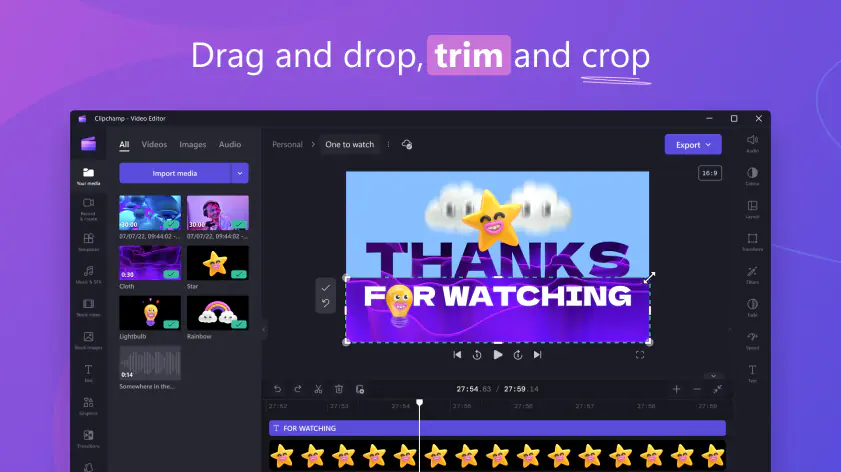
I was able to use Microsoft's Clipchamp right in my browser, which was really handy when I had to put together a slideshow on a friend's computer. From what I've read on TechRadar, Clipchamp is actually a pretty powerful tool for editing videos in a browser, even if it does have some drawbacks - like a tiny preview window and a tendency to buffer a lot as it tries to keep up with what you're doing. The templates were a big time-saver, but I felt like I didn't have as many options for customizing things as I would with a desktop program.

Key features:

  • Browser-based editing (no download required)
  • Built into Windows 11
  • Template library for different occasions
  • Direct integration with OneDrive and Google Drive
  • Social media optimized export presets

The quality was fine when I shared it online, but when I looked at it on a bigger screen, I could see some issues with the way it was compressed.

Pros:
  • No software installation needed

  • Good template selection

  • Free tier available

  • Integrated with Windows 11

  • Quick social media sharing

Cons:
  • Requires stable internet connection

  • Limited customization in free version

  • Compression reduces quality

  • Fewer effects than desktop alternatives

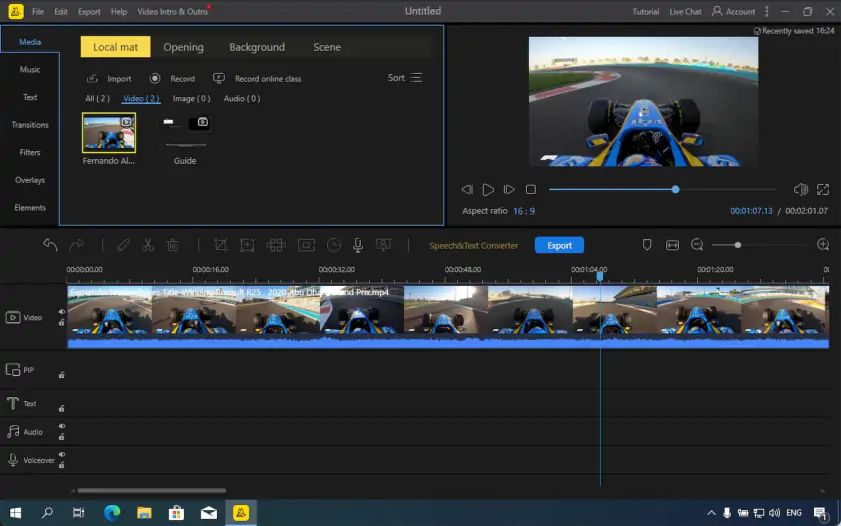
I came across this software from China and was impressed by its modern look and AI features. On Capterra, I found out that BeeCut is a great tool for editing videos - it's easy to use, but also has a lot of advanced features. For example, you can trim, split, and combine video clips with ease. I also tried out the automatic scene detection feature with my travel photos, and it worked pretty well. It grouped similar images together, which made for smoother transitions between clips. Overall, BeeCut seems like a really useful tool for video editing, and I'm excited to explore its features further.

Key features:

  • AI-powered scene detection
  • Modern, clean interface
  • Cross-platform availability
  • Batch processing capabilities
  • Social media aspect ratio presets

The artificial intelligence features sometimes seemed like a novelty, but the basic slideshow functions worked well.

Pros:
  • Modern, intuitive interface

  • AI assistance for beginners

  • Good performance with large files

  • Multiple aspect ratio options

Cons:
  • Limited music library

  • Some AI features unreliable

  • Watermark in free version

  • Occasional translation errors in English version

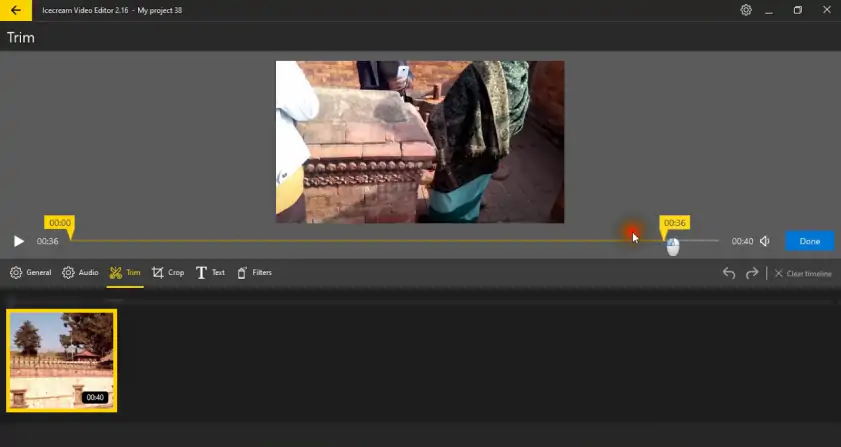
Icecream Slideshow Maker is a pretty cool tool for making slideshows, even if it does have a fun name. One of the things that really stood out to me was the preview feature - it let me see exactly what my transitions would look like before I actually exported the slideshow. This was really helpful in making sure everything looked just right. Overall, I was impressed with how well Icecream Slideshow Maker worked for basic slideshow creation.

Key features:

  • Real-time preview
  • Multiple transition styles
  • Audio fade in/out controls
  • Batch photo import
  • Simple timeline interface

The software focuses on simplicity over advanced features, which worked well for straightforward projects.

Pros:
  • Very easy to learn

  • Good preview functionality

  • Lightweight installation

  • Stable performance

  • Clear pricing structure

Cons:
  • Limited effect options

  • Basic color correction tools

  • No advanced timeline features

  • Watermark in free version

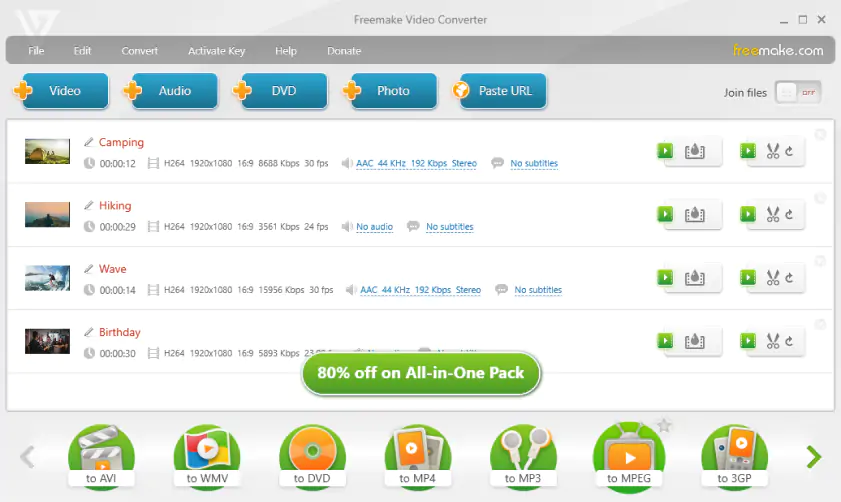
While primarily a conversion tool, Freemake's slideshow feature surprised me with its effectiveness for batch processing large photo collections. The software excels at creating quick slideshows when you need to process hundreds of images without much customization.

Key features:

  • Bulk photo processing
  • Fast rendering speeds
  • Multiple output formats
  • Simple drag-and-drop interface
  • Free version available
Pros:
  • Excellent for large photo batches

  • Fast processing speeds

  • No learning curve

  • Handles various image formats

Cons:
  • Very limited customization options

  • Basic transition effects only

  • Watermark in free version

  • No music synchronization features

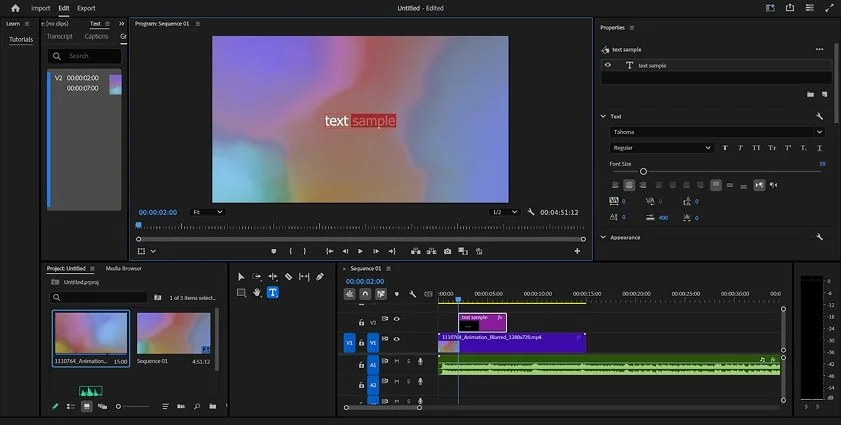
Adobe®'s professional video editing suite offers unlimited slideshow possibilities, but it comes with a steep learning curve and subscription cost. The motion graphics capabilities and integration with other Adobe® products make it powerful for complex projects.

Key features:

  • Professional motion graphics
  • Advanced color correction
  • Integration with Adobe® Creative Suite®
  • Unlimited timeline tracks
  • Professional audio editing
Pros:
  • Industry-standard professional tools

  • Unlimited creative possibilities

  • Excellent motion graphics

  • Regular updates and new features

Cons:
  • Expensive monthly subscription

  • Very complex for beginners

  • Requires powerful computer

  • Overkill for simple slideshows

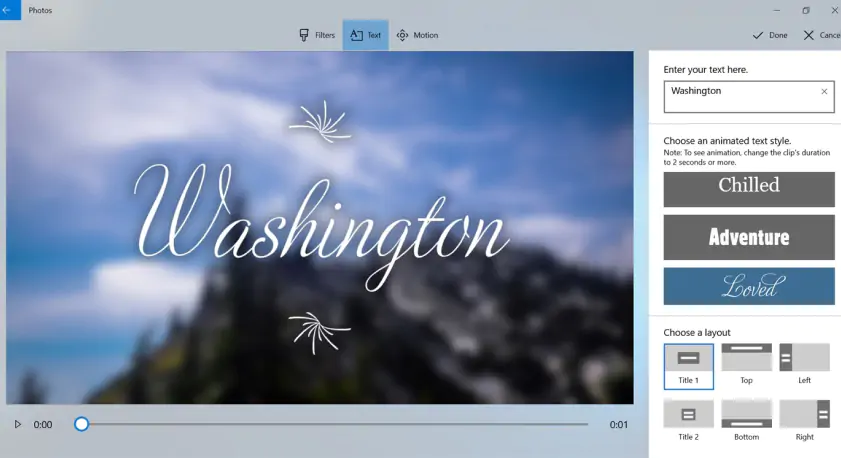
Microsoft's built-in Photos app surprised me with its simplicity for basic slideshows. While limited in features, it's perfect for quick family projects without downloading additional software.

Key features:

  • Built into Windows 10/11
  • Simple automatic slideshow creation
  • Basic music and text options
  • Direct sharing to social media
  • No cost or downloads required
Pros:
  • Already installed on Windows

  • Very simple to use

  • No watermarks

  • Free with Windows

Cons:
  • Extremely limited customization

  • Few transition options

  • Basic export quality

  • No advanced features

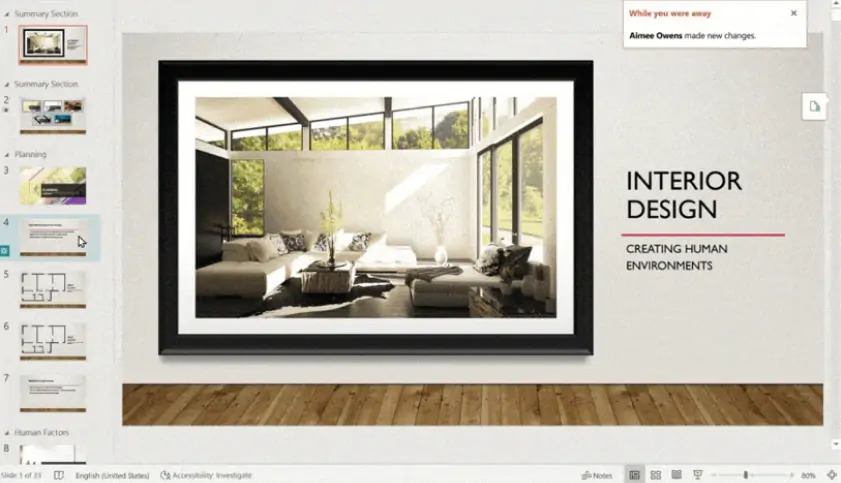
Microsoft PowerPoint, while primarily for presentations, works surprisingly well for creating slideshows with its animation and transition features. Most people already have access through Office subscriptions.

Key features:

  • Advanced animation controls
  • Professional templates
  • Easy text and caption addition
  • Integration with Office suite
  • Export to video formats
Pros:
  • Widely available software

  • Professional templates

  • Good animation controls

  • Familiar interface for most users

Cons:
  • Not designed specifically for slideshows

  • Limited music synchronization

  • Requires Office subscription

  • Export quality limitations

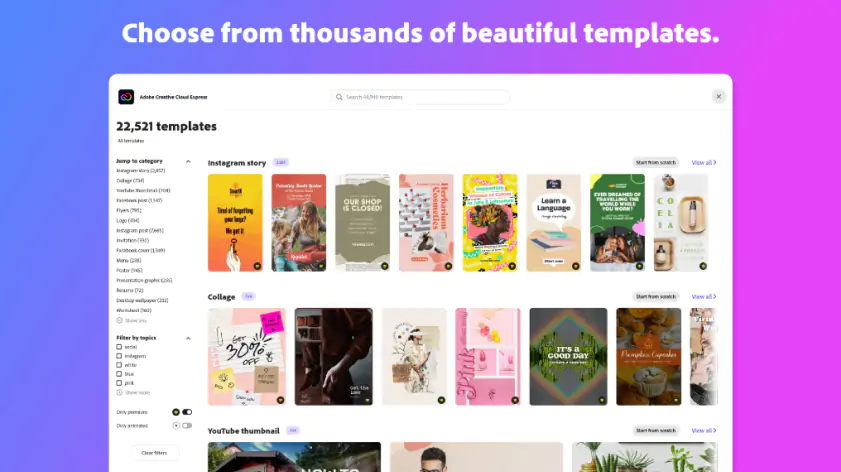
Adobe®'s web-based Express® platform offers slideshow templates optimized for social media sharing. The browser-based editing makes it accessible from any computer.

Key features:

  • Browser-based editing
  • Social media templates
  • Adobe font library access
  • Cloud storage integration
  • Mobile app synchronization
Pros:
  • No software installation

  • Good template variety

  • Social media optimization

  • Free tier available

Cons:
  • Requires internet connection

  • Limited advanced features

  • Template-dependent design

  • Subscription for premium features

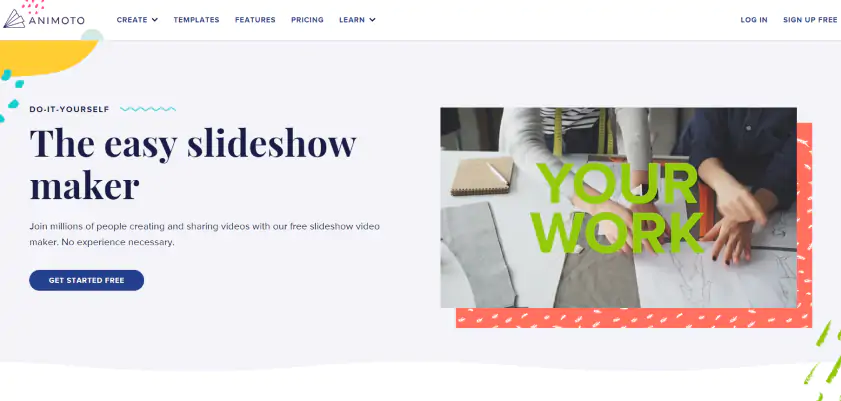
Animoto focuses on automated slideshow creation with music synchronization. The platform analyzes your photos and music to create professional-looking slideshows automatically.

Key features:

  • Automated slideshow generation
  • Music beat synchronization
  • Professional templates
  • Social media optimization
  • Drag-and-drop simplicity
Pros:
  • Excellent automation features

  • Good music synchronization

  • Professional results quickly

  • No technical skills required

Cons:
  • Subscription-based pricing

  • Limited customization control

  • Template restrictions

  • Requires internet connection

This software specializes in 3D slideshow effects and transitions. The learning curve is moderate, but the results can be quite impressive for special occasions.

Key features:

  • 3D transition effects
  • Animated slide layers
  • Professional templates
  • Music beat synchronization
  • Keyframe animation controls
Pros:
  • Impressive 3D effects

  • Good template selection

  • Professional output quality

  • One-time purchase option

Cons:
  • Steeper learning curve

  • Resource-intensive rendering

  • Limited free version

  • Effects can look overdone

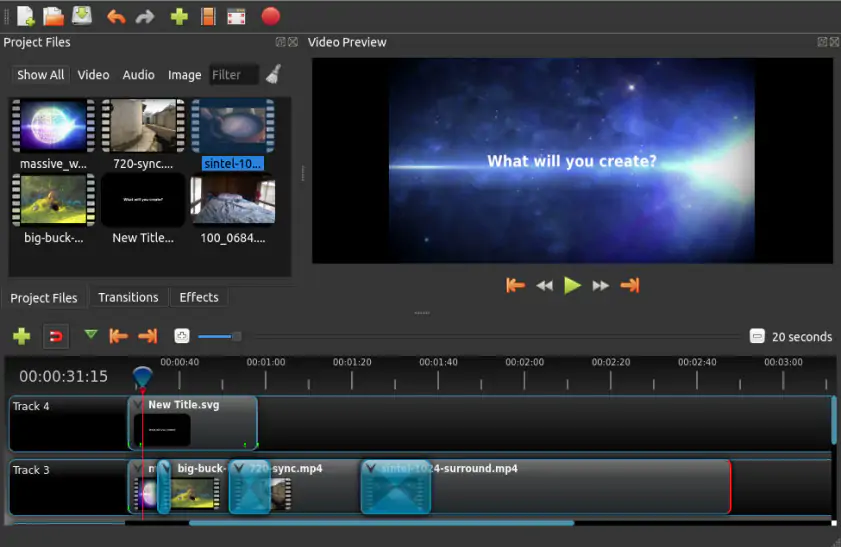
This free, open-source video editor includes solid slideshow capabilities. While it lacks some polish of commercial alternatives, it's completely free without limitations.

Key features:

  • Open-source and free
  • Cross-platform compatibility
  • Unlimited tracks and layers
  • Professional transitions
  • No watermarks or restrictions
Pros:
  • Completely free forever

  • No export limitations

  • Active development community

  • Cross-platform support

Cons:
  • Occasional stability issues

  • Steeper learning curve

  • Limited customer support

  • Interface can be confusing

What users say

Based on user reviews across various platforms, here's what people consistently mention:

Most praised features: Ease of use, automatic music synchronization, template variety, and export quality are the most commonly appreciated features across all platforms.

Common complaints: Watermarks in free versions, limited music libraries, and crashes during export are the most frequent user frustrations.

Best for beginners: Users consistently recommend Movavi Slideshow Maker, Photos app, and Icecream Slideshow Maker for first-time slideshow creators.

Professional choice: DaVinci Resolve and Adobe® Premiere® Pro receive praise from professional users, despite their complexity.

Movavi Slideshow Maker
An easy-to-use, yet efficient slideshow making program

Frequently asked questions

What's the best free slideshow maker for Windows?

DaVinci Resolve offers the most features without limitations, but requires technical knowledge. For simplicity, Windows Photos app or OpenShot work well for basic needs.

Can I make slideshows without watermarks for free?

Yes, DaVinci Resolve, OpenShot, and Windows Photos app don't add watermarks to your exports in their free versions.

How long should a slideshow be?

For family viewing, 3-5 minutes works well. For social media, keep it under 2 minutes. Business presentations can be longer but should match your audience's attention span.

What's the best photo-to-music ratio?

Generally, 3-5 seconds per photo works well, but sync transitions to your music beats for better results. Most automatic tools handle this synchronization.

Do I need expensive software for good slideshows?

Not necessarily. Tools like Movavi Slideshow Maker or even PowerPoint can create professional results. The key is choosing software that matches your skill level and project needs.

Can I edit slideshows on older Windows computers?

Web-based tools like Clipchamp work on older hardware since processing happens online. For desktop software, check system requirements before downloading.

Have questions?
If you can’t find the answer to your question, please feel free to contact our Support Team.
Join us for discounts, editing tips, and content ideas

1.5M+ users already subscribed to our newsletter

By signing up, I agree to receive marketing emails from Movavi and agree to Movavi's Privacy Policy.