
Best MP4-to-MP3 Converters

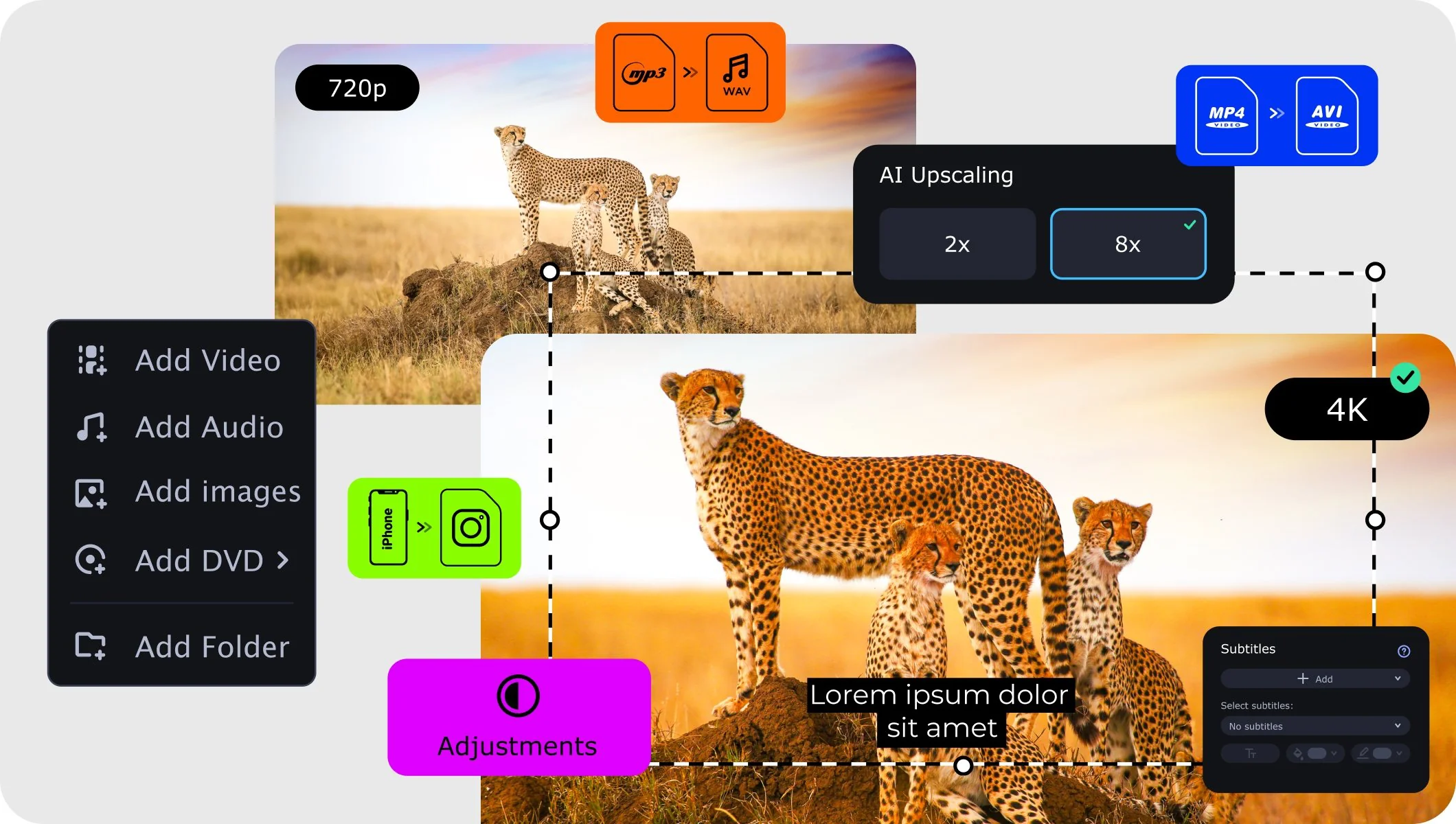
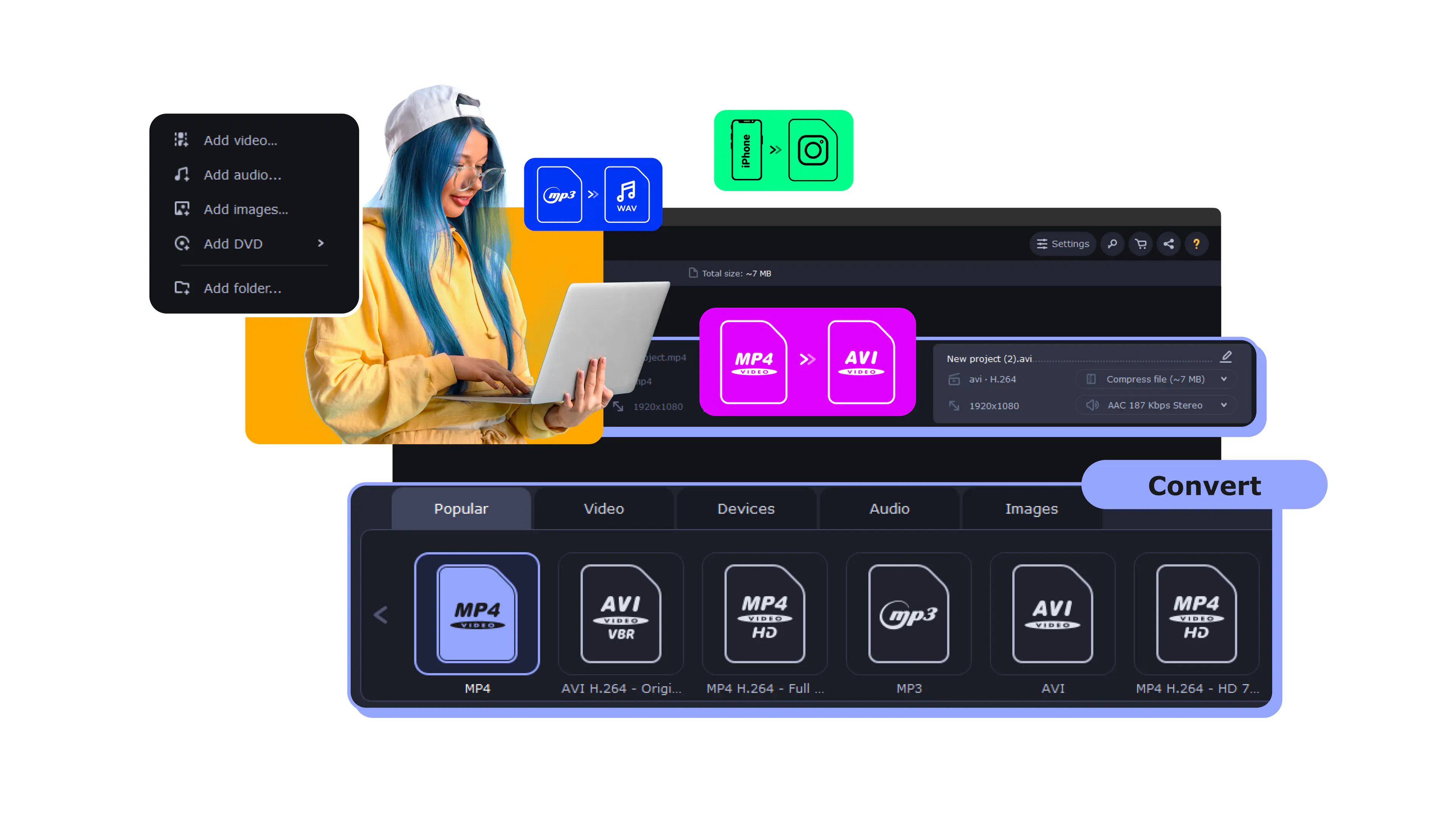
Movavi Video Converter
  • Lightning-fast conversion
  • Batch processing of files – any number, any size
  • No quality loss, even with 4K videos
  • Easy editing and compression
Edited by
Ben Jacklin
5,612

Key takeaways

  • What I did: I checked every program in this collection by running real-world tasks through them, like ripping high-res tracks from 4K concert footage and grabbing clean voiceovers from mobile recordings.
  • The three categories: I split the list into desktop, online, and mobile because your needs change depending on whether you’re at a workstation, using a borrowed laptop, or out with just a smartphone.
  • Common benefits: desktop products like Movavi Video Converter offer raw power and SuperSpeed modes, while online sites give you instant access, and mobile apps turn your phone into a portable studio.
  • Typical drawbacks: you’ll find that free online converters often have file size limits, while mobile solutions can be ad-heavy, and pro desktop software usually requires a paid license for full no limit features.
  • Conversion tips: for top-tier results, always select a 320 kbps bitrate and use the built-in trimming tools to snip away silence or noise at the start of your audio tracks.

We often find ourselves needing to strip the audio from a video, whether it's to turn a long-winded lecture into a podcast for the gym or to snag a catchy song from a 4K music video. To compose this list of the best MP4-to-MP3 converters, I’ve put each contender through the wringer to see which ones actually deliver on that promise without ruining the sound quality. It’s funny to think we used to hold tape recorders up to the TV, but now I can rip a studio-grade track in seconds using just my phone or PC. After personally testing every app on this list, I’ve narrowed down the absolute 18 best ways to keep your media library crisp and clutter-free.

Comparison table: Best MP4-to-MP3 converters

Program

OS

Main advantages

Download

Windows, macOS

Free desktop tool, simple drag-and-drop workflow, batch support

Windows, macOS

SuperSpeed mode, stable batch conversion, built-in trimming tools

Windows

Free, direct audio stream copying, wide codec support

Top MP4-to-MP3 converters

Why I picked it: this tool is a good find for anyone who wants a dead-simple desktop experience without any distracting bells and whistles.

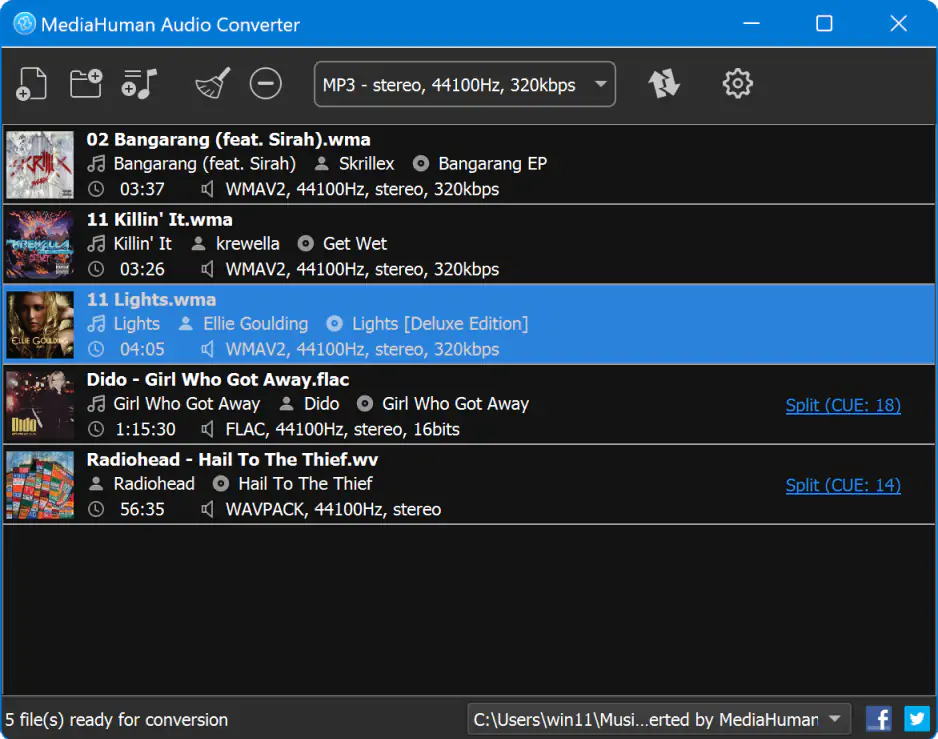
My list is continued with MediaHuman Audio Converter. It is a free tool for MacOS and Windows that lets you convert music in formats like MP3, AAC, and many more. It is fairly good at stripping high-quality sound from your video library! You can simply drag an MP4 into the window and let it extract the track with zero loss in fidelity.

It supports batch processing, so you can dump dozens of clips in at once to save time. The software also handles the metadata automatically, pulling covers and tags so your library stays organized.

The team just gave the UI a fresh look and tuned the engine to fly on the newest Apple and Windows rigs. I dig that the devs are so active, dropping fresh updates almost every single month to keep things snappy.

During the test drive, I tasked MediaHuman Audio Converter to turn a whole season of music videos into a playlist. It tackled the files pretty well and kept every bit of the original audio quality.
Ratings

4.5/5

Pros:
  • Completely free and very easy to master

  • Supports lossless formats like FLAC and Apple Lossless

  • Automatically finds and adds album art

  • Processes multiple files simultaneously

  • Clean design with no intrusive ads

Cons:
  • Lacks deep-dive audio editing tools

  • The interface may feel too unpretentious for pro editors

Why I picked it: it provides a professional workspace where the process feels logical and fast for high-quality files.

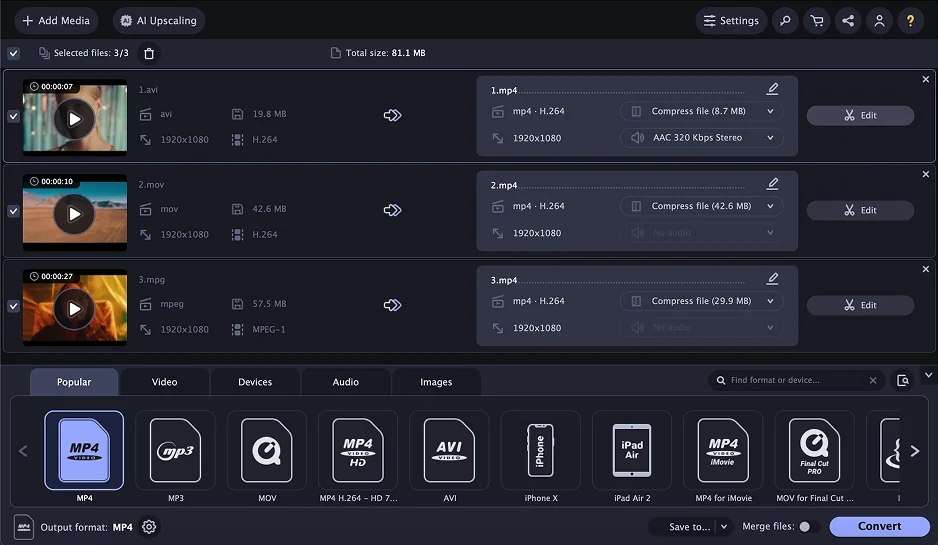
Movavi Video Converter is a top choice for Mac and PC users because of its SuperSpeed mode for instant extraction. It skips the long re-encoding steps, so you get the original sound in just a second.

For me, it's just one of the best MP4-to-MP3 converters. When using it, I find the trim tool perfect for cutting out silence. The software also helps fix shaky video if you decide to keep the footage. You can normalize the volume across a whole batch of files so they sound consistent. It processes massive sources without making your computer lag.

I recently utilized this app to turn a pile of old family tapes into a podcast format for my relatives. I loaded twenty videos at once, and it finished the whole folder while I was away from my desk.

Ratings
Pros:
Cons:
  • Trial version is limited

Why I picked it: this tiny software lets you grab audio tracks without a single cent leaving your wallet.

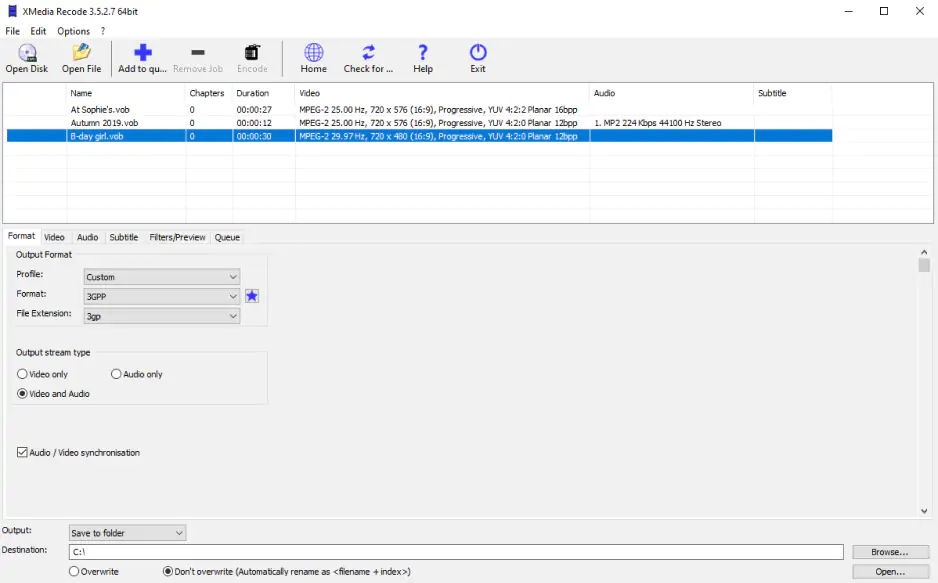
My selection continues with this MP4-to-MP3 converter software, which pulls sound from videos with zero quality loss. XMedia Recode is a free, versatile all-in-one video and audio converter for Windows. You can adjust the sample rate or bitrate to keep the file small enough for your needs. It supports many codecs, so you never worry about unreadable video formats during your daily workflow.

The developers just launched a 2026 update to boost speed on the latest graphics cards. I like that the team releases fresh patches every season to stay competitive. I challenged this app by rescuing a music track from a glitchy video file yesterday afternoon. The process was surprisingly fast, and the final audio sounded exactly like the original studio recording.

Ratings

3.8/5

Pros:
  • Copies audio streams directly without re-encoding

  • Zero cost and no watermarks on files

  • Massive list of supported device profiles

  • Portable version works without installation

  • Batch processing saves time on large folders

Cons:
  • Visual design looks very old-fashioned

  • Technical menus may confuse some beginners

Why I picked it: the tool provides rapid transcoding speeds without sacrificing the integrity of the source.

I am opening my selection with this well-known tool because it nails the balance between raw power and a clean layout. This popular MP4-to-MP3 converter software uses your computer's graphics card to pull tracks from videos at high speed. It works with over 1,000 formats, so it recognizes almost any file you have.

Product updates are really frequent. The latest revamp introduces a cleaner interface and smart AI format picks to help you work faster. I like that I can change the bitrate manually to keep the audio clear.

Beyond extraction, it also features a built-in compressor to shrink file sizes for easier sharing. You can even burn your final tracks to a disc or fix metadata tags within the same window.

The interface stays clean while packing in these deep editing functions. I used this utility last week to turn a long 4K concert video into a song for my phone. It finished in under a minute, and the sound stayed crisp.

Ratings
Pros:
Cons:
  • You have to pay for the full version

  • The menu has many buttons to learn

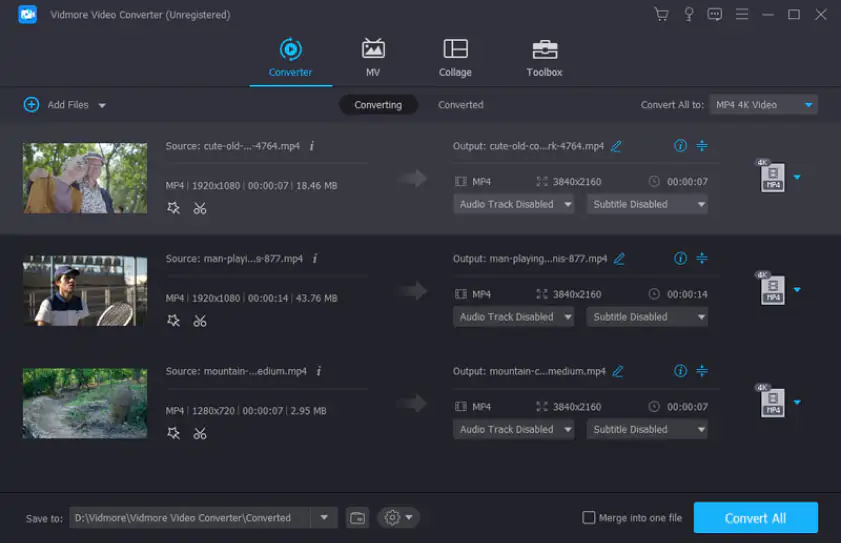
Why I picked it: this desktop tool boasts incredible speed that saves you hours during large media migrations.

My exploration of the best MP4-to-MP3 landscape shifts towards this dedicated program for Windows and Mac. Vidmore rips audio from video files at a massive 50x rate. It handles 4K sources easily and allows you to pick the exact quality for your final MP3 track. The software supports over 200 formats, it recognizes almost any raw footage from your camera.

Their site has a huge resource hub that’s actually a gold mine for quick tips and hidden tricks. I’ve spent some time digging through their guides, and they really know their stuff when it comes to codecs.

Probing its sequence, I threw a heavy folder of high-res clips at it to grab some background music. The task finished before I could blink, and every track sounded incredibly deep and professional.

Ratings

4.0/5

Pros:
  • Hardware acceleration provides top-tier processing speeds

  • Built-in tools for basic audio trimming

  • High-fidelity output up to 320 kbps

  • Very stable even with large 4K files

  • Includes a metadata editor for song info

Cons:

Why I picked it: the GPU acceleration technology makes this software rip through media files much faster than tools that only use your main processor.

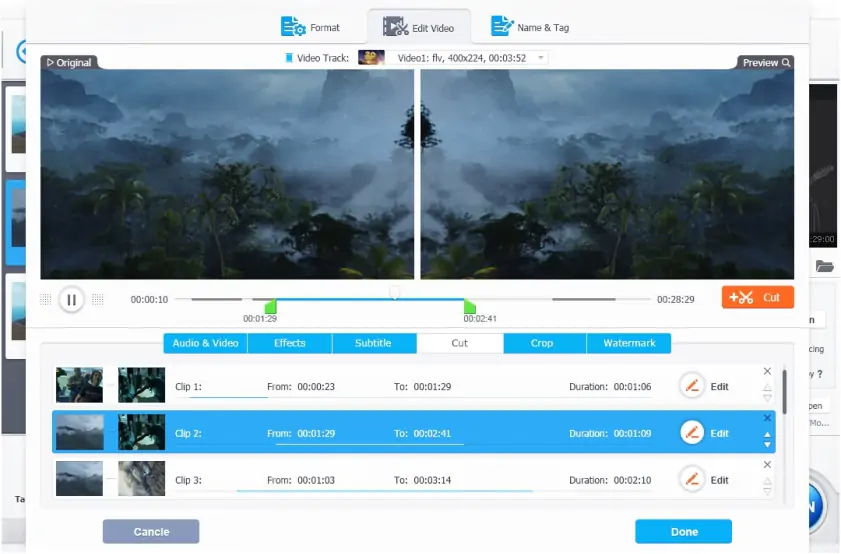
My roundup moves forward with VideoProc Converter. This desktop program is perfect for pulling clean sound from high-res footage. It leans on your graphics card to strip audio without making your system fans scream. You can throw a huge stack of clips into the queue and let the engine crunch the data. It also packs a toolkit to crop out dead air or fix the volume before you save the file.

The latest 8.10 update just landed, bringing new AI utilities to the software and showing that the team really cares about keeping the tech fresh.

To see it in action, I dumped a bunch of long 4K travel vlogs into the window to snag the ambient tracks. Everything wrapped up in a heartbeat and the sound stayed rich without any digital hiss.

Ratings

4.0/5

Pros:
  • High-quality and quick conversion with GPU acceleration

  • Wide range of formats supported

  • Basic audio editing features like merging and volume adjustment

  • Minimal system resource usage during heavy tasks

  • Intuitive interface accessible for beginners

Cons:

Why I picked it: this browser-based suite provides a completely free, no-install solution that handles media tasks in one tab.

My list grows with this site that pulls audio from video files right in your browser window. 123Apps Audio Converter is a free online solution that converts audio files for you. It accommodates almost all formats, processes the files quickly, and does not require extra installs. You can set the bitrate to 320 kbps to keep the sound quality high.

Since it recognizes almost any video you upload, you can extract sound from obscure formats. The tool also lets you fade the track in or out during the process. Running through the project’s blog, I wasn't impressed much. There are a few posts and how-tos, but they mainly cover basic navigation rather than deep technical updates.

Exploring the capabilities of this MP4-to-MP3 converter software, I dragged an old interview clip into the window to grab the voice track. It worked perfectly, and I had my file in seconds.

Ratings
Pros:
  • Entirely free with no hidden fees

  • Includes extra tools for trimming

  • Works on laptops and phones

  • No account required for quick tasks

  • Supports high-quality 320 kbps bitrates

Cons:
  • Free version has a 500 MB size limit

  • Needs a steady internet connection

Why I picked it: it combines professional video editing with an AI-driven conversion engine that sits entirely in the cloud.

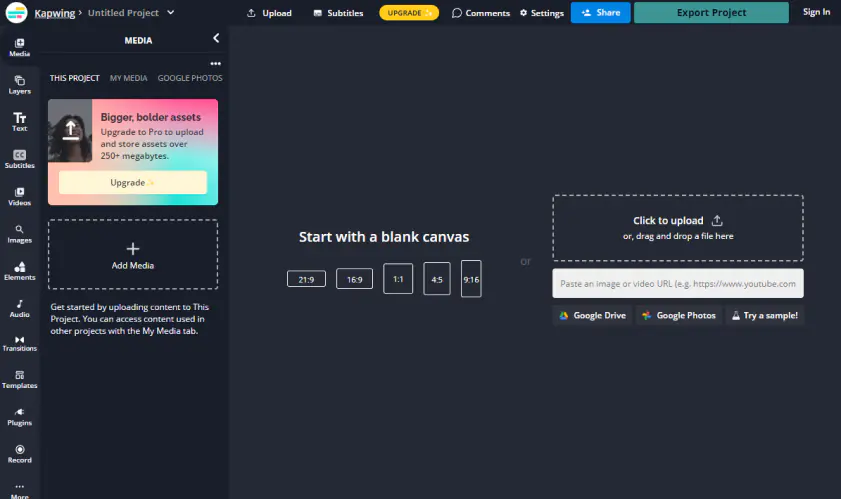
Kapwing is a really helpful cloud-based video editing and content creation platform. People use it to stitch clips, add music, and build short projects. It also supports real-time collaboration, meaning more than one person can edit at the same time. Kapwing is hosted in the browser as a cloud video editing tool and it does not ask for downloads or installs.

This online tool is excellent for pulling a clean soundtrack from a YouTube link or a social media clip. You can use the clean audio feature to remove background noise while you convert. It maintains high fidelity even if the original video is several hours long. The site also provides a waveform visualizer to help you see the volume peaks before exporting.

The January 2026 release added a new workspace and better recording tools for mobile users. These updates make it easier to manage large projects with a team. Testing its logic, I isolated a voiceover from a noisy outdoor video. The AI scrubbed the wind noise easily, leaving me with a professional track.

Ratings
Pros:
  • AI tools for noise removal

  • Collaborative workspace for teams

  • Directly imports videos from URLs

  • High-resolution 4K support

  • Modern interface that is easy to learn

Cons:

Why I picked it: it stays true to a minimalist, step-by-step flow that has been a gold standard for years.

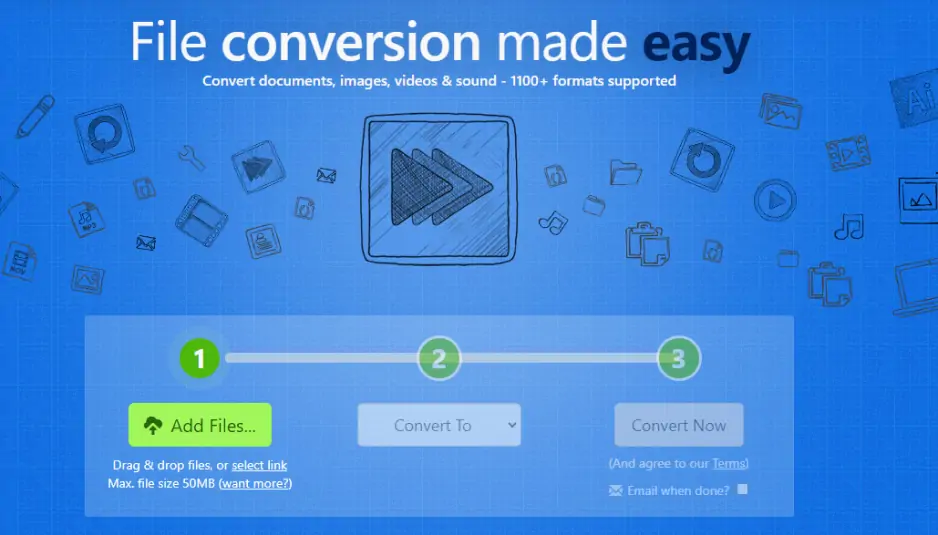
Up next on my radar is a classic service that is perfect for straightforward file transformations. Zamzar focuses purely on changing formats. You just upload your file, pick MP3, and the site does the rest.

It recognizes hundreds of different combinations, so your media is never stuck. The system automatically sends a download link to your email if you are processing large batches. I spent some time on their blog, and it’s a good read. They keep things simple and avoid boring tech talk. It’s cool to see a team that actually talks to its users like real people.

Curious about what Zamzar has in store for editors like me, I put it through its paces with a folder of old lectures. The tracks were ready for my commute in just a few minutes.

Ratings
Pros:
Cons:
  • Free version has a 50 MB size limit

  • No built-in trimming or editing tools

Why I picked it: it offers a reliable way to finish tasks on the go without being tied to one computer.

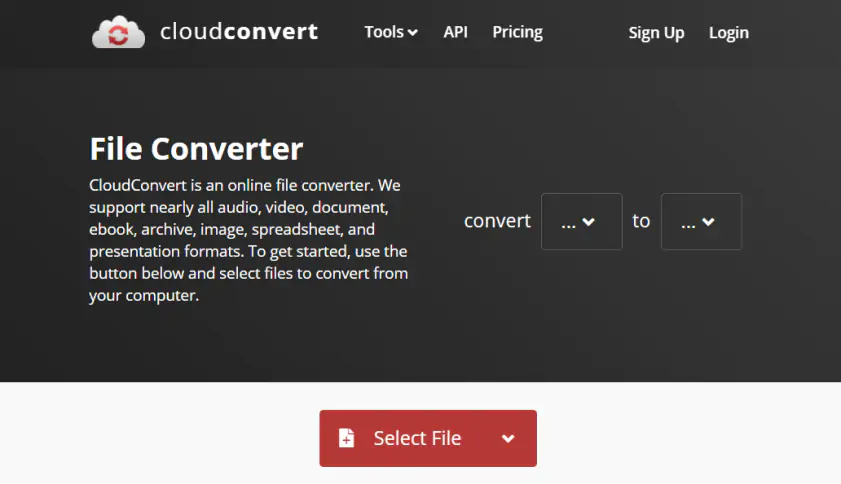
Moving forward, the next choice is great for anyone who wants to work in a browser without installing anything. CloudConvert does the work on its own servers, that helps to keep your own machine from getting hot. You can pick the exact quality and volume for your YouTube or local clips before the process starts.

Unlike the previous app, here I cannot say that updates show up every month. Nevertheless, noticeable recent improvements are in place. They just added GPU-based encoding, which makes converting heavy formats like HEVC much faster than before.

I appreciate how it sends files directly to my Google Drive to keep my storage tidy. The utility also allows for trimming the start and end points of your video before the extraction happens. It supports batch uploads, so you can queue up an entire album's worth of videos at once. This flexibility makes it a top-tier choice for mobile users who need desktop-level control.

Ratings
Pros:
Cons:

Why I picked it: this site is a standout utility when you need to transform media files on a borrowed laptop.

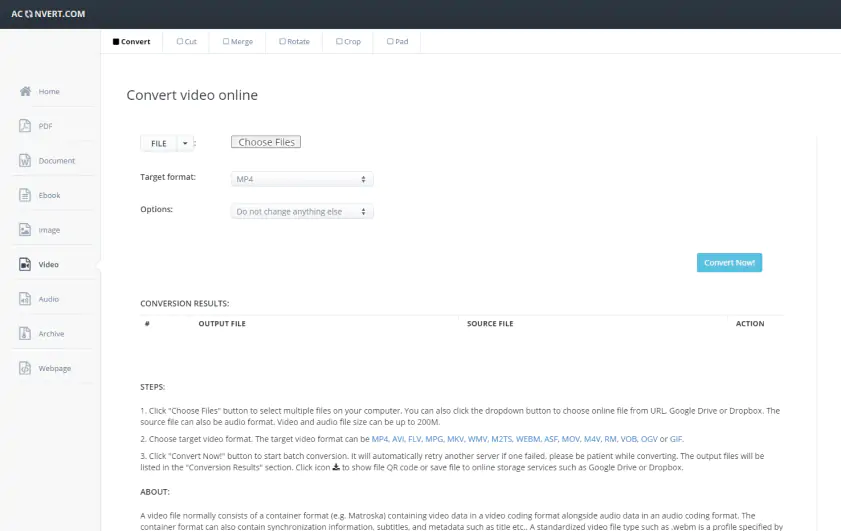
Aconvert is a cheap but cheerful MP4 to MP3 converter. This online tool offers a simple way to change your video clips into high-quality music tracks instantly and free of pay. You simply upload your clip and choose the desired bitrate for the final audio output. It fetches files from local drives or even cloud accounts like Google Drive with ease. It will hardly impress you with a flashy appearance, but it does get the job done!

As for the project’s major news in 2026, they claim to reach a 10 million audience among Google Play users (yes, the software has lots of dedicated converting apps for mobile nerds).

Exploring the converting power of Aconvert, I pulled a voice track from a webinar while sitting in a busy cafe. The server finished the task in seconds, and the download was ready before I finished my coffee.

Ratings
Pros:
  • No software installation or accounts required

  • Handles files from direct URLs and the cloud

  • Very simple interface for quick conversions

  • Completely free for files up to 200 MB

  • Works on every modern mobile browser

Cons:
  • Frequent ads can be quite annoying

  • Daily conversion limits for free guests

Why I picked it: this browser tool is famed for its convenience since it handles 300+ formats without forcing you to make an account.

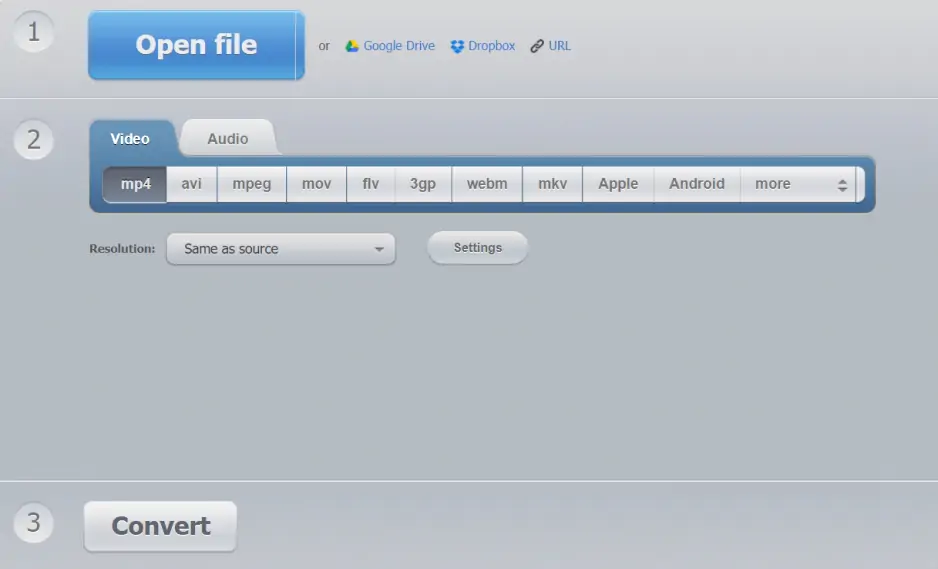
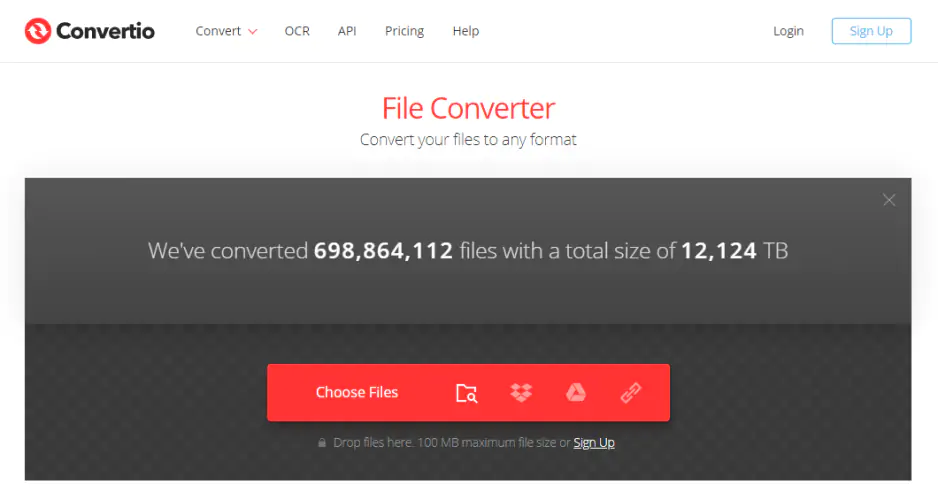
Now, I want to touch on Convertio, a browser-based converter that supports over 300 formats. You just drag your file in or pull it straight from Google Drive to start the MP4-to-MP3 extraction in seconds. The site stays clean and skips the usual clutter. That helps you focus on the task better. It does all the heavy lifting in the cloud, so your own hardware will not overheat.

I love the fact that they purge your data after 24 hours to keep your privacy locked down tight. I used Convertio to rip a catchy background track from a 50 MB travel clip. The download was ready in mere seconds, so I didn't have to deal with any annoying wait.

Ratings

4.4/5

Pros:
Cons:
  • Free version limits files to 100 MB

  • Requires an internet connection for all conversions

Why I picked it: this utility turns your smartphone into a portable extraction station that fits perfectly into a fast-paced mobile routine.

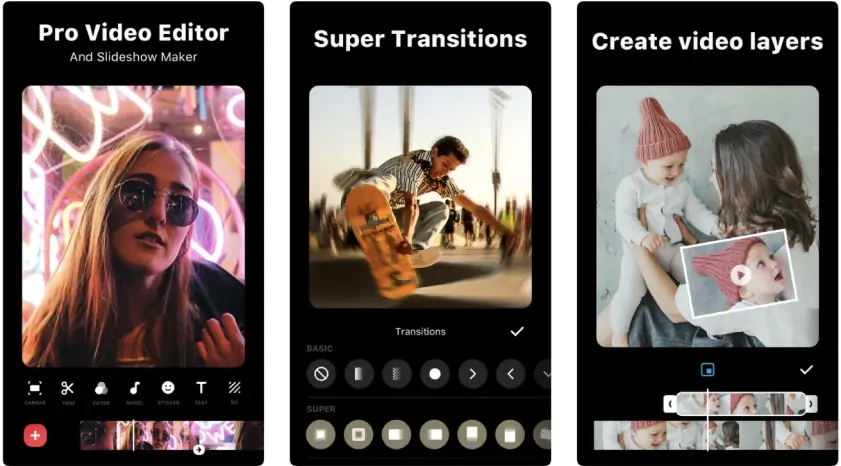
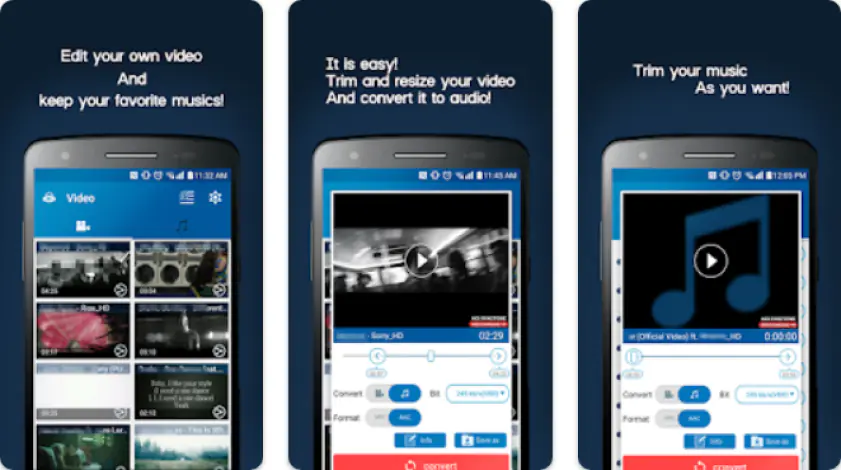
Editing often takes place when I'm away from the desktop keyboard, so having a reliable mobile ripper is an absolute must for my workflow. I want to begin with InShot. This Android app is my favorite for pulling clear tracks from phone recordings on the go. It features a dedicated fast mode that zips through the process without eating up your battery life. You can choose different bitrates and even edit the metadata directly in the app after saving.

It’s an all-in-one tool for quick video cutting and music editing. With this MP4 to MP3 converter, you can extract high-quality audio from video, trim files, and merge tracks in seconds. I used it to snag a voice clip from a video I took at a loud concert. The sound stayed crisp, and I had a new notification tone ready in seconds.

Ratings
Pros:
  • Optimized for quick mobile execution on the go

  • Integrated tag editor for organizing your library

  • Supports high-bitrate exports for better clarity

  • Very light on system resources and battery

  • Includes a handy ringtone maker and cutter

Cons:
  • The free version contains frequent advertisements

  • Batch processing is limited on the basic tier

Why I picked it: it provides a smooth workflow for iPhone users who want to manage media without a computer nearby.

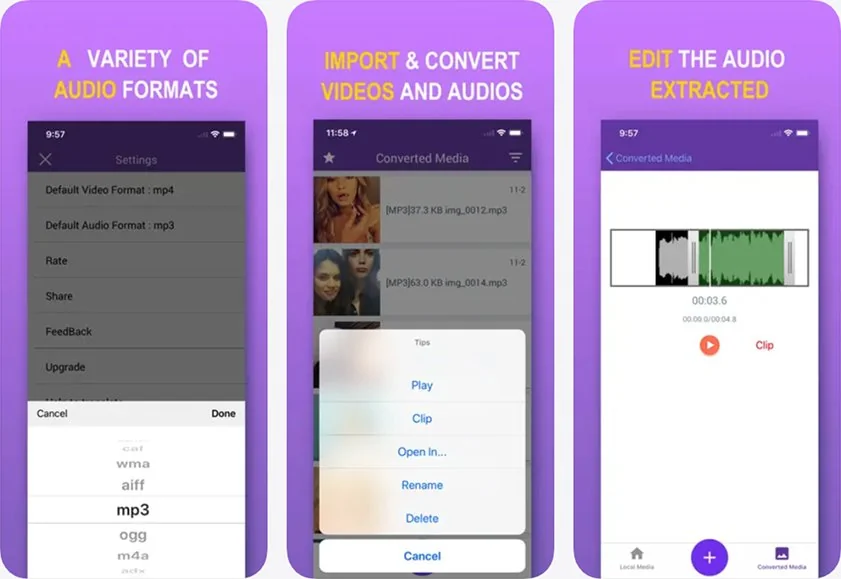
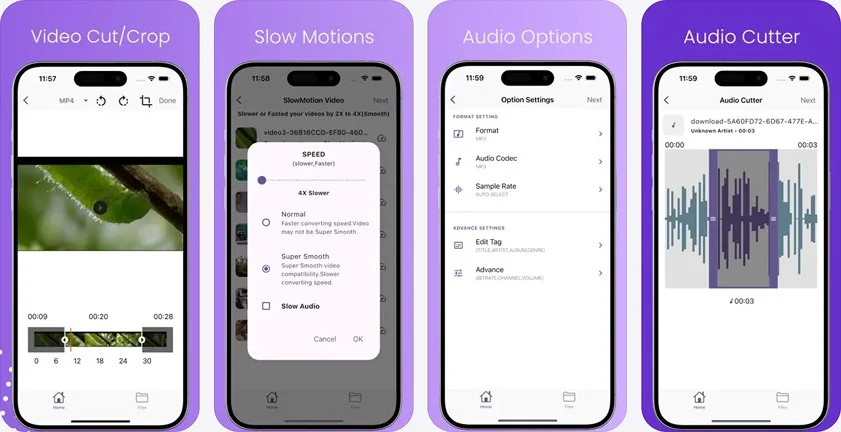
What about turning a clip into a ringtone? MP3 Converter - Audio Extractor (iOS) is a top-tier choice for your iPhone because it handles audio extraction and ringtone creation in one place. You can trim the video visually to grab only the specific part of the sound you actually need. It supports high-quality compression, which allows you to save space while maintaining clear audio quality.

According to the official App Store page, the dev team pushes updates and bug fixes quite often, which helps keep the user rating high. To gauge its performance, I tested the ringtone tool by pulling a catchy hook from a concert video. I didn't encounter any difficulties along the

way, the file is saved straight to my iPhone, ready to set as a ringtone in a few taps.

Ratings

4.0/5

Pros:
  • Visual timeline for very accurate trimming

  • Directly saves files to your local music library

  • No account or sign-up needed for basic use

  • Includes a handy volume normalization tool

  • Works smoothly on the latest mobile hardware

Cons:
  • Some advanced tools are locked behind a paywall

  • Interface can feel a bit busy with many options

Why I picked it: this app stays true to a minimalist flow that has been a gold standard for mobile file transformations.

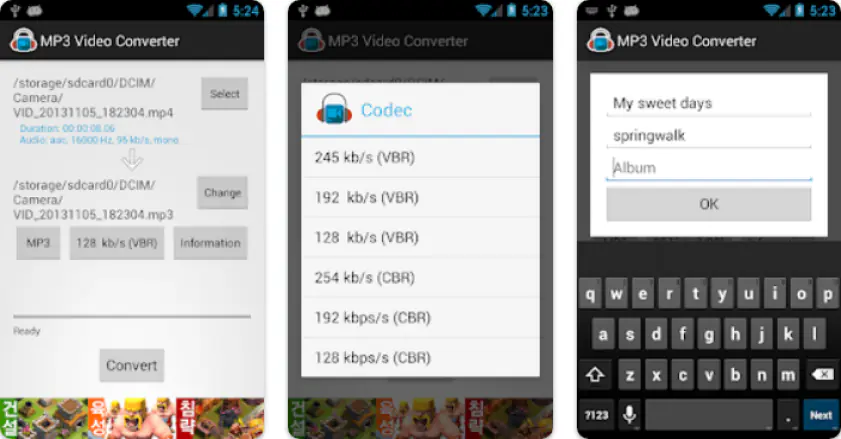
Shifting gears to a powerful solution for Samsung or Pixel owners who need deep control over their files. This MP3 video converter utility from Springwalk is meant for getting clean audio from your Android gallery.

Beginner-friendly, it helps you turn videos into clear tracks with little to no effort. It allows you to select specific codecs to ensure the best sound quality for your local player. You can even create full albums and edit the tags to keep your library looking tidy. And it perfectly fits the definition of the best MP4-to-MP3 converter with a free download.

Eager to challenge its flow, I used the tool to extract a voice recording from a video memo. It processed the data instantly, and the sound was identical to the original source.

Ratings
Pros:
  • Works perfectly on various modern mobile brands

  • Completely free with no hidden costs for basic use

  • Supports editing for title and artist tags

  • Very light on your phone battery life

  • Fast extraction for short social media clips

Cons:
  • The interface looks a bit old-fashioned

  • Occasional ads pop up between conversion tasks

Why I picked it: this software wins in terms of raw speed, offering the fastest mobile conversion experience I've tested.

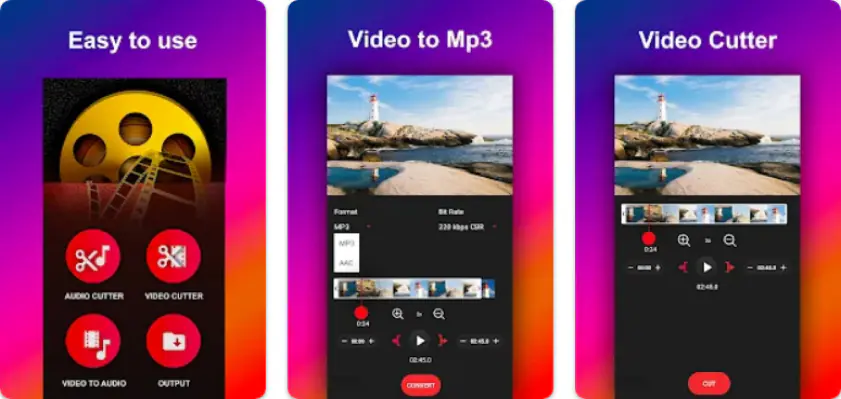
My journey towards the best MP4-to-MP3 converters takes me to this specialised Android utility from FunDevs that rips audio from videos in a flash. You can convert, cut, resize, and create ringtones with only a few clicks. You can even change the album cover of your music!

The platform features an integrated metadata editor, you can fix the song info before you even save it. You can also set the volume level for your MP3 to make it louder without using a separate editor.

So, I gave it a whizz. I used the FunDevs converter to snag a punchy soundbite from a long movie trailer I had on my phone. The built-in cutter made it a breeze to trim the exact second I wanted for my new text alert.

Ratings
Pros:
  • Fastest conversion engine in the mobile category

  • High-quality 320 kbps output for clear sound

  • Simple UI that is accessible for beginners

  • Includes a metadata editor for song organization

  • Low system resource usage during batch tasks

Cons:
  • The ads can be a bit intrusive at times

  • Lacks advanced noise reduction filters

Why I picked it: this project is a total clincher for users who want a built-in ringtone maker and merger in their converter.

Taking things in a new direction, let's look at an all-in-one suite that handles more than just simple extraction. Accountlab sits among the best MP4-to-MP3 converters for mobile users who want to edit their files immediately after conversion. This app generates audio from video files and saves it as an MP3. It supports common formats like MP4, AVI, WMV, and others. You can cut clips, set ringtones, choose bitrate, and play files with one tap.

You can join multiple audio tracks together or cut out specific parts to make custom alerts. It handles the whole process offline, so you don't have to worry about your data usage.

To probe its mechanics, I turned a long recording of a street musician into a custom ringtone yesterday. The logic was spot on, and the final file sounded great on my speakers.

Ratings
Pros:
  • Works perfectly without an internet connection

  • Includes a built-in MP3 cutter and merger

  • Supports VBR and CBR encoding for better control

  • Very light on battery even with long files

  • Easy to share results directly to social media

Cons:
  • Free version shows occasional video ads

  • The design can feel a bit basic for pro users

Why I picked it: with it, you get the complete toolbox that converts almost all video and audio formats with basic editing tools.

My list is rounded out by this famous app, which is perfect for stripping audio from your clips on both Android and iOS. This converter by VidSoftLab is just the thing because it packs everything from format switching to quick trimming into one spot. You can swap file types, shrink sizes, and snip your tracks without ever needing to jump to another tool.

It uses a high-speed engine to rip tracks from 4K videos while keeping the sound quality exactly where you want it. You can pick between simple or advanced modes to dial in specific bitrates or even change the sample rate manually.

I used the tool to turn a whole folder of music videos into a neat playlist for my morning run. The logic was spot on, and the final tracks sounded rich and full on my headphones.

Ratings
Pros:
  • Consistent, high-speed performance on both iPhone and Android

  • Includes a built-in MP3 cutter and audio merger

  • Supports massive 4K video sources without crashing

  • High-quality output options up to 320 kbps

  • Very light on system resources and battery life

Cons:
  • The free version has occasional pop-up ads

  • Some advanced codecs require a premium upgrade

How to choose the best MP4-to-MP3 converter

So, you’ve got 18 proven ways to rip audio, but you only need the one that fits your current vibe.

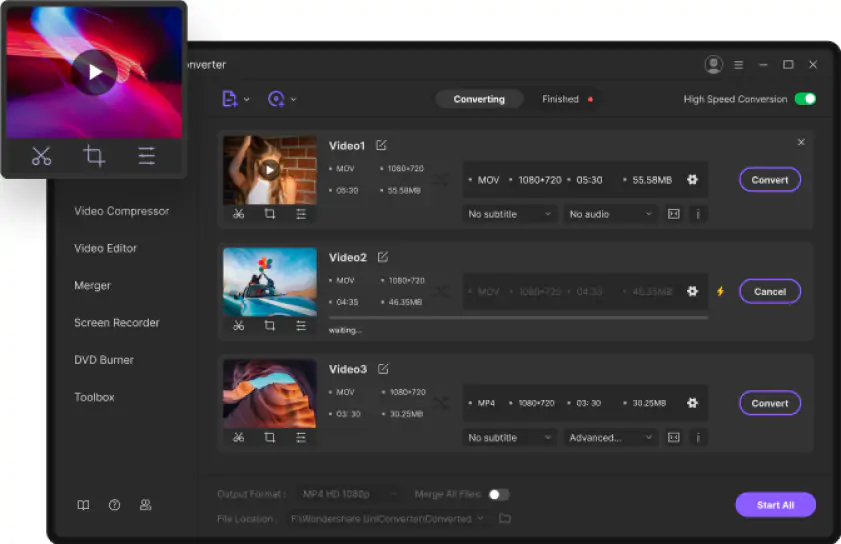
If you are at your desk with a mountain of 4K files, Movavi Video Converter is a total win for its SuperSpeed mode. It easily wins the title of the best MP4-to-MP3 software thanks to its intuitive workflow and rapidity. For those who want enhanced control over every technical detail on a PC, XMedia Recode is the expert choice that won't cost a dime. If you need a heavy-duty suite with smart AI features to clean up background noise, Wondershare UniConverter is the way to go.

When you're on a borrowed laptop and hate installing software, CloudConvert is a lifesaver that performs everything in the cloud. If you just need a quick, simple extraction for files under 100 MB, Convertio is the real deal for its clean, three-step workflow. For those who want a completely free product with a built-in trimmer right in the tab, 123Apps Audio Converter is a safe pair of hands

For editing on the move, the InShot Video to MP3 Converter is an absolute asset for Android users who want to whip up ringtones fast. If you’re on an iPhone and need to boost the volume of a quiet recording, MP3 Converter – Audio Extractor is a top-tier tool. If you want one famous app that works perfectly on both iPhone and Android, Video Converter & Compressor by VidSoftLab is the complete toolbox for your pocket.

Movavi Video Converter
The ideal way to get your media in the format you need!

Frequently asked questions

What is the best MP4-to-MP3 converter that’s free?

Free tools differ by setup. On a PC, Movavi Video Converter gives stable results and batch support. It works well with larger video files. MediaHuman Audio Converter is another simple program for Windows and Mac. Online tools like CloudConvert run in a browser, they work without installation. Android apps suit quick jobs like short clips or YouTube downloads.

How can I easily convert MP4 to MP3?

Pick one tool first. It can be a program, an online service, or a mobile app. Upload the file, then choose MP3 as output. On PC, the MP4-to-MP3 converter software installs once and works offline. Online tools process files inside the browser. Android apps often include trimming for short audio parts.

Which MP3 converter is safest to use?

Safety depends on where files are processed. Desktop software for a PC keeps files on your computer. Movavi Video Converter follows this approach and does not send files outside the device. Online services like Zamzar or CloudConvert process files on servers and delete them after a short time. Official Android apps from Google Play reduce risk compared to unknown downloads.

Does converting MP4 to MP3 lose quality?

Yes, some change happens. MP4 stores video and audio together. MP3 keeps only audio and compresses it. MP4-to-MP3 software lets you set bitrate. Higher bitrate keeps more detail. Lower bitrate reduces file size. The original file quality sets the limit.

Have questions?
If you can’t find the answer to your question, please feel free to contact our Support Team.
Join us for discounts, editing tips, and content ideas

1.5M+ users already subscribed to our newsletter

By signing up, I agree to receive marketing emails from Movavi and agree to Movavi's Privacy Policy.