17 Best Slideshow Makers for Mac in 2026

Edited by
Ben Jacklin
8,227

Making a slideshow on a Mac should be easy, not like trying to figure out a puzzle with missing parts. If you're making a slideshow with family pictures or a presentation for work, the right tool can make a big difference. It can turn something that takes hours into something that only takes minutes, and that's a great thing for your creativity.

Key takeaways

For beginners: Movavi Slideshow Maker and Apple Photos offer the easiest learning curve

For professionals: Keynote and Microsoft PowerPoint provide advanced features and polish

For video-heavy projects: iMovie and HyperEngine-AV excel at blending photos with video clips

For budget-conscious users: LibreOffice Impress and Preview deliver solid results at zero cost

For unique presentations: Prezi and Focusky break away from traditional linear formats

Top slideshow software recommen­dations

  • Best for

    Users who want room to grow from basic slideshows to more complex video projects

  • Price

    Free trial, then $44.95 /year or $69.95 lifetime license

  • Platform

    macOS, Windows

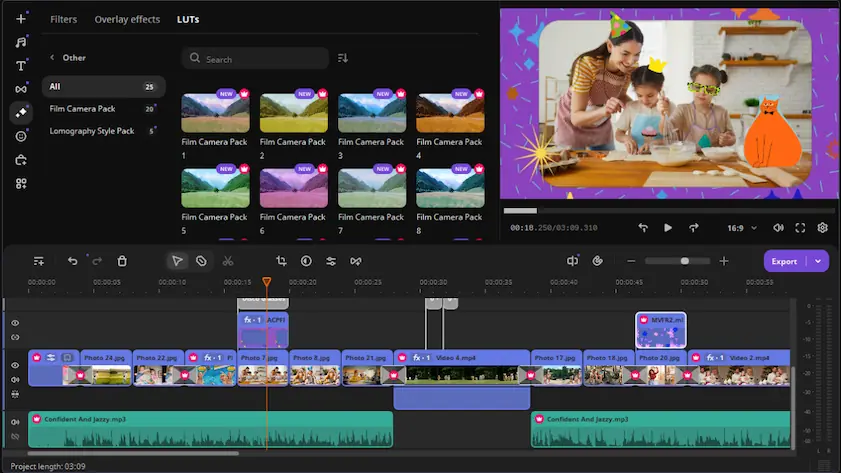
Movavi strikes that sweet spot between simplicity and power that most slideshow creators struggle to find. The Easy Mode gets you from zero to polished slideshow in under ten minutes – just drag photos, pick music, choose a theme.

Things start to get really interesting when you switch to the full feature mode. That's when you can use the timeline editor, add custom transitions, and even put videos together. Most of the time, you have to choose between a tool that's easy to use or one that has a lot of features. But Movavi is different - it gives you both, so you don't have to pick just one.

You don't have to waste time searching for music that's free to use, because it's already there. The color correction tools are really helpful too - like when you take a photo on vacation and it's too dark, you can fix it right away without having to open another app. And when you're ready to share your video, the export presets make it easy - whether you're putting it on Instagram, YouTube, or a big screen, it's all taken care of.
Rating

Pros:
  • Dual-mode interface adapts to your skill level

  • Includes music library and sound effects

  • Handles both photo and video content seamlessly

  • One-click fixes for common photo issues

Cons:
  • Free trial adds watermarks to exported slideshows

  • Advanced features require stepping up from Easy Mode

  • Subscription pricing may deter casual users

  • Limited template variety compared to online platforms

  • Best for

    Apple users who present frequently and value cross-device workflow

  • Price

    Free with macOS

  • Platform

    macOS, iOS, iPadOS

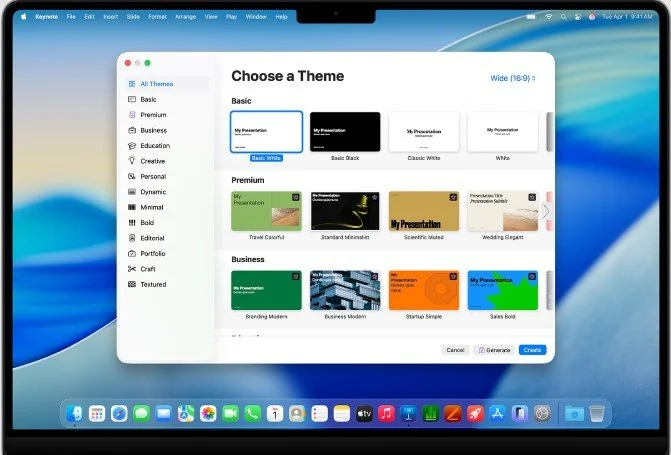
Apple made Keynote just for their devices, and you can tell. It's a really smart app that works perfectly on all their products. If you start working on something on your iPhone, it will show up right away on your iPad and Mac too. So, you can start thinking about a project on your phone during lunch, make it better on your iPad that night, and then show it off on your MacBook the next day. It's all connected, which makes it really easy to use.

The Magic Move transition deserves special mention – it automatically animates objects between slides in ways that feel almost telepathic. Draw with Apple Pencil on iPad, and those annotations appear in real-time on your Mac version.

Keynote's templates lean heavily toward business and education, but they're genuinely well-designed. Not the generic corporate templates you see everywhere else.

Rating

Pros:
  • 100 minutes of hardwood cleaning

Cons:
  • Not for high pile carpets or dark flooring

  • Best for

    Business professionals who need maximum compatibility and collaboration

  • Price

    $6.99/month (Microsoft 365 Personal) or $229.99 one-time purchase

  • Platform

    macOS, Windows, iOS, Android, Web

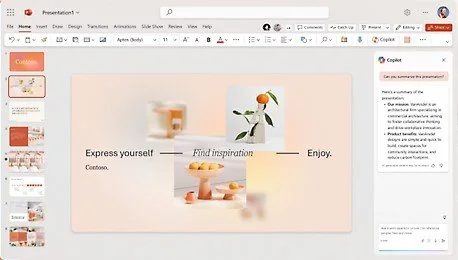
When it comes to giving presentations, PowerPoint is still the best choice for professionals. Lots of people who use Capterra think that Microsoft PowerPoint is really good at helping them make presentations that look professional, with features like editing videos and using templates. Whether you're in a business meeting, a conference, or a classroom, everyone expects to see a PowerPoint presentation. And that's a good thing - because so many people use it, there are tons of online tutorials and templates available, and your colleagues will always be able to open your files. This makes it easy to share your presentations with others and get feedback. Plus, with all the resources available, you can make your presentations look really polished and engaging.

The Designer feature suggests layout improvements using AI. Not revolutionary, but helpful when you're staring at a blank slide at 11 PM. Morph transitions rival Keynote's Magic Move for smooth object animation.

Now you can work with others more easily. New updates let many people edit at the same time, without all the problems that used to happen when trying to keep track of different versions. This means you can collaborate with others in real-time, making it simpler to get work done together.

Rating

Pros:
  • Universal compatibility and file sharing

  • Extensive template marketplace and resources

  • AI-powered design suggestions

  • Strong collaboration and sharing tools

Cons:
  • Subscription required for latest features (Microsoft 365)

  • Can feel bloated with rarely-used features

  • Templates often look generic and overused

  • Steep learning curve for advanced animations

  • Best for

    Budget-conscious users who need basic slideshow functionality

  • Price

    Free

  • Platform

    macOS, Windows, Linux

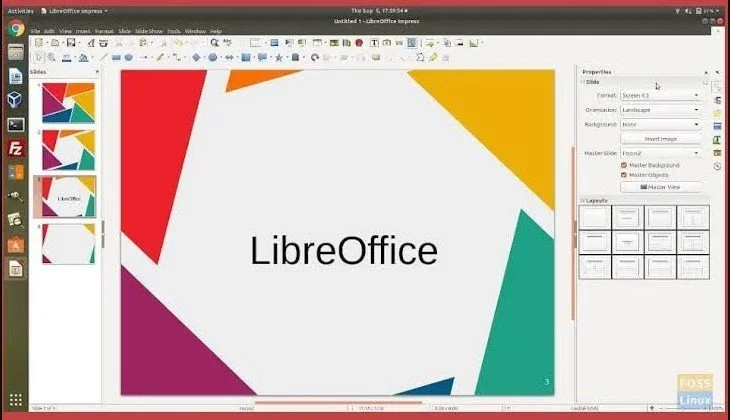
You don't have to think that free means you get less. LibreOffice Impress is a great tool for making simple presentations with some nice animations. It does everything you need to make a basic slideshow. You can add photos, text, and transitions without paying any money or seeing ads. This is a good option if you just need to make a simple presentation. Impress is a good choice because it's free and still has the features you need. You can use it to make a nice slideshow on a Mac without spending any money.

If you're used to working with PowerPoint, this will feel pretty familiar, but it's been stripped down to the basics. There are fewer menus and options, which means fewer ways to get confused. Some people might see this as a limitation, while others will find it freeing.

You can use this program to open PowerPoint files, which is really helpful. It works pretty well, but sometimes the fancy animations don't look exactly the same. When you want to save your work, you have a few options - you can save it as a PDF, an HTML file, or even as a picture. This gives you a lot of flexibility, which is great.

What users say

I've had some not-so-great experiences with LibreOffice Impress, but it gets the job done for me when I need to make simple presentations with basic animations. That's all I really need, so it works fine. However, some people think it's not as slick as some other presentation software you have to pay for.

Pros:
  • Completely free and open-source

  • No subscription fees or feature limitations

  • Decent PowerPoint file compatibility

  • Available across multiple operating systems

Cons:
  • Interface feels dated compared to commercial alternatives

  • Limited selection of modern templates

  • Advanced animation features lag behind paid options

  • Smaller user community for support

  • Best for

    Speakers who want to break away from traditional slide formats

  • Price

    Free for public presentations, $5/month for private

  • Platform

    Web-based, mobile apps available

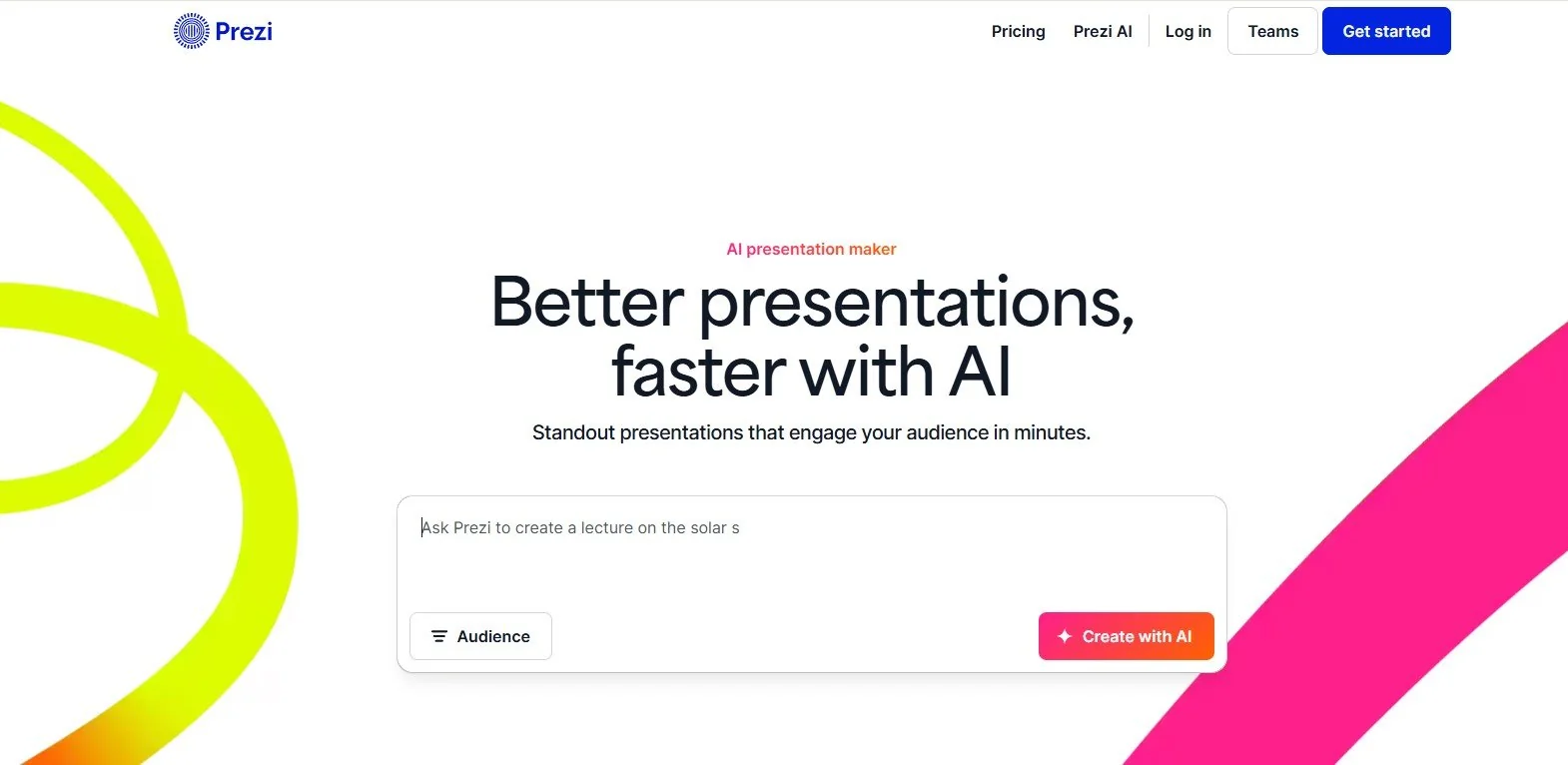
When you think about traditional slideshows, they usually move in a straight line - you start with slide 1, then slide 2, and so on. But Prezi is different. As PCMag points out, Prezi's approach is non-linear, and it has some really great video features that make it easy for anyone to create engaging presentations, even if you don't have a background in graphic design. So, how does it work? Well, Prezi uses a huge, infinite canvas where you can zoom in and out, and pan across to different ideas. It's kind of like having a giant mind map that shows you more and more details as you move through it.

This method is really great for some kinds of content. It helps show how ideas are connected, and it's like putting together a puzzle, where you get to see the big picture. It also makes the information feel more like a story, rather than just a list of points. You can use it to create a flow that takes the reader on a journey, making it more engaging and easier to follow.

So, here's the thing: Prezi presentations can be a bit too much if you're not careful. All those fancy zooms and spins might look cool, but they can actually make your audience feel queasy. Just remember to use them sparingly, okay? You don't want to overwhelm everyone with too much movement. Keep it simple and you'll be fine.

Rating

Pros:
  • Unique non-linear presentation format

  • Engaging zoom and pan transitions

  • Cloud-based collaboration

  • Analytics show which parts engage viewers most

Cons:
  • Can cause motion sickness in viewers

  • Not suitable for all presentation types

  • Requires internet connection for editing

  • Limited offline presentation capabilities

What users say

I've always loved using Prezi to make presentations, ever since I was in high school. It's been really great to be able to add some fun to my work presentations while still keeping them professional.

  • Best for

    Startups and entrepreneurs creating pitch decks

  • Price

    Free plan available, premium plans start at $8/month

  • Platform

    Web-based

Slidebean is a great tool for entrepreneurs and startups who want to make a good impression with their pitch decks. It has lots of templates that are just right for this purpose. People who have used Slidebean really like it - it's got a 4-star rating on Trustpilot. They love how easy it is to use and how nice the graphics look. All you have to do is add your content, pick a design theme, and the AI will take care of the rest, using principles that have been proven to work well in presentations. This makes it simple to create a pitch deck that looks professional and gets your point across.

This tool is really useful because it has some great features that help you make better presentations. It can look at your pitch deck and give you tips on how to improve it. It's not just a piece of software, it's like having a guide that shows you what works well in a presentation.

Collaboration tools let team members comment and suggest changes without editing the actual slides. Version history prevents the chaos of "final_v2_ACTUALLY_FINAL.pptx" files.

Pros:
  • AI-powered design suggestions for better layouts

  • Specialized pitch deck templates and guidance

  • Strong collaboration and feedback tools

  • Analytics track viewer engagement

Cons:
  • Primarily focused on business presentations

  • Limited customization compared to traditional tools

  • Requires subscription for most useful features

  • Templates can look similar across different users

  • Best for

    Users who want cinematic photo montages with music

  • Price

    Free with macOS

  • Platform

    macOS, iOS

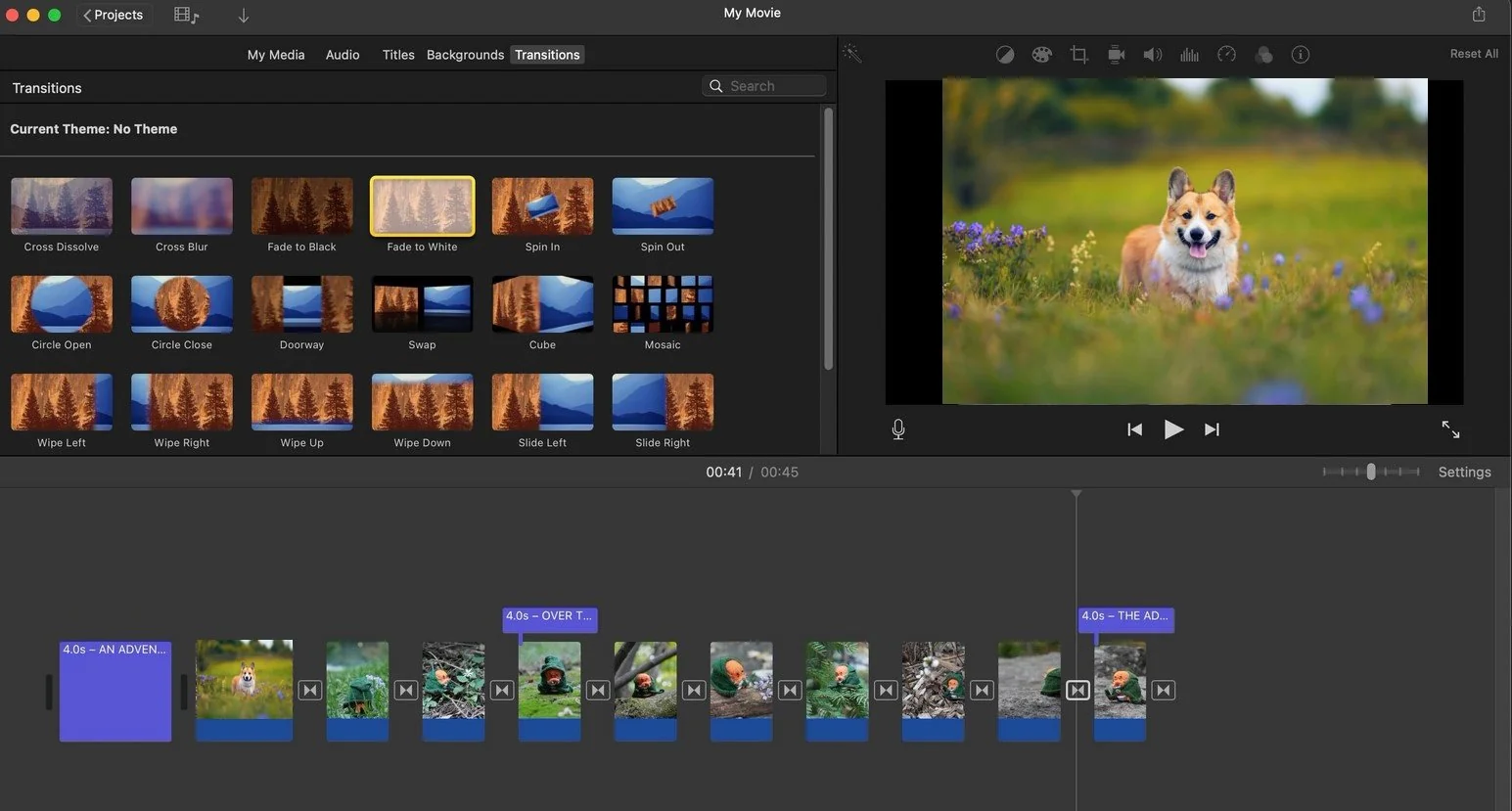
Apple's iMovie might not be the first thing you think of for slideshows, but it's surprisingly capable. Since it's designed primarily for video editing, it excels at blending photos with video clips, adding music, and creating cinematic transitions.

The Ken Burns effect automatically adds slow pans and zooms to still photos, making them feel more dynamic. Built-in soundtracks and sound effects save you from hunting down royalty-free music. Export options cover everything from iPhone screens to 4K television displays.

Pros:
  • Free with every Mac

  • Excellent for combining photos and video

  • Professional-looking templates and effects

  • Direct sharing to social media platforms

Cons:
  • Limited text and graphic design capabilities

  • Overkill for simple photo slideshows

  • Can't create traditional presentation slides

  • Exports as video files only

  • Best for

    Quick and dirty photo sequences when you need something fast

  • Price

    Free with macOS

  • Platform

    macOS

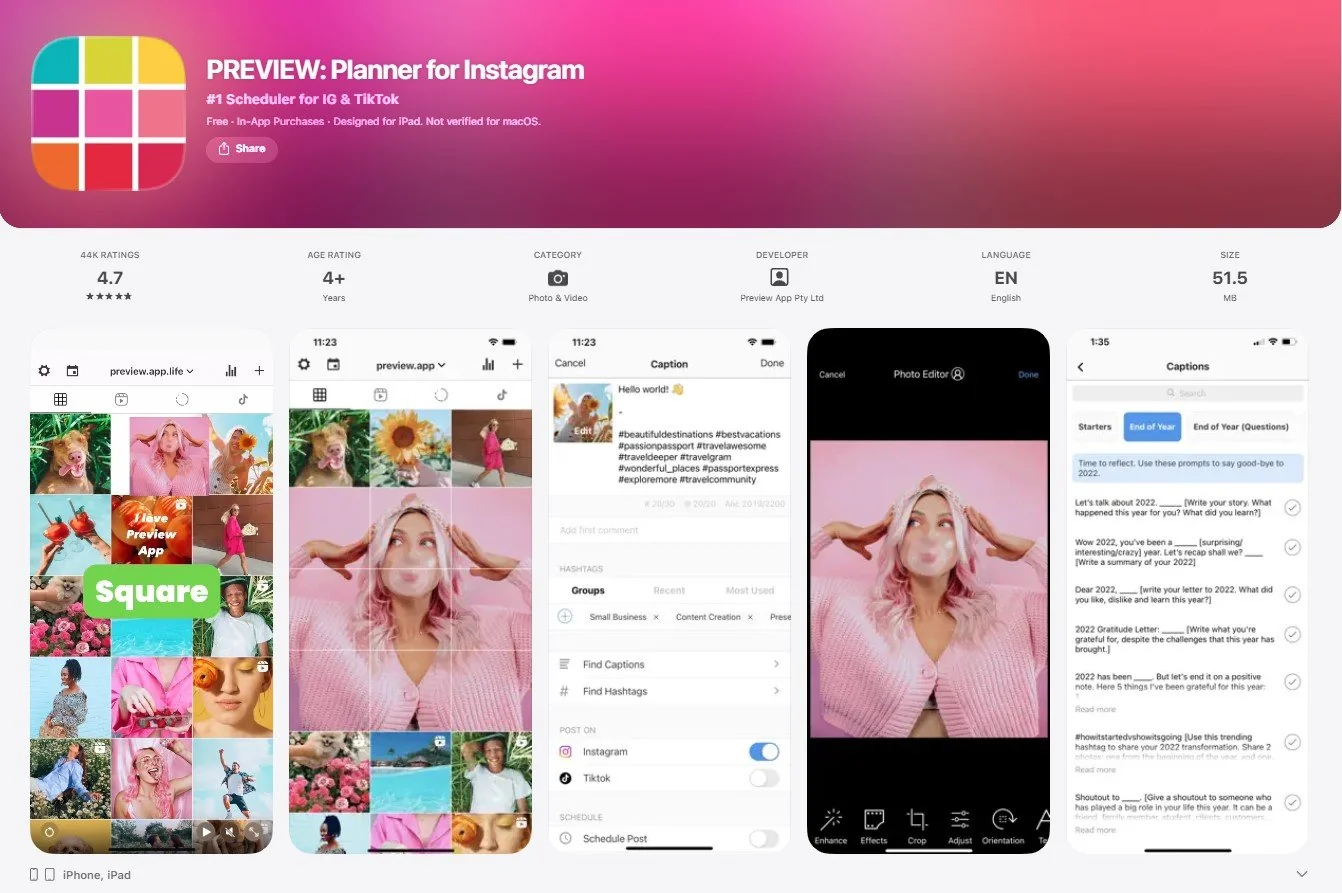
Don't overlook Preview – it's already installed on your Mac and surprisingly capable for basic slideshows. While most people use it just for viewing PDFs and images, Preview can actually create simple presentations from image files.

Select multiple photos, arrange them in order, and export as PDF. Add basic annotations and text overlays. It's not fancy, but sometimes you just need to show a series of photos without bells and whistles.

Pros:
  • Already installed on every Mac

  • No learning curve – extremely simple

  • Fast for quick photo sequences

  • Exports to PDF for easy sharing

Cons:
  • Very limited customization options

  • No transitions or animations

  • Can't add background music

  • Basic text tools only

  • Best for

    Teams who need to collaborate remotely on presentations

  • Price

    Free with Google account

  • Platform

    Web-based, mobile apps available

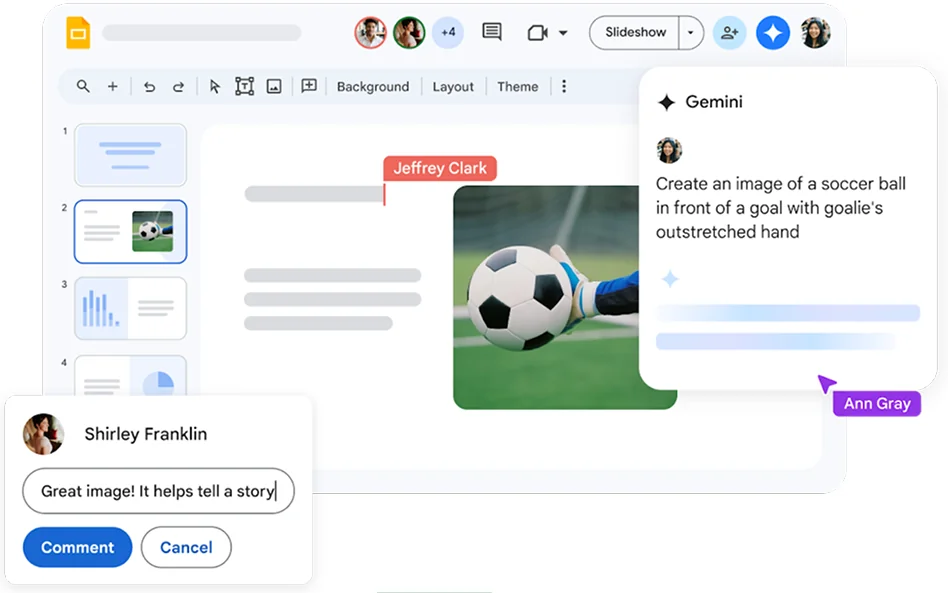
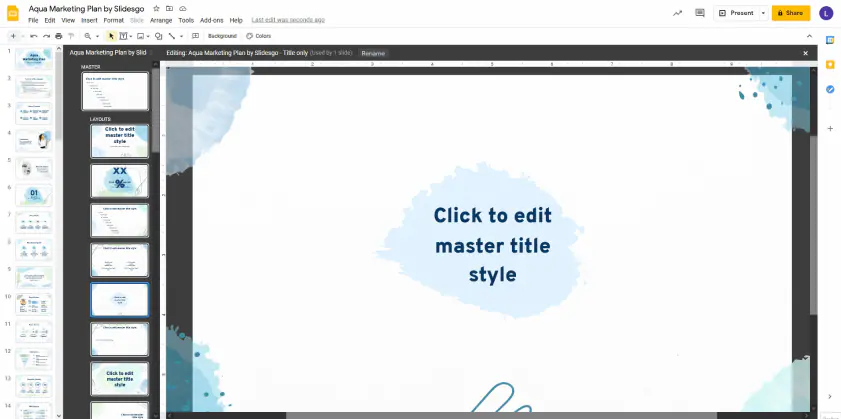
Google Slides brings the convenience of cloud-based editing to slideshow creation. According to PCMag reviews, it offers solid collaboration features and works entirely in your web browser. Multiple people can edit simultaneously, comments and suggestions streamline feedback, and version history prevents accidental deletions.

The template selection isn't as extensive as PowerPoint's, but it covers the basics well. Integration with other Google services means easy access to photos from Google Photos and fonts from Google Fonts.

Pros:
  • Real-time collaboration with multiple editors

  • Works on any device with a web browser

  • Automatic saving prevents lost work

  • Free with Google account

Cons:
  • Requires internet connection for editing

  • Limited advanced animation options

  • Fewer templates than desktop alternatives

  • Can feel sluggish with large presentations

10. Canva

  • Best for

    Users who prioritize visual design over complex functionality

  • Price

    Free plan available, Pro plan $12.99/month

  • Platform

    Web-based, mobile apps available

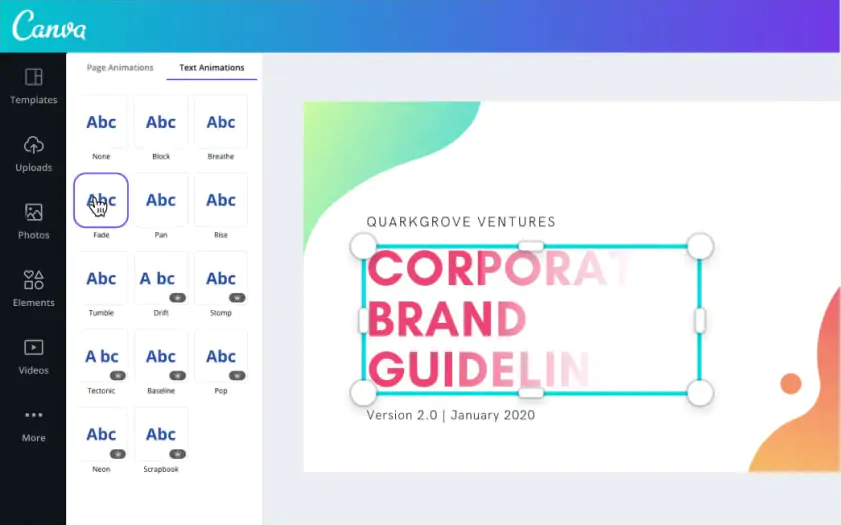
Canva has evolved from a simple graphic design tool into a capable presentation platform. Its strength lies in making design-heavy slideshows accessible to non-designers. Thousands of templates, stock photos, and graphics mean you can create visually stunning presentations without hiring a designer.

The drag-and-drop interface feels intuitive. Pre-designed layouts maintain visual consistency even when you're mixing different content types. Animation options add polish without requiring technical expertise.

Pros:
  • Enormous library of templates and graphics

  • User-friendly design tools for non-designers

  • Brand kit maintains consistent colors and fonts

  • Works well for social media-sized presentations

Cons:
  • Can feel overwhelming with too many options

  • Premium features require subscription

  • Limited video integration compared to dedicated tools

  • Internet connection required

  • Best for

    Users already in the Adobe® ecosystem who want professional design quality

  • Price

    Free plan available, premium plans start at $9.99/month

  • Platform

    Web-based, mobile apps available

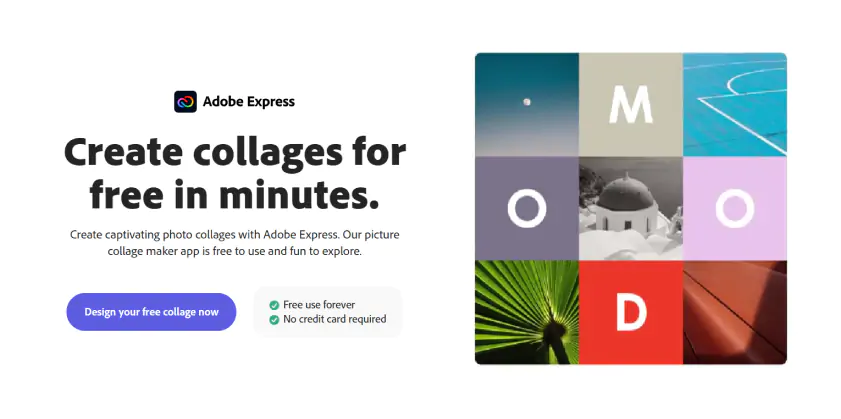
Adobe's simplified design tool offers professional-quality templates without the complexity of full Creative Suite applications. It's positioned between Canva's simplicity and Photoshop's power.

Integration with Adobe Stock provides access to millions of professional photos and graphics. Brand kits ensure consistency across all your marketing materials. Export options include video formats for social media sharing.

Pros:
  • Professional Adobe® design quality

  • Access to Adobe® Stock library

  • Templates designed by professional designers

  • Good integration with other Adobe® products

Cons:
  • More expensive than alternatives

  • Requires Adobe® Creative Cloud® subscription for best features

  • Can be overkill for simple slideshows

  • Steeper learning curve than basic tools

  • Best for

    Presenters who want to create memorable, visually striking presentations

  • Price

    Free version available, Pro version $8.99/month

  • Platform

    Windows, macOS, online version

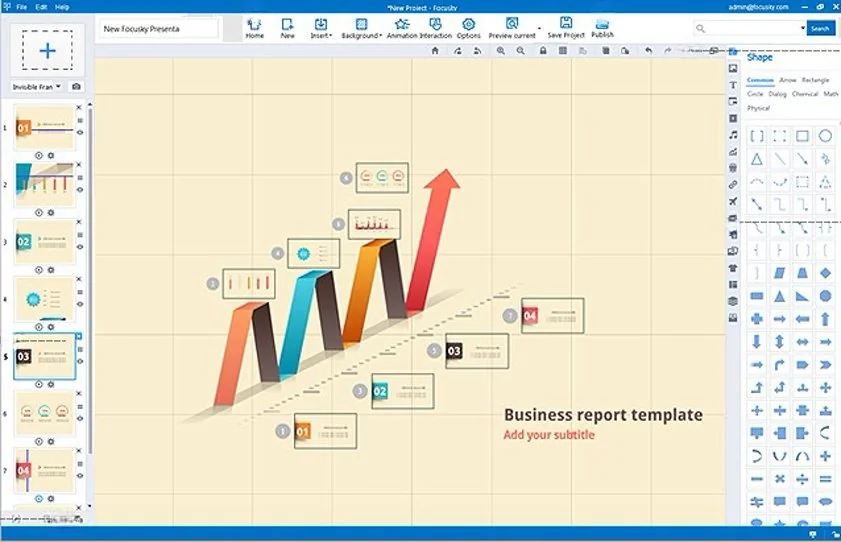
Focusky takes a similar approach to Prezi with its infinite canvas and zooming interface, but adds more customization options. You can create non-linear presentations that zoom and pan across a large workspace, showing relationships between ideas in ways traditional slides can't match.

The software includes animation effects, 3D backgrounds, and multimedia integration. Templates cover business, education, and creative presentations.

Pros:
  • Unique zooming presentation format

  • Extensive animation and effect options

  • Offline editing capability

  • Good selection of 3D templates

Cons:
  • Can cause motion sickness in viewers

  • Steeper learning curve than traditional tools

  • Effects can overshadow content if overused

  • Limited collaboration features

  • Best for

    Professional video producers and advanced users

  • Price

    $399 one-time purchase

  • Platform

    macOS

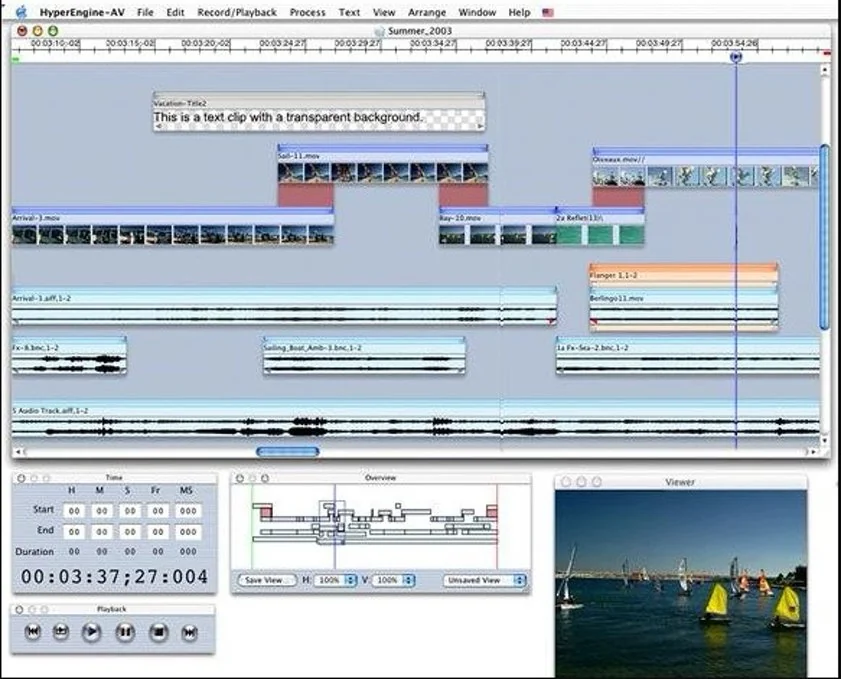
HyperEngine-AV specializes in creating video slideshows with professional broadcast quality. It's designed for users who need more sophisticated video output than typical slideshow on a Mac software provides.

Advanced timeline editing, professional transitions, and multi-track audio mixing set it apart from simpler tools. Export options include broadcast formats and high-resolution video files.

Pros:
  • Professional broadcast-quality output

  • Advanced timeline editing

  • Multi-track audio support

  • Excellent for video-heavy projects

Cons:
  • Steep learning curve

  • Expensive compared to alternatives

  • Overkill for simple photo slideshows

  • Limited template selection

14. Slides

  • Best for

    Web developers and designers who want precise control over presentation styling

  • Price

    Free plan available, Pro plans start at $8/month

  • Platform

    Web-based

Slides focuses on web-based presentation creation with a modern, minimalist interface. It emphasizes clean design and smooth animations while keeping the feature set manageable.

Real-time collaboration allows multiple editors to work simultaneously. Presentations are stored in the cloud and accessible from any device. Custom CSS support lets advanced users fine-tune the appearance.

Pros:
  • Clean, modern interface

  • Real-time collaboration

  • Custom CSS for advanced styling

  • Responsive design works on all screen sizes

Cons:
  • Limited template selection

  • Requires internet connection

  • Fewer multimedia options than desktop software

  • Monthly subscription required for advanced features

  • Best for

    Users who want to create visually focused, story-driven presentations

  • Price

    Free plan available, Pro plans start at $9.99/month

  • Platform

    Web-based, iOS app available

Haiku Deck emphasizes simplicity and visual storytelling. It's designed around the principle that presentations should have minimal text and maximum visual impact. The software guides you toward cleaner, more focused slides.

Built-in image search finds high-quality photos that match your content. Templates are designed by professionals but remain customizable. Charts and graphs integrate seamlessly with the visual design.

Pros:
  • Encourages better presentation design practices

  • High-quality image library included

  • Simple, clean interface

  • Good for storytelling presentations

Cons:
  • Limited customization options

  • Web-based only, requires internet connection

  • Small template selection

  • Best suited for specific presentation styles

  • Best for

    Educators, marketers, and presenters who want animated content

  • Price

    Free plan available, Pro plans start at $19/month

  • Platform

    Web-based

Powtoon specializes in animated presentations and video creation. It's particularly popular for explainer videos, educational content, and marketing presentations where animation can help illustrate concepts.

Pre-built characters, animations, and sound effects make it easy to create engaging animated content. Templates cover business, education, and creative presentations. Export options include video files for social media sharing.

Pros:
  • Excellent animation capabilities

  • Large library of characters and props

  • Good for educational and marketing content

  • Templates designed for specific industries

Cons:
  • Can look unprofessional if overused

  • Limited photo slideshow capabilities

  • Subscription required for video exports

  • Animation style may not suit all audiences

17. Emaze

  • Best for

    Users who want to create visually distinctive presentations

  • Price

    Free plan available, Pro plans start at $8.25/month

  • Platform

    Web-based

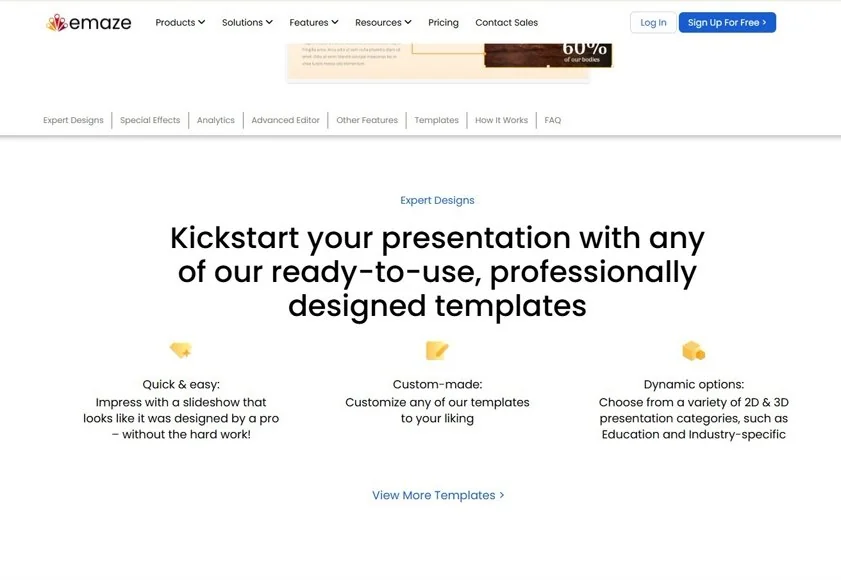
Emaze offers 3D presentation templates that create depth and visual interest beyond traditional flat slides. The software includes both standard slideshow formats and more creative 3D layouts.

Templates cover business, creative, and personal presentation needs. Collaboration features allow team editing and feedback. Analytics track viewer engagement and time spent on different slides.

Pros:
  • Unique 3D presentation formats

  • Good selection of modern templates

  • Collaboration and analytics features

  • Works across different devices

Cons:
  • 3D effects can be distracting

  • Requires internet connection

  • Limited offline capabilities

  • Subscription required for advanced features

How to Choose the Right Slideshow Software

The right slideshow software can turn your photos and videos into amazing stories. You can use it to make simple memories with your family or create professional presentations for work. The tools we talked about can help you do this, no matter how good you are with technology or how much money you want to spend. If you have a Mac, you can start with free options like Keynote or iMovie, and then move to more advanced tools like Movavi Slideshow Maker or Canva as you get better at making slideshows.

Movavi Slideshow Maker
An easy-to-use, yet efficient slideshow making program

Frequently asked questions

What's the easiest slideshow software for Mac beginners?

Movavi Slideshow Maker and Apple Photos are your best bets. Both offer drag-and-drop simplicity – just add photos, pick a theme, and you're done. Movavi's Easy Mode can create a polished slideshow in under 10 minutes.

Can I create professional presentations without PowerPoint?

Absolutely. Keynote delivers professional results and comes free with your Mac. For business use, it's actually preferred by many Mac users over PowerPoint because of better integration and smoother performance.

Which software is best for combining photos and videos?

iMovie excels at blending photos with video clips. HyperEngine-AV offers more advanced video editing features, while Movavi Slideshow Maker provides a good middle ground with timeline editing capabilities.

Are there good free alternatives to paid slideshow software?

Yes, several excellent free options exist:

Keynote (free with macOS)

LibreOffice Impress (completely free)

Google Slides (free with Google account)

Preview (basic but functional, already installed)

How do I add music to my slideshow without copyright issues?

Many slideshow programs include royalty-free music libraries:

Movavi Slideshow Maker includes built-in music and sound effects

iMovie has copyright-free soundtracks

YouTube Audio Library offers free music for any software

Adobe® Creative Cloud® Express includes licensed music

What's the difference between web-based and desktop slideshow software?

Desktop software (like Keynote, PowerPoint) offers:

• Offline editing capability

• Generally faster performance

• More advanced features

• Better handling of large files

Web-based tools (like Google Slides, Prezi) provide:

• Automatic cloud saving

• Real-time collaboration

• Access from any device

• No software installation required


Can I open PowerPoint files on Mac?

Yes, most Mac slideshow software can open PowerPoint files:

PowerPoint for Mac (perfect compatibility)

Keynote (good compatibility, some formatting may change)

LibreOffice Impress (decent compatibility)

Google Slides (imports most PowerPoint features)

Which software is best for business presentations?

For maximum compatibility: PowerPoint

For Mac-only environments: Keynote

For team collaboration: Google Slides

For design-heavy presentations: Canva or Adobe® Creative Cloud® Express

Have questions?
If you can’t find the answer to your question, please feel free to contact our Support Team.
Join us for discounts, editing tips, and content ideas

1.5M+ users already subscribed to our newsletter

By signing up, I agree to receive marketing emails from Movavi and agree to Movavi's Privacy Policy.