7 Best Alternatives to Filmora Video Editor

Edited by
Ben Jacklin
11,259

Key takeaways

  • Movavi Video Editor is our pick for beginner vloggers who want templates and AI tools in one desktop app for Windows and macOS.
  • DaVinci Resolve gives experienced editors professional color grading for free, with a steep learning curve.
  • CapCut and Clipchamp cover quick social clips; Clipchamp exports at 1080p without a watermark on its free plan.

The best alternatives to Filmora for beginners are Movavi Video Editor for lifestyle vlogs and unboxings, DaVinci Resolve for free color grading, and CapCut for short vertical clips. If you film daily routines and travel, review gadgets and games, or make quick ads for a small online shop, the seven tools below cover every budget, from free video editing in a browser to a full desktop editor for PC and Mac.

Filmora alternatives at a glance

Tool

Best for

Platforms

Free version

Starting price

Movavi Video Editor

Lifestyle vlogs: daily routines, unboxings, travel videos

Windows, macOS

60-second exports with a watermark

From $19.95 /month

CapCut

Beauty and fashion tips as vertical clips

Mobile, web, desktop

1080p; watermark on Pro assets or AI clips

From $9.99/month

DaVinci Resolve

Game highlight edits with detailed color

Windows, Mac, Linux

No watermark, nearly all tools included

$295 one-time

Clipchamp

Simple social media ads for Instagram or Facebook

Browser, Windows 11 app

1080p export, no watermark

$9.99/month via Microsoft 365 Personal

Canva

Brand posts and stories with short video inserts

Browser, desktop and mobile apps

Limits on paid templates and elements

From $15/month

VEED

Captioned tech tips and app recommendations

Browser, mobile app

720p, up to 10 minutes, watermark

From $12/month

Kapwing

Short cooking, recipe, and fitness clips with subtitles

Browser

720p, 1–4 minute exports, watermark

$24/month

How we picked

We chose video editing tools that handle what Filmora users do most: cutting a vlog, adding subtitles, and cleaning up audio. The criteria: features for those tasks, platforms (Windows, Mac, browser, phone), what the free version allows, starting price and subscription model, and the learning curve. Movavi Video Editor is our own product, so it sits first; the rest follow no score.

Why people look for Filmora alternatives

  • A watermark on every free export. Filmora’s free version always adds a watermark to your video.
  • AI depends on the plan. The Basic plan removes the watermark but comes without AI tools or the Effects Store. AI arrives with the Advanced plan and runs on a limited number of AI credits.
  • Extra assets cost extra. Additional effects sit in a separate Effects Store subscription that’s promoted inside the interface.
  • A busy learning curve. The many single-task AI features and fine-tuning settings can slow a beginner down.
  • Support and polish. User reviews mention support requests handled by a chatbot, and some advanced features, such as certain animations and shortcuts, that don’t behave as expected.

What Filmora does well

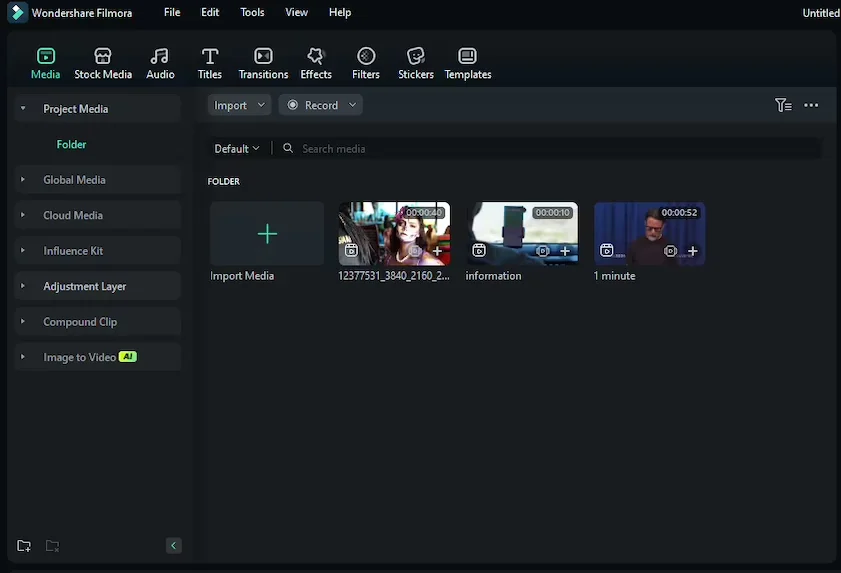
Filmora has strong AI tools: auto subtitles with translation, subject-tracked cropping, and automatic pause removal. It offers a large library of trending templates and effects, a multitrack timeline with keyframe animation and motion tracking, and an interface simpler than professional editors. It runs on Windows and Mac without powerful hardware, so a good alternative should match these on your task.

The 7 best Filmora alternatives

1. Movavi Video Editor

Best for: lifestyle vlogs, from daily routines to unboxings and travel videos.
Why we picked it:

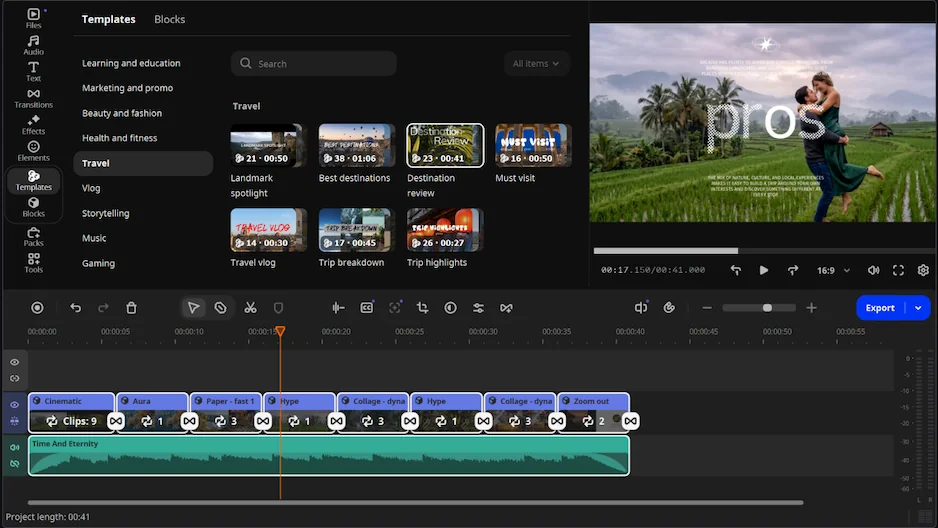
Movavi Video Editor is an intuitive video editor with customizable video templates, one-click AI tools, and hundreds of drag-and-drop effects. It's a desktop app for Windows and macOS. You hover over a clip or transition to preview it, then drag it onto the timeline, so your first travel vlog gets titles, transitions, and music on the first pass. Where Filmora gates AI behind its Advanced plan and credits, the Movavi full version includes every AI tool with no watermark or export limits.

Movavi Video Templates is a multi-style library of customizable, pro-looking, modular templates for any kind of video. Each one is a ready-made project of Blocks, short segments such as an intro or a photo montage, with music, text, and transitions already set. For a morning-routine vlog, you drop your clips into the Blocks and retype the titles. Several templates come with the full version; the whole library is a separate Movavi Templates subscription.

Key features:

  • AI subtitles: 100+ languages, 99% transcription accuracy, 60+ designs, and word-by-word highlighting synced to your voiceover.
  • AI audio noise removal: clears traffic, wind, and hums from a street vlog, with about 95% noise reduction.
  • Auto-silence removal and auto-tracked cropping: cut dead air from a gadget review, then reframe it as a vertical clip with you centered.
  • Movavi Effects: 10,000+ effects and 1,500+ tracks, previewable on your own video before buying.
  • Movavi Ideas: free step-by-step tutorials, with new editing ideas every week.
Pros:
  • Covers editing basics: frame-precise Blade cuts, speed up to 100x, color presets with manual fine-tuning.

  • Copyright-free music and sounds built in.

Cons:
  • Lacks advanced, detailed controls for a professional workflow.

  • No flexible interface customization.

  • No web version or cloud integration.

  • Hundreds of effects and several templates come with the full version, but additional sets require separate subscriptions.

Price and platforms: a desktop app for Windows 10 and 11 (64-bit) and macOS 12.0 or higher. You can start with Movavi Video Editor Free and add tools as projects grow; a free version is available (60-second export cap, watermark); the full version removes both. Plans start at $9.95/month. The whole template library needs a Movavi Templates subscription

2. CapCut

Best for: beauty and fashion tips posted as vertical clips.

Why we picked it:

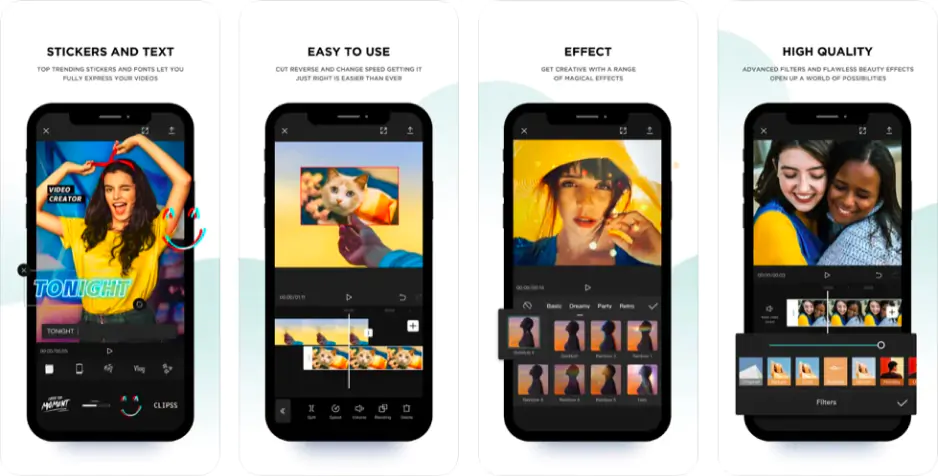
CapCut is a mobile-first editor for short, trending videos, part of the TikTok ecosystem, with desktop and web versions. Like Filmora, it offers auto subtitles with translation and AI auto-tracked cropping. Pick it over Filmora if your skincare tips start on your phone and end up as Reels.

Key features:

  • Trending templates for TikTok, Reels, and Shorts.
  • Speed ramping presets, keyframe animation, and chroma key.
  • Pro AI toolkit: camera tracking, relighting, retouching, AI voiceover, background replacement.
Pros:
  • Free plan exports at 1080p.

  • Desktop tools mirror the mobile app.

Cons:
  • The best templates and effects are marked Pro, and Pro AI runs on credits.

  • Some features need an internet connection and an account.

Price and platforms: Windows, Mac, mobile, and browser. Free tier available (watermark only on Pro content or AI clips); paid tiers unlock 4K and the full AI toolkit. Paid plans start at $9.99/month.

3. DaVinci Resolve

Best for: game reviews and highlight edits with detailed color.

Why we picked it:

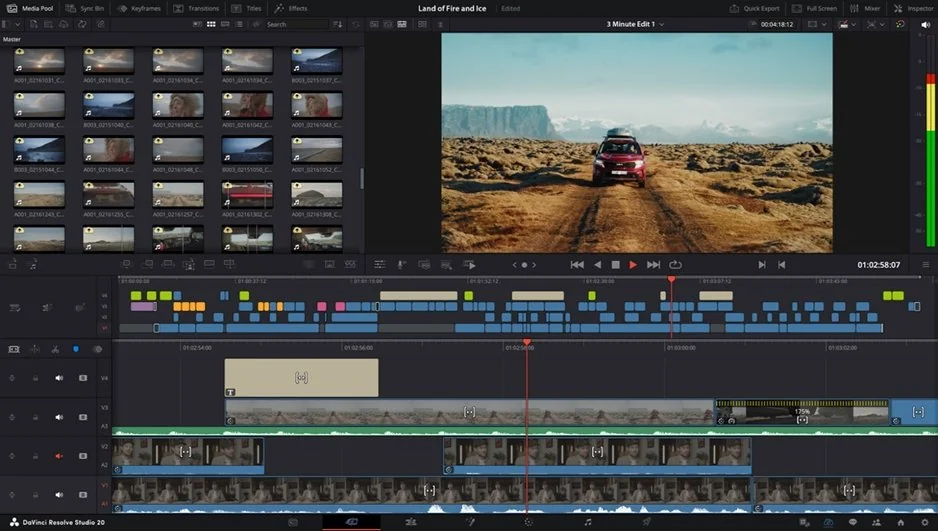
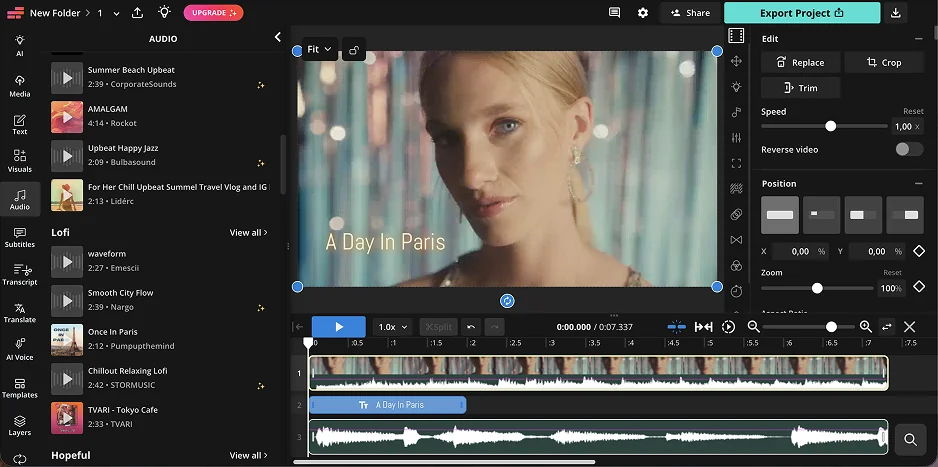
DaVinci Resolve splits editing, color, audio, and VFX into separate modules: Edit, Color, Fairlight, and Fusion. Its free version has no watermark or time limit. Compared with Filmora, control goes far deeper, but tools need manual fine-tuning, so it suits an experienced editor after film-grade color grading.

Key features:

  • Color correction with Nodes, secondary correction, HSL, HDR grading, and LUTs.
  • Fairlight audio with EQ, dynamics, and reverb.
  • Speed Ramps with frame-by-frame control.
Pros:
  • The free version includes nearly all editing, color, audio, and VFX tools.

  • Runs on Windows, Mac, and Linux.

Cons:
  • Resource-intensive; powerful hardware is recommended.

  • No built-in licensed music library; auto subtitles need a third-party plugin.

Price and platforms: Available across Windows, macOS, and Linux. The standard version is completely free ($0), while DaVinci Resolve Studio costs a one-time fee of $295 for a perpetual license.

4. Clipchamp

Best for: simple social media ads for Instagram or Facebook.

Why we picked it:

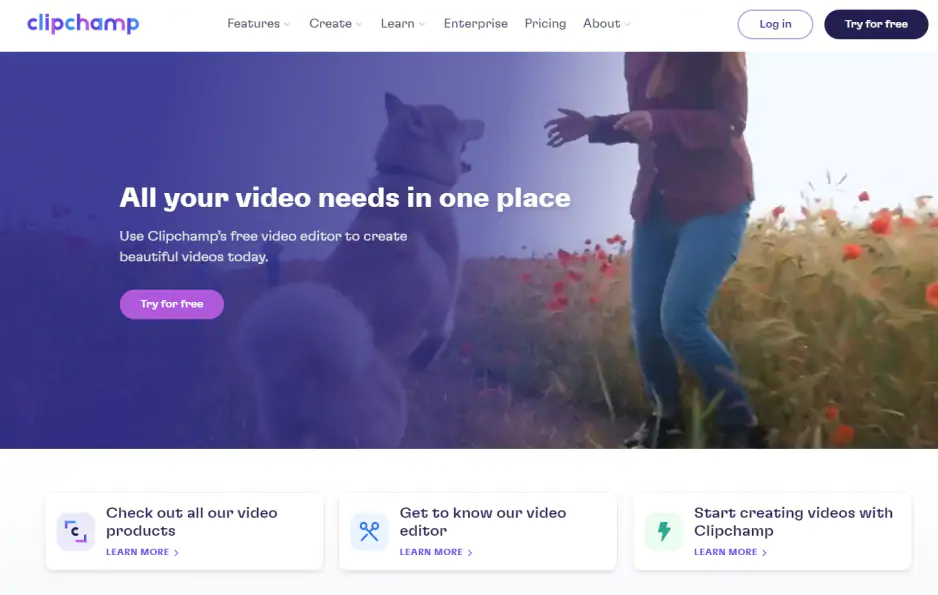
Clipchamp is Microsoft's browser-based editor, built into Windows 11 and Microsoft 365. It covers basic editing with a simple timeline. Next to Filmora, the toolset is much smaller.

Key features:

  • Screen and webcam recording.
  • Free AI auto subtitles, silence removal, audio noise reduction, and AI voiceover.
  • Templates for social media, work, and school.
Pros:
  • Free 1080p exports with no watermark.

  • AI features cost nothing extra.

Cons:
  • Large files can cause lag and export freezes.

  • No auto-reframing with subject tracking; chroma key removes only blue, red, or green.

Price and platforms: Browser (Edge or Chrome), Windows 11 app, and iOS app. Free plan; Premium costs $11.99/month and is also included with Microsoft 365 Personal and Family.

5. Canva

Best for: brand posts and stories with short video inserts.

Why we picked it:

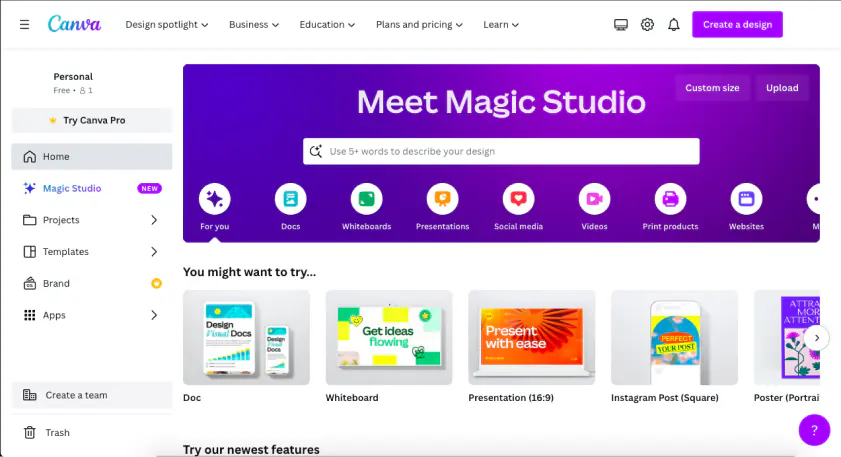
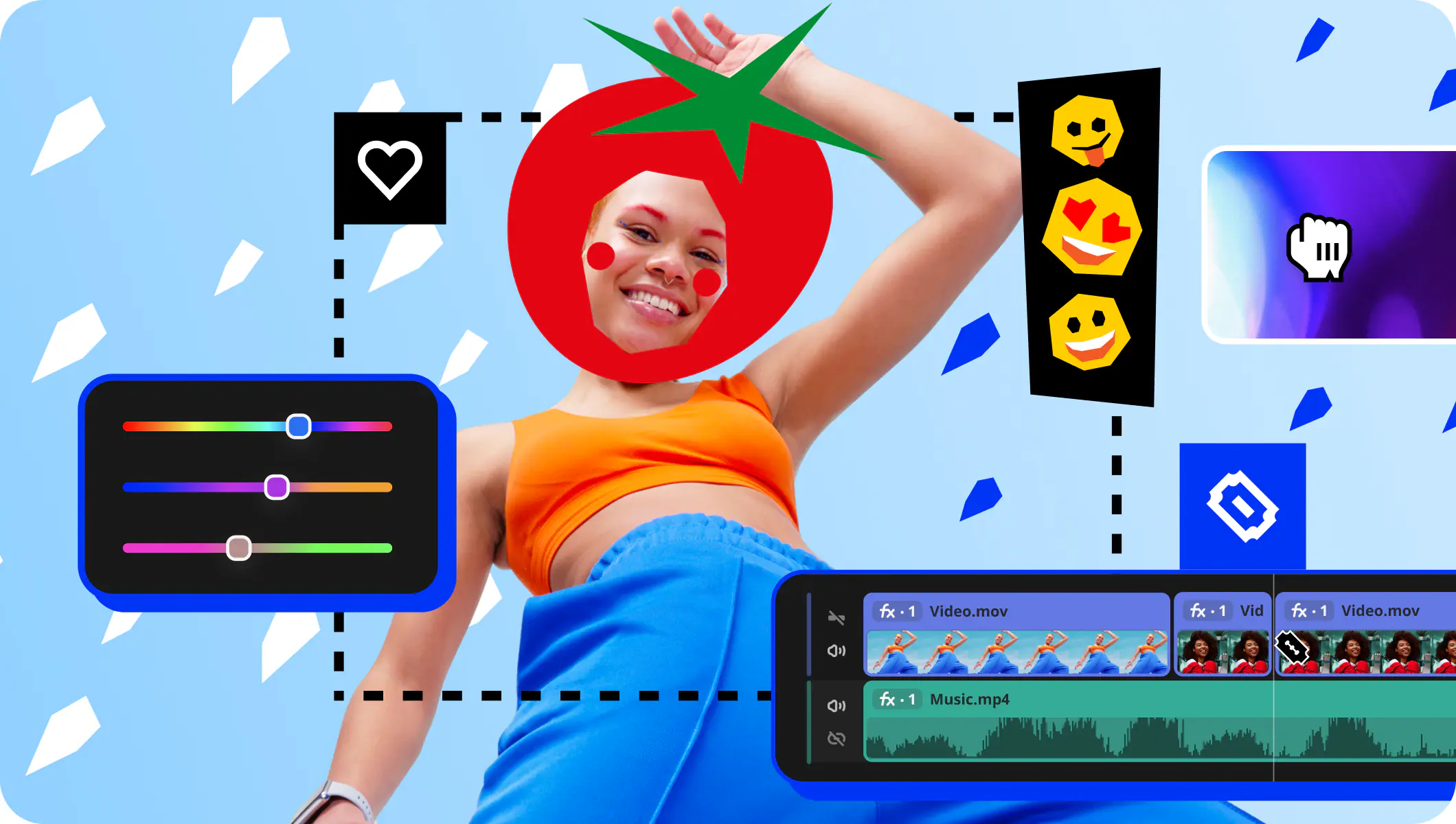
Canva is a graphic design builder with video as a secondary format. Compared with Filmora, you get less control over the timeline, audio, and color, but a promo that mixes graphics and a short clip comes together fast.

Key features:

  • A large library of design templates for posts, stories, and promos.
  • Beat Sync matches clips to the music's rhythm (Pro).
  • AI background removal in video (Pro).
Pros:
  • Huge choice of fonts and text animations.

  • Design and video in one place.

Cons:
  • Around nine basic transitions.

  • Slows down on long videos and heavy files.

Price and platforms: Browser, desktop, and mobile apps. Free plan; Pro costs $18/month or $144/year.

6. VEED

Best for: captioned tech tips and app recommendations.

Why we picked it:

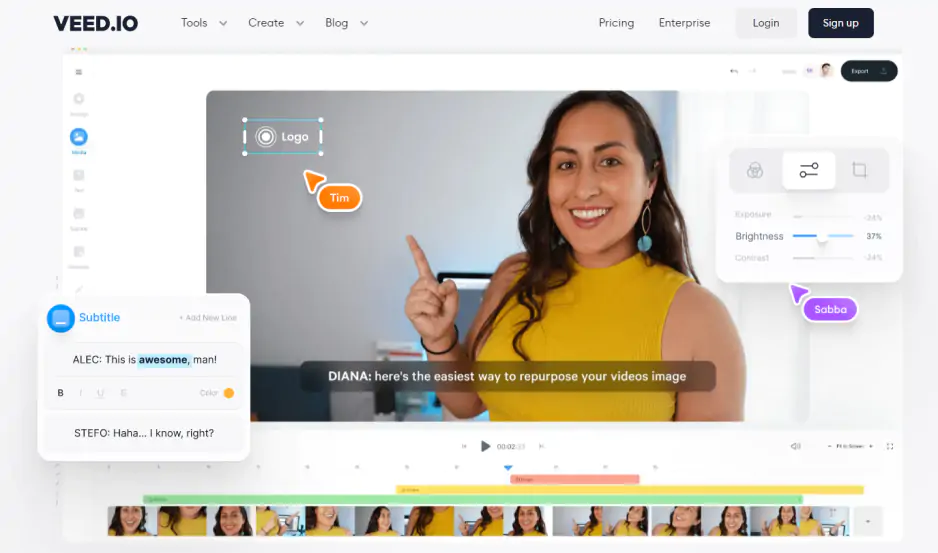
EED is a browser-based AI editor for team collaboration and business videos. Unlike Filmora, there's nothing to install, but its AI also runs on credits, spent per action.

Key features:

  • Remove Silences cuts pauses and filler words automatically.
  • Clean Audio removes background noise in one click (Pro plan and above).
  • AI subtitles with translation into other languages.
Pros:
  • Real-time collaborative editing in the browser.

  • Accurate auto subtitles with styles, according to user reviews.

Cons:
  • The free plan caps exports at 720p and 10 minutes, with a watermark and a 1 GB upload limit.

  • Long, heavy projects can lag; there are only 42 effects.

Price and platforms: Browser and mobile app. Free; paid plans from $12/user/month, billed yearly.

7. Kapwing

Best for: short cooking, recipe, and fitness clips with subtitles.

Why we picked it:

Kapwing is a browser-based editor for teams and social videos, with real-time collaboration. Like Filmora, it offers automatic pause removal and auto subtitles, but you and a co-creator can work on the same project at once. Its AI tools run on credits with a monthly allowance.

Key features:

  • Smart Cut removes pauses automatically.
  • AI Clip Maker and auto subtitles for multilingual audiences.
  • Templates for social media videos.
Pros:
  • Real-time collaborative editing with a co-creator.

  • A template gallery plus blog guides.

Cons:
  • Paid stock and some templates are available only on paid plans.

  • The free plan adds a watermark, exports at 720p for 1 to 4 minutes, and limits AI features.

Price and platforms: Browser. Free; Pro from $24/month.

8. iMovie

Best for: First vlogs and school projects on a Mac or iPhone.

Why we picked it:

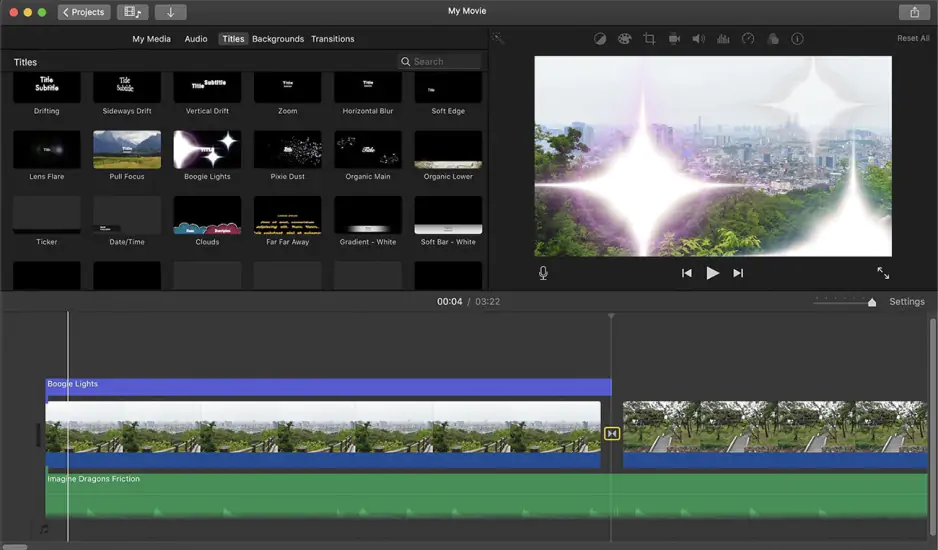
Apple's simple editor comes preinstalled on Apple devices and includes ready-made trailer templates. For someone trying editing for the very first time, it's the shortest path to a finished clip.

Best templates for: Trailer-style recaps.

Key features:

  • Trailer templates. Ready-made designs in a movie-trailer format.
  • Basic editing. The core tools for simple family videos and school projects.
  • Simple color correction. Quick fixes without a grading panel.
Pros:
  • No watermark and no export limits.

  • Already installed, so there's nothing to set up.

  • Clear enough for a first attempt at editing.

Cons:
  • Apple devices only.

  • Few effects and a modest music library.

  • Weak export control and almost no AI features.

Price and platforms: Mac, iPhone, and iPad only. Completely free, with no paid tier or watermark.

Our pick: how to choose a Filmora alternative

For most beginner vloggers, our pick is Movavi Video Editor: templates handle structure and AI tools handle cleanup. Editing on your phone for TikTok? CapCut. Professional color for an experienced editor? DaVinci Resolve. A free ad on a Windows PC? Clipchamp. Graphics-first posts go to Canva, captioned browser edits to VEED, team-edited social clips to Kapwing.

Have questions?
If you can’t find the answer to your question, please feel free to contact our Support Team.

Frequently asked questions

Is there a free Filmora alternative without a watermark?

Yes: DaVinci Resolve's free version and Clipchamp's free plan (1080p) export without one. Movavi Video Editor Free adds a watermark, caps exports at 60 seconds, and doesn't export in 4K.

What's the best Filmora alternative for Mac?

Movavi Video Editor runs on macOS 12 or later with native support for Apple M1 and newer chips. DaVinci Resolve also runs on Mac if you need advanced color grading.

Which editor is easy for a beginner with no editing experience on PC?

Movavi Video Editor runs on Windows 10 and 11, and each Movavi Ideas tutorial takes under a minute to follow. Clipchamp is built into Windows 11.

Is there a cheap Filmora alternative I can buy once?

DaVinci Resolve Studio is a one-time purchase rather than a subscription, at $295. For a monthly plan, CapCut Standard and Microsoft 365 Personal (which includes Clipchamp Premium) both start at $9.99.

Which file formats does Movavi Video Editor support?

Video: MP4, MOV, AVI, MKV, WMV. Audio: MP3, WAV, FLAC. Images: JPEG, PNG, BMP, static GIF.

Join us for discounts, editing tips, and content ideas

1.5M+ users already subscribed to our newsletter

By signing up, I agree to receive marketing emails from Movavi and agree to Movavi's Privacy Policy.