Movavi Video Editor

Add subtitles that people can actually follow

By clicking the download button, you're downloading a free version of the program.*

Add Subtitles to a Video on a PC and Mac

Automatic subtitles when typing feels tedious

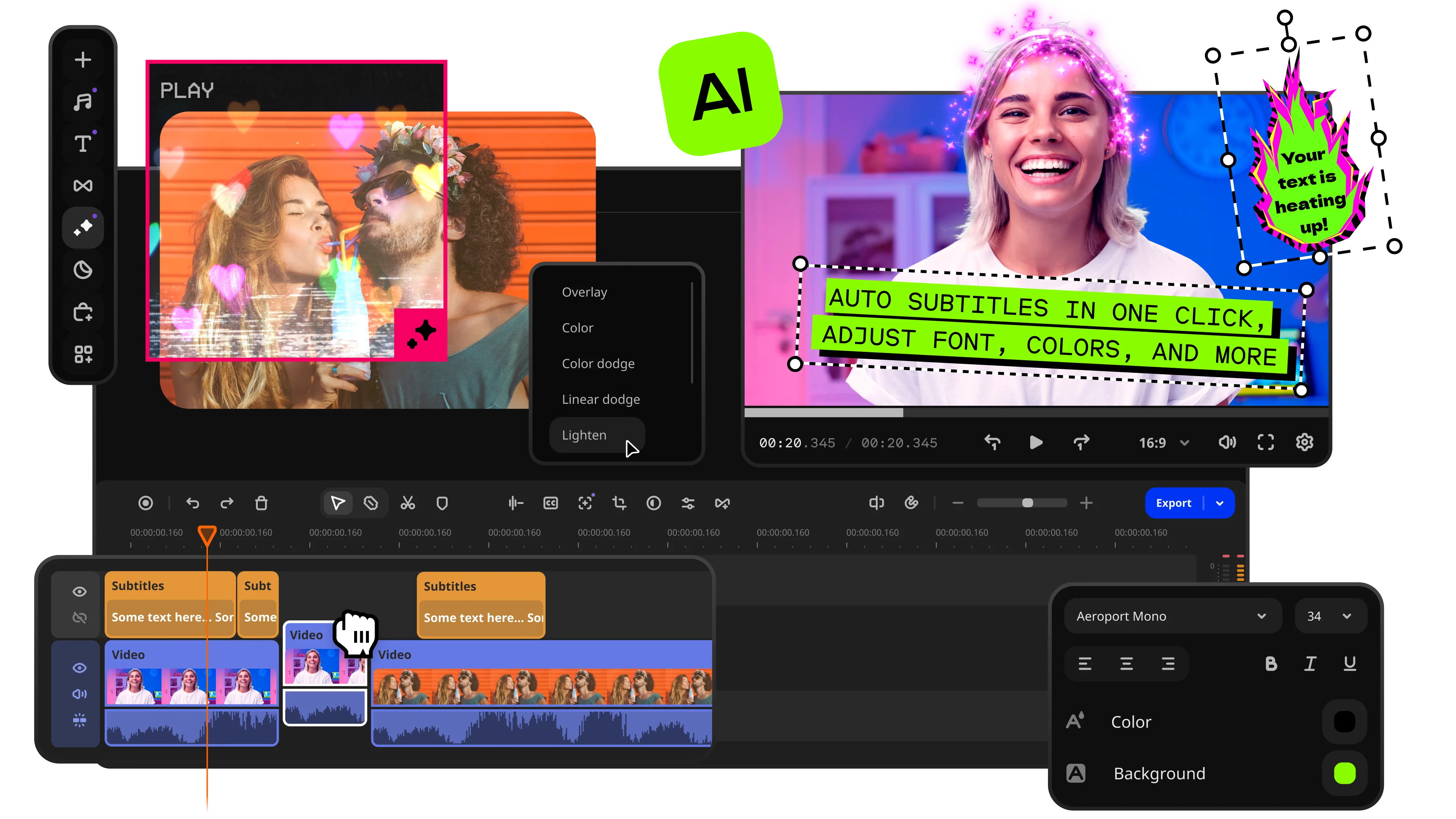
Long recordings can make subtitles feel slow and repetitive. In Movavi Video Editor, you can generate subtitles automatically for interviews, tutorials, lectures, or other speech-heavy videos. You’ll still need to check the text, but the first draft appears much faster.

Manual control when timing matters

Some captions need a human touch. A joke works better with the right timing, and a tutorial gets confusing if the text appears too early. Movavi Video Editor lets you add text manually, adjust timing, choose the style, and place subtitles away from faces or important buttons.

Export with subtitles already built in

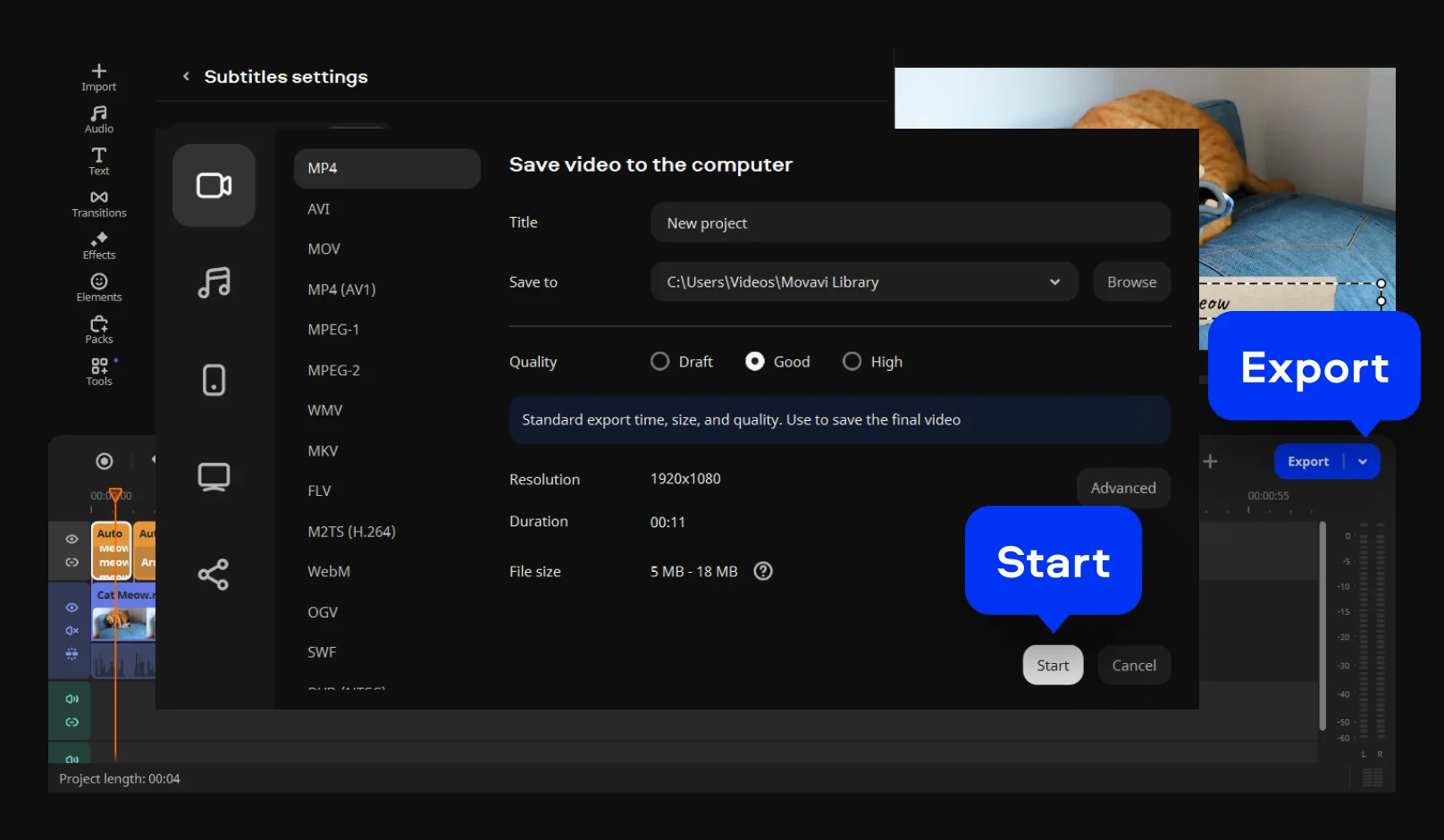
Once everything looks right, export the finished file with subtitles included. Save it to your computer, send it to a client, or prepare it for online sharing – no separate subtitle track or extra explanation needed.

Easily add captions to videos

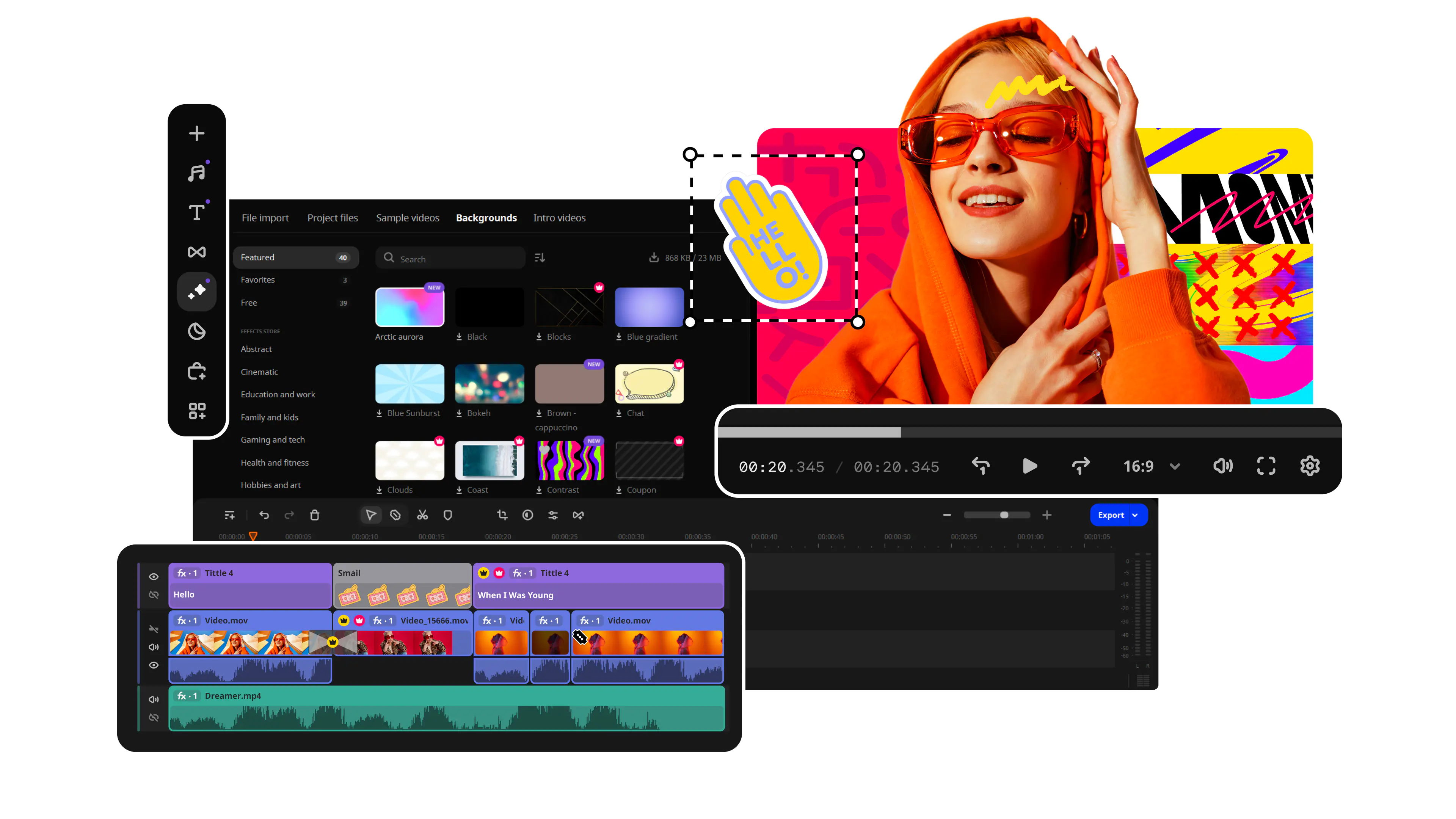
Movavi Video Editor is a program with an intuitive interface for editing and adding captions for videos without making the task complicated. Here you have options such as auto subtitles, manual text adjustment, styles and formatting, and the traditional timeline where all actions take place clearly.

Moreover, it functions perfectly as a video caption adder, since it offers additional editing tools that will make it possible to work on other aspects apart from text insertion: trimming the video, improving the sound quality, adjusting colors, inserting titles and subtitles. This app will be helpful for PC and Mac users who need to be in control but don’t want to waste hours looking for different features.
How to add captions to videos

Step 1. Install Movavi Video Editor and import your video

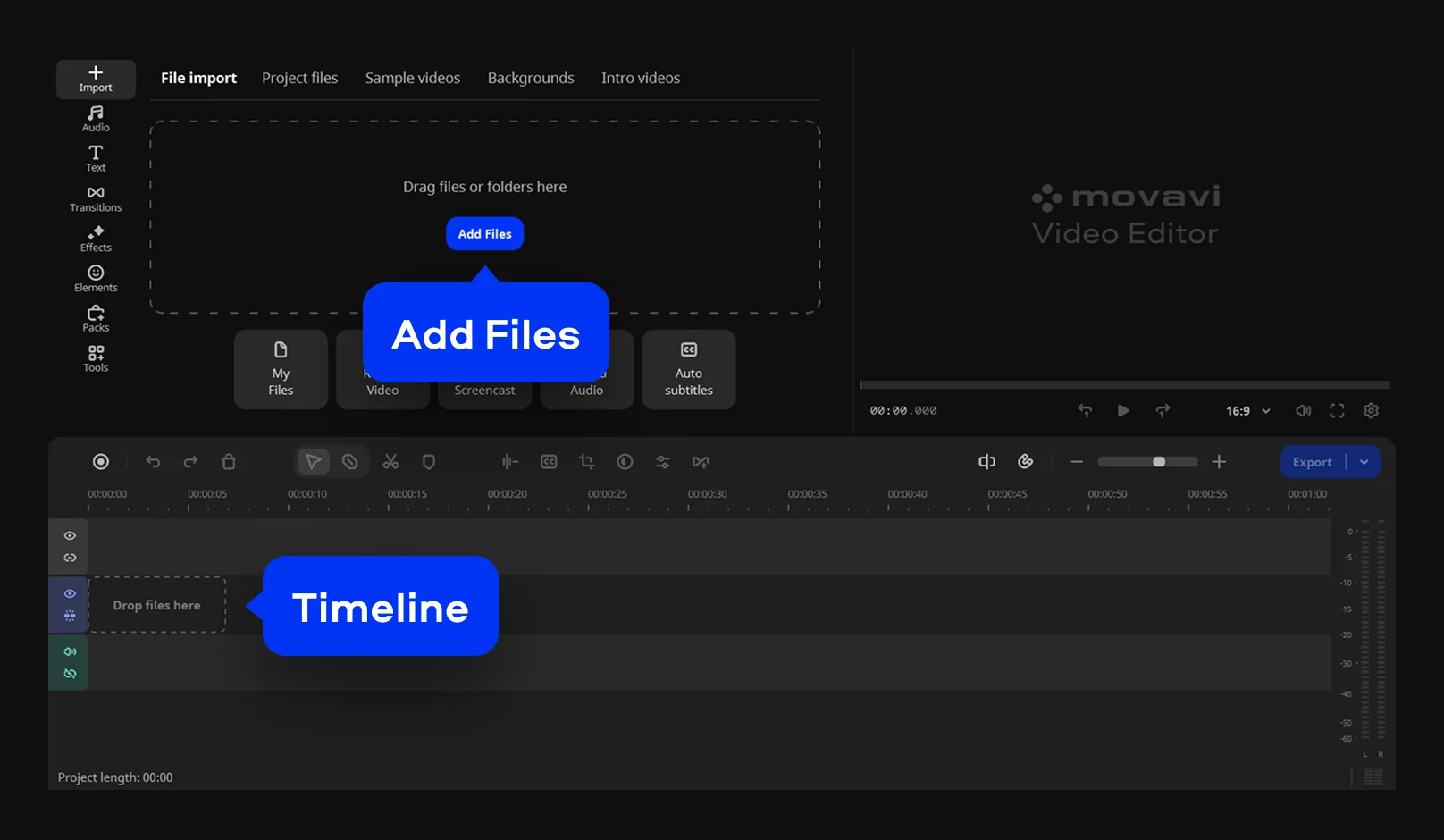
To begin using Movavi Video Editor, install it, launch it, and create a new project. You can add files by selecting Add files or simply dragging and dropping your video clip into the software interface. Formats like MP4, MOV, AVI, and MKV are easily accepted.

Step 2. Add subtitles

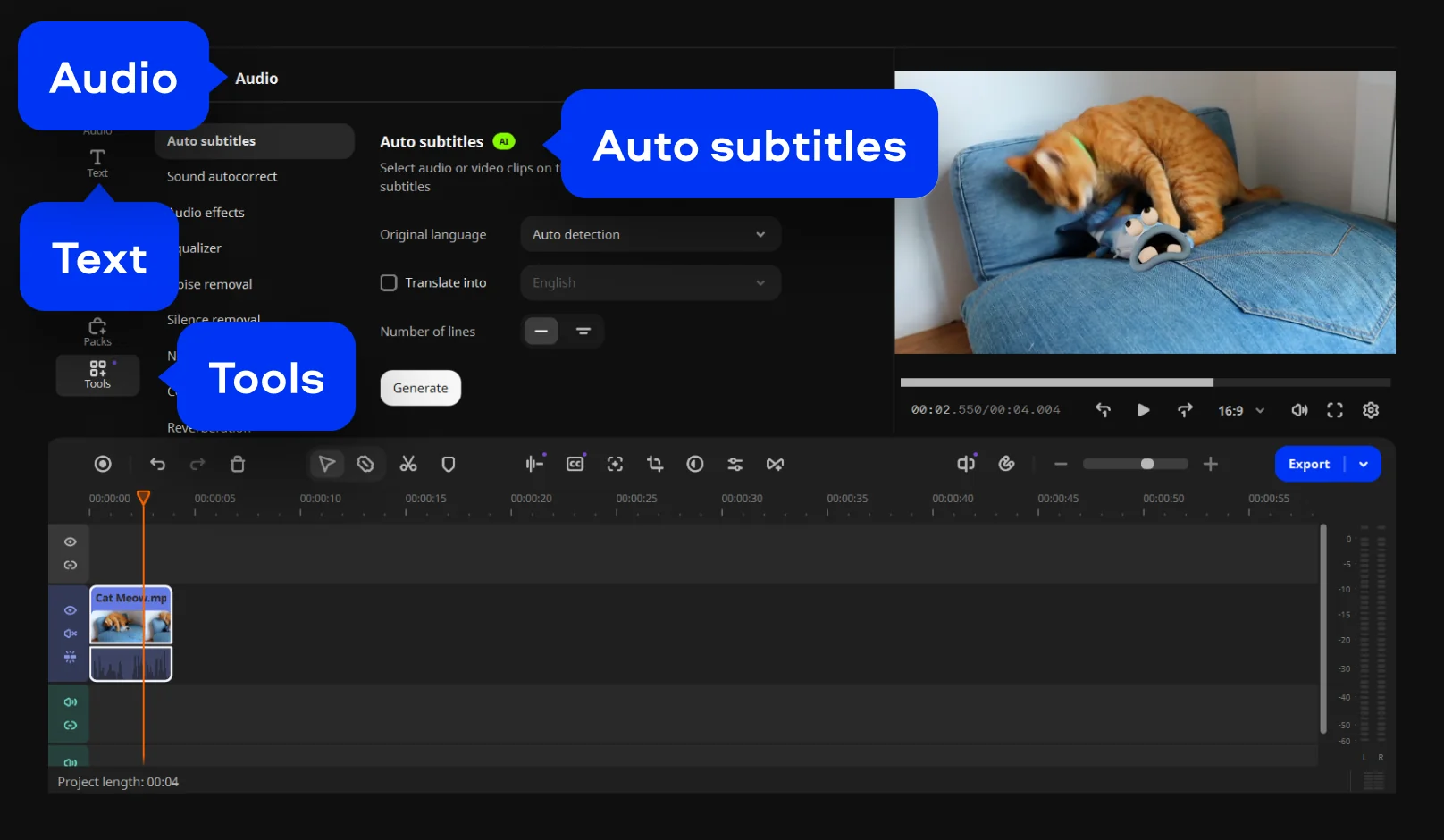
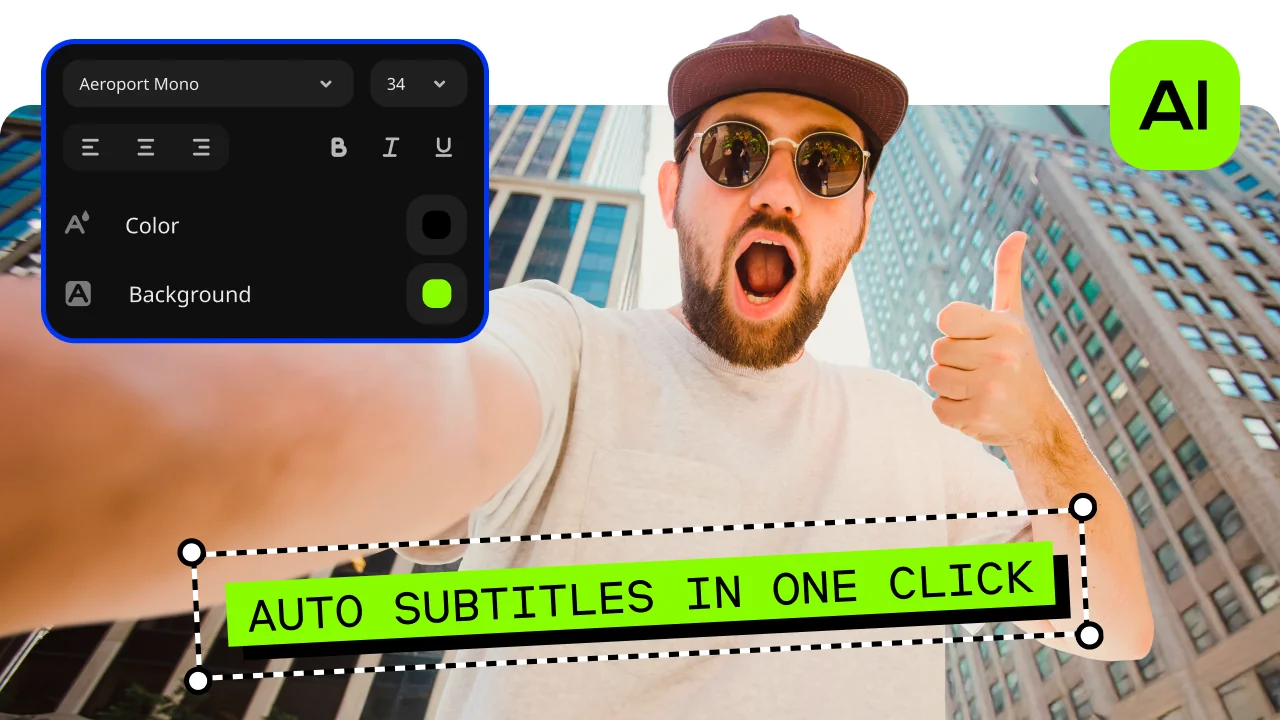
If you’re figuring out how to add subtitles to a video quickly, you should apply the auto-subtitle function. Go to the Tools menu, select Audio, and click on Auto subtitles. If you want more precision, open the Text menu, apply a text preset, insert subtitles manually, and edit them according to the timeline. Modify the fonts, sizes, colors, styles, and positions so that your subtitles remain visible.

Step 3. Export the result

Make sure you review the entire video clip before you embed the subtitles. Finally, click the Export button, specify the settings, and hit Start. That is how to add captions to videos.

Movavi Video Editor
Create awesome videos easily

*The free version of Movavi Video Editor may have the following restrictions depending on the build: watermark on exported clips, 60-second video or 1/2 audio length limit, and/or some advanced features unavailable when exporting videos.

Frequently asked questions

How do I insert a subtitle in a movie?

The movie is added in an editing software program where the subtitle track is inserted. The sentence is entered and placed where appropriate in the dialogue. Synchronization of the subtitle with the dialogues is done along with adjusting the subtitle length for proper fading-in and fading-out. Movavi Video Editor offers two ways of adding the subtitle; manually or automatically.

How do I add subtitles to a movie that doesn't have them?

Creation is done in one of two ways; either typing out the lines of dialogues manually into the text fields or automatically generating subtitles and editing them. In case you have the SRT subtitles that you wish to use, you can start from there and edit the subtitles accordingly.

Where can I add subtitles for free?

You can add subtitles to a video for free with browser-based tools, including Movavi’s online subtitle tool. That’s handy for a quick clip. For longer videos, desktop editing is usually more comfortable because timing, styling, and export settings are easier to control.

How much does it cost to subtitle a movie?

It all depends on how long the movie is and how professional the subtitles should be. In-house subtitle creation will cost nothing apart from the editing software used, while paid subtitle services work on a per-minute basis and also consider the language and urgency. Automated tools cost less, but proofreading is required.

Movavi Video Editor
Create awesome videos easily

*The free version of Movavi Video Editor may have the following restrictions depending on the build: watermark on exported clips, 60-second video or 1/2 audio length limit, and/or some advanced features unavailable when exporting videos.

Join us for discounts, editing tips, and content ideas

1.5M+ users already subscribed to our newsletter

By signing up, I agree to receive marketing emails from Movavi and agree to Movavi's Privacy Policy.